Table of Contents
This practical guide explains how to set imessage group wallpaper on iPhone. Follow the steps in order, review the requirements first, and use the troubleshooting notes when a setting or option does not work as expected.
How to setting iMessage group wallpaper on iPhone
Step 1:
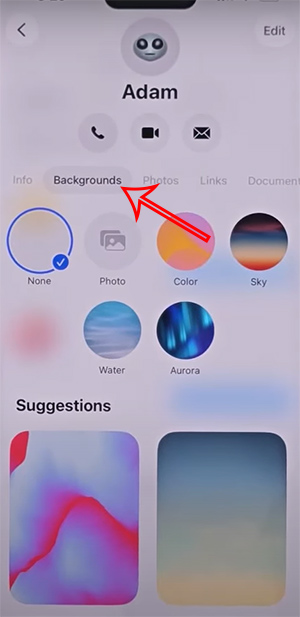
You access the iMessage chat group on iPhone you want to set the wallpaper for, then select the chat group name and select Backgrounds to choose the wallpaper.
Below you will see many wallpapers for us to choose from. There are different wallpaper themes for us to use according to our preferences.
Step 2:
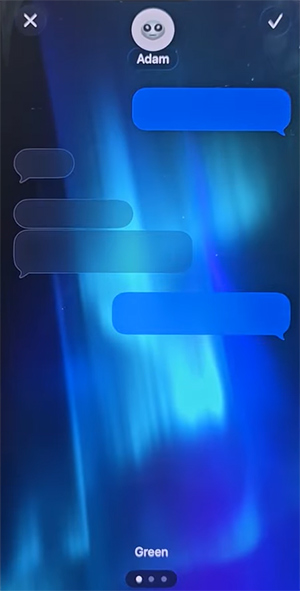
When you tap on a wallpaper, you'll see a different color option to apply to the moving wallpaper in an iMessage group on iPhone.
Step 3:
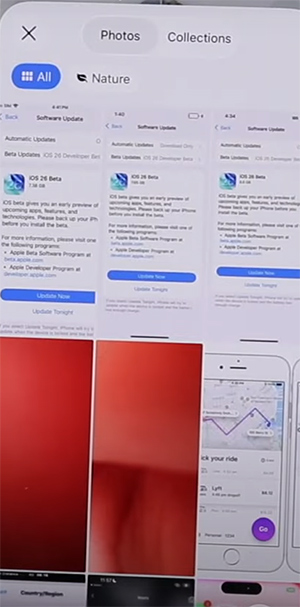
In addition, we can choose available photos in the album to set as the background of the iMessage chat group on the iPhone. You select Photos to display the available photos in the album on the phone. After selecting the photo to set as the background of the iMessage chat group on the iPhone, you click the v in the upper right corner to save.
FAQ
How to setting iMessage group wallpaper on iPhone?
You access the iMessage chat group on iPhone you want to set the wallpaper for, then select the chat group name and select Backgrounds to choose the wallpaper.
What does this guide cover?
This guide explains set imessage group wallpaper on iPhone, including the main steps, important details, and practical considerations.
Who is this guide for?
It is designed for readers who want a clear, practical overview and a reliable process they can follow without unnecessary complexity.
Related Articles
 How to Fix the Error of Not Being Able to Change IMessage Wallpaper5 minutes read
 Common Imessage Errors and How to Fix It8 minutes read
 iPhone 16e Wallpaper, iPhone SE 4 Wallpaper4 minutes read
 How to Fix Errors Waiting to Activate Imessage on iPhone7 minutes read
 10 Messaging Tips on iPhone You Should Not Ignore6 minutes read
 6 iMessage Apps for Group Chats4 minutes read
Reader Comments 0
Sign in with email or Google to join the discussion.