Table of Contents
To create an automatic table of contents in WPS Writer, apply heading styles to your section titles, insert a table from the References tab, then update it after editing. Making text bold or increasing its font size alone does not reliably mark it as a heading.
These steps describe the desktop Writer interface shown in the screenshots. Menu names and available controls may differ on mobile or between releases.

1. Apply heading styles
Open the document and select a section heading, or place the cursor in its paragraph. On Home > Styles, choose the appropriate heading level.
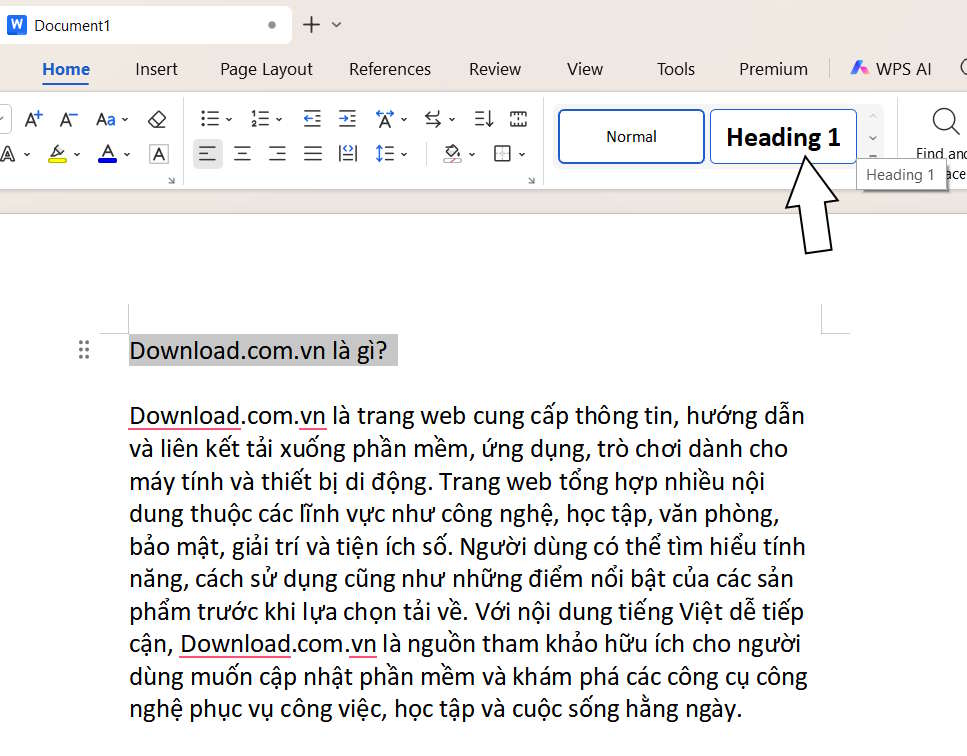
- Heading 1: Main sections or chapters.
- Heading 2: Subsections within a main section.
- Heading 3: A further subdivision within a subsection.
Apply styles consistently throughout the document. For example, “Installation” and “Troubleshooting” might both be Heading 1, while individual troubleshooting topics use Heading 2. Do not make every line a heading just to include it in the contents.
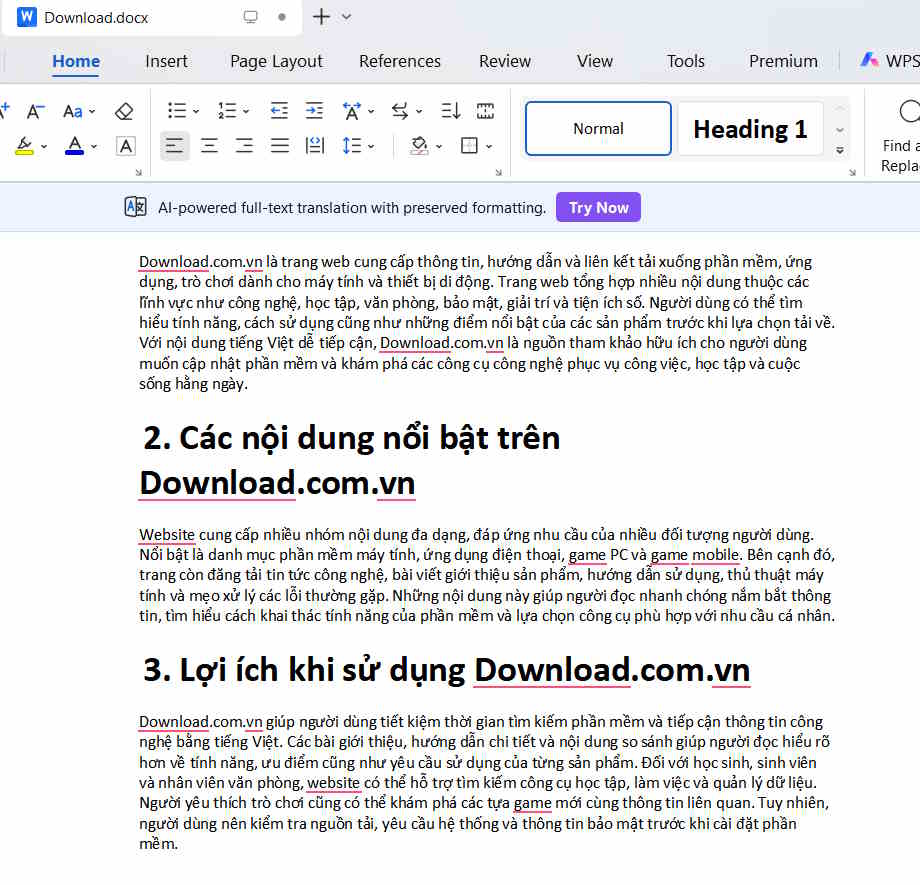
2. Insert the table of contents
- Place the cursor where the table should appear, usually near the beginning after the title page.
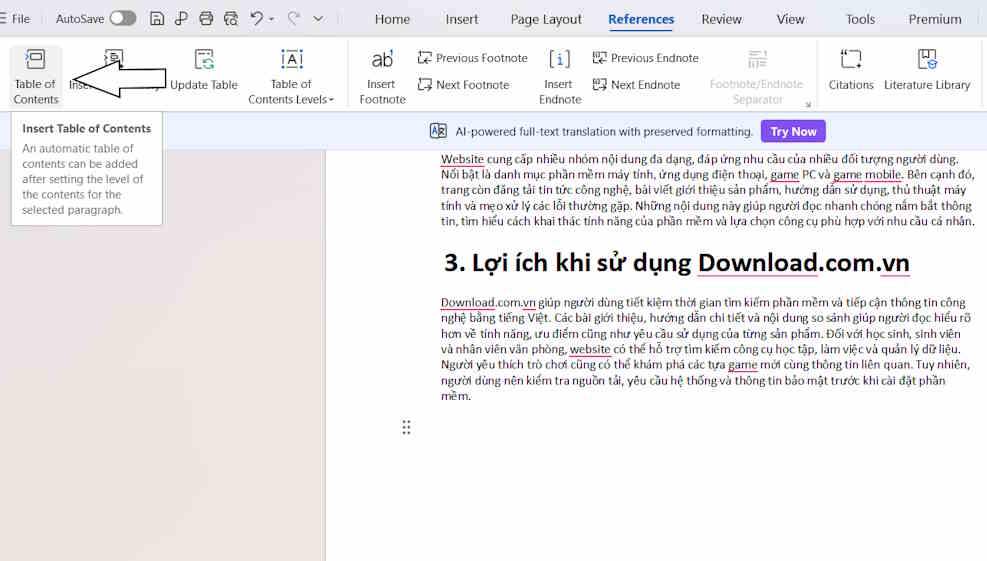
- Open References > Table of Contents.
- Select a suitable preset or open the custom settings shown in your version.
- Choose the heading levels to include and confirm the insertion.
If you need the contents on a separate page, use a page break rather than repeatedly pressing Enter. That prevents later edits from pushing a stack of empty paragraphs through the document.
3. Set page numbers, leaders and links
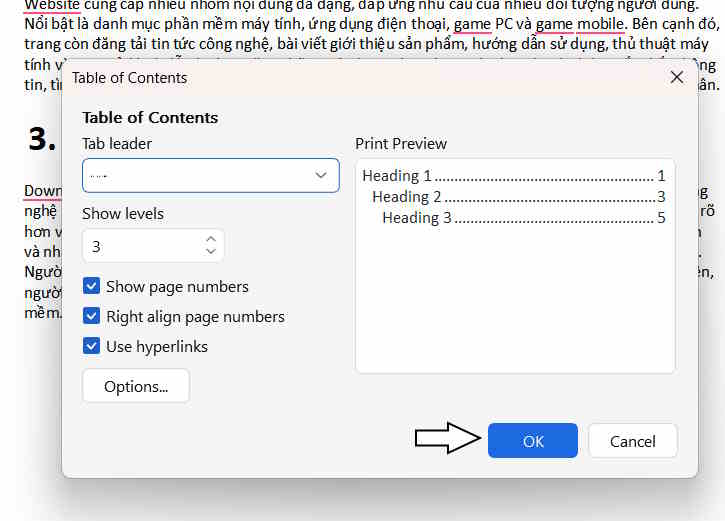
- Show page numbers: Includes the page number beside each entry.
- Right align page numbers: Lines up those numbers at the right side.
- Tab leader: Fills the gap with dots or another selected style.
- Use hyperlinks: Links entries to their corresponding headings.
Choose the settings that suit the document and click OK. Check long titles for awkward wrapping before continuing.

4. Update after changing the document
An automatic table does not mean every change is always reflected immediately. Click inside the table and use Update TOC, Update Table or the corresponding update command in your version.
- Update page numbers only: Use when the headings are unchanged but text has moved to different pages.
- Update entire table: Use after adding, deleting, renaming or changing the level of a heading.
Apply a heading style to any new section before updating. Do not insert another table each time you add a chapter, and do not manually type corrections into the generated entries: a later update can overwrite them.
Fix common problems
- A heading is missing: Confirm its paragraph uses the intended heading style and that the table includes that level.
- Ordinary text appears: Change that paragraph back to a body-text style, then update the entire table.
- The hierarchy is wrong: Correct the heading level in the document itself.
- Page numbers are wrong: Finish layout changes and update the table. For header or footer numbering, see numbering pages in WPS Office and omitting the first page number.
Before printing or exporting, update the entire table, check several entries against the actual pages and test the links. WPS provides an official update tutorial if the command is difficult to find.
Related Articles
 Create automatic table of contents in Word 2003
 How to create an automatic table of contents in Word 2019/2016/2010/2007
 Create automatic table of contents in Word for Word 2007, Word 2010 to Word 2019
 How to create an image table of contents in Word?
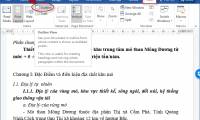 How to create automatic table of contents in Word 2016
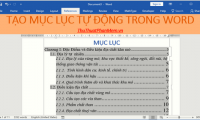 How to do automatic table of contents in Word 2013, 2016
Reader Comments 0
Sign in with email or Google to join the discussion.