Table of Contents
Conditional formatting in WPS Spreadsheet changes a cell's appearance when a rule is true. You can use it to flag repeated values, numbers above a threshold or overdue tasks without changing the underlying data.
The examples below use the desktop interface. Menu wording may differ by version. Start with a clear header row and consistent number and date values; see preparing clean tables and data types if the source data is inconsistent.

Highlight duplicate values
- Select the values you want to compare, such as B2:B11, excluding the header.
- Choose Home > Conditional Formatting > Highlight Cells Rules > Duplicate Values.
- Select the duplicate option, choose a visible format and confirm.
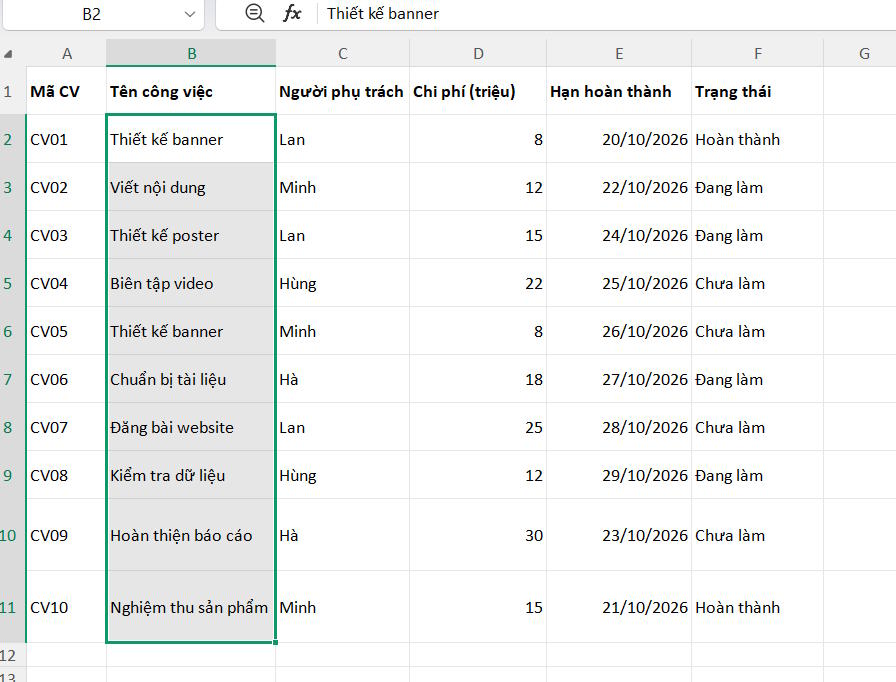
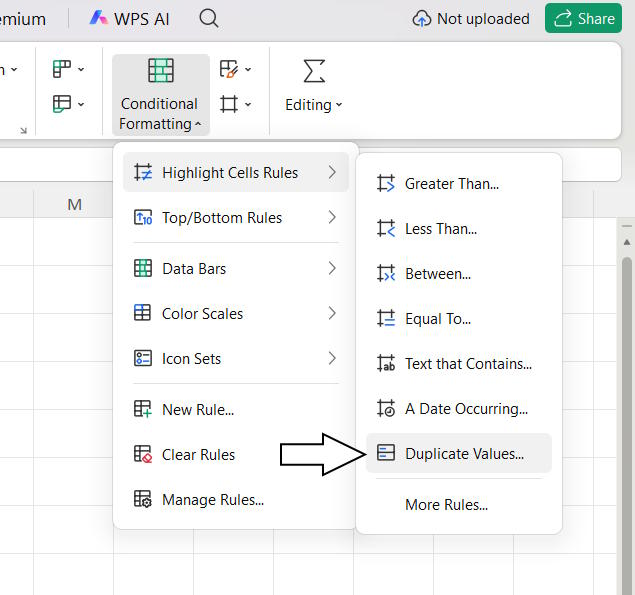
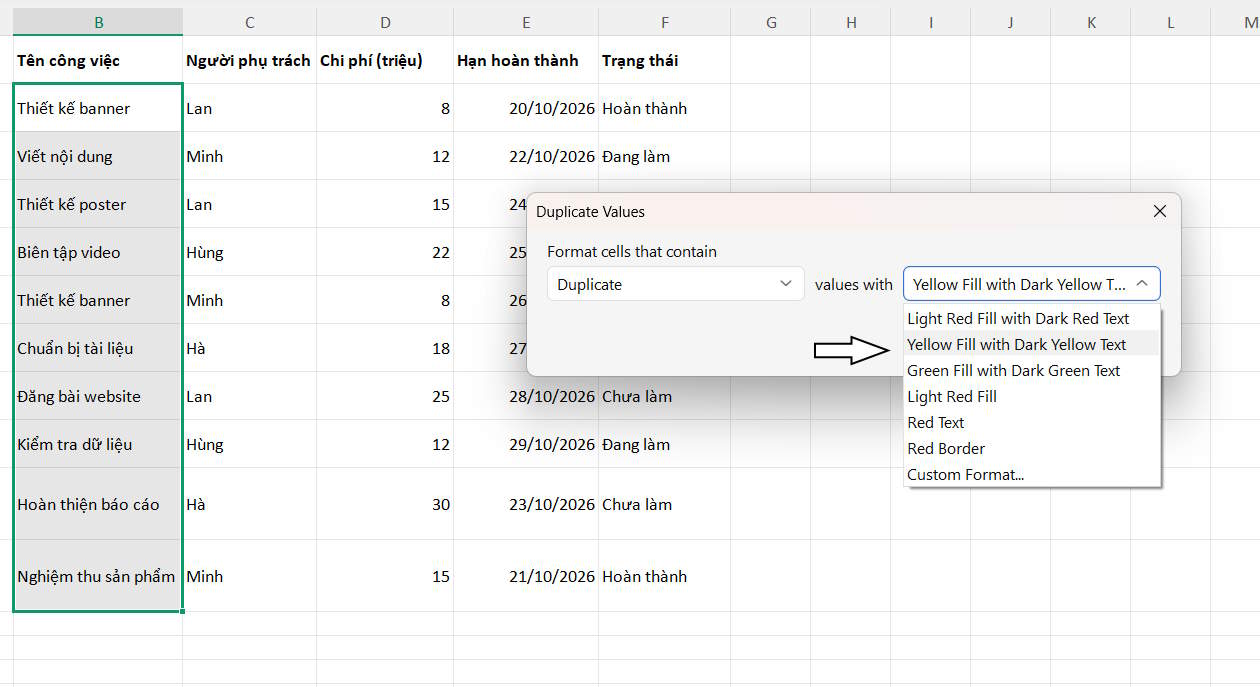
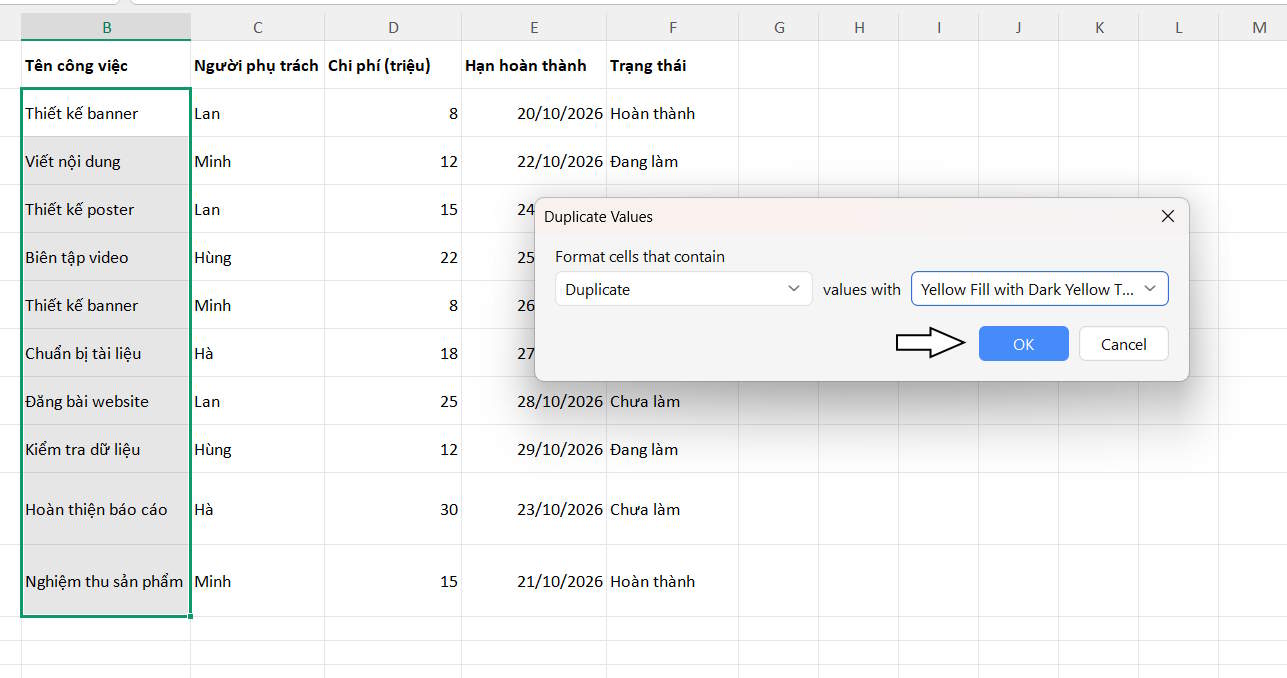
Matching values in the selected range are highlighted. This identifies repeated cell values; it does not prove that complete records are duplicates, and it does not delete anything.
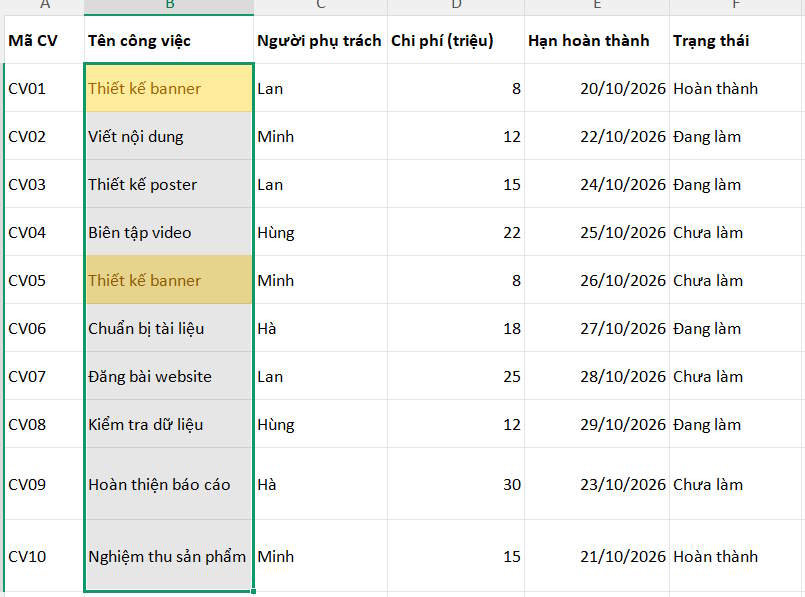
Check whether repetition is legitimate before removing records. For the related Excel workflow, see reviewing and removing duplicates.
Highlight numbers above a threshold
- Select a numeric range, such as D2:D11.
- Choose Conditional Formatting > Highlight Cells Rules > Greater Than.
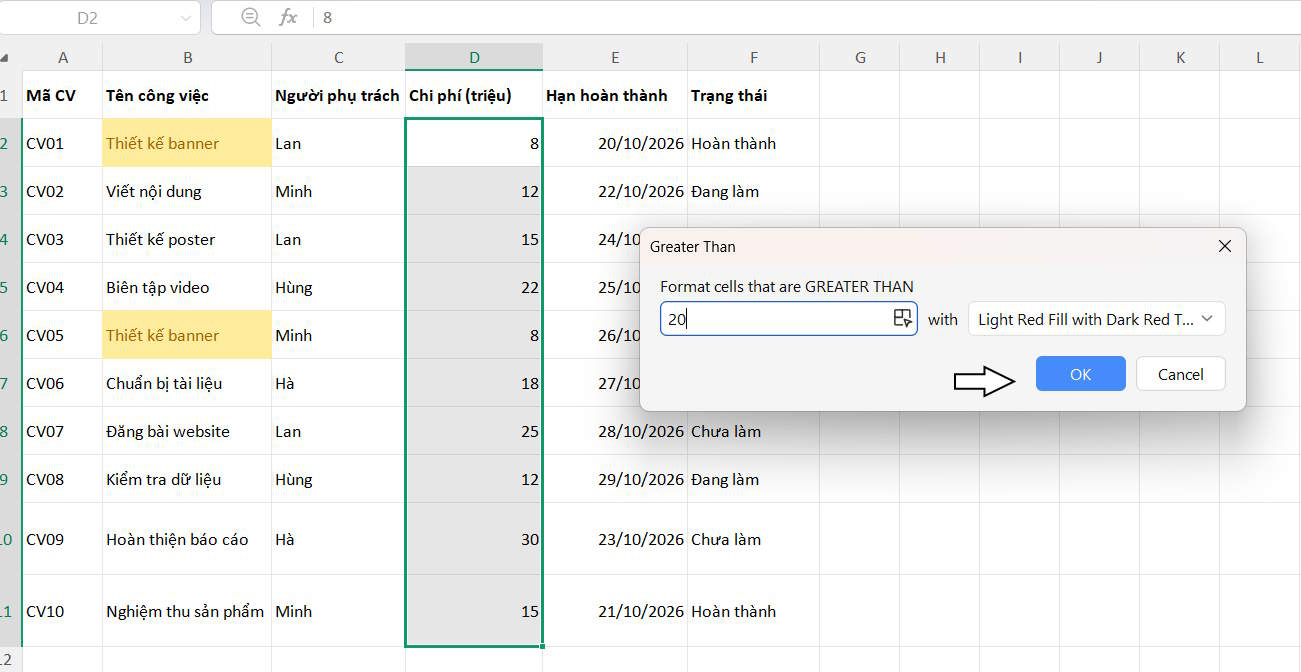
- Enter the threshold, choose the formatting and click OK.
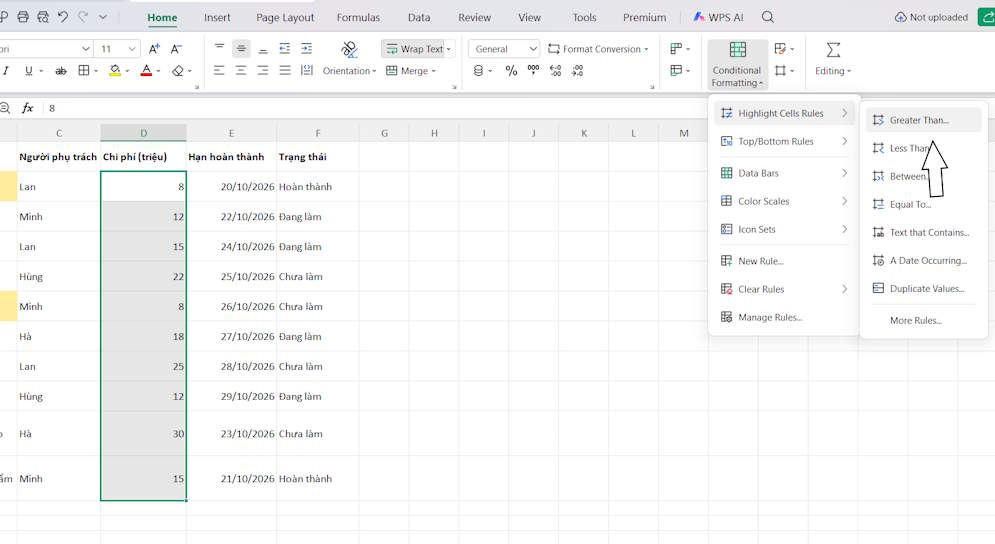
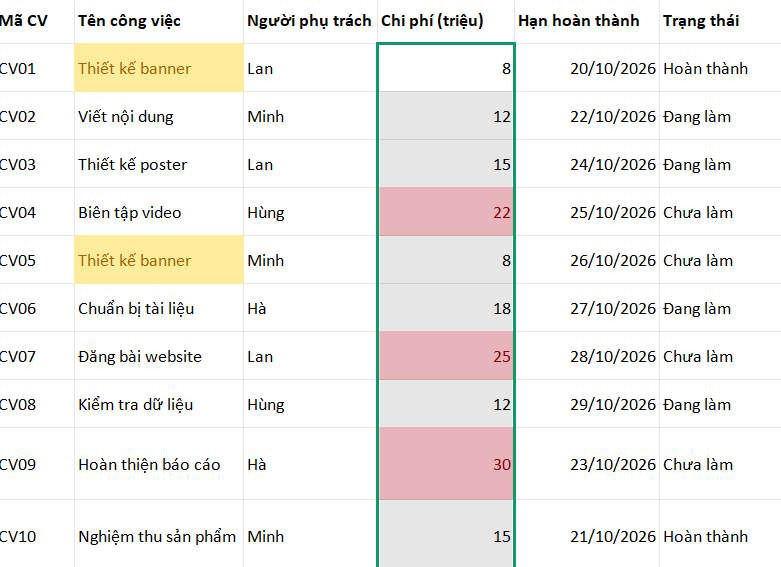
For a threshold of 20, values of 22, 25 and 30 match; 20 itself does not. If the cells contain amounts expressed in millions, entering 20 means 20 million only when the stored values use that unit. Check the values rather than relying on a display label.
Highlight an entire overdue task row
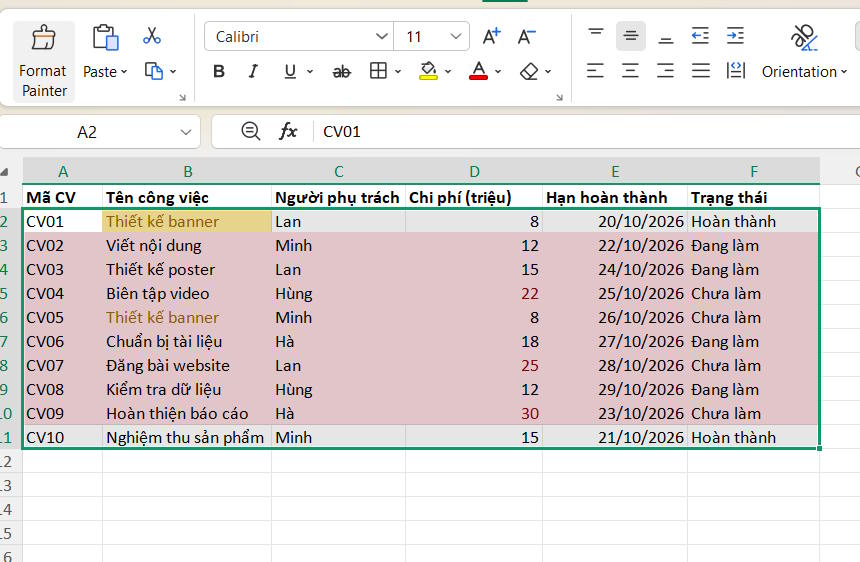
Assume the task table occupies A2:F11, due dates are in column E and status is in column F. Select A2:F11, then choose Conditional Formatting > New Rule > Use a formula to determine which cells to format.
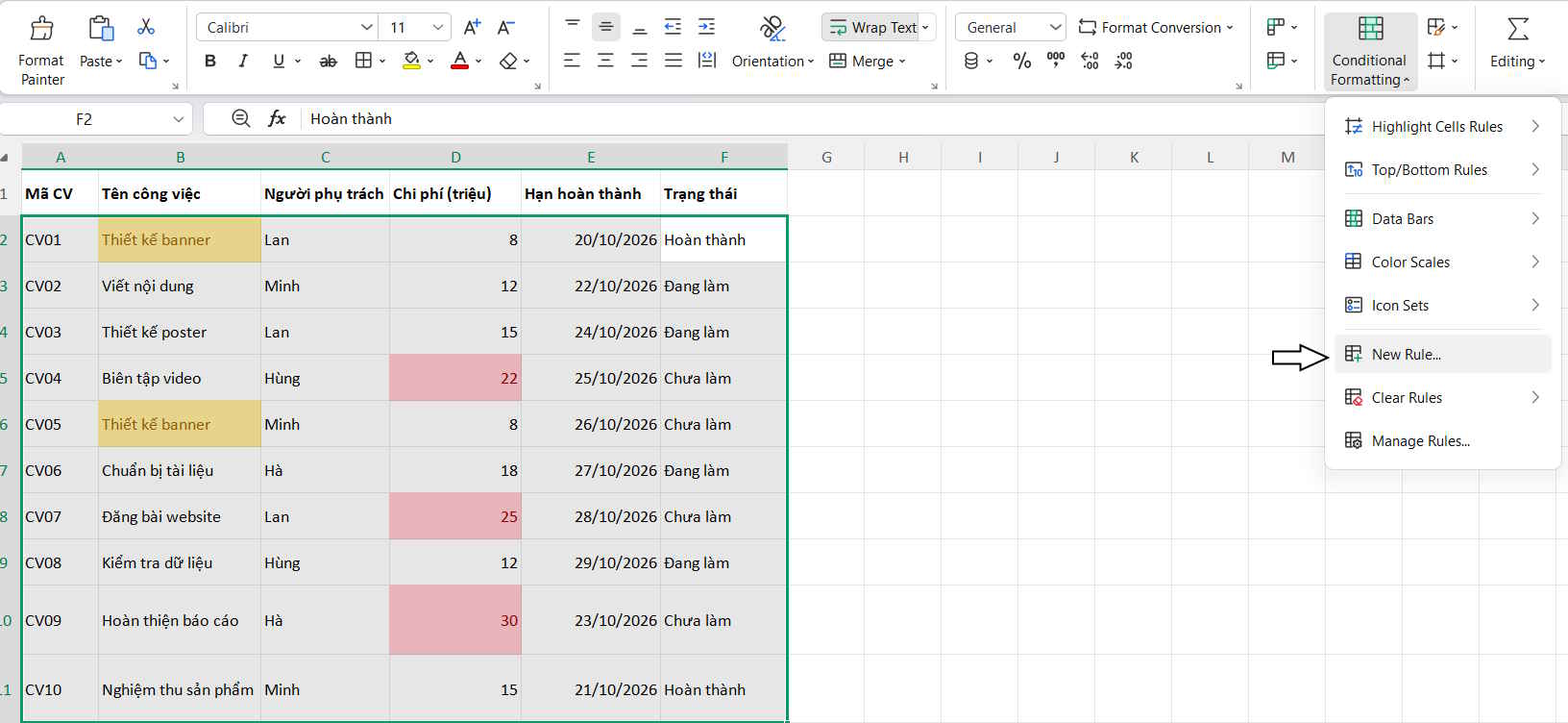
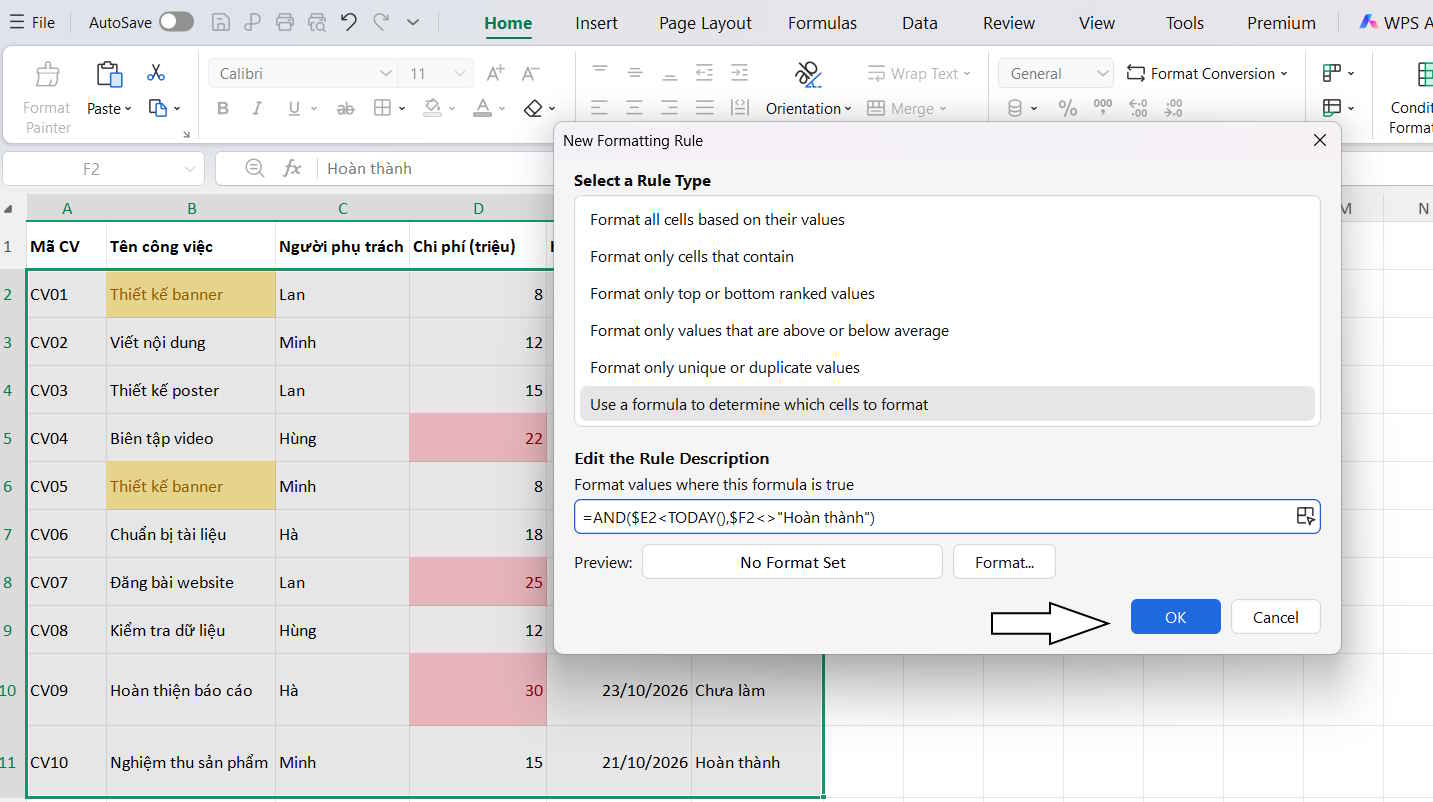
For an English status label of Completed, enter:
=AND(ISNUMBER($E2),$E2<TODAY(),$F2<>"Completed")If your status cells use the Vietnamese text shown in the screenshots, use the exact label instead:
=AND(ISNUMBER($E2),$E2<TODAY(),$F2<>"Hoàn thành")Choose a fill color and confirm the rule. If your regional settings require semicolons between function arguments, replace the commas with semicolons.
- ISNUMBER($E2) excludes blanks and text dates. Convert date-looking text into real spreadsheet dates before relying on the rule.
- $E2<TODAY() tests dates before today. A task due today is not overdue under this rule.
- $F2<>"Completed" excludes completed tasks. Match the wording used in your own table.
- $E and $F keep the tested columns fixed; the row number changes as the rule moves down the selection.
The formula starts at row 2 because the selected range starts at row 2. If your data starts elsewhere, adjust both the formula and the applied range.
Edit or remove an existing rule
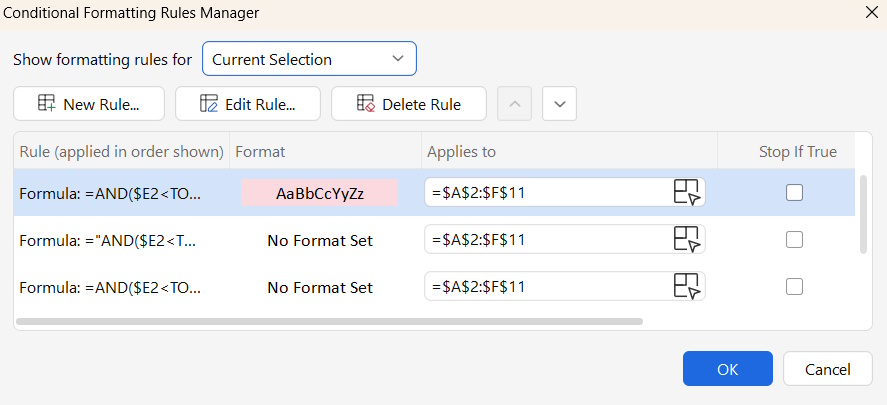
Open Conditional Formatting > Manage Rules. Check which sheet or selection is being shown, select the rule and inspect its formula, format and applied range.
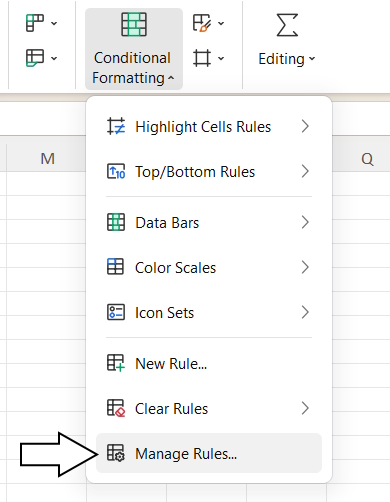
Use Edit Rule to change it. Use Delete Rule only when you intend to remove that formatting rule; you do not need to delete a rule after editing it.
Check the result
Test one matching value and one nonmatching value. For the overdue example, try yesterday's date with an incomplete status, today's date, a completed task and a blank date. If the wrong row changes color, check the starting row and dollar signs.
If a rule does nothing, inspect text-versus-number values and whether another rule affects the same cells. Update the applied range when you add records beyond its boundary. WPS's formula-based conditional formatting tutorial provides another worked example.
Related Articles
 How to use conditional formatting in Numbers on Mac
 How to use conditional formatting in Microsoft Excel 2016
 Use conditional formatting to format even and odd rows
 How to use Conditional Formatting to conditional formatting in Excel
 Ms Excel - Lesson 13: Use conditional formatting in Excel
 MS Excel 2003 - Lesson 13: Using conditional formatting in Excel
Reader Comments 0
Sign in with email or Google to join the discussion.