Table of Contents
This archived tutorial shows how Rufus was used to create a bootable USB installer for Windows 10 version 1809. Version 1809 is obsolete and should not be installed on an everyday, internet-connected PC. Use the process only when you have a legitimate legacy requirement and a trusted ISO.
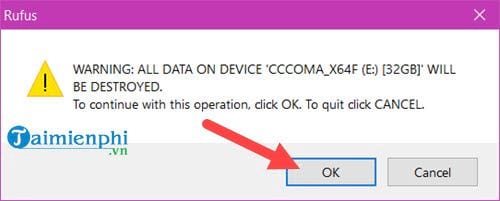
Warning: Rufus erases the selected USB drive. Copy every file you need from that drive before starting, disconnect other removable drives where practical, and verify the device name and capacity before you click Start.
What you need
- A USB flash drive with at least 8 GB of capacity. Its contents will be deleted.
- A trusted Windows 10 ISO that matches your license, architecture, and required edition.
- Rufus from its official source and administrator access to the Windows PC used to prepare the drive.
If you are installing a supported release instead, start with the current Windows 10 update guide. The Windows installation and recovery section also covers backup and clean-install options.
Create the bootable USB in Rufus
Step 1: Open Rufus. Administrator permission may be requested because the program writes boot information to the USB drive.
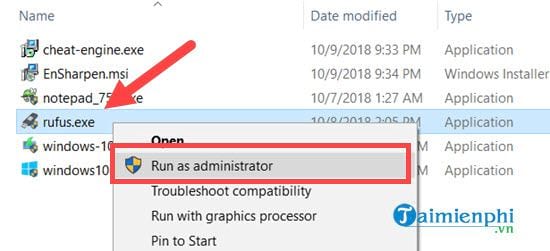
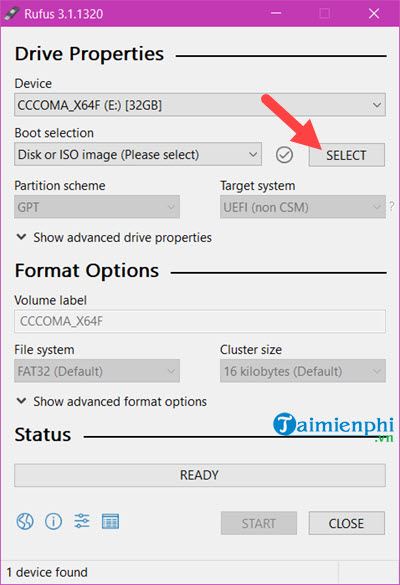
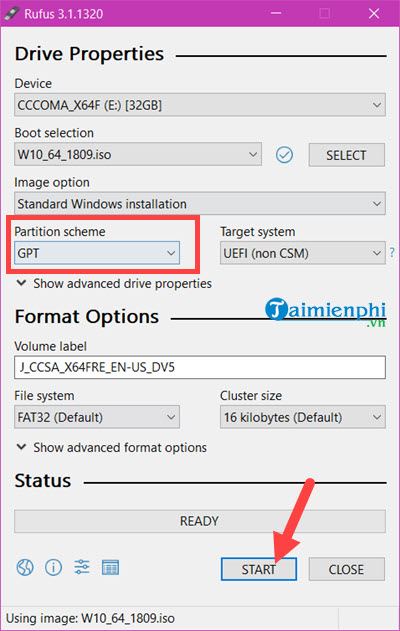
Step 2: Insert the USB drive. Under Device, select that exact drive, then choose Select beside the boot-selection field.
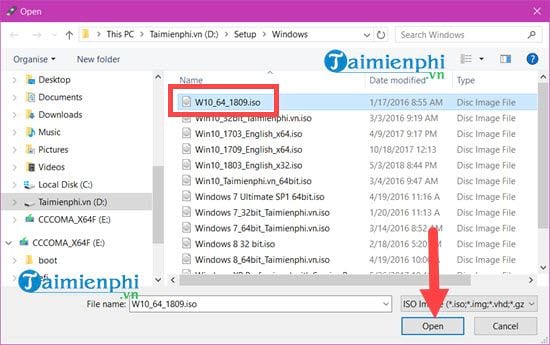
Step 3: Browse to the trusted Windows 10 version 1809 ISO and open it.
Step 4: Review the partition scheme. Use GPT for a typical UEFI computer. Older BIOS-only systems may require MBR; do not select a scheme solely because an old screenshot shows it. Give the volume a recognizable label, then select Start.
Rufus displays an erase warning. Stop and recheck the selected device. Click OK only after confirming that nothing on the USB needs to be retained.
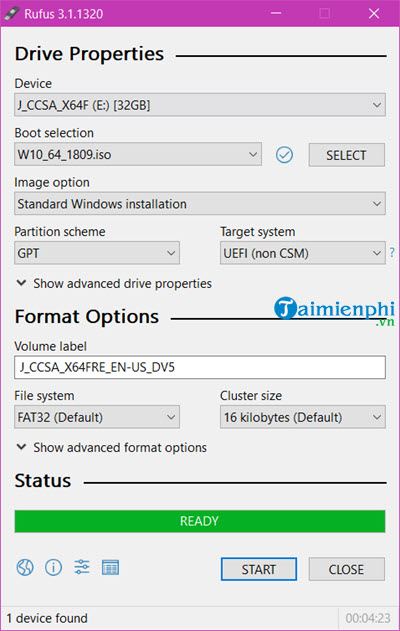
Step 5: Wait until the status changes to Ready. Do not remove the USB while Rufus is writing or verifying files. Safely eject it when the operation finishes.
Boot from the USB
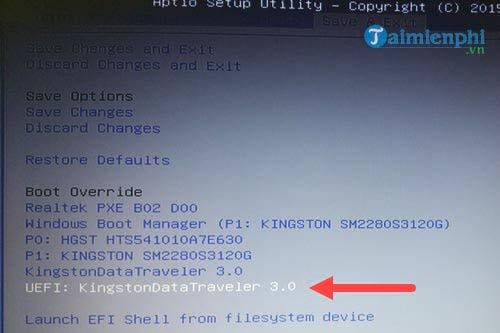
Step 6: Connect the prepared drive to the target PC, restart, and open the one-time boot menu or firmware settings. Choose the USB entry that matches the mode used when creating it, usually the UEFI entry on a modern PC. The required key varies by manufacturer.
Step 7: When Windows Setup loads, verify the language, time, and keyboard choices before selecting Next.
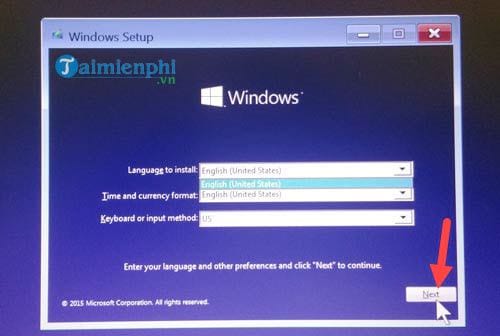
Select Install now only when you are ready to continue.
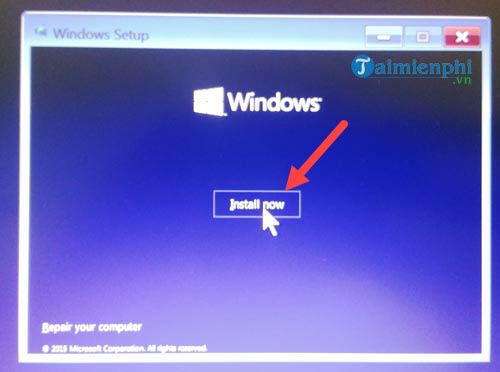
Before choosing a disk or partition
The disk-selection stage can permanently remove an existing installation and personal files. Back up the computer first, identify the correct physical disk, and understand whether you are performing an upgrade, a clean installation, or recovery. If those choices are unclear, stop before deleting or formatting any partition.
After installation, obtain drivers from the PC or component manufacturer. A legacy 1809 system should be isolated from untrusted networks and replaced or upgraded as soon as the required application permits.
Related Articles
 Before Upgrading to Windows 10 October 2018, Do These to Avoid Problems5 minutes read
 Download Links for Windows 10 October 2018 Version 1809 ISO: Complete List4 minutes read
 Parallel Installation of Windows 10 with Windows 7 or 87 minutes read
 How to Update Windows 10 to October 2018 Version 18095 minutes read
 Create Your Windows XP SP2 Installation Disc Yourself5 minutes read
 The Official ISO Windows 10 October (1809) Is Available from Microsoft, Please Download4 minutes read
Reader Comments 0
Sign in with email or Google to join the discussion.