Table of Contents
Canva Code can generate an interactive website from a plain-language description. For a lesson, that might be a geometry diagram with adjustable values, a labeled science model, a timeline, flashcards, or a short self-check quiz. The useful result is not the first generated page—it is a page whose content you have verified and whose controls work for the intended learners.
This walkthrough uses the Pythagorean theorem as an example, but the same process works for many topics. If you are comparing platforms first, see this roundup of AI tools for website design.
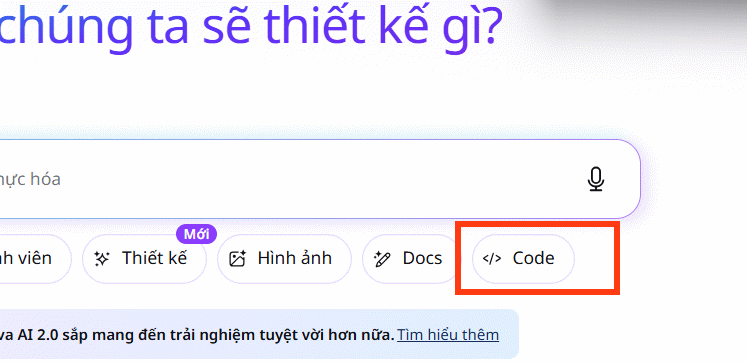
1. Open Canva Code
Sign in to Canva and choose Code from the Canva homepage or Canva AI interface. Depending on your workspace and interface version, you may also be able to add a Canva Code creation inside another design.
2. Describe the learning experience, not just the topic
A prompt such as “make a page about the Pythagorean theorem” leaves important choices unstated. Specify the audience, learning goal, interaction, required content, visual style, and success criteria.
For example:
Create a clean, responsive interactive lesson for middle-school students about the Pythagorean theorem and its converse. Show a labeled right triangle with controls for side lengths a and b, calculate c, and display a² + b² = c² with the current values. Add a step-by-step worked example and a three-question practice section with feedback. Use high-contrast colors, readable labels, keyboard-accessible controls, and plain English. Do not invent historical claims or external sources.
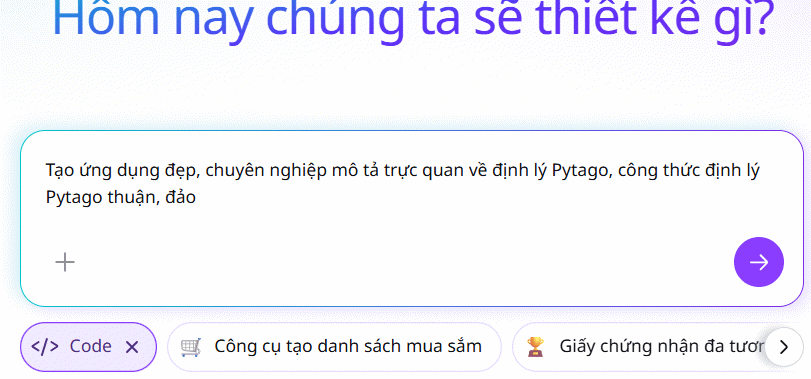
A strong prompt defines what the learner should be able to do. It also makes testing easier because you can compare the result with a concrete checklist.
3. Preview the generated experience
Wait for Canva Code to build the page, then choose Preview. Interact with every control rather than judging the design from a screenshot.
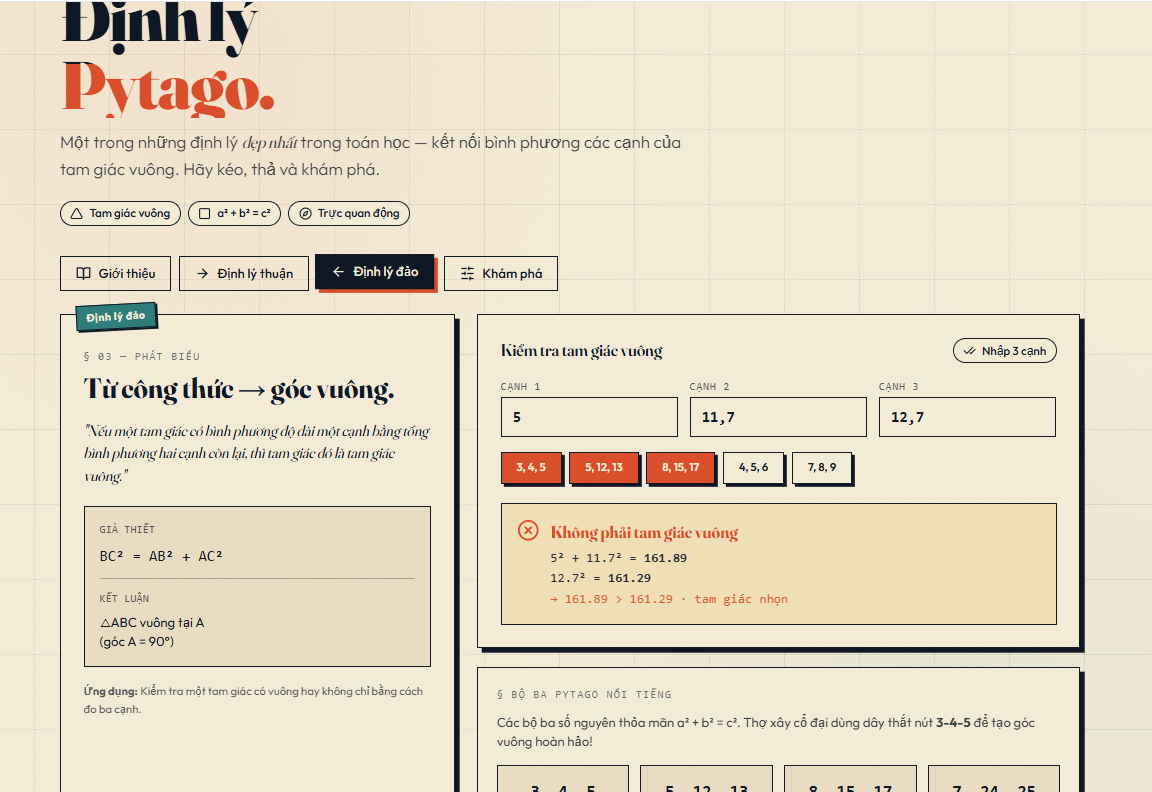
For the theorem example, test small and large values, verify that the displayed calculation is correct, and confirm that the diagram and labels remain readable. Check the page at both wide and narrow screen sizes.
4. Refine the result with focused requests
Ask for one meaningful improvement at a time. Focused revisions are easier to evaluate than a request to “make everything better.” Useful follow-ups include:
- “Keep the structure, but add visible labels for the right angle and all three sides.”
- “Prevent zero or negative side lengths and explain the allowed range beside the controls.”
- “Make every interactive control usable with a keyboard and give it a visible focus state.”
- “Replace the long introduction with a two-sentence explanation and one worked example.”
- “Give practice feedback that explains the error without revealing the answer immediately.”
- “Use the same color for side a in the diagram, formula, and value control.”
Canva Code output can also be visually customized in the Canva editor. Adjust typography, colors, spacing, and imagery only after the interaction and lesson logic are sound.
5. Verify the educational content
Generated material can contain mistakes even when the page looks polished. Review it as you would review a student-facing handout.
- Check every fact and calculation. Work through all examples independently.
- Test boundary cases. Try minimum and maximum input values and unexpected sequences of clicks.
- Remove unsupported claims. Do not keep quotations, dates, statistics, or historical details unless you can verify them.
- Match the curriculum. Confirm that terminology and notation suit the learners' level.
- Review accessibility. Check contrast, font size, labels, focus order, instructions, and whether meaning depends on color alone.
- Avoid unnecessary data collection. Do not request student names or other personal information unless the activity genuinely requires it and your institution's rules allow it.
6. Publish or share the website
When testing is complete, select Publish in the Code window. Customize the site address and review the title, favicon, and access settings before publishing. Canva's options and plan limits can change, so confirm the choices shown in your account rather than relying on an older screenshot.
Share the published link with a colleague or small test group before using it in a live lesson. Ask testers whether the instructions are clear, whether any control behaves unexpectedly, and what they learned from the interaction.
A reusable prompt outline
| Prompt element | What to specify |
|---|---|
| Audience | Age, prior knowledge, reading level, and context |
| Learning goal | What the learner should understand or be able to do |
| Interaction | Sliders, buttons, drag-and-drop, quiz, simulator, or other behavior |
| Required content | Definitions, formulas, labels, examples, and feedback |
| Visual rules | Layout, typography, color meaning, and device sizes |
| Accessibility | Keyboard use, contrast, labels, focus states, and plain-language instructions |
| Constraints | Facts not to invent, data not to collect, and topics to omit |
For more ways to present dense information visually, see these online infographic tools. Canva's Canva Code help page covers previewing and editing, while its publishing guide explains current website settings.
Related Articles
 Transform Experiment Images into Visual Experiments in Canva3 minutes read
 How to Build a Website with Canva7 minutes read
 4 New Canva Features You'll Love11 minutes read
 Instructions for Creating QR Codes on Canva3 minutes read
 Steps to Create an Infographic on Canva7 minutes read
 How to Create Leaflets Using Canva9 minutes read
Reader Comments 0
Sign in with email or Google to join the discussion.