Table of Contents
ChatGPT can help you write a small browser tool that turns contact details into a formatted email signature. The useful output is a clean signature you can copy into your mail app, plus a reusable form for changing names, roles and links.
This workflow creates an HTML tool; it does not automatically create or publish a custom GPT. You can request the code in a normal conversation. Preview and file features depend on your ChatGPT interface and account, so the steps also include a browser-based fallback.
1. Define the signature and generator separately
The generator may use JavaScript to update a preview or copy content. The signature inserted into an email should contain only email-appropriate text, links, images and formatting—not scripts, input fields or the surrounding form.
Keep the first design simple: name, job title, company, email, phone and one or two useful links. Use an approved brand color and a small optional logo. Contact information should remain readable when images are unavailable.
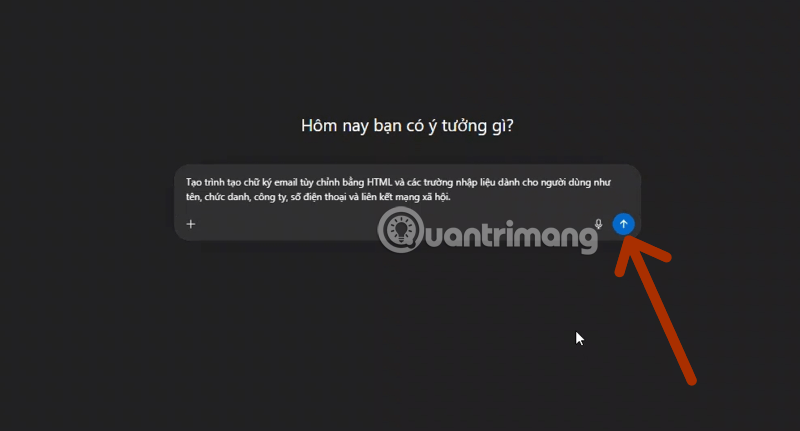
Try this request:
Create a single HTML file containing an email signature generator. Use plain HTML, CSS and JavaScript, with no external scripts, analytics or backend. Add fields for name, title, company, email, phone, website and an optional HTTPS logo URL. Show a live preview and provide Copy formatted signature, Copy HTML and plain-text output. The exported signature must use a simple table layout, inline styles and common fonts. Escape user-supplied text, validate link schemes and omit empty fields. Do not include JavaScript or form controls in the exported signature. Explain how to open and test the file.
2. Open the tool and check the form
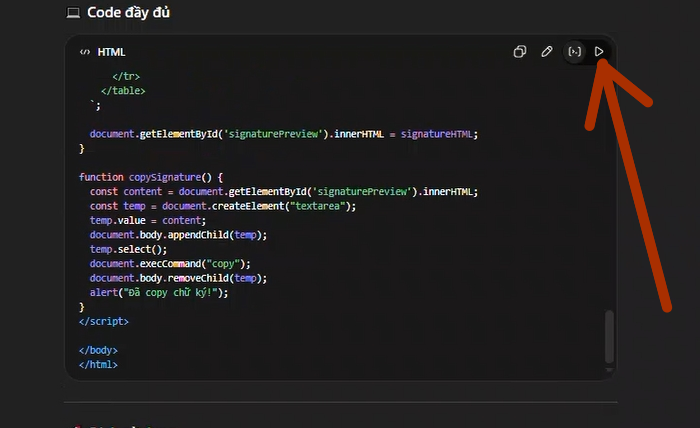
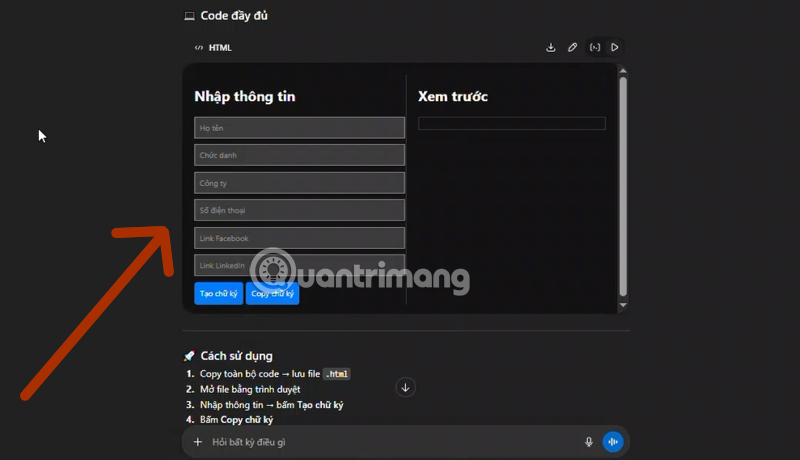
Ask ChatGPT for the complete file if it returns only fragments. If your interface offers an HTML preview, use it. Otherwise, save the supplied code as a file ending in .html and open it in a browser after reviewing it. A specific “Test Run” button is not required.
Use sample details first. Check a long company name, an empty phone field and a name containing an apostrophe or ampersand. The preview should display the characters correctly without treating them as HTML.
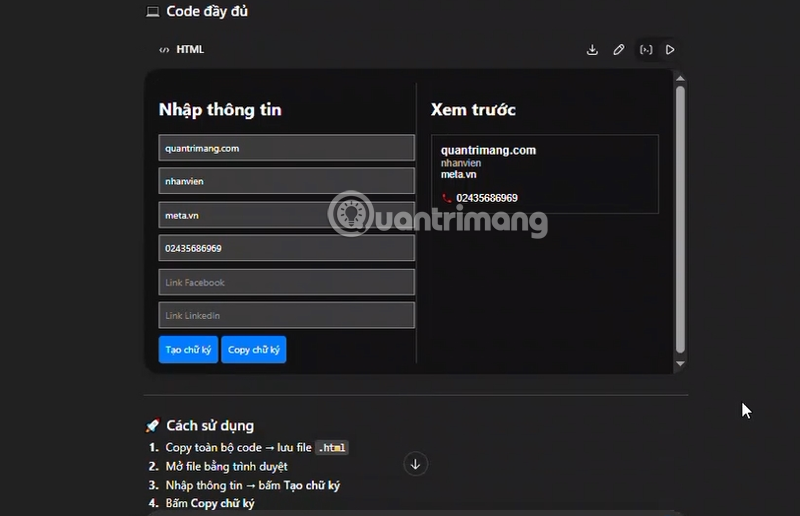
If the layout breaks, describe the exact problem and ask for a targeted correction. Save a working copy before replacing the code. The finished tool should not request your email password or send contact details to an unrelated service.
3. Add a logo without assuming universal support
A logo is optional. You can insert one using the mail client's image control or use an approved, publicly reachable HTTPS image URL. Do not use a private file-sharing link that recipients cannot access.
Base64 can display an uploaded image inside a browser preview, but that does not establish that the image will survive copying, email sanitization and delivery. It is not a universal solution for Gmail, Outlook or recipient image-blocking settings.
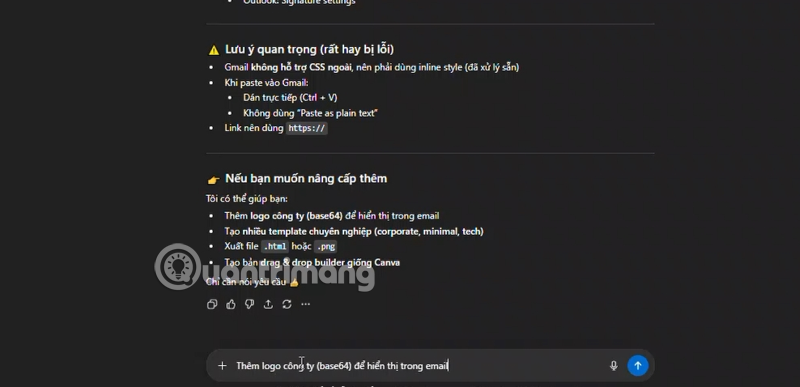
If you add file upload, ask the generator to identify whether the image is only a temporary browser preview. Do not export a local file path or temporary blob URL as the recipient's image source. For a dependable starting point, use the mail app's own image insertion workflow and test the delivered message.
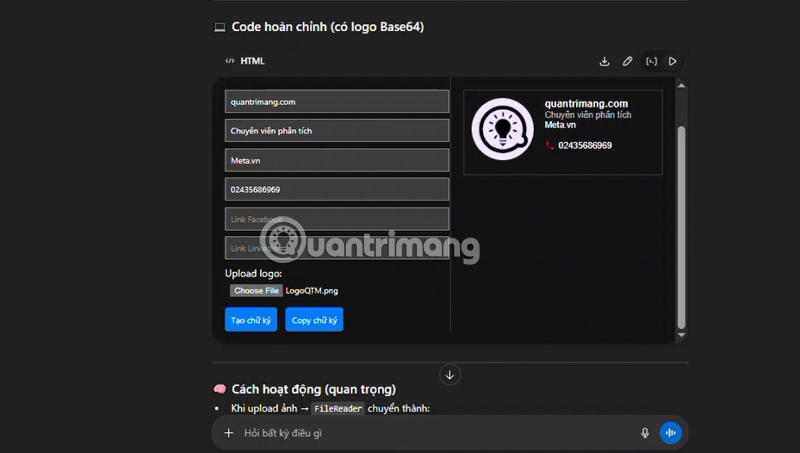
Use sensible image dimensions, preserve its aspect ratio and include descriptive alternative text. Avoid making your entire signature one image: readers should be able to copy an email address and understand the contact details without downloading pictures.
4. Copy the formatted signature
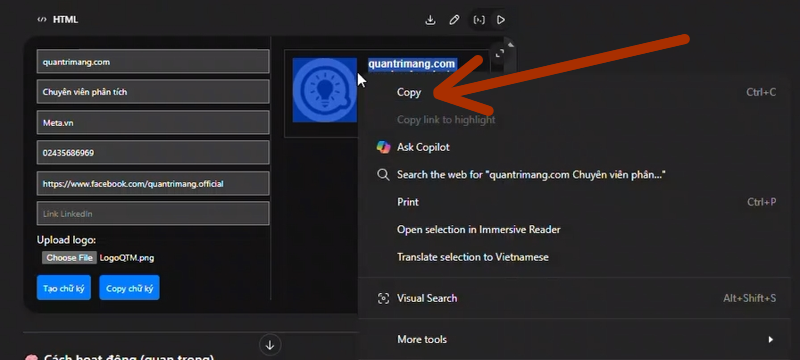
Choose Copy formatted signature, then paste into the mail client's signature editor. Copying raw HTML source into an ordinary rich-text field may display tags instead of formatting.
If the copy button fails because of browser permissions, try selecting only the rendered signature and copying it normally. If formatting is still lost, use the mail client's editor to rebuild the simple layout. Do not disable browser security settings to make a clipboard button work.
5. Install it in Gmail
- Open Gmail on a computer.
- Choose Settings → See all settings.
- Under General, find Signature and select Create new.
- Name the signature and paste the formatted content into the editor.
- Set the defaults for new messages and replies or forwards.
- Scroll down and select Save Changes.
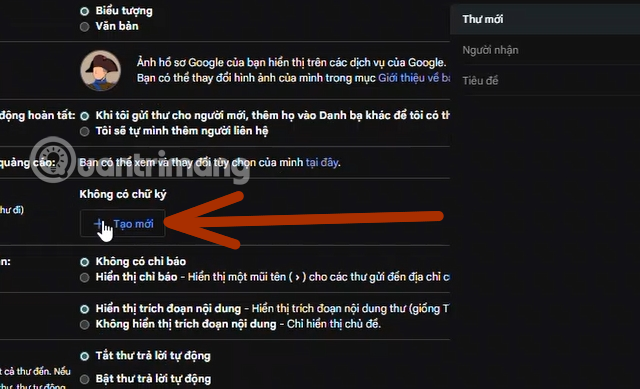
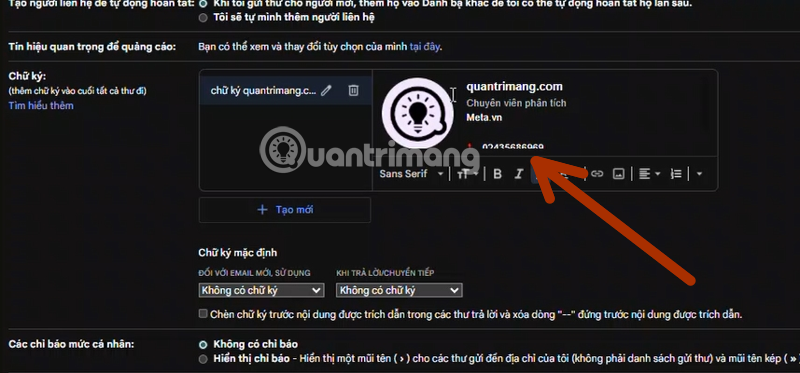
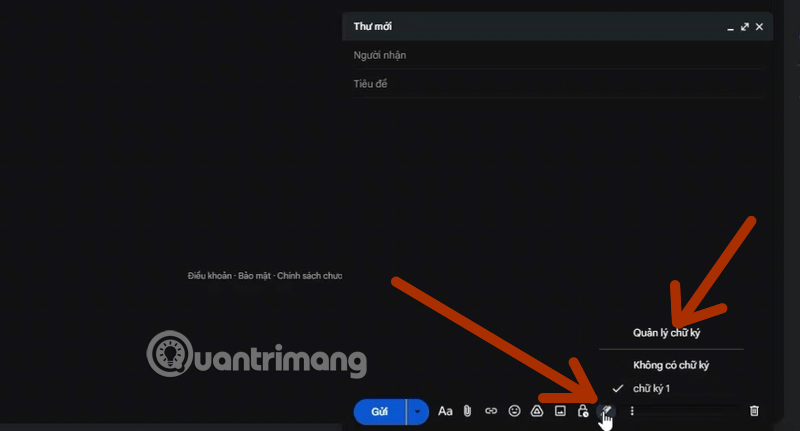
See Google's Gmail signature instructions if the controls differ. Mobile signature settings can differ from the desktop setup, so test the apps you actually use.
6. Install it in Outlook
In new Outlook for Windows, open Settings → Accounts → Signatures, choose the account and add a signature. Paste the formatted content, select when it should be included and save.
In classic Outlook for Windows, open a new message and choose Signature → Signatures. Create a named signature, select the appropriate account and set defaults for new messages and replies. Other versions have different menus; use Microsoft's version-specific instructions.
A signature adds contact details; an Outlook email template can also hold reusable message content. Keep those two functions separate to avoid repeating the signature.
Check the delivered result before sharing the tool
- Send a test message to another account and inspect the received copy.
- Check desktop and mobile layouts, light and dark themes, and images-disabled viewing where available.
- Click each website, email and phone link to confirm its destination.
- Test a reply and forward for duplicated signatures or excessive spacing.
- Confirm the company logo and contact details are approved for use.
A browser preview is only the first check. If maintaining generated code is more work than you need, compare dedicated email signature creators or use your mail client's built-in editor.
Related Articles
 5 Best Email Signature Creators Today: Email Signatures9 minutes read
 How to Use Mailbum to Create a Professional Signature3 minutes read
 ChatGPT Can Be Used as a Password Generator4 minutes read
 How to Add Links to Email Signatures on iPhone and iPad5 minutes read
 How to Create a Signature in a Hotmail Mailbox3 minutes read
 How to Add a Signature in Microsoft Outlook: Step-by-Step Guide3 minutes read
Reader Comments 0
Sign in with email or Google to join the discussion.