Table of Contents
When you change your phone without canceling iMessage, anyone who sends you a message will receive a Failed to send message.
If you no longer use iPhone and want to switch to Android, You should cancel iMessage first. When you change phones without canceling iMessage, people who send messages will receive a message that they could not send. Here are instructions for canceling iMessage on Apple devices.
How to cancel iMessage on iPhone, iPad
Step 1:
We go to Settings then click on Messages Below. Now you Click on iMessage and just turn it off to cancel iMessage .
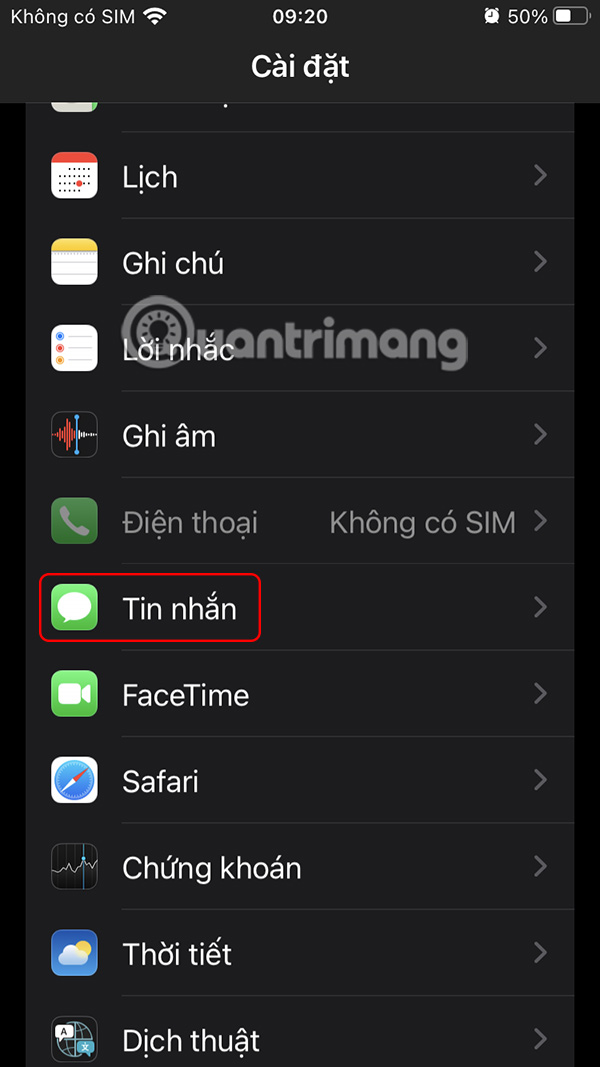
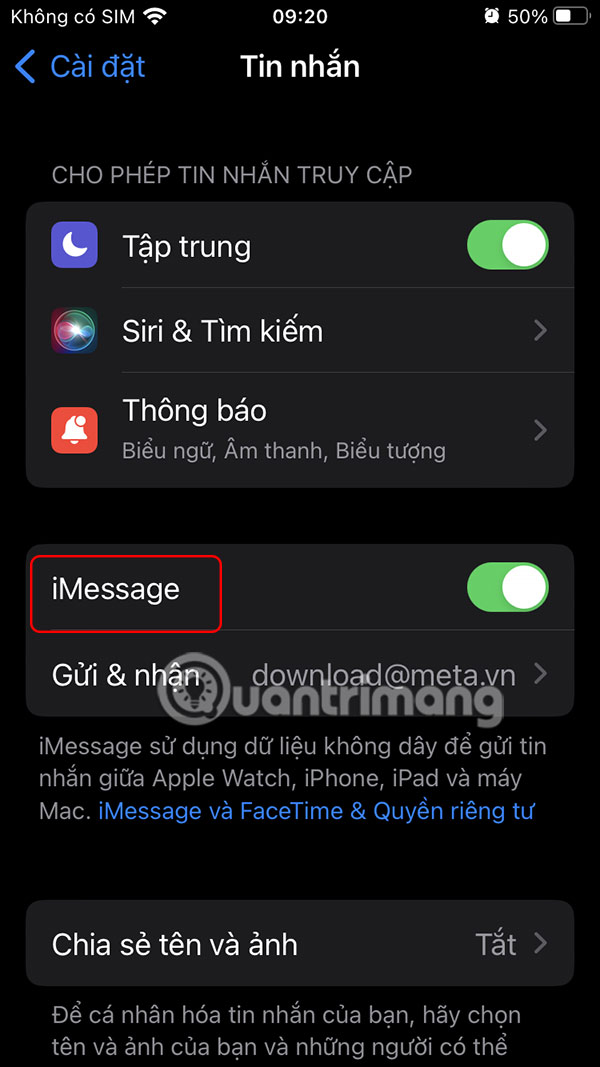
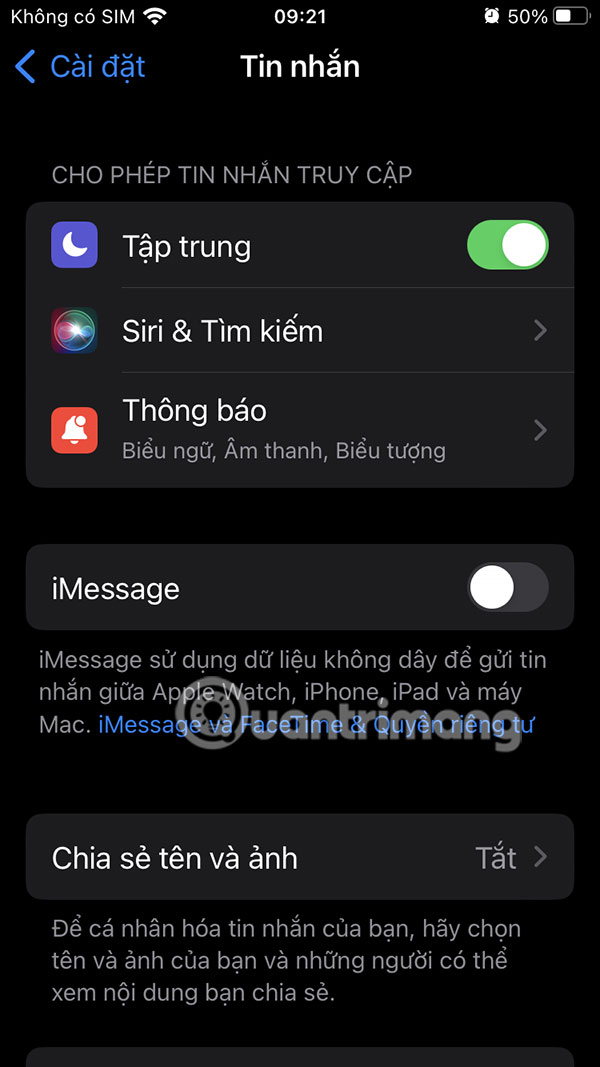
Step 2:
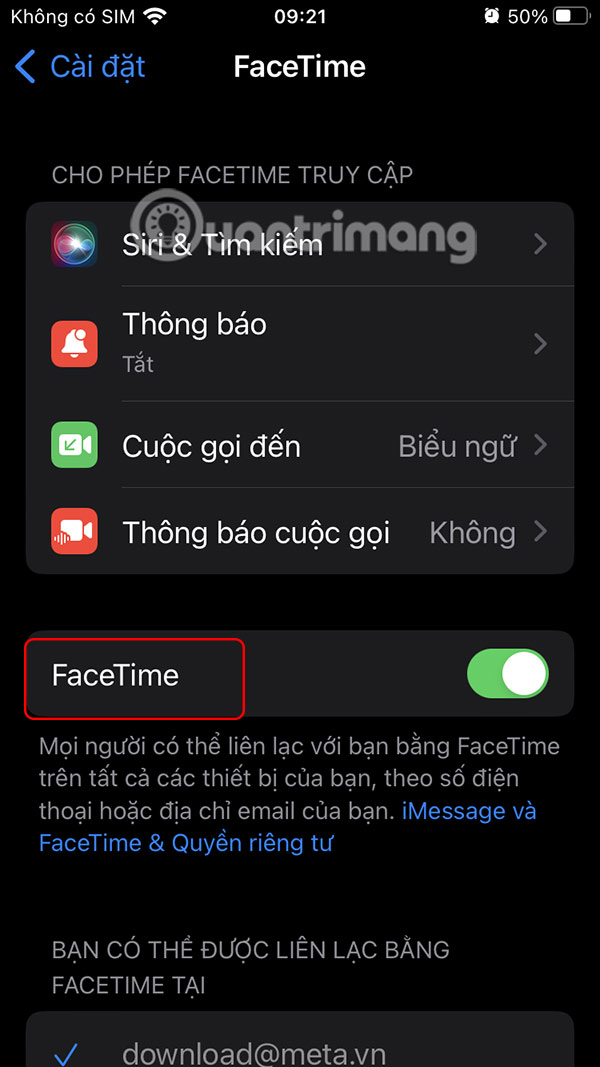
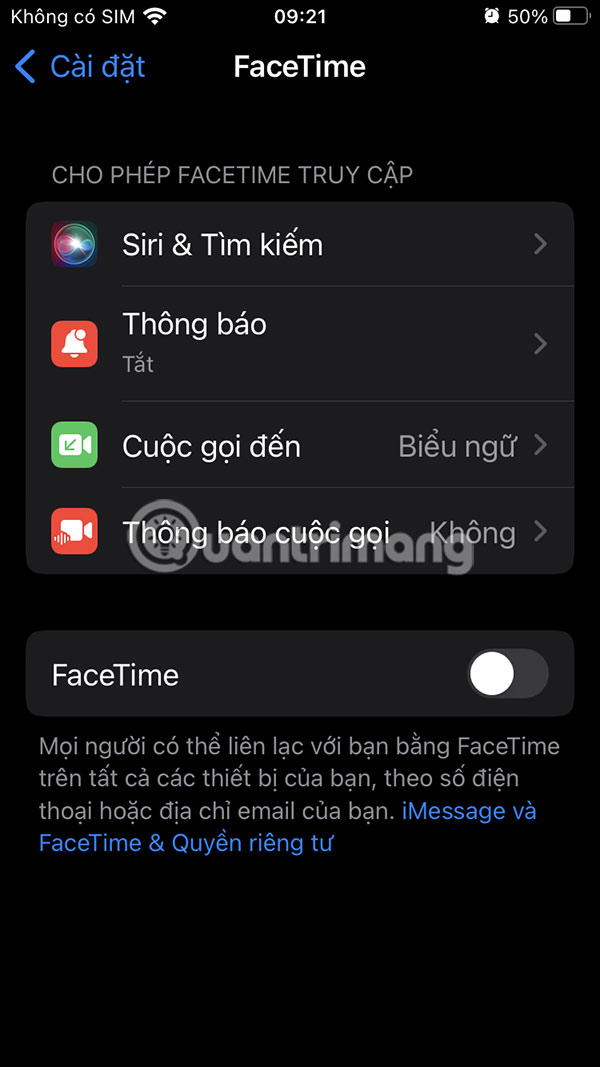
Go back to the Settings interface and tap on FaceTime. Then the user also turns off FaceTime to completely disable iMessage.
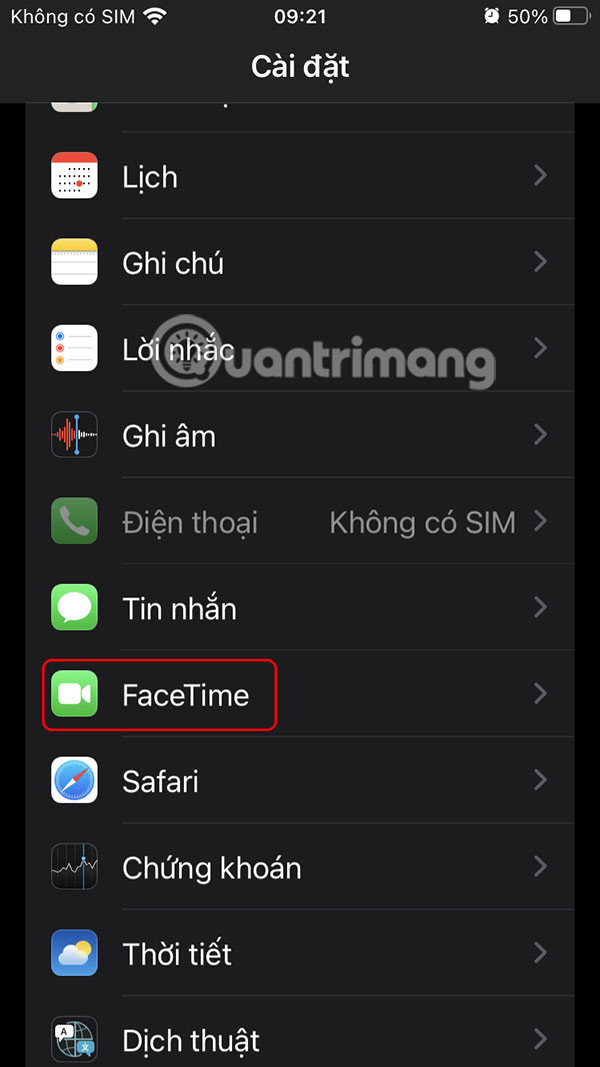
How to cancel iMessage on the web
Step 1:
You access the website at the link below on your computer.
Https://selfsolve.apple.com/deregister-imessageStep 2:
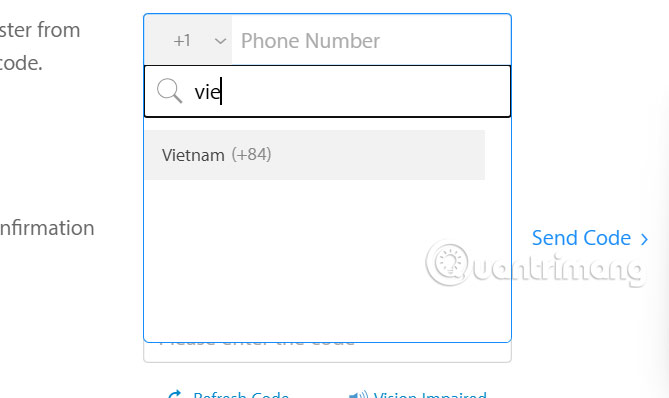
Then you choose your Country and Enter your phone number , select Send Code To send the code to your phone number.
Step 2:
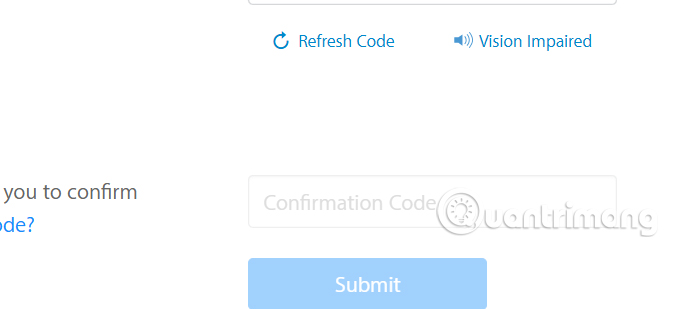
Enter the confirmation code Sent to your mobile phone into the code input box below, then Tap Submit To deregister iMessage.
You'll receive a message confirming that your phone number has been deregistered from iMessage. Once you've completed this step, you can switch to a non-Apple device.
This process is fairly quick and takes effect immediately. However, some Apple devices may take a few hours to determine that your phone number has actually been deactivated. After this time, you will start receiving SMS messages instead of iMessages.
FAQ
How do you cancel imessage on iPhone, iPad and computer: step-by-step guide?
In practical terms, when you change your phone without canceling iMessage, anyone who sends you a message will receive a Failed to send message.
What should you check before getting started?
Review the requirements, compatible device or software version, and any warnings described in the guide before making changes.
What should you do if the steps do not work?
Repeat the steps in order, confirm that your app or system is up to date, and review the troubleshooting details provided above.
Related Articles
 Completely Turn Off Imessage on Apple Devices5 minutes read
 12 Interesting Things You Can Do with the Imessage App on iPhone9 minutes read
 How to Fix Errors Waiting to Activate Imessage on iPhone7 minutes read
 How to Increase Security for Imessage iPhone / iPad Messages6 minutes read
 How to Customize the Imessage Application Tray on iPhone and iPad4 minutes read
 How to Fix Imessage Error Not Working on Mac, iPhone or iPad8 minutes read
Reader Comments 0
Sign in with email or Google to join the discussion.