Table of Contents
This practical guide walks through how to check Laptop Battery with Batterymon. It organizes the required steps, settings, and checks so you can complete the task with fewer mistakes.
When using a laptop, a decrease in battery health is inevitable. However, to better understand the health status of the battery, checking the battery level of Laptop Win 11, 10, 8, 7 with BatteryMon is extremely necessary and should be done every day.
* Note: If you do not have BatteryMon software, please download a newer version of BatteryMon 2.1 using the download the official provider.
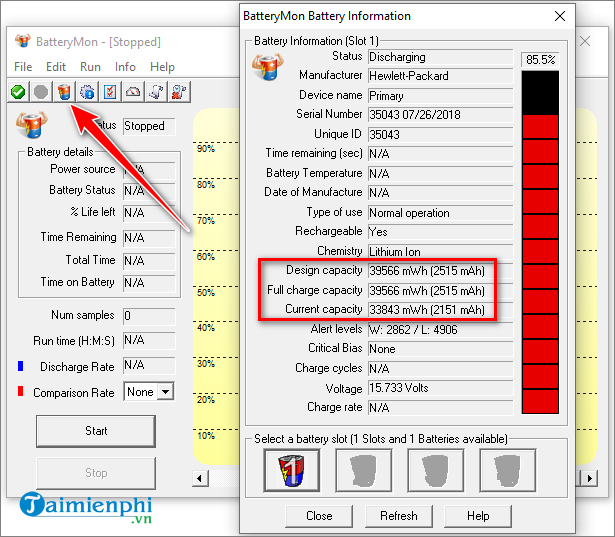
Step 1: Access The BatteryMon 2.1 build 1010 Download it from the official source. Step 2: Install the software on the Laptop. Immediately BatteryMon will automatically open. In the main window, select The battery icon In the upper left of the window to open the detailed battery information panel. from the official provider, you are interested in the following 3 items:
- Design capacity: Original designed battery capacity announced by the manufacturer. - Full charge capacity: Actual battery capacity after full charge. - Current capacity: Current battery capacity of the device in use.
Step 3: You compare the two parameters Design capacity And Full charge capacity To know whether the laptop battery is worn out or not. As shown below, the battery capacity is still 2515 mAh, so it can be said that the computer battery in the example has not been depleted.
- In addition, to know the exact % of your computer's battery capacity, use the following formula: Battery capacity = ((Design capacity - Full charge capacity) / Design capacity) * 100%
+ For example: Design capacity = 2515 and Full charge capacity = 2098| => Battery wear = ((2515 - 2089)/2515)*100% = 16.9% (Thus, the battery has been worn out by nearly 17%). If the battery level is less than 20%, your laptop battery is still good. If the battery level is greater than 20%, you should think about replacing a new battery for your laptop.
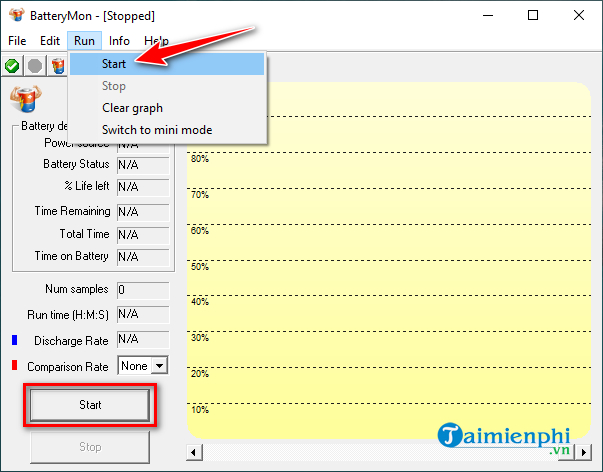
- Besides the feature of checking battery health and providing necessary information about the battery, BatteryMon also allows you to monitor the charge/discharge level of your laptop's battery in real time through the battery status graph by clicking select the Start Button in the lower left corner of the program's main interface or select Run > Start To start the monitoring tool.
- A graph of the battery status in real time will then appear. Based on the discharge level when the computer is not plugged in, BatteryMon will calculate the remaining time of the battery before it is completely depleted. Here you can see the battery status, % battery remaining, how much time has passed since tracking started, and more.
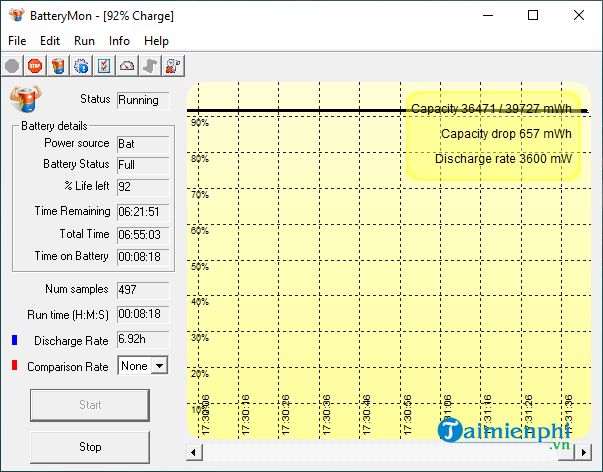
- The black discharge level indicator helps you determine whether the battery is good or not. A good performance battery will have a very smooth discharge path, the time for each discharge is probably the same. If the discharge line drops suddenly, there is no doubt that your battery has a problem.
- In addition to the information obtained from the chart, you will also get information from the following 3 parameters above the chart:
+ Capacity: Total designed battery capacity when shipped. + Capacity Drop: The amount of battery lost since you pressed the Start button. + Discharge rate: Battery discharge rate.
Why Should You Check Your Laptop Battery with Batterymon?
Using BatteryMon to check Laptop battery brings many benefits, including:
- High accuracy: The software provides detailed information about laptop battery status with high accuracy. BatteryMon not only displays the battery percentage but also provides other information such as actual remaining capacity, number of charging and discharging times, thereby helping users evaluate the battery level most effectively. - Convenient to use: Users do not need to spend a lot of time or professional skills to easily check laptop batteries with BatteryMon. you can completely perform chech at home or work effectively. - Detect problems early: By periodically checking laptop batteries with BatteryMon, you can detect problems early, thereby taking timely corrective measures before the problem becomes more serious. - Smart purchasing decisions: For those who intend to buy a used laptop, checking the battery with BatteryMon helps them make the most accurate decision, avoid buying poor quality products, and save time. and money.
So in the above article, we have provided you with information on how to use BatteryMon to check the battery level, as well as the formula to calculate the exact level of laptop battery life. In addition, you can also review a few other Laptop battery testing software That are currently most trusted and used by many people today.
FAQ
What do I need before I check Laptop Battery with Batterymon?
Prepare the required device, software, account access, and any files mentioned in the steps. Back up important data before changing system settings.
Why does the process look different on my device?
Menus and options can vary by operating system, app version, device model, or region. Use the closest matching setting and check the official documentation when needed.
What should I do if a step does not work?
Restart the app or device, confirm permissions and connectivity, update the software, and repeat the step carefully. Avoid unofficial downloads or tools.
Related Articles
 How to Check Laptop Battery Bottle with Batterymon6 minutes read
 6 Best Tools for Analyzing Laptop Battery Health11 minutes read
 9 Best Tools to Analyze Laptop Battery Health16 minutes read
 How to Check If the HP Laptop Battery Is Subject to Revocation4 minutes read
 How to Check the Battery Level of the Laptop Battery Without3 minutes read
 How to Check Battery Capacity and Wear - Check Laptop Battery10 minutes read
Reader Comments 0
Sign in with email or Google to join the discussion.