Table of Contents
Overview
This guide explains how to check computer using dxdiag tool on Windows in clear, practical terms. It covers the key concepts, recommended steps, common limitations, and useful checks so you can make a better-informed decision.
For experienced technicians, using the "dxdiag" command is the fastest and most accurate way to check computer configuration. No need to install any other software, can be used on all Windows platforms, quick response. those are the advantages that the Dxdiag command has over other ways to check computer hardware. So how to use the dxdiag command? Is it difficult?
What Is Dxdiag ?
DxDiag is the abbreviation of DirectX Diagnostic Tool, a built-in DirectX diagnostic tool on Windows. If you are more advanced, this tool can help you diagnose and test DirectX functions, to support troubleshooting hardware problems related to images, video and sound.
How to check hardware configuration using Dxdiag command
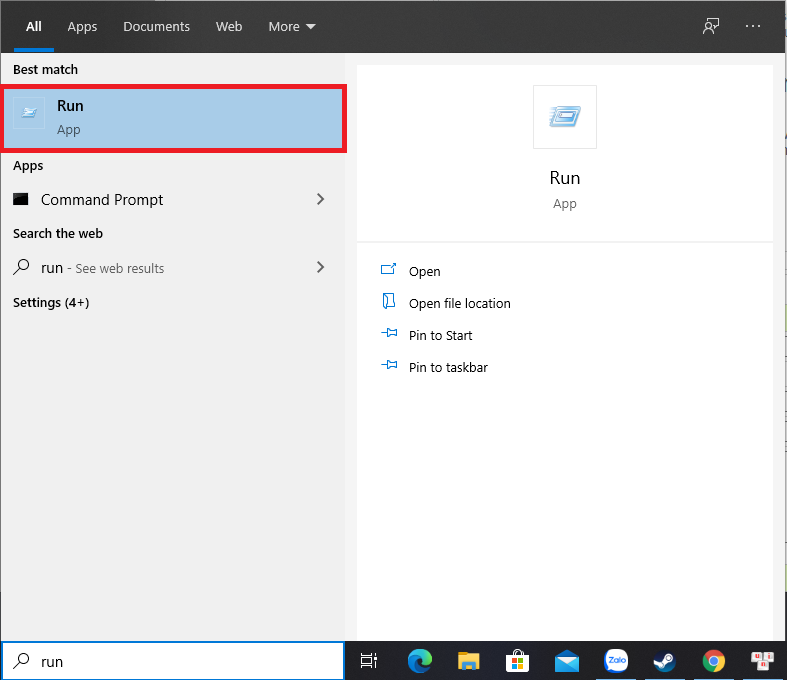
Step 1: In the search box on Window 10, type run and open the computer's Run program. (If you use Window 7 or earlier, you can do this step by following these steps: Select Start > Select Run on the toolbar)
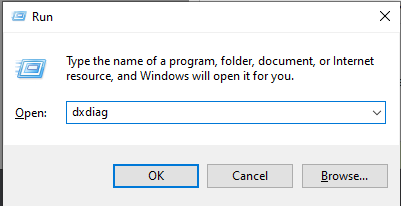
Step 2: After opening the Run dialog box, enter the command " dxdiag " and select OK to launch this command.
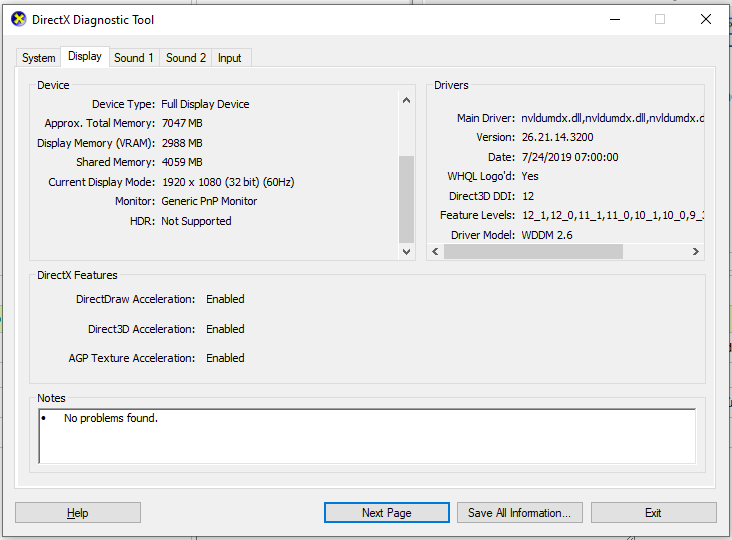
Step 3: At this point, the DirectX Diagnostic Tool window will appear. In it
The System tab displays the current DirectX version, the computer's host name, the operating system version, information about the system BIOS, and information about the computer's RAM and CPU.

The Display tab will show information about your current display settings, Graphics Card information, VRam stats, etc. This tab can disable DirectDraw, Direct3D and/or AGP for troubleshooting purposes.
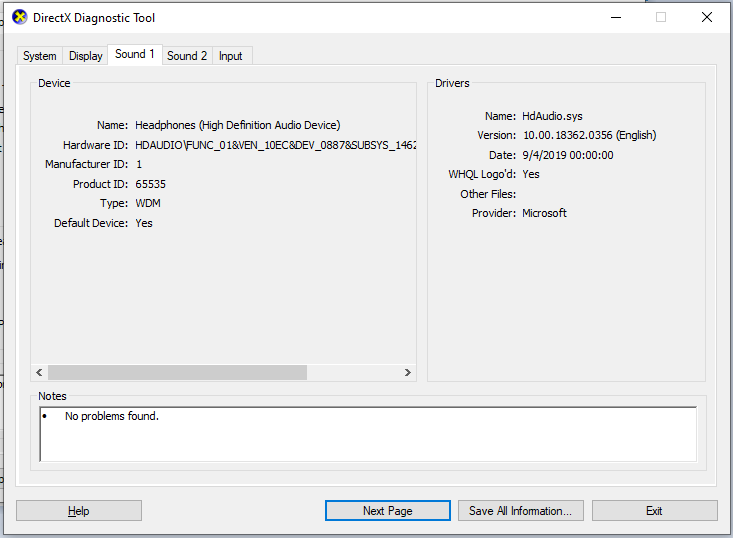
The Sound section will provide users with more information about the sound driver that the computer has installed, the name as well as the version, date and time of installation.
This way of checking computer configuration using the " Dxdiag " command is very easy to do but the information is extremely detailed, right? If you want to check your computer's hardware information, use this method!
Key Takeaways
Use the guidance above as a practical reference for check computer using dxdiag tool on Windows. Check compatibility, follow the steps carefully, and verify important details with official documentation when software, security, accounts, health, or purchases are involved.
FAQ
How do I check computer using dxdiag tool on Windows?
Follow the steps in this guide in order, confirm each setting before continuing, and save, restart, or reconnect the device when the instructions require it.
What should I check before I begin?
Confirm the correct device, account access, software version, compatibility, and a current backup whenever the process could affect files, settings, or security.
What should I do if the process does not work?
Repeat the steps carefully, check for model or version differences, install available updates, and consult the manufacturer's official support documentation.
Related Articles
 4 Simple Ways to Check the Configuration and Hardware Information7 minutes read
 Steps to Use Windows PC Health Check, Whether the Computer5 minutes read
 How to Use the DirectX Diagnostic Tool to Troubleshoot Problems8 minutes read
 How to Use Windows Reliability Monitor to Check Windows Health3 minutes read
 Use the Run Dialog Box to Check the Computer Configuration2 minutes read
 Drive Test: How to Check the Drive in Windows 103 minutes read
Reader Comments 0
Sign in with email or Google to join the discussion.