Table of Contents
This updated guide examines Email: How to Change Your E‐mail Address on Apple Messages and organizes the essential facts, background, and practical takeaways in clear American English.
Method 1of 2:
iOS
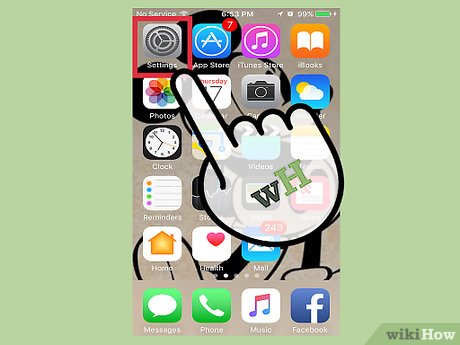 Tap the Settings icon.
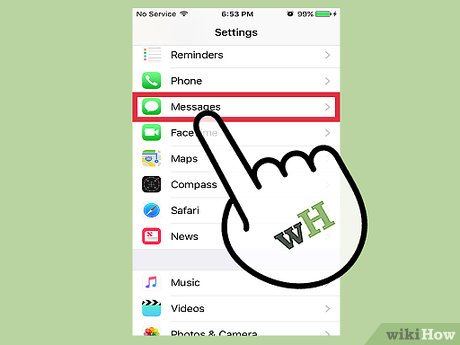 TapMessages.
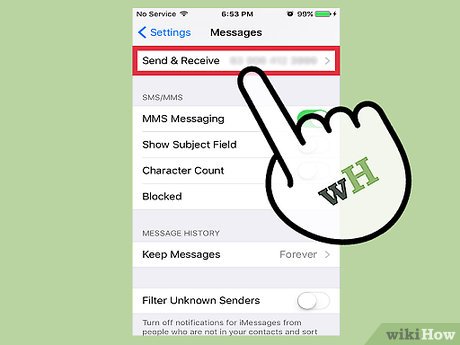 TapSend & Receive.
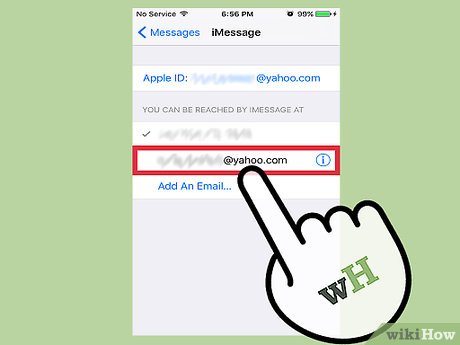 Tap the email address(es) you wish to be reached by.
- If the email address you want to use isn't there, tapAdd Another Email….
- Type in your email.
- TapReturn. Apple will send you a validation email to that address.
- Verify your email following the instructions in the email.
- Once verified, tap the new email from the list to select it. A check mark will appear next to it.
 Tap the email you want to start conversations from.
 Send an iMessage. Your contact info should appear as designated in step 5.
Method 2of 2:
Mac
 Open the Messages app.
 ClickMessages. It's located in the top left of the screen on the menu bar.
 ClickPreferences.
 Click on "Accounts. " It looks like a blue @ symbol.
 Click on your iMessage account. Make sure it's highlighted in the screen on the left side of the window.
 Select the drop down menu.
 Click on your email address. Doing so will send new conversations from the email you chose.
- If the email address you want to use isn't there, clickAdd Email.
- Type in your email.
- Hit↵Enter. Apple will send you a validation email to that address.
- Verify your email following the instructions in the email.
- Once verified, click on the check box next to the new email to select it as a contact method.
 Send an iMessage. Your contact info should appear as designated in step 7.
FAQ
What is Email: How to Change Your E‐mail Address on Apple Messages about?
It provides a structured overview of email, explains the main context, and highlights practical takeaways for readers.
Why does this topic matter?
Understanding the main concepts helps readers evaluate the issue, avoid common mistakes, and make better-informed decisions.
How should readers use this information?
Use the guidance as a practical starting point, confirm details that may have changed, and follow current product, safety, or security recommendations.
Related Articles
 How to Change Your Apple ID: Step-by-Step Guide6 minutes read
 How to Change Another Email on Facebook4 minutes read
 How to Remove Your Email from Apple Messages2 minutes read
 How to Change Apple ID from 3rd Party Email to Apple Email5 minutes read
 Fix Common Problems When Email Is Not Sent: Email Error9 minutes read
 How to Change the Primary Email Address for a Microsoft Account6 minutes read
Reader Comments 0
Sign in with email or Google to join the discussion.