Table of Contents
The fastest way to open the Windows On-Screen Keyboard is Windows key + Ctrl + O. If the physical keyboard is not working, use the mouse to open Start > Settings > Accessibility > Keyboard and turn on On-Screen Keyboard. At the sign-in screen, select Accessibility and then On-Screen Keyboard.
On-Screen Keyboard and Touch keyboard are different
| Tool | Designed for | How to open it |
|---|---|---|
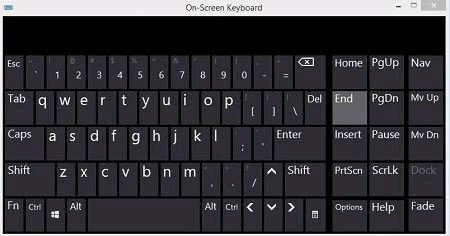
| On-Screen Keyboard (OSK) | Accessibility, mouse-based typing, and access to a fuller desktop-keyboard layout | Windows + Ctrl + O, Settings, Start search, or osk |
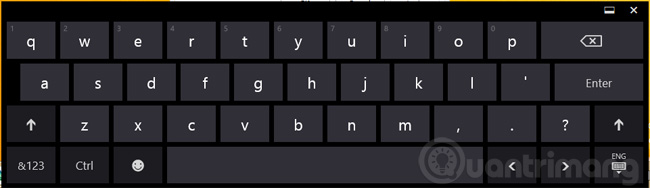
| Touch keyboard | Typing on tablets and touchscreens | Tap a text field or select the keyboard icon in the system tray |
The two tools can look similar, but their layouts and settings differ. If you need navigation keys or a missing desktop key, start with OSK. If you want a compact touch layout, handwriting, emoji, or automatic display on a tablet, use Touch keyboard.
Open the On-Screen Keyboard in Windows 11
Method 1: Use the keyboard shortcut
Press Windows key + Ctrl + O. Press the same shortcut again to close OSK. This is convenient when some keys still work, but it does not help if the physical keyboard is completely unavailable.
Method 2: Use Settings with only a mouse
- Select Start, then Settings.
- Open Accessibility > Keyboard.
- Turn on On-Screen Keyboard.
Microsoft documents this route in its On-Screen Keyboard guide.
Method 3: Search from Start
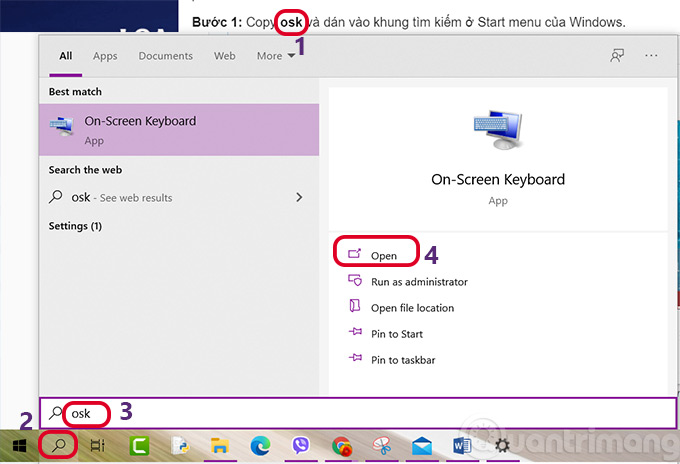
Select Start, type On-Screen Keyboard or osk, and open the matching app. The command is osk, not onsc.
Method 4: Use Run, Command Prompt, or PowerShell
Open Run with Windows + R, enter osk, and press Enter. The same command works in Command Prompt, PowerShell, and Windows Terminal.
Method 5: Open OSK before signing in
On the Windows sign-in screen, select the Accessibility icon in the lower-right corner, then select On-Screen Keyboard. This is the best route when you cannot type a PIN or password with the physical keyboard.
Show the Touch keyboard icon in Windows 11
- Right-click the taskbar and select Taskbar settings.
- Under System tray icons, find Touch keyboard.
- Choose Always to keep its icon visible, or When no keyboard attached for automatic display on suitable devices.
- Select the keyboard icon in the system tray to open the Touch keyboard.
The exact dropdown choices can vary with Windows updates and hardware. Microsoft's Touch keyboard settings page lists the current options.
Open the On-Screen Keyboard in Windows 10
The shortcut and osk command still work in Windows 10. Microsoft ended standard free support for Windows 10 on October 14, 2025, so screenshots and menu labels below are retained for systems that are still in use but should not be treated as a reason to postpone a supported upgrade.
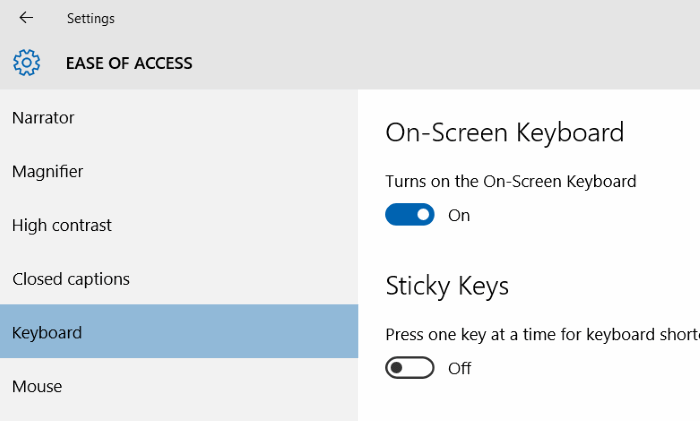
Use Settings
Select Start > Settings > Ease of Access > Keyboard, then turn on Use the On-Screen Keyboard.
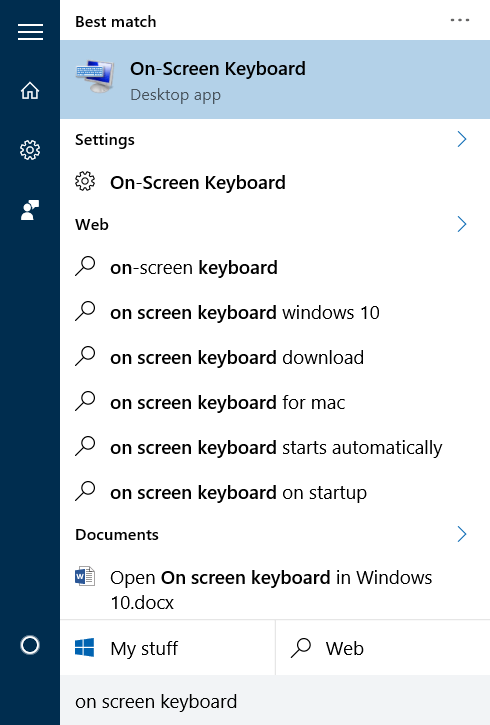
Search from Start
Select the Start or taskbar search box, enter On-Screen Keyboard, and open the result.
Use the OSK command
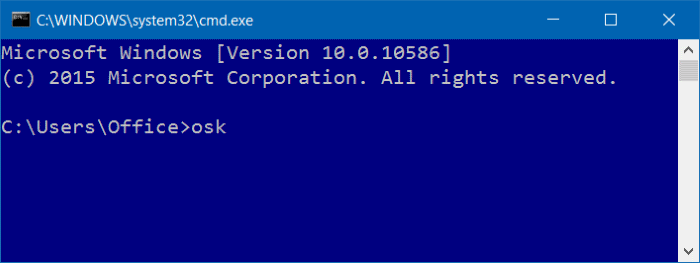
Open Run, type osk, and select OK.
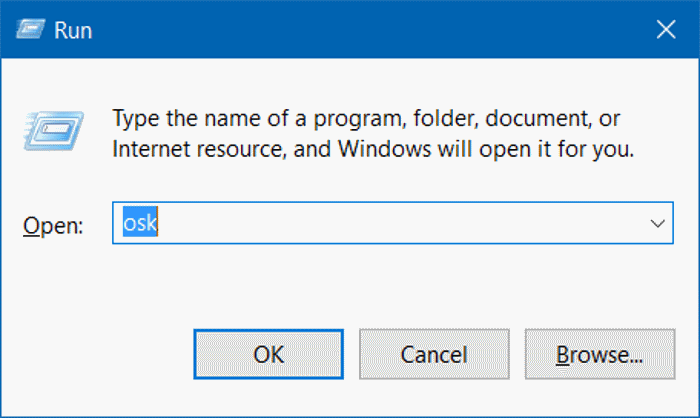
osk command launches On-Screen Keyboard.You can also enter osk in Command Prompt or PowerShell.
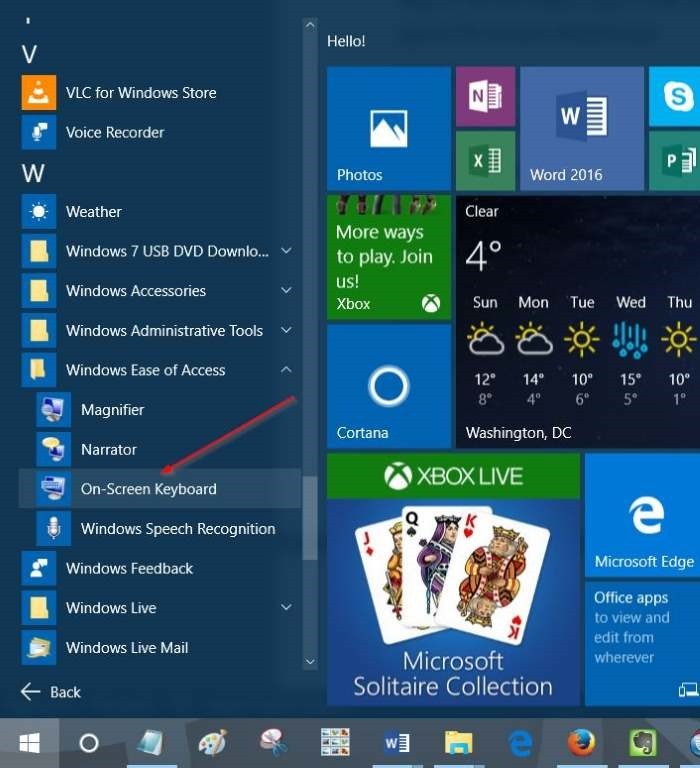
Use the Start menu or Control Panel
Older Windows 10 builds place OSK under Start > Windows Ease of Access > On-Screen Keyboard.
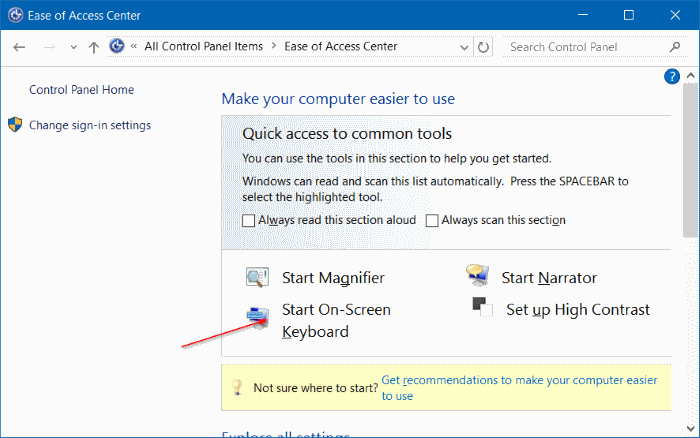
Another route is Control Panel > Ease of Access > Ease of Access Center > Start On-Screen Keyboard.
Open the On-Screen Keyboard in Windows 8 or 8.1
Windows 8 and 8.1 are no longer supported, but the built-in keyboard remains available on legacy systems. The osk command is the most consistent method.
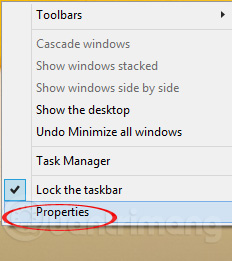
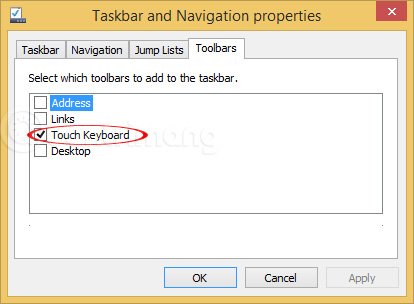
For the Touch keyboard, right-click the taskbar, open Toolbars, and enable Touch Keyboard.
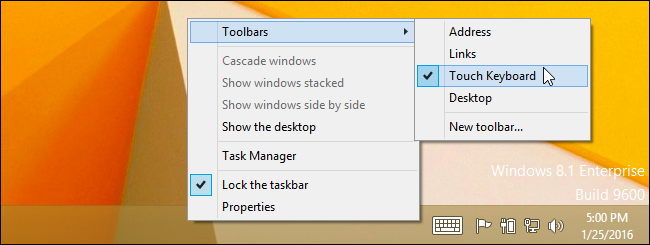
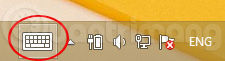
Select the keyboard icon near the notification area to open the touch-oriented layout.
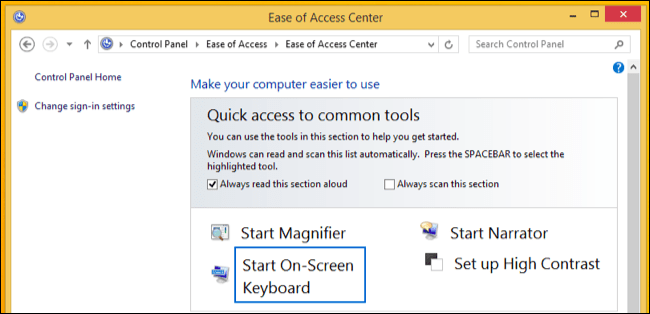
For the fuller OSK, open Control Panel > Ease of Access > Ease of Access Center > Start On-Screen Keyboard. At the sign-in screen, use the Ease of Access control and choose On-Screen Keyboard.
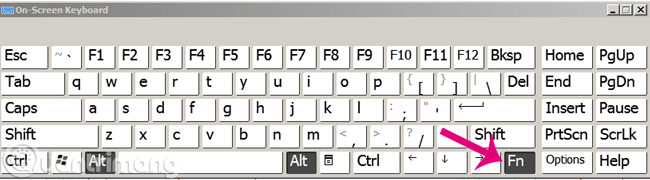
Open the On-Screen Keyboard in Windows 7
Windows 7 is unsupported and should not be used for normal internet-connected work. On a legacy system, open Start > All Programs > Accessories > Ease of Access > On-Screen Keyboard.
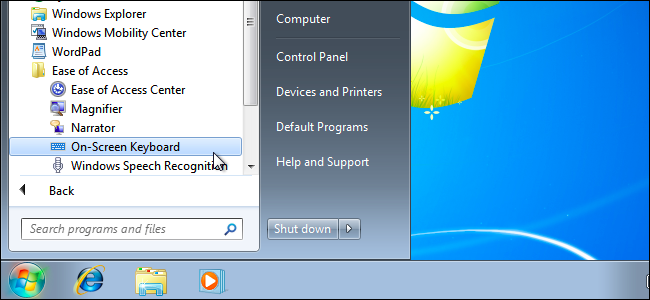
You can right-click the running OSK icon and pin it to the taskbar for quicker access.

Select a text field, then click keys with the mouse.
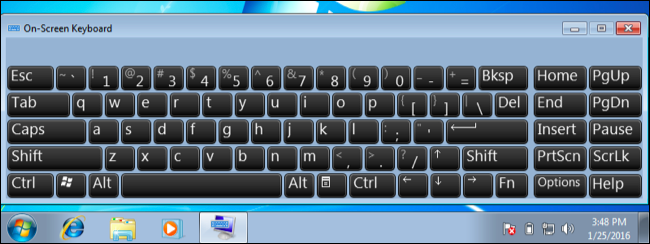
The Run method also works: press Windows + R, or open Run from Start, enter osk, and select OK.
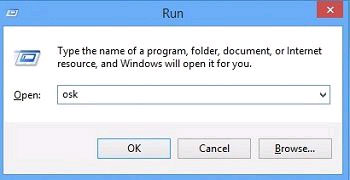
osk to open the classic keyboard.Some Windows 7 installations expose a compact touch-input toolbar through taskbar properties. This is different from the full OSK and may not exist on every device.
Is the On-Screen Keyboard safe for passwords?
OSK is useful when keys are broken or when a person needs an accessibility tool. It is not reliable protection from malware or keyloggers. Malicious software can capture mouse clicks, screenshots, clipboard contents, form data, or the final text entered into an application.
If you suspect malware, disconnect the affected device from sensitive accounts and use a known-clean device to change important passwords. Run an approved security scan or seek technical help. Do not treat clicking a password on OSK as a security workaround.
If OSK will not open
- Try another route: Settings, Start search,
osk, or the sign-in Accessibility menu. - Restart Windows if the process opens but does not display.
- Check whether an administrator policy or kiosk configuration blocks accessibility tools.
- For a damaged keyboard, connect a known-good USB or Bluetooth keyboard so you can troubleshoot without depending on OSK.
If the physical keyboard still fails after a restart and reconnection, work through these steps to reset and troubleshoot a keyboard. For a hardware workaround, compare external keyboards for laptops and verify the connector, operating-system layout, and wireless compatibility before buying.
Related Articles
 6 Ways to Open Virtual Keyboard on Windows 109 minutes read
 Summary of Several Ways to Open Virtual Keyboard on Windows XP //8 minutes read
 8 Ways to Open Virtual Keyboard on Windows 109 minutes read
 How to Open Virtual Keyboard on Windows 10 for Laptop and PC5 minutes read
 How to Open the Virtual Keyboard on Windows 103 minutes read
 How to Fix the Virtual Keyboard Automatically Opens on Windows 105 minutes read
Reader Comments 0
Sign in with email or Google to join the discussion.