Table of Contents
Windows 11 has a feature that automatically puts your computer into Sleep mode after a period of inactivity to save energy and extend your computer's battery life. If you want your device to run longer or don't want it to automatically go to sleep, Windows 11 allows you to adjust your display settings and timeout. Here's how to change Sleep mode settings in Windows 11.
How to change Windows 11 sleep mode settings
Step 1:
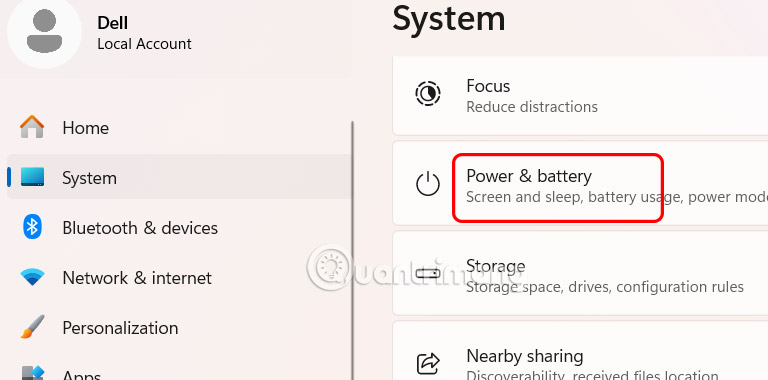
Open Settings then select System then look to the right and click on Power & battery .
Step 2:
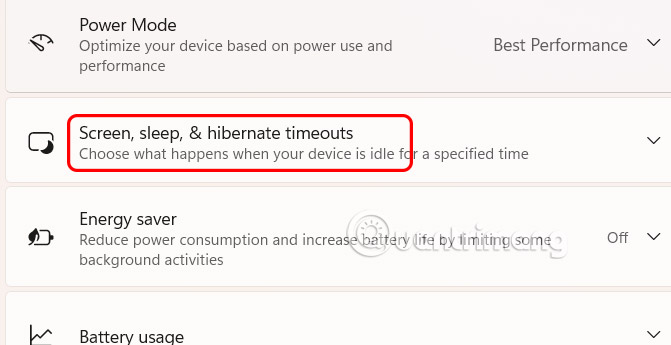
Switch to the new interface, select Screen, sleep, & hibernate timeouts to adjust.
Step 3:
In the adjustment list, you choose how long the computer will wait before turning off the display while plugged in or running on battery.
Continue to select how long the computer waits before going to sleep when plugged in or running on battery.
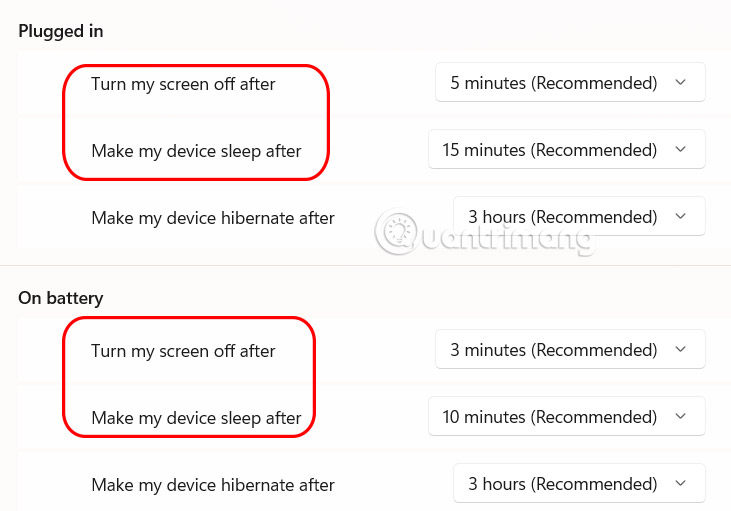
Once you complete the steps, your computer will go to sleep or turn off the display according to your configuration.
If you want maximum energy savings, the default settings of 5 and 3 minutes for both plugged-in and battery mode are optimal for most people. However, you can always increase or decrease these values to suit your preferences.
How to turn off Windows 11 Sleep timer
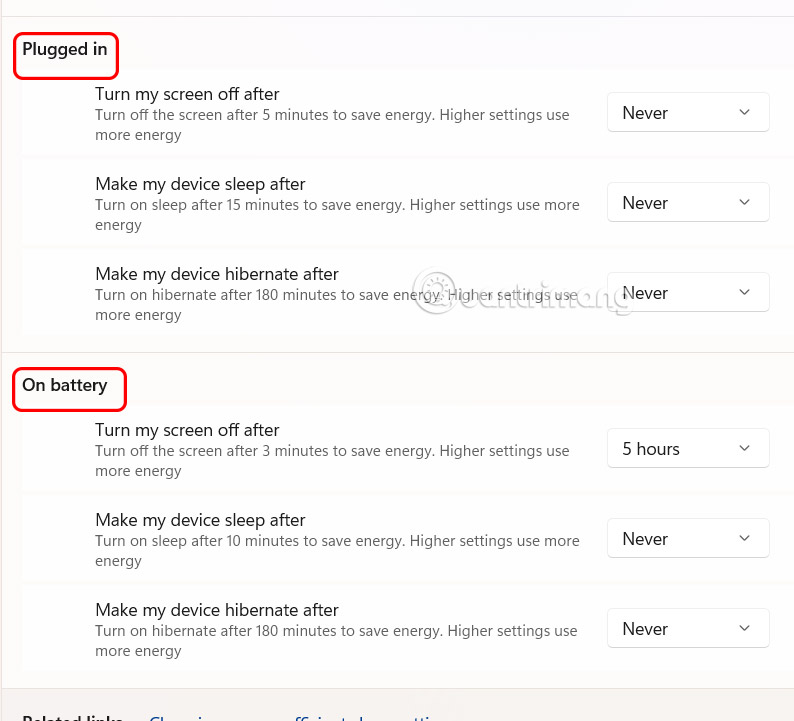
Preventing your computer and monitor from automatically going to sleep on Windows 11 is also very simple.
Under Screen, sleep, & hibernate timeouts, we will change it to Never to prevent the screen from automatically turning off for the Plugged in setting.
Select Never to prevent the computer from automatically going to sleep for the On batter setting.
Final Thoughts
Following the steps in order and checking version-specific settings should make it easier to Change Windows 11 Sleep Mode Settings. If an option looks different, verify the device, app, or operating-system version before changing additional settings.
FAQ
What is the best way to Change Windows 11 Sleep Mode Settings?
Start with the requirements described in the article and follow the steps in order. Windows 11 has a feature that automatically puts your computer into Sleep mode after a period of inactivity to save energy and extend your computer's battery life.
What should you know about How to change Windows 11 sleep mode settings?
Open Settings then select System then look to the right and select Power & battery.
What should you do if the instructions do not match your screen?
Check the device, software version, account permissions, and regional settings. Interfaces can change after updates, so use the closest matching option and consult the official support documentation when necessary.
Related Articles
 Steps to Customize Sleep Mode Settings on Windows 107 minutes read
 To Enable or Disable Sleep Mode in Windows 105 minutes read
 How to Troubleshoot Problems with Sleep Mode in Windows 109 minutes read
 How to Fix Windows 10 Automatically Activating Sleep Mode4 minutes read
 How to Set up a Windows 11 PC to Automatically Go to Sleep4 minutes read
 How to Disable Sleep Mode on Windows 114 minutes read
Reader Comments 0
Sign in with email or Google to join the discussion.