Table of Contents
If you frequently make system-level changes in Windows, you'll sometimes need to open Command Prompt with Admin privileges. You can open CMD from Windows Search, but there are faster ways to save yourself the effort. Here are four quick methods to open Command Prompt Admin.
Use Windows Search shortcut to open CMD Admin
In the search bar you type cmd, then hold Ctrl+Shift and left select the application icon. You will see a UAC message to confirm opening an elevated Command Prompt.
Open CMD Admin from Run dialog box
Press Windows key+ R to open the Run dialog box and type cmd. Press Ctrl+ Shift+ Enter and Command Prompt will open as administrator.
Create a shortcut to open Command Prompt Admin
If you want a more customized method, creating a Command Prompt shortcut to directly open CMD Admin would be a better solution.
Step 1:
At the File Explorer interface, navigate to the path C: WindowsSystem32 and find the cmd.exe file .
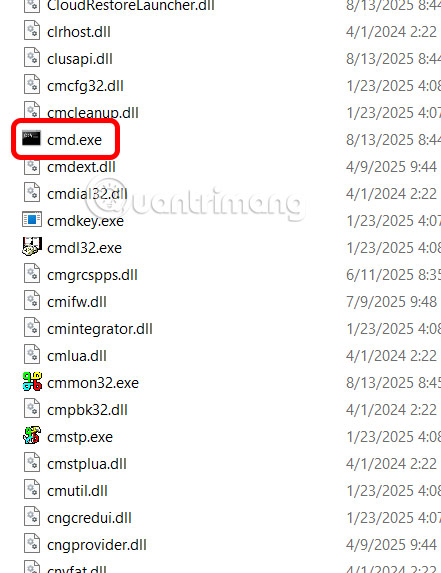
Step 2:
Hold Shift and right-click to open the classic context menu. Here, select Send to > Desktop (create shortcut) to create a shortcut on the desktop.
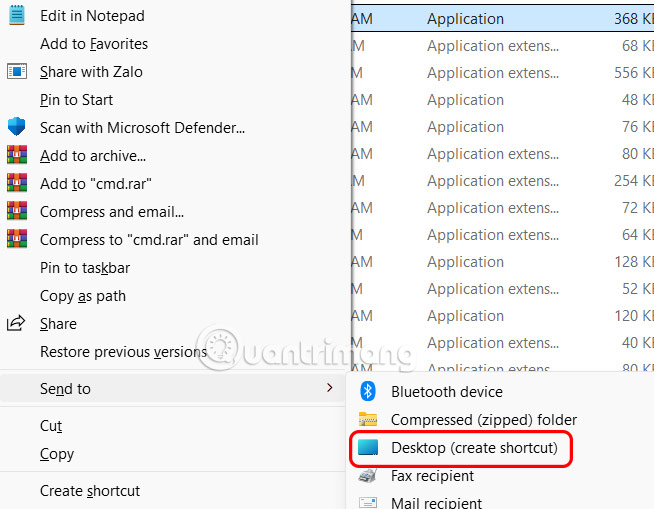
Step 3:
We right-select the cmd.exe shortcut you created on the desktop and select Properties . Click the Advanced button in the Shortcut tab.
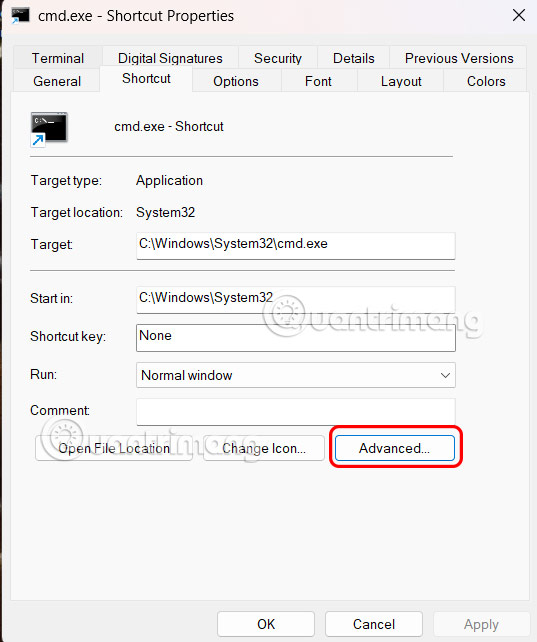
Now you just need to select Run as administrator.
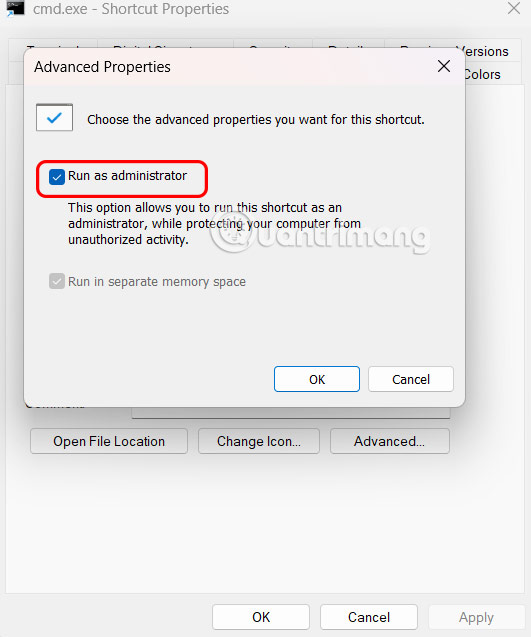
Create shortcut to quickly open CMD Admin
Right-select the cmd.exe shortcut and select Properties. Now we enter the startup shortcut key at Shortcut key , you can only assign shortcuts starting with Ctrl+ Alt or Ctrl+ Shift, such as Ctrl+ Shift+ C.
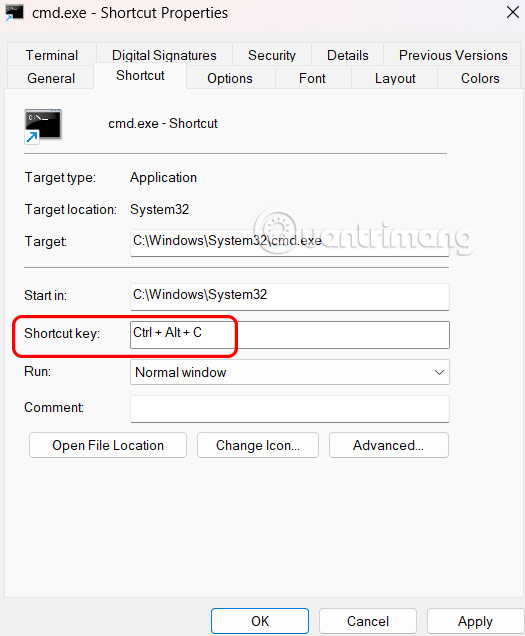
Now, every time you press the specified shortcut, an Admin Command Prompt window will open. While you still have to confirm the UAC prompt, you can press the left arrow key and then press Enter to quickly confirm.
Final Thoughts
Overall, 5 Tips to Quickly Open CMD Admin on Windows is best understood by considering the main facts, practical context, and limitations together. Use the details above as a clear starting point and confirm time-sensitive information when necessary.
FAQ
What does this article explain about 5 Tips to Quickly Open CMD Admin on Windows?
If you frequently make system-level changes in Windows, you'll sometimes need to open Command Prompt with Admin privileges. You can open CMD from Windows Search, but there are faster ways to save yourself the effort.
What should you know about Use Windows Search shortcut to open CMD Admin?
In the search bar you type cmd, then hold Ctrl+Shift and left select the application icon. You will see a UAC message to confirm opening an elevated Command Prompt.
Should time-sensitive details be verified?
Yes. Software features, game codes, product specifications, prices, and research findings can change. Confirm important details with an official or primary source when accuracy affects your decision.
Related Articles
 Losing Admin Permissions on Windows 10 // 8.1, This Is a Fix6 minutes read
 How to Set up Always Opening Applications with Admin Rights3 minutes read
 How to Open the Pin Application on the Taskbar Administrator with4 minutes read
 What Is Admin? Admin Facebook, What Is the Website?4 minutes read
 How to Open and Run Cmd with Admin Permissions on Windows4 minutes read
 6 Ways to Run Software with Administrator Rights in Windows11 minutes read
Reader Comments 0
Sign in with email or Google to join the discussion.