Table of Contents
You can change the delay and rate at which a keyboard character repeats when you press and hold a key. Repeat delay is the pause between pressing a key and when it starts repeating.
You can change the delay and rate at which keyboard characters repeat when you press and hold a key. Repeat delay is the pause between pressing a key and it starting to repeat. Repeat rate is how fast the key repeats. Here are 3 ways to change Windows 11 keyboard character repeat delay.
How to change keyboard character repeat delay via Settings
This option is currently only available for Windows 11 build 26200.5742 (Dev 25H2), build 26120.5742 (Beta 24H2), and build 2610.5061 (RP 24H2).
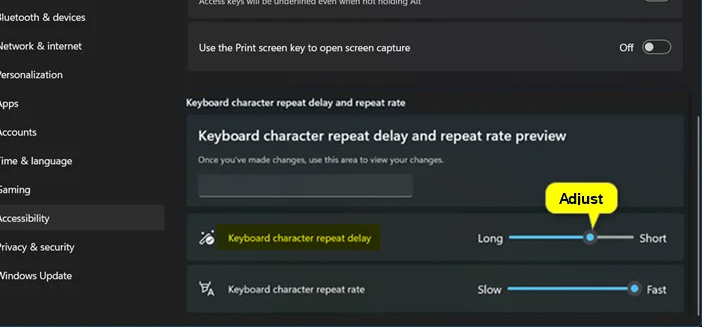
Open Settings On your computer, then click on Accessibility And look to the side, select Keyboard.
Now we click on Keyboard character repeat delay And adjust the keyboard character repeat delay.
Change keyboard character repeat delay via Control Panel
Step 1:
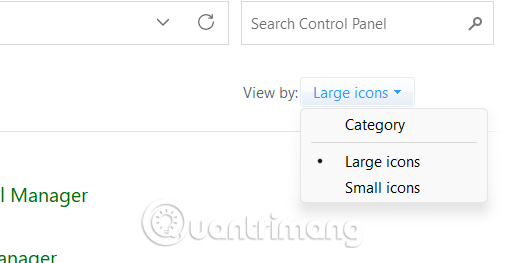
You Open Control Panel Then Click on Large icon To adjust.
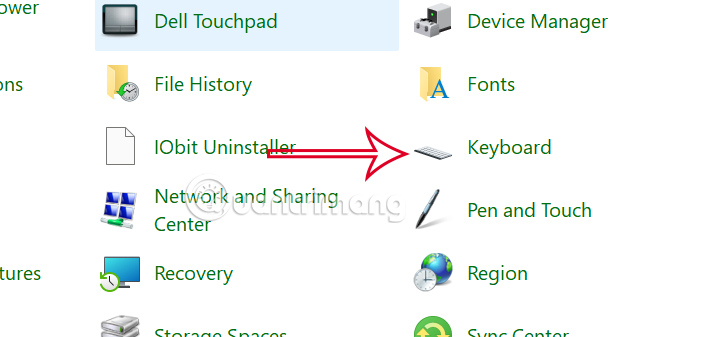
Then we click on the keyboard icon.
Step 2:
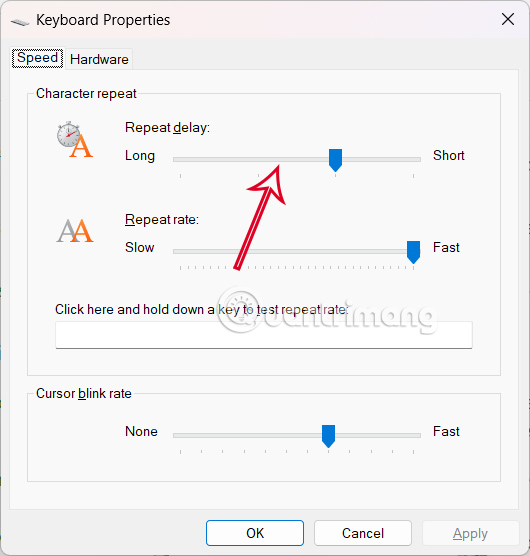
You click on The Speed tab And then look down below at The Repeat delay bar , you Adjust the Windows 11 keyboard character repeat delay .
How to change keyboard character repeat delay via Registry Editor
Step 1:
Open Registry Editor on your computer, then access the path below.
HKEY_CURRENT_USERControl PanelKeyboard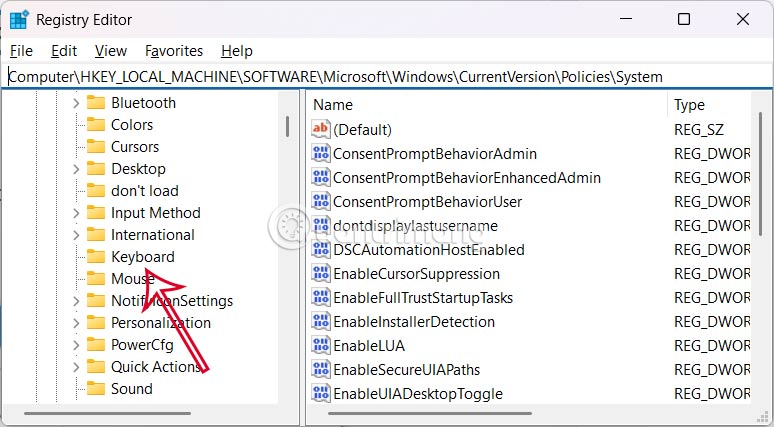
Step 2:
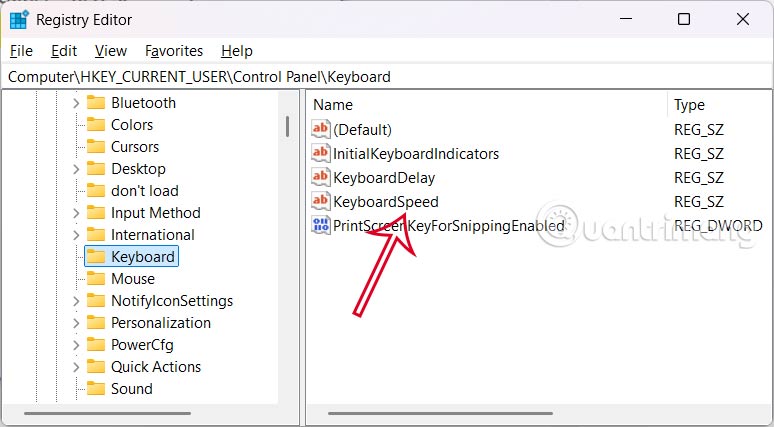
Look to the side and Double-click the KeyboardDelay value To adjust the delay.
Step 3:
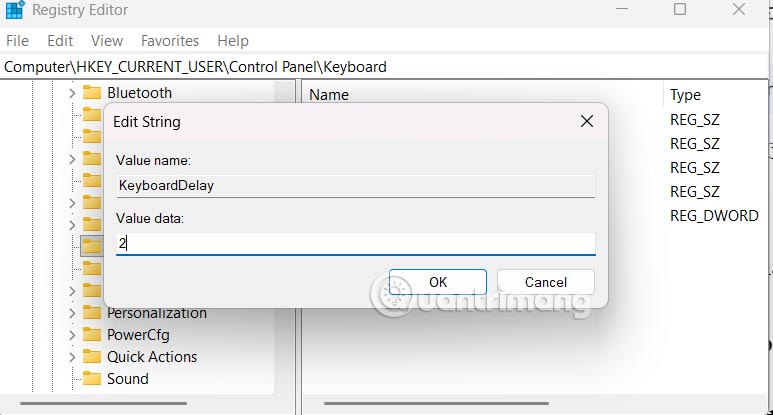
In this interface you enter a range from 0 (short) to 3 (long) for the long to short delay you want. The default repeat delay is 1.
FAQ
How do you change Windows 11 keyboard character repeat delay: step-by-step guide?
In practical terms, you can change the delay and rate at which a keyboard character repeats when you press and hold a key. Repeat delay is the pause between pressing a key and when it starts repeating.
What should you check before getting started?
Review the requirements, compatible device or software version, and any warnings described in the guide before making changes.
What should you do if the steps do not work?
Repeat the steps in order, confirm that your app or system is up to date, and review the troubleshooting details provided above.
Related Articles
 9 Ways to Fix Keyboard Typing Delay on Windows 10/118 minutes read
 How to Disable Startup Delay in Windows 103 minutes read
 How to Delay Starting OneDrive on Windows 10/8/75 minutes read
 How to Fix Character Map Not Working on Windows6 minutes read
 How to Change the Theme and Background Color of the Windows4 minutes read
 How to Change Windows 10 Keyboard Shortcuts: Step-by-Step Guide7 minutes read
Reader Comments 0
Sign in with email or Google to join the discussion.