Table of Contents
This updated guide explains how to change app fonts on iPhone with clear steps, practical tips, and useful context. Are you tired of seeing the same old fonts on your iPhone? The good news is, you can change things up! Some apps let you customize your fonts for a more personal touch. Read on to learn how to update the fonts on your iPhone for a fresh new look.
How to Change Fonts in Apple Apps
Open one of the Apple apps that comes pre-installed on your iPhone. for instance, the Mail app.
Start a new email. Before you start jotting down your ideas, look at the bar above your keyboard and press the right arrow.

select the Aa option.

This will open the Format screen for your text. Tap Default Font to change the font.

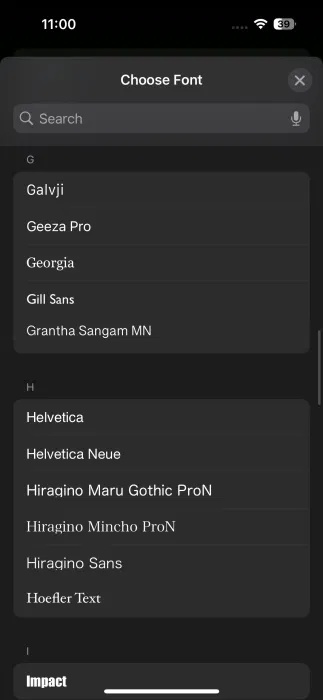
Swipe through the options and select the font you want. By default, there are quite a few fonts to choose from.
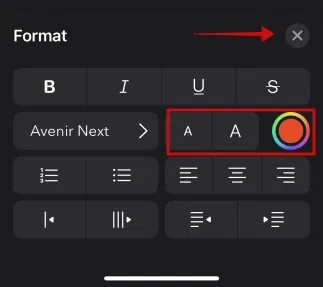
From the same Format screen, you can enlarge or reduce the font size and change the font color, if desired. Once you've made your selection, tap the X button to start typing your text.
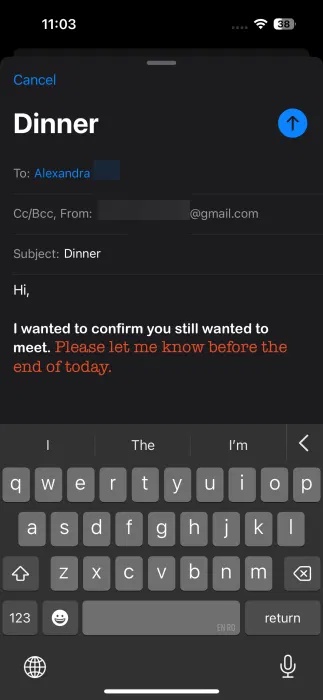
Once ready, you can send your email.
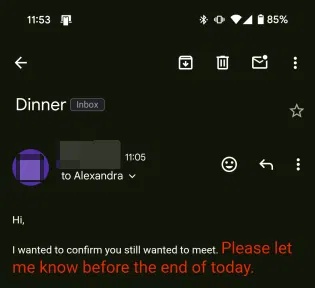
Depending on the device and Mail app the recipient is viewing the message on, and what fonts are supported on that device, they may not see the exact font you used when writing the email. Here, we're viewing the email on an Android device via the Gmail app.
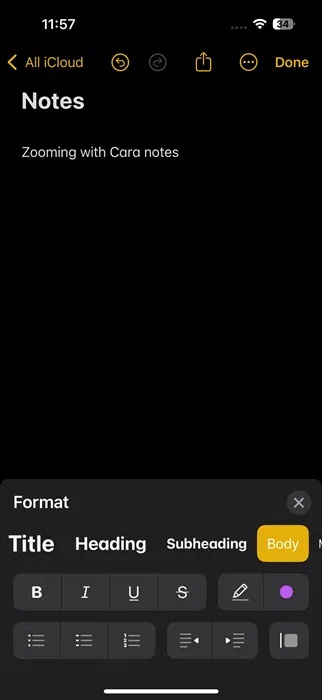
Unfortunately, NOT ALL pre-installed Apple apps support font changes. for instance, you cannot change the native font in the Notes or Journal apps. Still, you can customize the text style (headings, subheadings, body text) in the former case, or format it to bold or italic in both cases. Additional Apple apps, such as Keynote or Numbers, support font changes and tap into the iPhone's font library.
Change Fonts in Messaging Apps and Many Other Apps
to change the font in apps like WhatsApp or Facebook Messenger, you can do so, but you'll need to install a third-party keyboard app like Fontix.
remember that Fontix will completely overhaul your keyboard. The good news, Still, is that you can easily switch between keyboards on your iPhone.
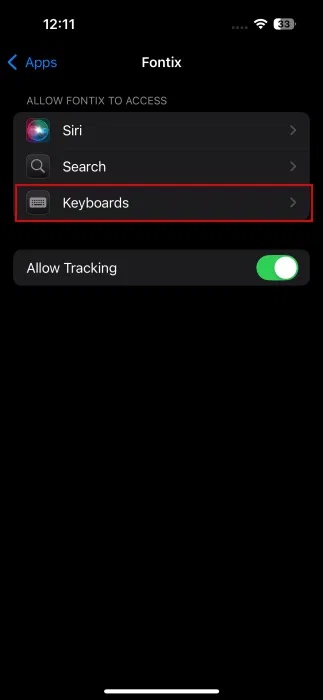
Once the app is installed, navigate to Settings -> Apps -> Fontix -> Keyboards .
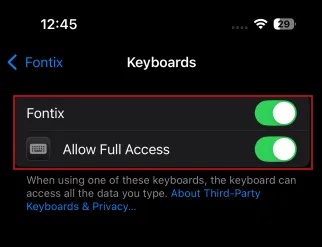
Enable both Fontix and Allow Full Access .
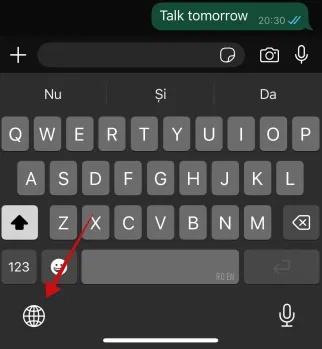
Now open a chat app like WhatsApp and open the conversation. Bring up the keyboard.
Tap the globe icon at the bottom to change keyboards. Tap until you find the Fontix keyboard.
Swipe through the font options displayed on the strip at the top of the keyboard. Select your favorite option (some are paid) and start typing your message.
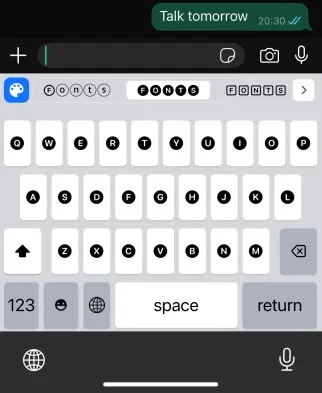
Hit send so the other person can see your message in the custom font.
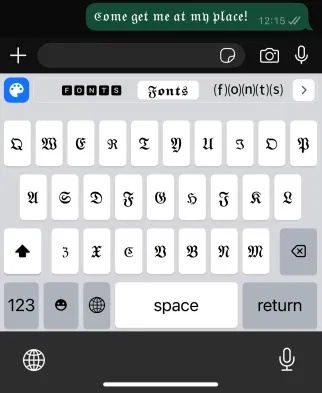
Fontix also works with Apple apps, most notably Messages, but also Diary and Notes.
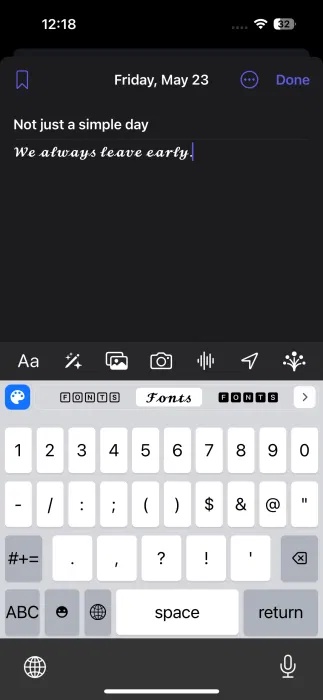
The best part is if you do not like the Fontix keyboard, you can type your message and then quickly switch back to the regular keyboard.
to further customize your iPhone experience, check out how you can hide the Dynamic Island at the top of the screen. Or you can check out how to refresh the icons on your iPhone.
FAQ
What should I prepare before I change app fonts on iphone?
Review the requirements and options in the guide first. Having the correct device, app version, account access, or materials ready helps prevent avoidable errors.
How long does it take to change app fonts on iphone?
The time depends on the task and your setup. Most basic steps can be completed quickly, while downloads, updates, scans, or troubleshooting may take longer.
What should I do if the steps do not work?
Repeat the instructions in order, confirm that your software or device is supported, and check permissions, connectivity, and available updates before trying again.
Related Articles
 How to Add Fonts, Change Beautiful Fonts for iPhone Keyboard3 minutes read
 How to Change Fonts on iPhone: Step-by-Step Guide7 minutes read
 How to Install Fonts on iPhone, iPad8 minutes read
 How to Change the Font on Android Phones7 minutes read
 How to Change Fonts on Windows Computers: Step-by-Step Guide9 minutes read
 How to Take Photos to Remove Fonts on Old Phones8 minutes read
Reader Comments 0
Sign in with email or Google to join the discussion.