Table of Contents
Microsoft Edge can download a foundational generative AI model for local inference. To prevent that download on supported versions of Edge, set the mandatory GenAILocalFoundationalModelSettings policy to Disallowed (1).
Microsoft documents this policy for Edge 132 and later on Windows. When set to 1, Edge does not download the model and deletes an existing copy. The policy refreshes dynamically, so a browser or PC restart is normally unnecessary.
Before changing the registry
- Check
edge://versionand update Edge if it is older than the supported policy version. - Use an administrator account because the policy is stored under
HKEY_LOCAL_MACHINE. - On a work or school computer, ask the administrator; device management can overwrite local registry changes.
- Create a restore point or export the relevant registry branch before editing.
The exact behavior and supported platforms are listed in Microsoft's Edge policy reference.
Option 1: Use Group Policy
If the current Microsoft Edge policy templates are installed, this is the clearest method for managed Windows editions:
- Open Local Group Policy Editor.
- Go to Administrative Templates > Microsoft Edge > Generative AI.
- Open Settings for GenAI local foundational model.
- Enable the policy and choose Do not download model.
- Apply the change, then open
edge://policyin Edge and select Reload policies.
If the Microsoft Edge node or this policy is missing, update the Edge ADMX templates or use the registry method below.
Option 2: Set the registry policy
- Search Windows for Registry Editor, right-click it and choose Run as administrator.
- Navigate to:
HKEY_LOCAL_MACHINE\SOFTWARE\Policies\Microsoft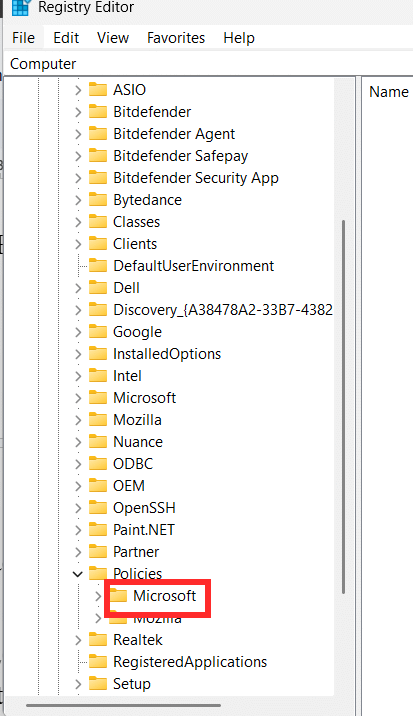
- Right-click the Microsoft key and select New > Key.
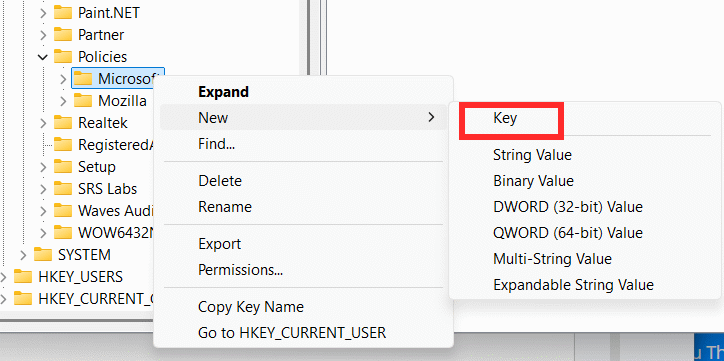
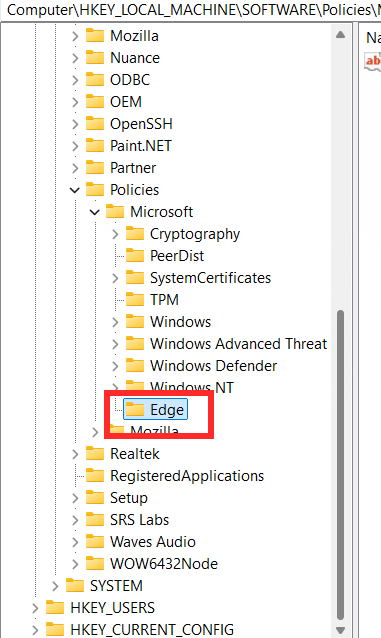
- Name the new key Edge. If it already exists, select it instead of creating a duplicate.
- Right-click the Edge key and choose New > DWORD (32-bit) Value.
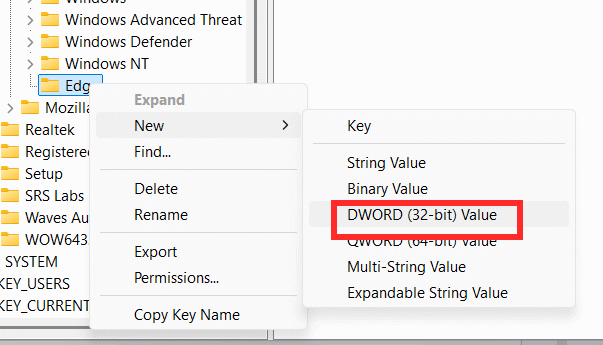
- Name the value exactly
GenAILocalFoundationalModelSettings.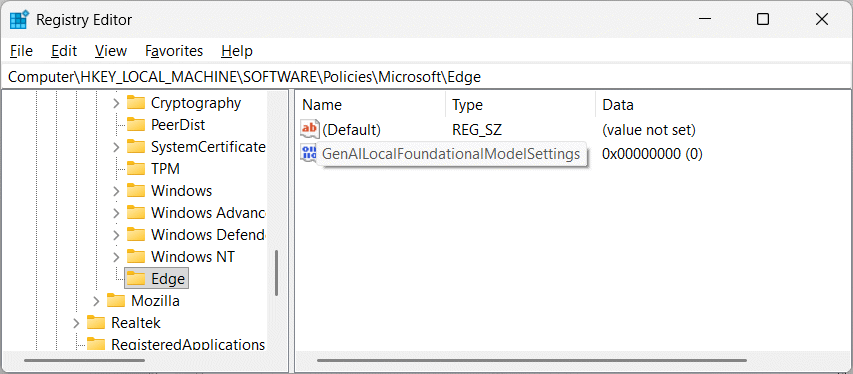
- Double-click the new value.
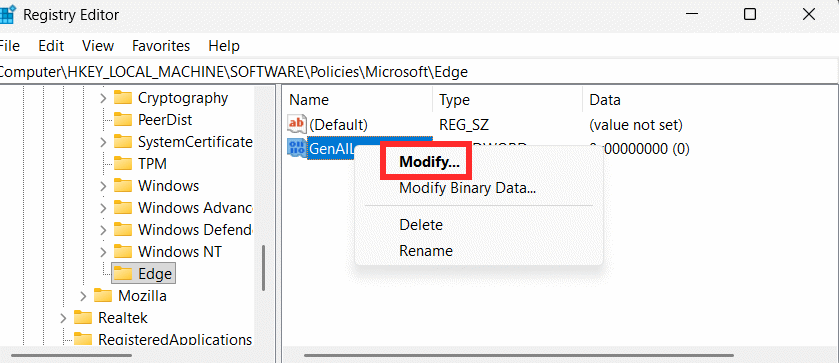
- Set Value data to
1and select OK.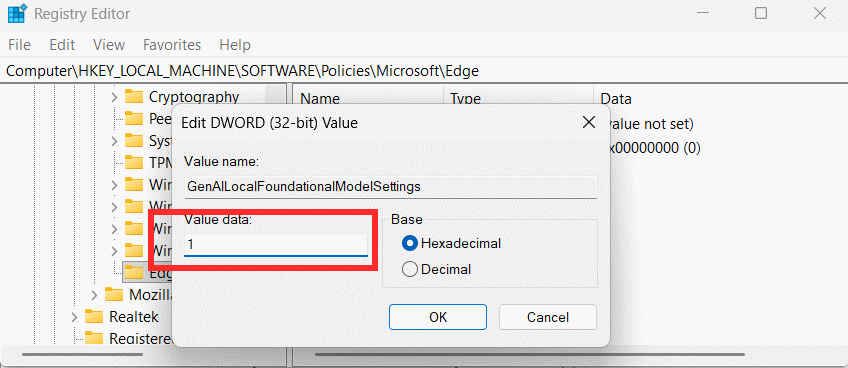
The complete configuration is:
Path: HKEY_LOCAL_MACHINE\SOFTWARE\Policies\Microsoft\Edge
Name: GenAILocalFoundationalModelSettings
Type: REG_DWORD
Value: 1
Verify that Edge applied the policy
- Open
edge://policy. - Select Reload policies.
- Find
GenAILocalFoundationalModelSettings. - Confirm that its value is
1and that the status does not report an error.
If the policy does not appear, check the registry path and value type. The value must be under the machine-level SOFTWARE\Policies\Microsoft\Edge key, not a similarly named user or browser-data folder.
What changes after the policy is set?
- Edge will not download the foundational GenAI model controlled by this policy.
- If that model was already downloaded, Edge is expected to delete it.
- Features that depend on that local model may become unavailable or use a different supported path.
- This policy does not disable every online AI or Copilot feature in Edge.
A large model directory is not by itself proof that it is safe to delete manually. Let the policy manage the controlled model, then use Windows storage tools to confirm that space is reclaimed.
Restore the default behavior
Delete the GenAILocalFoundationalModelSettings value or set the Group Policy item to Not configured, then reload edge://policy. Under Microsoft's documented default, Edge may automatically download and use the model again when needed.
Setting the registry value to 0 explicitly allows the automatic download; removing the policy returns control to Edge's default and any higher-level device management.
Related Articles
 How to Block Hateful Ads on Microsoft Edge Browser3 minutes read
 How to Prevent Chrome from Automatically Loading the Gemini Nano AI Model4 minutes read
 Instructions for Restoring Microsoft Edge on Windows 104 minutes read
 How to Block Microsoft Edge Ads on Phones3 minutes read
 How to Block Ads About Microsoft Edge from Appearing in the Windows 103 minutes read
 How to Stop Installing Extensions on Microsoft Edge5 minutes read
Reader Comments 0
Sign in with email or Google to join the discussion.