Table of Contents
This practical guide explains how to set up the back tap gesture on iPhone. Follow the steps in order, review the requirements first, and use the troubleshooting notes when a setting or option does not work as expected.
What is Back Tap? Why is it so handy?
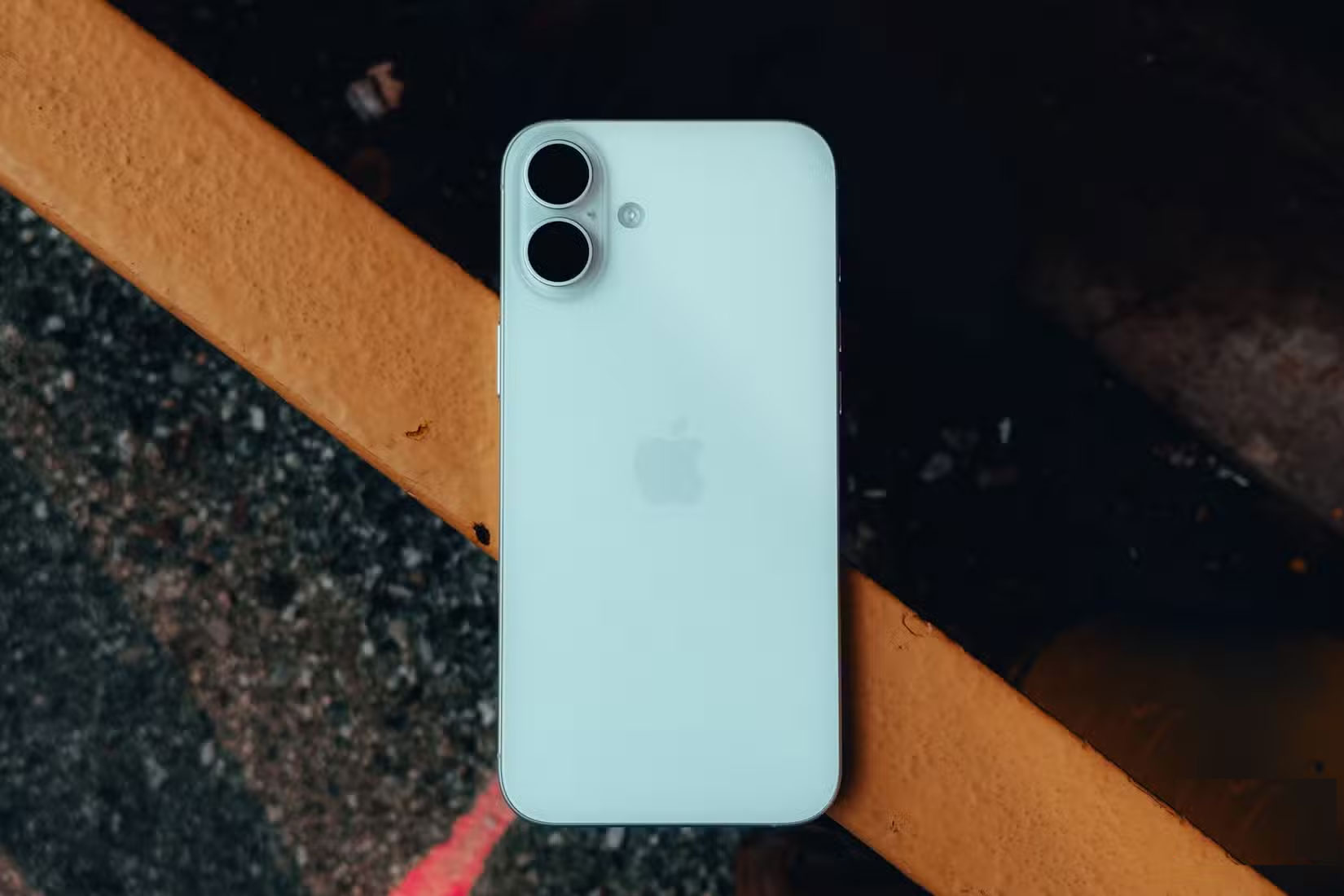
Back Tap is one of those handy but hidden iOS features that Apple quietly added to the Accessibility settings menu. It first appeared in iOS 14 and uses the iPhone's sensors to detect quick taps on the back of the device. You can assign a different action to Double Tap and Triple Tap, giving you two shortcuts that you can activate without touching the screen.
What makes Back Tap useful is that it works almost everywhere. If you're watching a video, a double tap can take a screenshot without interrupting playback. If you're reading, you can triple tap to scroll down or open Siri. It's fast, discreet, and feels surprisingly smooth once you get the hang of it.
The best part is that you don't need the latest iPhone to use it. Back Tap works on iPhone 8 and up, as long as you've updated to iOS 14 or later. While it's designed as an accessibility feature, it's useful for anyone who wants to get the most out of their device.
How to Set Up Back Tap on iPhone
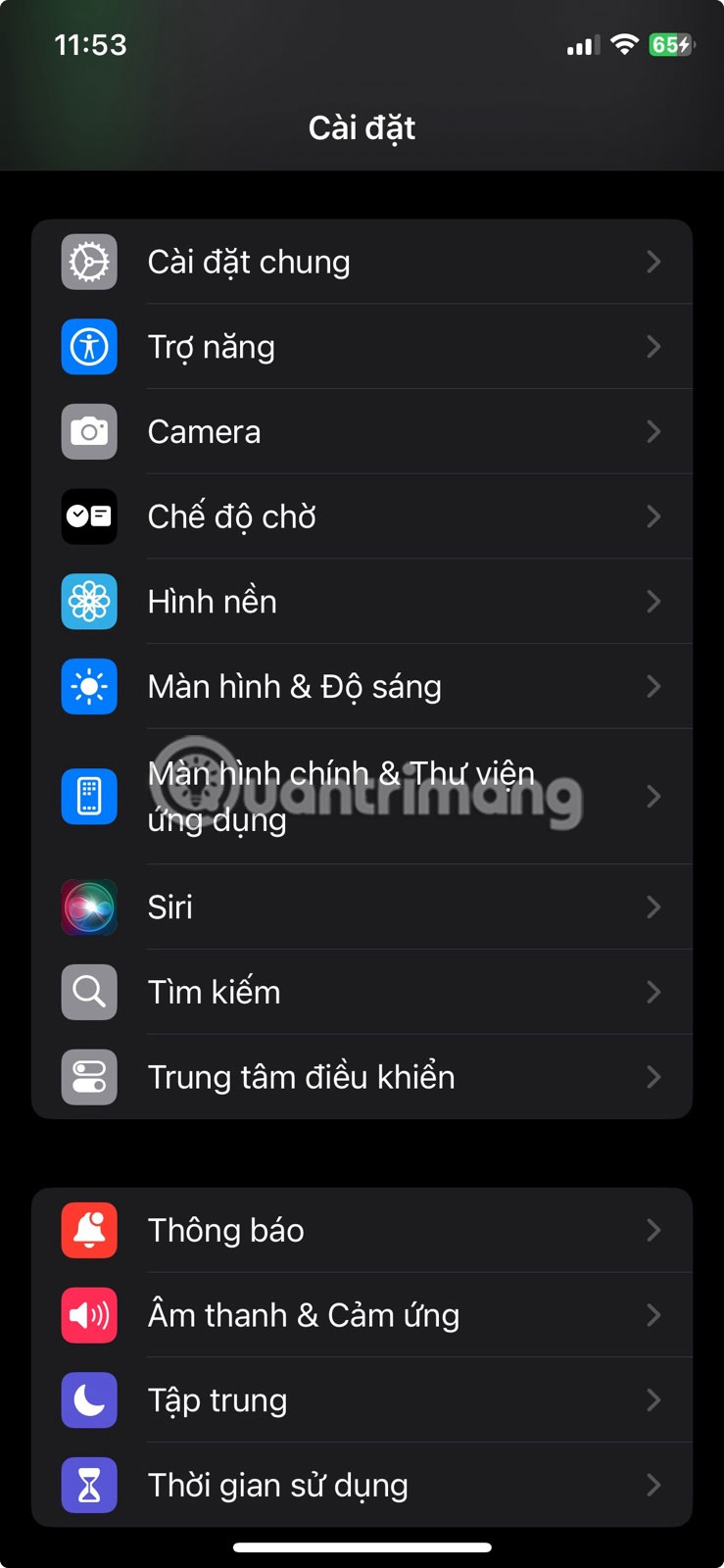
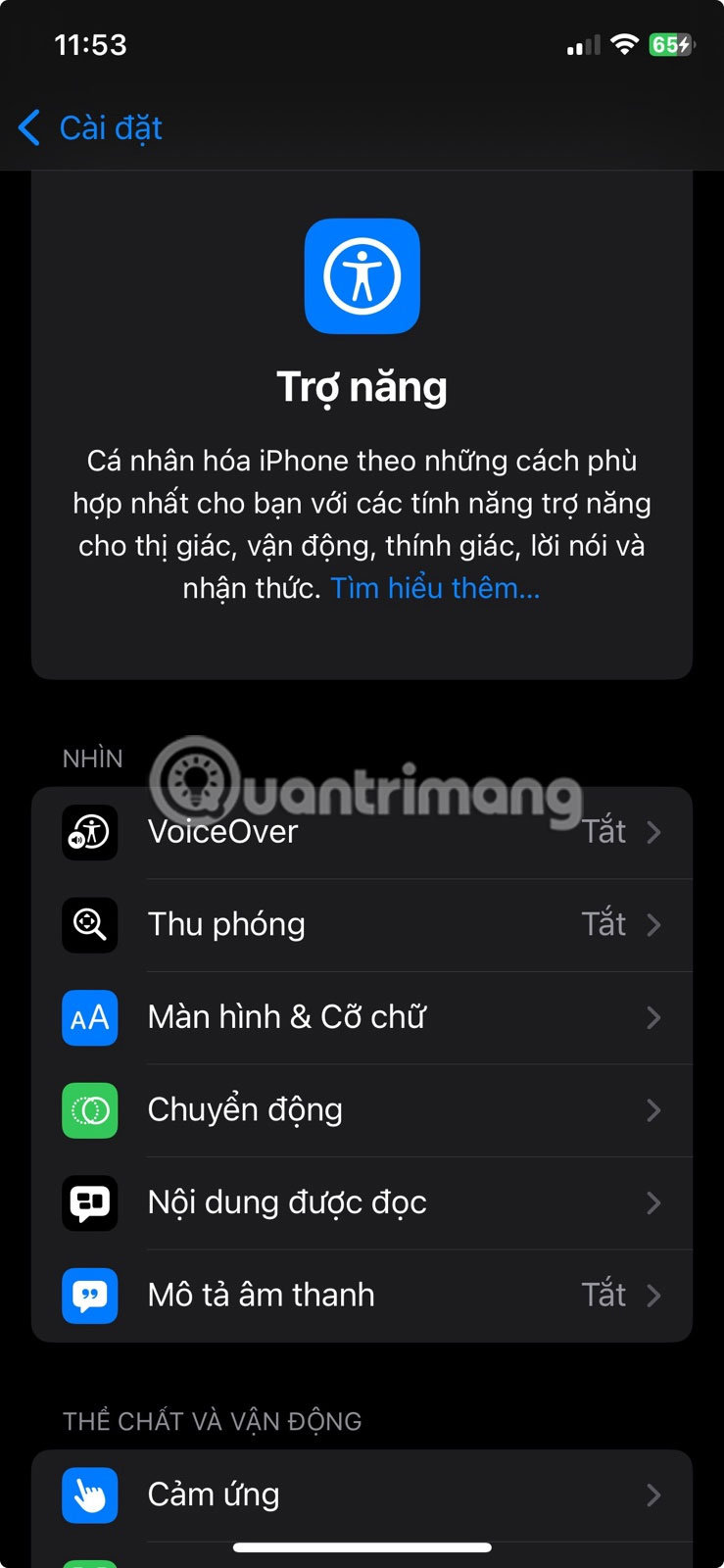
Back Tap takes less than a minute to set up. Start by going to Settings , then tapping Accessibility . Under Physical and Kinesthetic , select Touch , then scroll down and tap Back Tap .
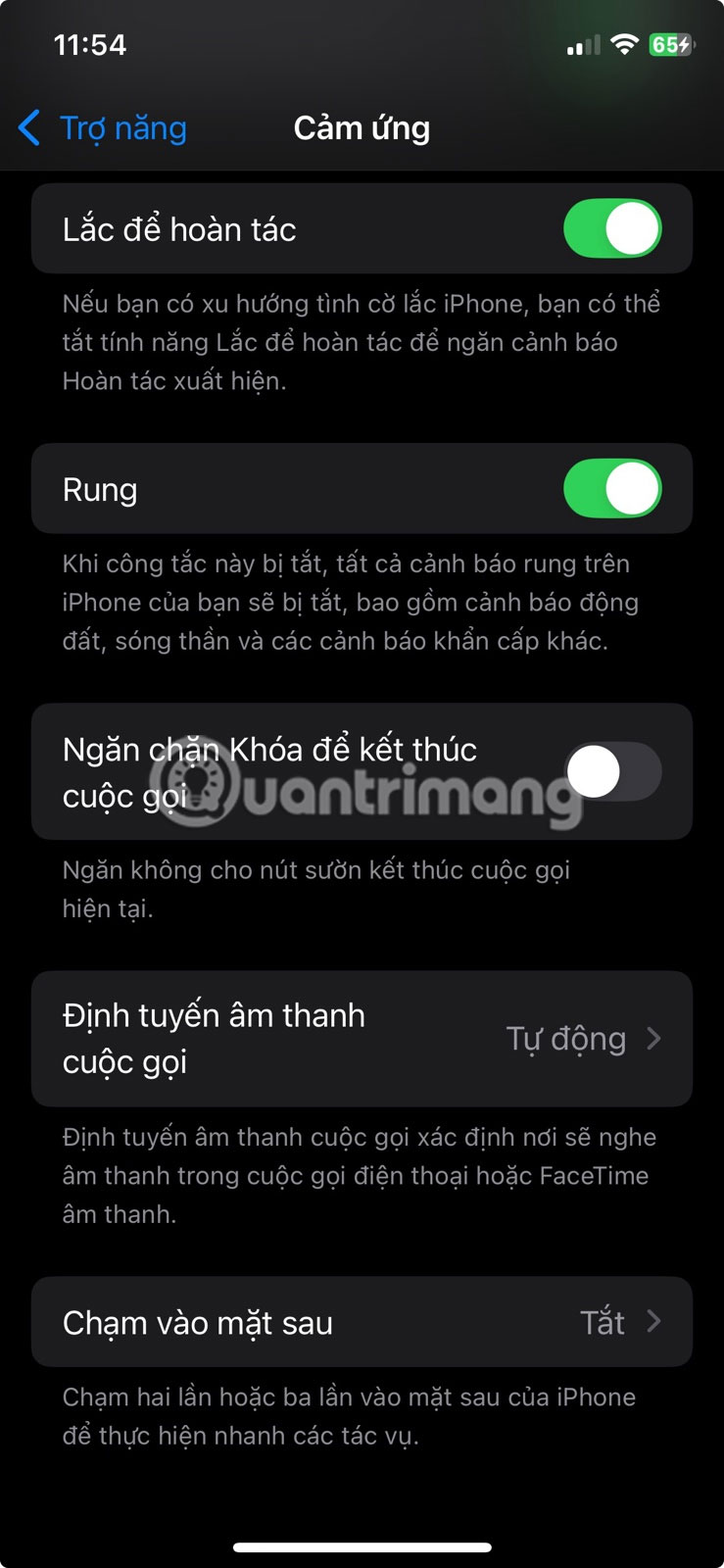
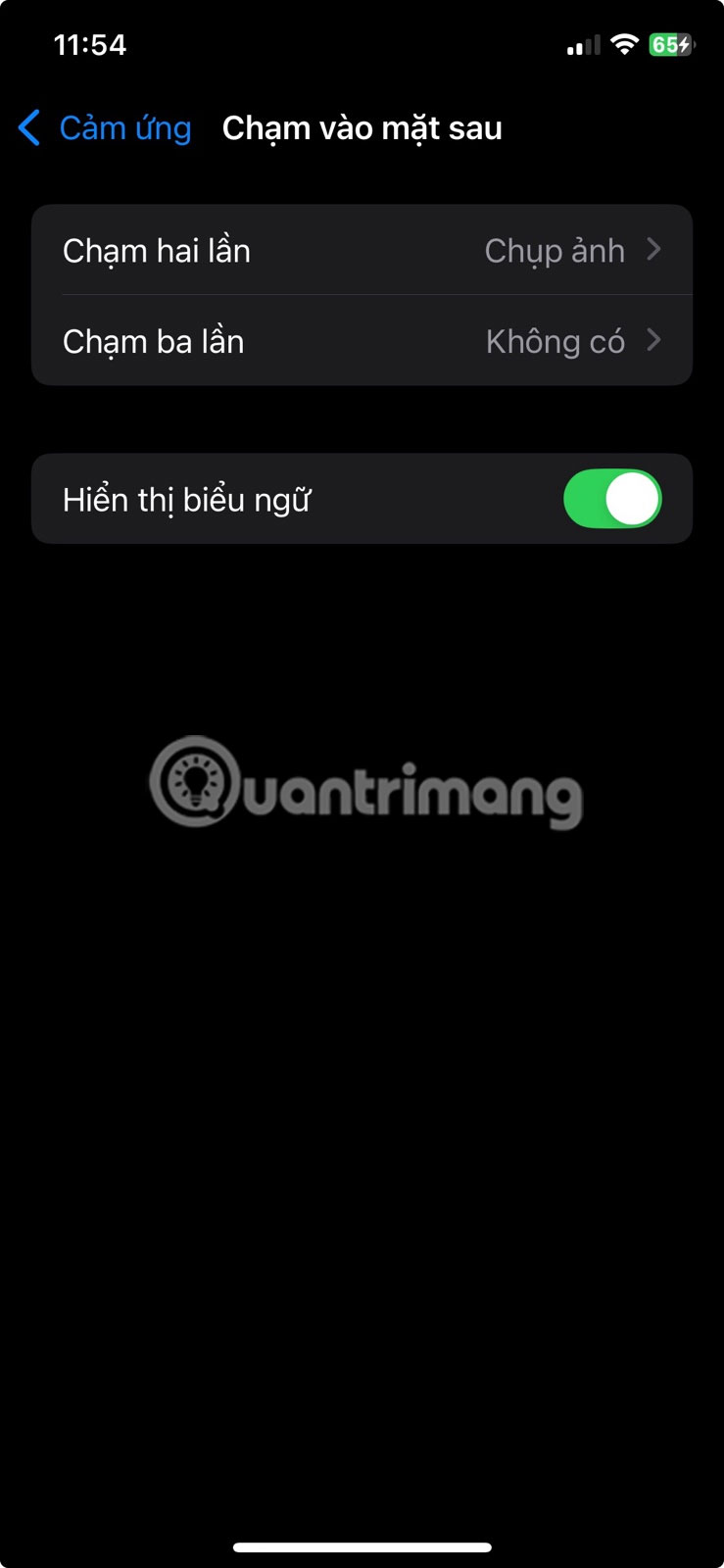
You'll see two options: Double Tap and Triple Tap. Tap either option to assign it an action. You can choose from options like taking a screenshot, locking the screen, opening Spotlight, scrolling, or launching the camera.
If you've created any shortcuts in Apple's Shortcuts app, they'll also appear in the list. This opens up even more possibilities, like sending a pre-written message, toggling Low Power Mode, launching a playlist, or opening a favorite app.
Once you've made your selections, you're done. Tap the back of your phone near the Apple logo two or three times in quick succession and the action you selected will run immediately.
It's important to note that Back Tap only works when the screen is on. Additionally, any actions you can't perform from the Lock Screen only work after your phone is unlocked. For example, if you set Back Tap to launch an app or shortcut, nothing will happen until you unlock your device.
However, actions like turning off the screen or toggling accessibility will work even when the device is locked. This may be confusing at first, but once you understand the behavior, it makes more sense. You don't want shortcuts to trigger when your phone is in your pocket or bag.
Another thing to note is that if this feature doesn't seem to respond, your phone case may be getting in the way. Thin cases work fine, but thick or sturdy cases can make it difficult for your phone to recognize your touches.
You don't necessarily have to remove the case, but if Back Tap seems unreliable, you might want to test it with the case off to rule that out. Enabling the Show Banners option in Back Tap's settings can help, as it will display a prompt when either tap is successfully recognized.
FAQ
What is Back Tap? Why is it so handy?
Back Tap is one of those handy but hidden iOS features that Apple quietly added to the Accessibility settings menu. It first appeared in iOS 14 and uses the iPhone's sensors to detect quick taps on the back of the device. You can assign a different action to Double Tap and Triple Tap, giving you two shortcuts that you can.
How to Set Up Back Tap on iPhone?
Back Tap takes less than a minute to set up. Start by going to Settings, then tapping Accessibility. Under Physical and Kinesthetic, select Touch, then scroll down and tap Back Tap.
What does this guide cover?
This guide explains set up the back tap gesture on iPhone, including the main steps, important details, and practical considerations.
Related Articles
 How to Switch the Gesture Navigation Feature of Android Q Back to3 minutes read
 How to Bring Swipe Gesture Control to Every Android Phone4 minutes read
 Google: Android Users Prefer to Use 3 Traditional Navigation Keys9 minutes read
 How to Add More Gesture Controls to Airpods5 minutes read
 Turn Off the Slide Gesture to Stop the iPhone Alarm: How-To Guide3 minutes read
 How to Enable Back Tap on iOS 14, How to Use Back Tap4 minutes read
Reader Comments 0
Sign in with email or Google to join the discussion.