Table of Contents
Gemini's app integrations are now generally called Connected Apps; older screenshots and guides may call them extensions. They let Gemini retrieve information or perform supported actions in other services. You manage them inside Gemini, rather than installing a browser extension.
The available list depends on your account, device, country, and Gemini interface. Use the list shown for your own account instead of relying on a fixed count of seven or twelve integrations.
Find and enable Connected Apps
On a phone
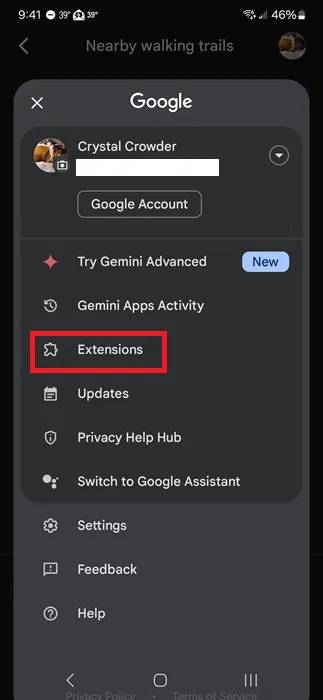
- Open the Gemini app and open the menu if necessary.
- Tap your profile picture or initial, then Connected Apps.
- If that option is not shown directly, open Personal Intelligence > Connected Apps.
- Choose an app, read its supported actions and access details, and turn it on. Follow any account-linking prompts.
On the web
At Gemini, open Settings & help > Connected Apps, or Personal Intelligence > Connected Apps if your interface groups the settings there. Turn the service on or off and complete the displayed setup.
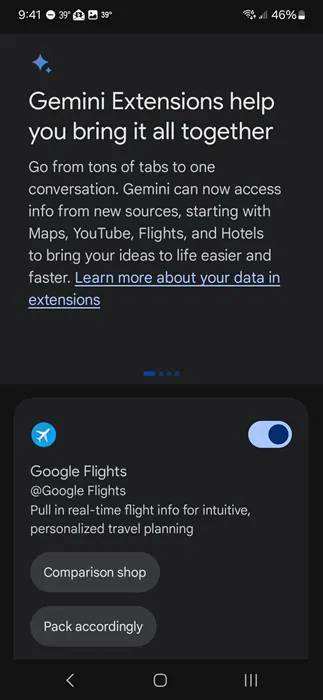
The screenshots show the older Extensions interface. Google's Connected Apps guide provides current platform-specific controls.
Ask Gemini to use a particular app
Type @ in the prompt box and select an available app. Then describe a specific task. For example, ask Gmail to find the email about a booking, or Google Calendar to show tomorrow's events.
Start with a request that retrieves information. Open the linked source and check names, dates, and details before relying on the answer. For an action such as creating an event, review the resulting item in the original app.
Which integrations should you use?
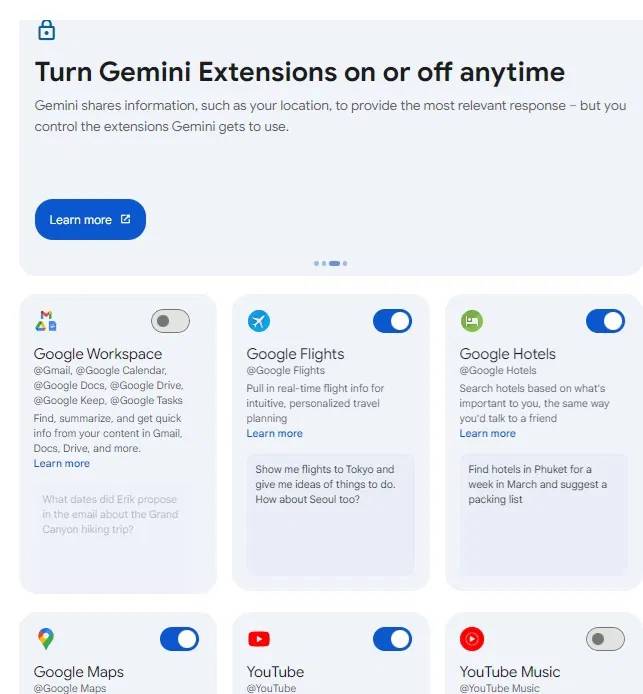
- Google Workspace services: supported connections can work with Gmail, Drive, Calendar, Keep, and Tasks. A personal Google account may be eligible; you do not always need a paid business Workspace account.
- Music services: use an available YouTube Music or Spotify connection when you want supported music-search and playback actions.
- Phone and messaging tools: on supported Android setups, available Phone, Messages, or WhatsApp integrations can help with supported communication tasks.
- Utilities: supported Android controls can handle tasks such as timers or opening apps. Device support and permissions determine what actually works.
Check each app's Learn more details. An integration's presence does not mean it can perform every action available in that app. For work or school accounts, access may depend on your organization's Workspace edition and administrator settings.
Public information and connected personal data are different
Gemini can use public information from services such as Search, Maps, Flights, Hotels, and YouTube without every service appearing as an individual switch in Connected Apps. Disconnecting a personalization connection does not necessarily stop Gemini from using that service's public information.
Similarly, a search for nearby places is different from granting access to personal email, photos, contacts, or listening data. Read the connection prompt so you understand which access you are enabling.
Disconnect an app you no longer need
Return to Connected Apps, find the service, and turn it off. Disconnecting limits further access through that connection, but information already present in Gemini chats or activity is a separate record. Google's personalization guidance explains that distinction.
Use the Gemini history and memory controls when you also need to review previous conversations. For broader third-party account access, see managing authorized apps in your Google account.
If an app is missing or a request fails
Check the current Gemini app, the signed-in account, the required service account, and the connection's supported actions. Some integrations are Android-only or need Keep Activity enabled. On a work account, ask the administrator whether the connection is permitted. Avoid enabling unrelated integrations merely to troubleshoot one missing feature.
Related Articles
 3 Chrome Extensions Enhance Your Security and Safety7 minutes read
 5 Chrome Extensions to Stay Safe Online6 minutes read
 Top 5 Best YouTube Extensions4 minutes read
 List of Some Types of Files That Are Potentially Dangerous on9 minutes read
 5 must-have Free Chrome Extensions for Students6 minutes read
 5 Browser Extensions That Make Every Website More Useful: Practical Guide7 minutes read
Reader Comments 0
Sign in with email or Google to join the discussion.