Table of Contents
This practical guide explains how to access the secret developers menu on fire tv stick. Follow the steps in order, review the requirements first, and use the troubleshooting notes when a setting or option does not work as expected.
What is the Fire TV Stick Developer Options Menu?
Like Android, the operating system that Fire OS is based on, Developer Options are tools designed for experienced users or app developers. Unlike on Android, the Fire TV Developer Options menu only has a few settings, including ADB Debugging, Apps from Unknown Sources, and Deep Sleep mode.
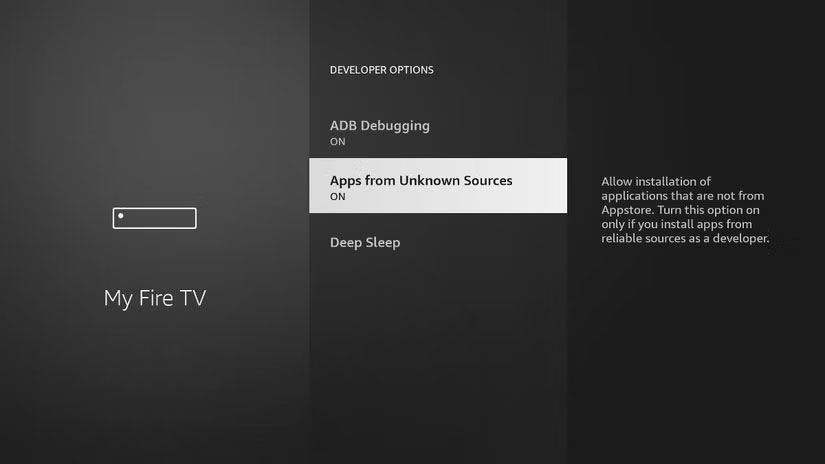
- ADB Debugging allows you to install apps remotely over Wi-Fi, for example, directly from your phone. If you need to link an app to your Fire TV using an IP address, you'll need to enable ADB Debugging.
- The Apps from Unknown Sources option allows you to install apps from locations other than the Amazon Appstore. This process is called sideloading and should be done with caution. Apps installed from outside the Amazon Appstore may not undergo the same safety checks as apps that are included in it.
- Deep Sleep mode puts the device into a hibernation state, preventing network activity. This means the Fire TV device cannot be remotely woken up by an Echo speaker or other connected devices.
Developer options are available on all Fire OS devices, including Fire TV Stick Lite, Fire TV Stick 4K and 4K Max, Fire TV Cube, and TVs with Fire OS built in.
How to access the Developer Options menu
As with all digital devices, you'll need to update your Fire TV Stick regularly to stay up to date with any fixes and prevent bugs. In June 2022, Amazon updated the method for accessing Developer Options on Fire OS, which should be familiar if you've ever used Developer Options on an Android phone.
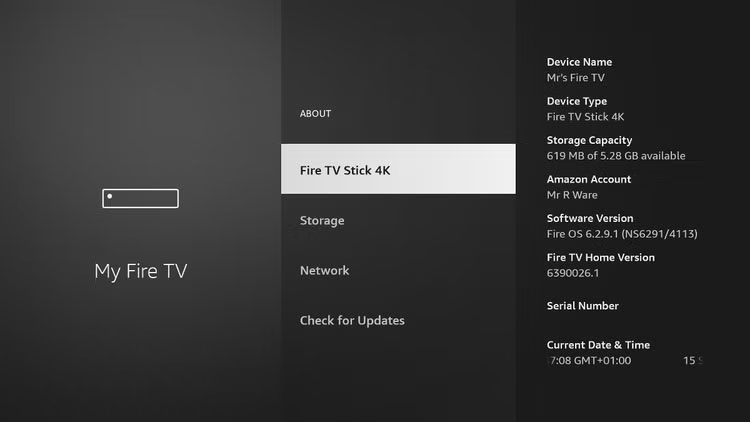
- On your Fire TV device, select the gear icon to open Settings .
- Navigate to the My Fire TV section and select About .
- At the top of the menu is the name of your Fire TV device, for example, Fire TV Stick 4K .
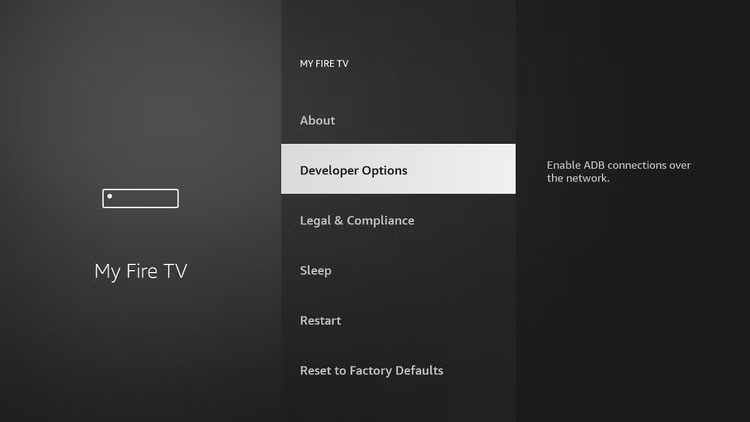
- With the name highlighted, continue to click the Action button on the remote until the text "You are now a developer" appears.
- Go back to the previous menu to see the Developer Options menu.
After installing an update to Fire OS, Developer Options may disappear from the menu. They're still available; just repeat the steps above to bring them back.
FAQ
What is the Fire TV Stick Developer Options Menu?
Like Android, the operating system that Fire OS is based on, Developer Options are tools designed for experienced users or app developers. Unlike on Android, the Fire TV Developer Options menu only has a few settings, including ADB Debugging, Apps from Unknown Sources, and Deep Sleep mode.
How to access the Developer Options menu?
As with all digital devices, you'll need to update your Fire TV Stick regularly to stay up to date with any fixes and prevent bugs. In June 2022, Amazon updated the method for accessing Developer Options on Fire OS, which should be familiar if you've ever used Developer Options on an Android phone.
What does this guide cover?
This guide explains access the secret developers menu on fire tv stick, including the main steps, important details, and practical considerations.
Related Articles
 7 Fire TV Stick Apps You Shouldn't Miss6 minutes read
 How to Unlock the Full Potential of Your Fire TV Stick9 minutes read
 Smart TVs Have a Secret Menu: Here's How to Access It!9 minutes read
 How to Customize Fire TV Stick Wallpaper6 minutes read
 Why Is the Amazon Fire TV Stick 4K Better Than Chromecast in 2025?6 minutes read
 7 Apps to Enhance Your Fire TV Experience: Practical Guide5 minutes read
Reader Comments 0
Sign in with email or Google to join the discussion.