Table of Contents
When not in use, a Smart TV takes up a whole wall with a big, blank screen that adds nothing to the room. That's why many people customize their Fire TV Stick to make the TV a visual focal point, even when it's on standby.
Why customize Fire TV Stick wallpaper?
Customizing your Fire TV wallpaper turns your TV into a giant digital photo frame. For general use, the Fire TV Stick pulls images from a dedicated Fire TV Screensaver album, which is displayed in a rotating carousel throughout the day. You can also create multiple folders of holiday photos, family photos, or curated artwork.
If you have a particular artist you're into, you can use Amazon Photos to organize your libraries by genre and display them according to your mood. This can add a more aesthetically pleasing look, especially in rooms that already have other artwork on the walls. Libraries are easy to configure through the Amazon Photos app.
Prepare the wallpaper
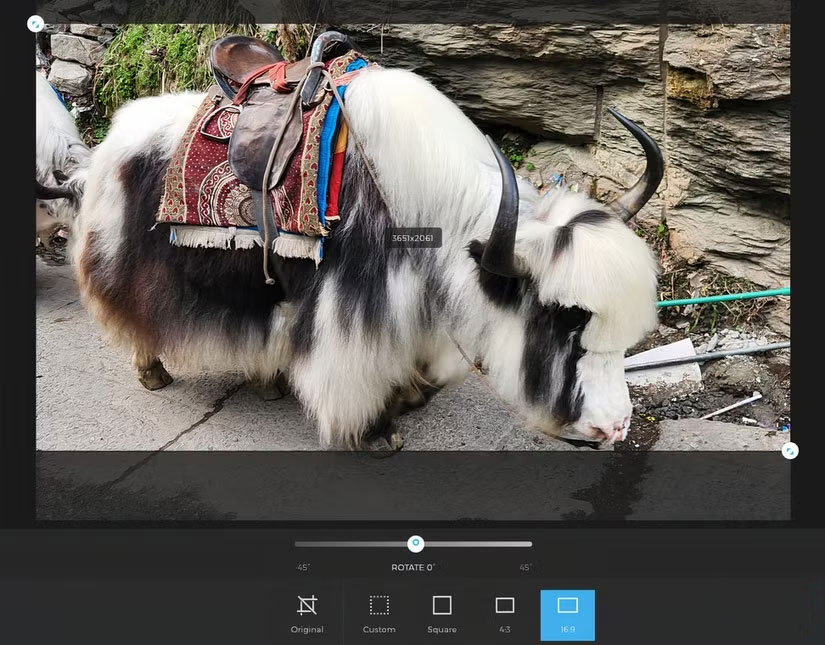
Generally speaking, any image will display perfectly on the Amazon Fire TV Stick, as long as it's in JPEG or PNG format, as these are the most compatible with Amazon's ecosystem. If you're displaying photos from your phone, high-resolution horizontal images will look great, even on larger TVs. However, when selecting artwork from other sources, look for images that are at least 1080p resolution to ensure a crisp, clear image at normal viewing distances.
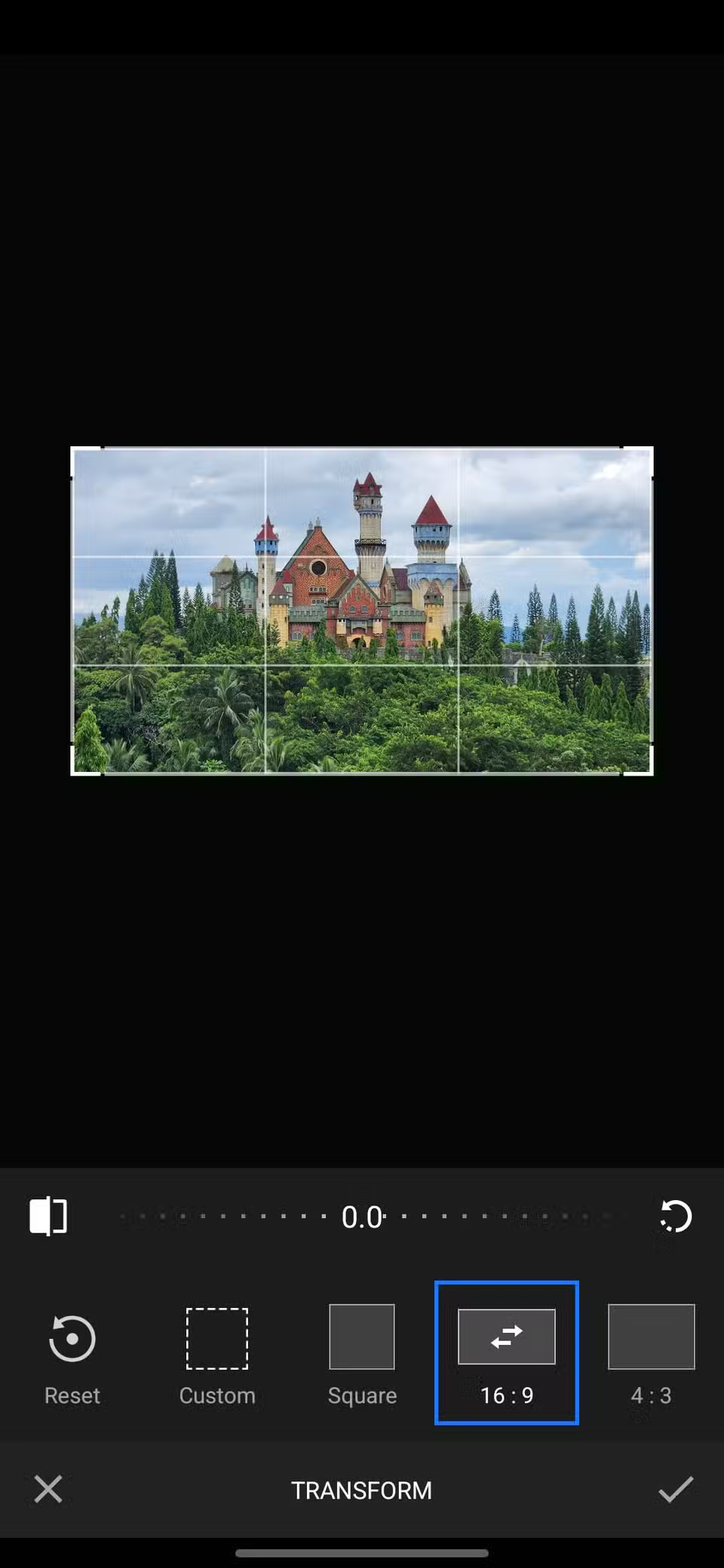
Aspect ratio is also a factor to consider. If you're okay with having black bars on either side of a photo if it doesn't fit on the screen, then go for it. Many people don't mind this as much with photos, which are typically 3:2 or 4:3, compared to TVs, which typically use 16:9. If you want your photos or artwork to fill the screen, crop them to 16:9 in the Amazon Photos editor.
Customize Fire TV Stick Wallpaper
Prime membership offers a variety of benefits for Fire TV Stick users, including unlimited online storage on Amazon Photos. You can manage, edit, and organize your photos from a dedicated Fire TV Screensaver folder or create your own custom gallery folder, ready to display on your Fire TV Stick wallpaper.
Using the Amazon Photos app
Once you download the Amazon Photo app and sign in, the process is pretty intuitive. Give Amazon Photos permission to access photos on your device, navigate to Albums , and you'll see your dedicated Fire TV Screensaver album added by default. From here, you can create additional albums, as well as add, edit (including cropping to 16:9), and delete photos.
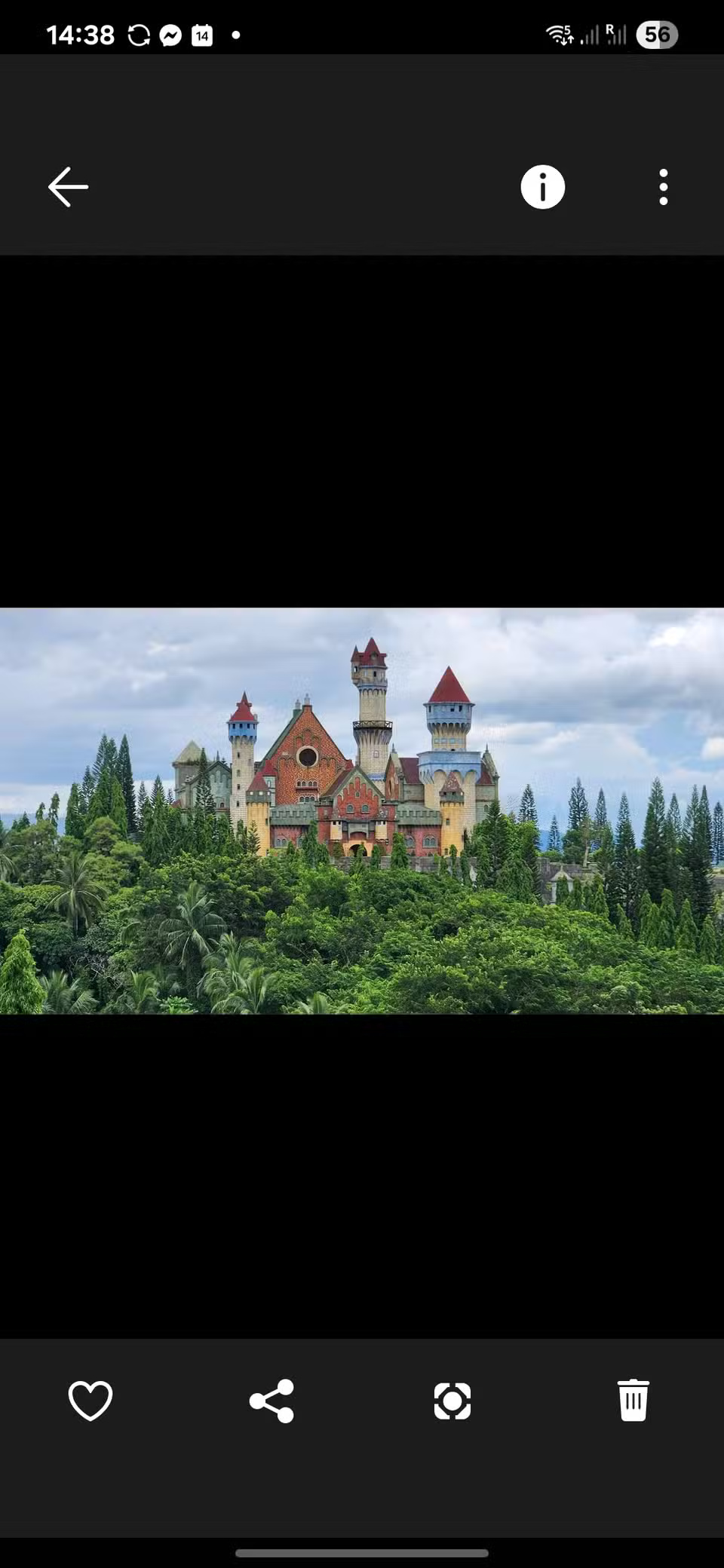
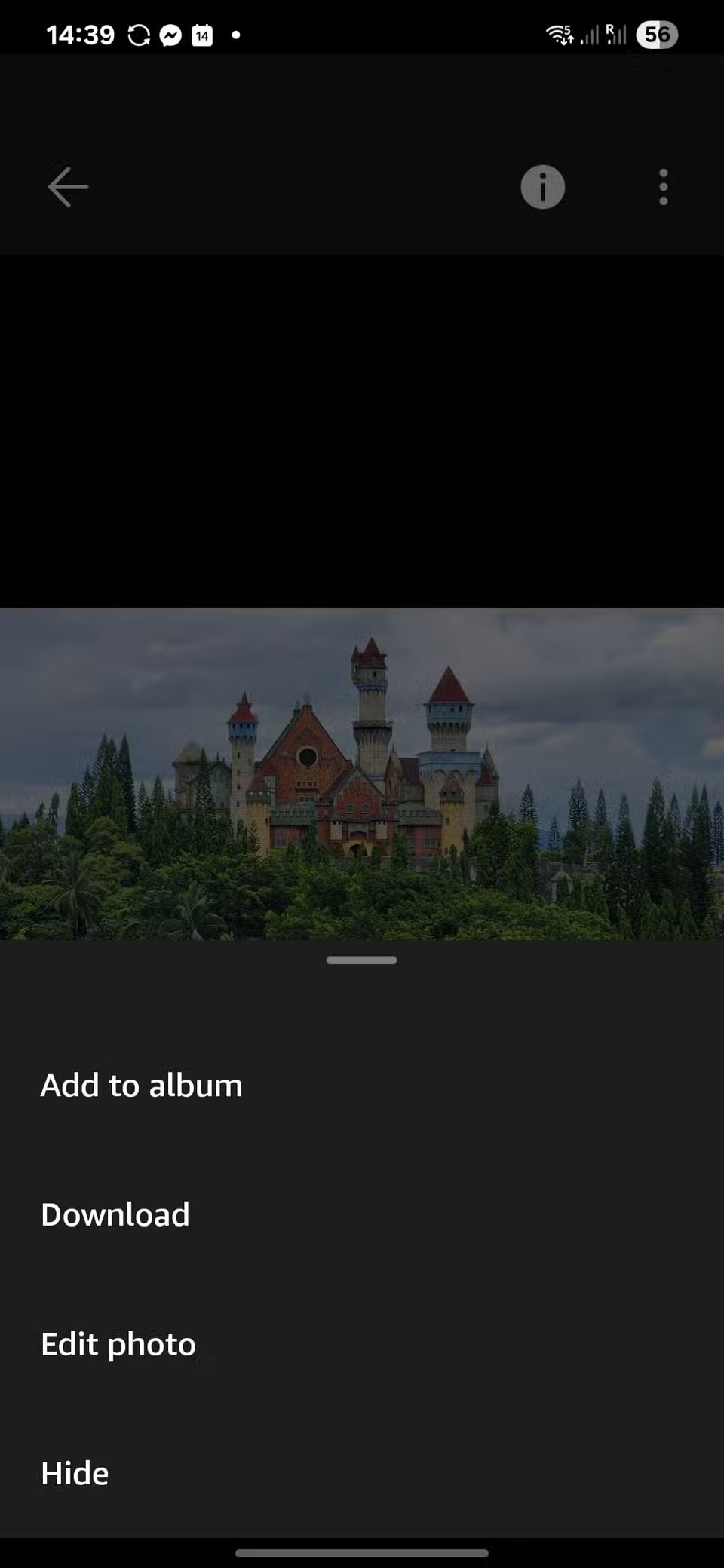
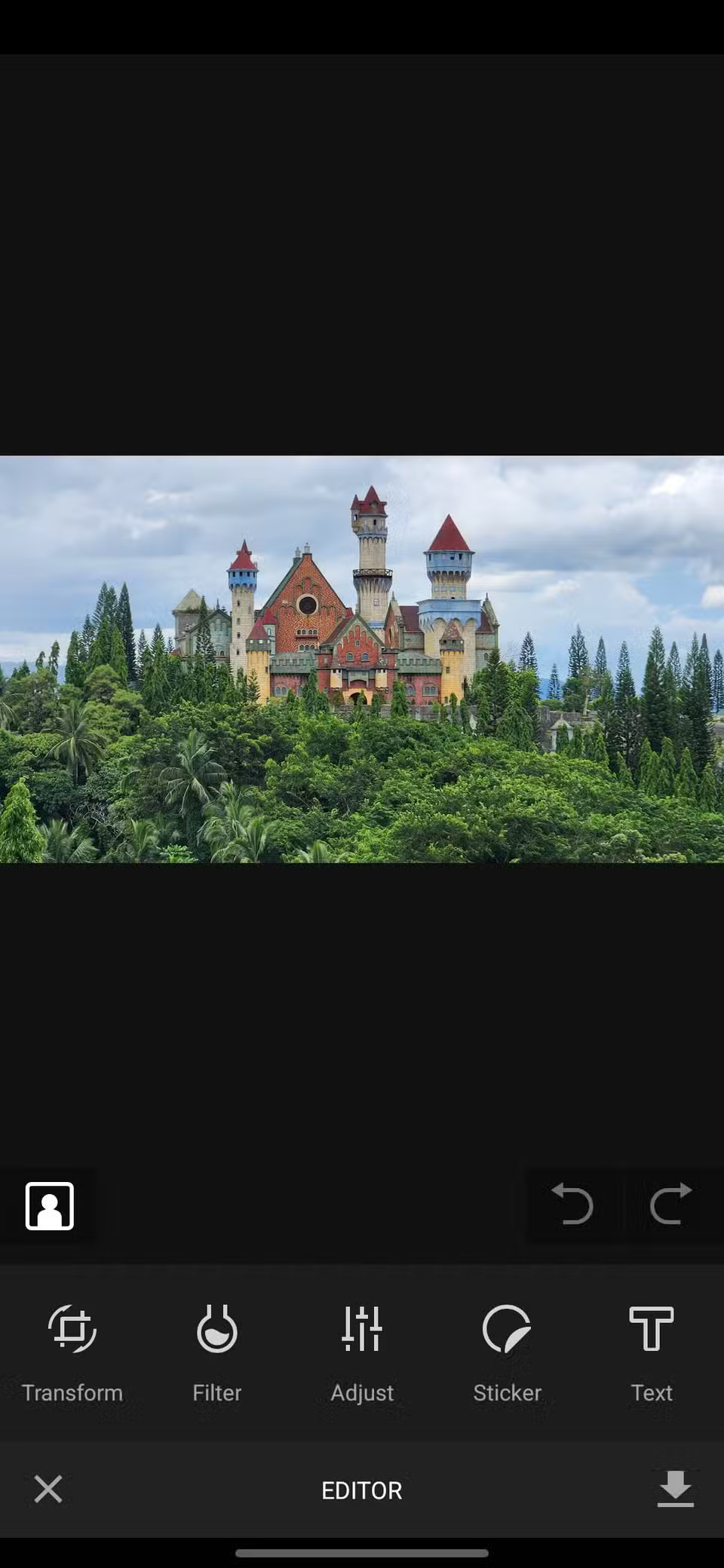
Once uploaded, head over to your Fire TV. From the home screen, navigate to Settings > Display & Sounds > Screensaver . Then, select Current Screensaver . Your uploaded albums will appear here, and you can choose the Fire TV Screensaver album or one of your custom folders as the slideshow source.
Using a web browser
Alternatively, you can use a web browser to upload and organize your images. This is often easier if you want to use other photo editing software, or you're managing a bunch of photos for a screensaver album.
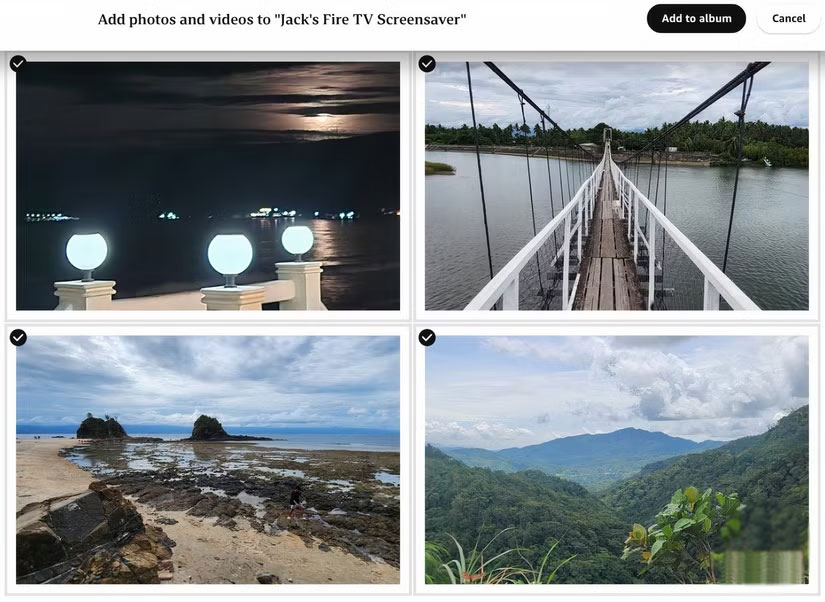
To complete this step, go to photos.amazon.com and sign in to your Amazon account. From there, you can upload photos and manage albums, just like you would on the mobile app. Once the album is ready, you can set it as your Fire TV Stick's screensaver, using the same Settings > Display & Sounds > Screensaver path.
Final Thoughts
Following the steps in order and checking version-specific settings should make it easier to Customize Fire TV Stick Wallpaper. If an option looks different, verify the device, app, or operating-system version before changing additional settings.
FAQ
What is the best way to Customize Fire TV Stick Wallpaper?
Start with the requirements described in the article and follow the steps in order. When not in use, a Smart TV takes up a whole wall with a big, blank screen that adds nothing to the room. That's why many people customize their Fire TV Stick to make the TV a visual focal point, even when it's on standby.
What should you know about Why customize Fire TV Stick wallpaper??
Customizing your Fire TV wallpaper turns your TV into a giant digital photo frame. For general use, the Fire TV Stick pulls images from a dedicated Fire TV Screensaver album, which is displayed in a rotating carousel throughout the day.
What should you do if the instructions do not match your screen?
Check the device, software version, account permissions, and regional settings. Interfaces can change after updates, so use the closest matching option and consult the official support documentation when necessary.
Related Articles
 7 Fire TV Stick Apps You Shouldn't Miss6 minutes read
 How to Unlock the Full Potential of Your Fire TV Stick9 minutes read
 How to Access the Secret Developers Menu on Fire TV Stick4 minutes read
 Why Is the Amazon Fire TV Stick 4K Better Than Chromecast in 2025?6 minutes read
 7 Apps to Enhance Your Fire TV Experience: Practical Guide5 minutes read
 How to Install Kodi on Amazon Fire Stick: Practical Guide6 minutes read
Reader Comments 0
Sign in with email or Google to join the discussion.