Table of Contents
Samsung Galaxy phones have shortcuts for translating a sign, automating a setting and opening apps from the edge of the screen. Availability depends on your model, region and One UI version.
Translate printed text with Bixby Vision
On supported phones, open Camera > More > Bixby Vision and choose Translate. Point the camera at a menu or sign. On some phones you can also open Bixby Vision from a saved image in Gallery. See Samsung’s Bixby Vision instructions or the guide to Bixby features.

Automate a setting with Modes and Routines
Open Settings > Modes and Routines > Routines and tap +. Pick an If condition and a Then action. For example, make screen rotation turn on when YouTube opens. This YouTube auto-rotate walkthrough shows how to build that routine.
Open your most-used apps from Edge panels
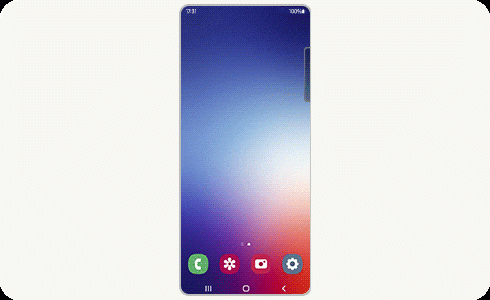
Go to Settings > Display > Edge panels, turn it on and swipe inward from the small handle. Tap Panels in settings to see what is available. Start with the Apps panel and add a few apps you use every day. One UI 7 removed the option to download additional Edge panels from Galaxy Store, so older tutorials may show menus you do not have.
Related Articles
 15 hidden features of Galaxy S10 users should know for a better experience
 10 super useful new features of smartphones that few people know
 Tips for speeding up Samsung Galaxy crickets
 Some advanced Galaxy S20 features are about to be updated for Galaxy S10 and Note10
 6 top new features on Samsung's Galaxy S20 flagship device
 Hot: Samsung Galaxy Galaxy Fold will open for sale in South Korea on September 6, US and other markets in the coming weeks
Reader Comments 0
Sign in with email or Google to join the discussion.