Table of Contents
Teachers can utilize it to create many interactive games to review content for students in a more engaging way.
Replit can generate and host a small browser game from a natural-language brief, but the teacher should define the learning goal, verify every question, test the code, and control who can access the published app. A focused quiz or matching game is a better first project than a large multiplayer game.
Plan the game before opening Replit
- Learning objective: state the concept students should recall or apply.
- Question set: prepare verified questions, accepted answers, explanations, and difficulty levels.
- Interaction: choose multiple choice, matching, ordering, or short answer.
- Feedback: show why an answer is correct; avoid relying on points alone.
- Access: decide whether the app should be public, password protected, workspace-only, or invite-only.
- Privacy: avoid collecting names, emails, student IDs, free-text personal data, or analytics that the school has not approved.
Starter prompt for Replit Agent
Create a responsive browser-based quiz game for [grade/subject].
Use only HTML, CSS, and JavaScript unless a framework is necessary.
Include [number] questions from the verified list I provide.
Show one question at a time, keyboard-accessible answer controls,
clear focus states, progress, score, an explanation after each answer,
and a restart button. Do not collect personal data or call external APIs.
Add a teacher-editable questions array near the top of the code.
Test empty data, a perfect score, an incorrect answer, and mobile layout.
After the first build, ask the agent to explain the file structure and point to the questions array. Edit the content yourself, then request one improvement at a time. This makes errors easier to spot than asking for many features in a single revision.
Test before sharing
- Verify every question, answer, spelling, calculation, and explanation against the course material.
- Complete the game using a keyboard only and check color contrast, readable text, focus order, and labels.
- Test on a phone and a school-managed device, including the browser students actually use.
- Confirm refresh, restart, scoring, and end-of-game behavior.
- Check that no API key or credential appears in code. Use Replit's Secrets tool when a later project legitimately needs one.
- Publish with the narrowest access setting that supports the lesson and test the link in a signed-out browser.
Replit documents how to create an app, publish it, and control who can access a deployment. For related comparisons, see TipsMake's guides to Replit vs. Cursor, AI app-building platforms, and AI tools for students.
Below is a guide on creating interactive games on Replit.
Create and publish the quiz game in Replit
Step 1:
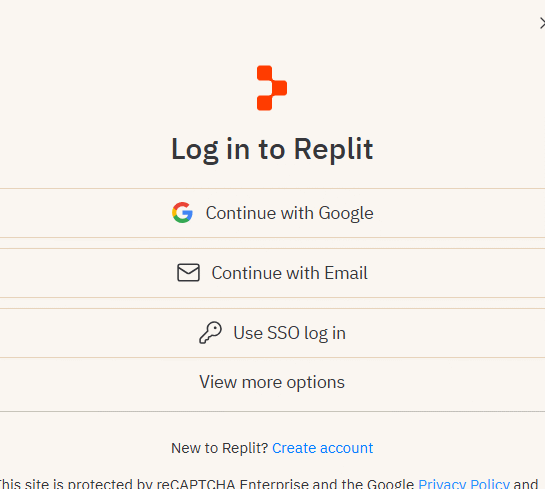
First, access the Replit website using the link below. Here, log in using your Google account.
https://replit.com/
Step 2:
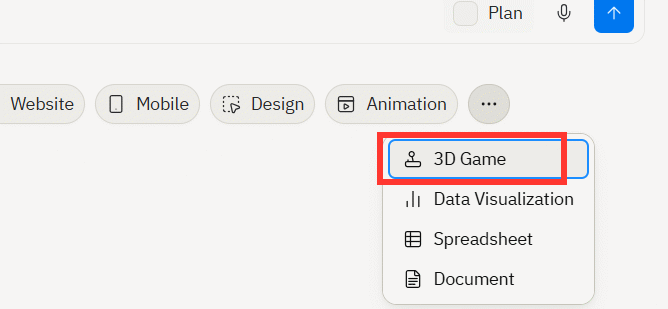
After successfully logging in and accessing the new interface, click on the three-dot icon and then select 3D Game as shown below.
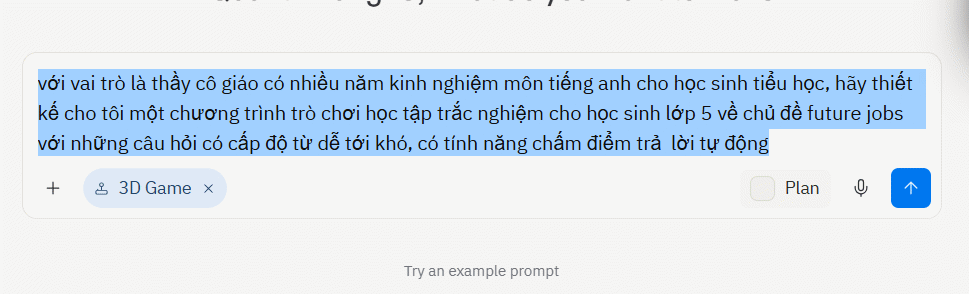
Next, we enter a description of the interactive game we want to develop, outlining its content, target audience, and the elements it should include. The more detailed the description, the more accurately the game will be created. Refer to the command below for examples.
với vai trò là thầy cô giáo có nhiều năm kinh nghiệm giảng dạy môn tiếng anh cho học sinh tiểu học, hãy thiết kế cho tôi một chương trình trò chơi học tập trắc nghiệm cho học sinh lớp 5 về chủ đề future jobs với những câu hỏi có cấp độ từ dễ tới khó, có tính năng chấm điểm trả lời tự động
Step 3:
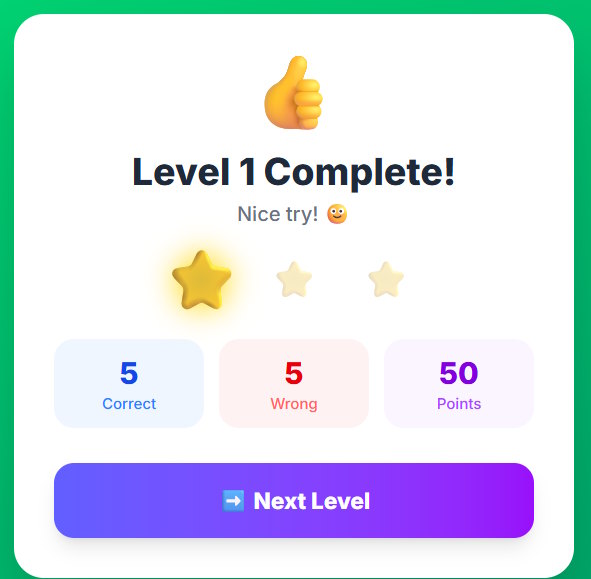
Wait a moment for Replit to analyze the content and then deploy the game. The result is an interactive game as shown below. Please check the game and see if any adjustments are needed.
If any adjustments are needed, we write a request for Replit to make the necessary changes and recreate the new interactive game.
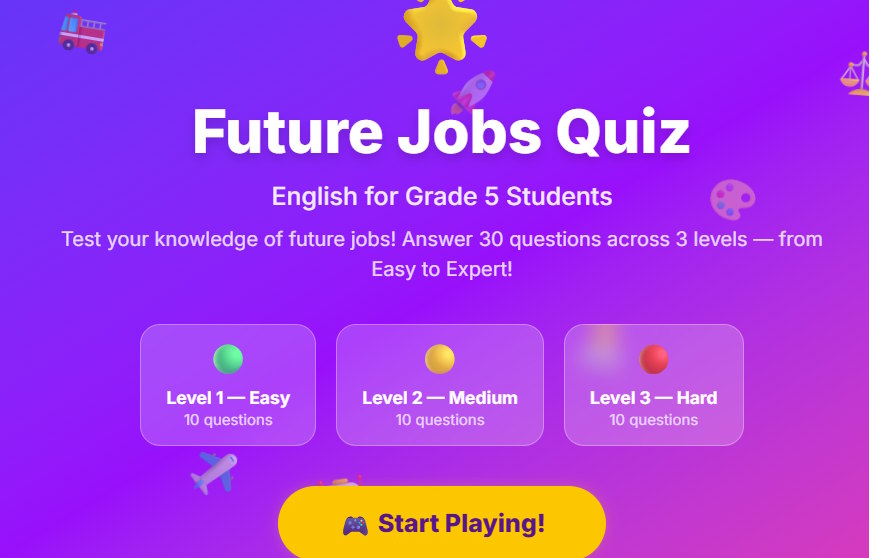
At the end of each level, there is a total score, or a final game summary, depending on the game the teacher describes.
Step 4:
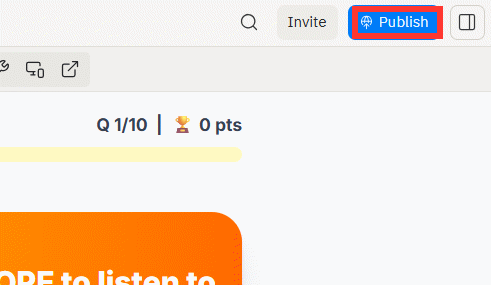
Finally, click Publish in the upper right corner to deploy the game.
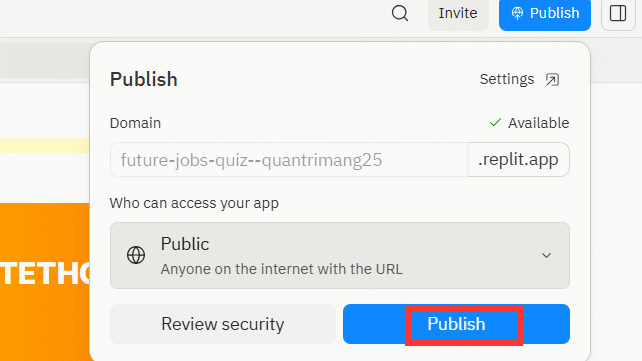
Replit will then create a game website with content designed for teachers to easily send to students for participation. Click Publish to proceed.
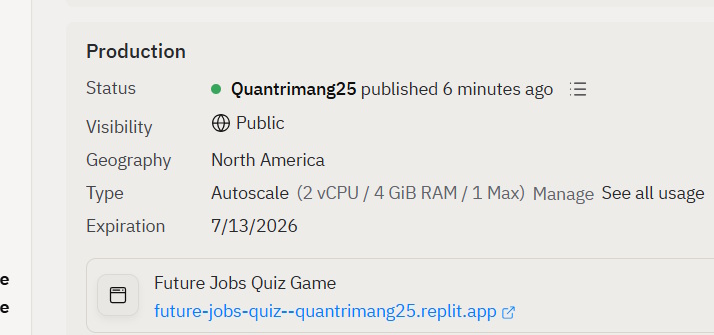
The result is an interactive game website ready to use whenever needed. Free accounts can only use the game for 29 days before being deleted, so please be mindful of that.
Related Articles
 How to Create an Educaplay Unscramble Letters Game10 minutes read
 How to Transforming Videos into Engaging Interactive Lectures4 minutes read
 Replit vs. Cursor: Which AI Coding Tool Is Better?12 minutes read
 How to Create a Website Using 10Web AI3 minutes read
 minutes read
 How to Create Professional Review Games with Genially AI6 minutes read
Reader Comments 0
Sign in with email or Google to join the discussion.