Table of Contents
Google Flow can bundle a character’s reference images, name, profile, and voice into one reusable project asset. Once saved, you can select that character in later generations instead of uploading the same visual reference and choosing a voice each time.
This workflow is useful for a presenter, narrator, fictional cast member, or branded character that must remain recognizable across multiple clips. Availability can vary by account, subscription, region, and Flow interface version.
What you need before creating the character
- One or two clear reference images that show the same character
- A short visual description covering age range, clothing, hair, and distinguishing features
- A name and optional profile or backstory
- A voice direction covering tone, pace, accent, pitch, and delivery style
Use images you own or have permission to use. Do not create a realistic likeness or cloned voice of another person without the necessary consent. Google’s Flow asset and character documentation says a character requires at least one image and can contain one or two visual references.
Create a character in Google Flow
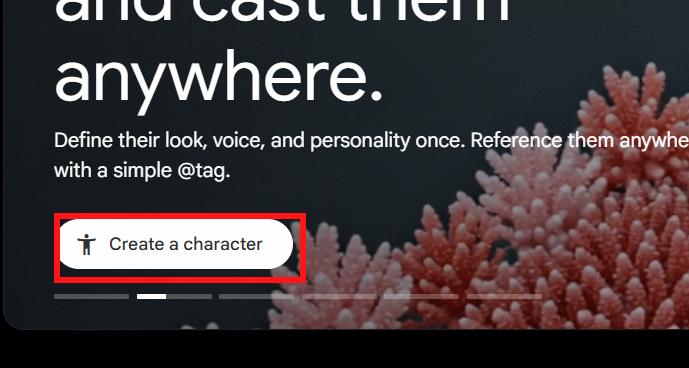
1. Open the Characters workspace
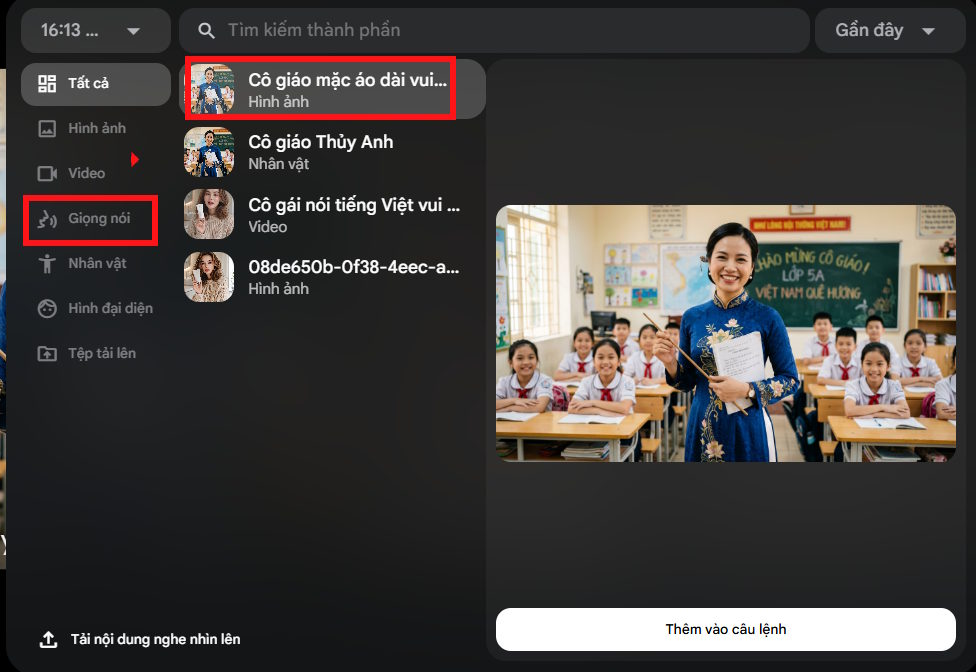
Open an existing Flow project or create a new one. Select Characters in the left sidebar. If the project already contains characters, choose New Character.
2. Generate or upload the visual reference
Describe the character in the prompt box, then either generate reference art or upload one or two existing images. A useful description is specific about stable features but leaves scene details for later prompts.
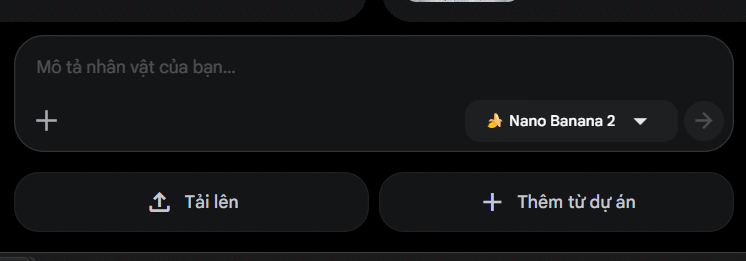
For example, define the character as “a middle-aged field scientist with short silver hair, round glasses, an olive utility jacket, and a calm expression.” Do not bake a beach, office, camera angle, or action into the identity unless it must remain part of every scene.
Review the generated image carefully. Check the face, clothing, hands, logos, accessories, and overall style before continuing. Errors in the base reference are likely to carry into later generations.

3. Name the character and open voice selection
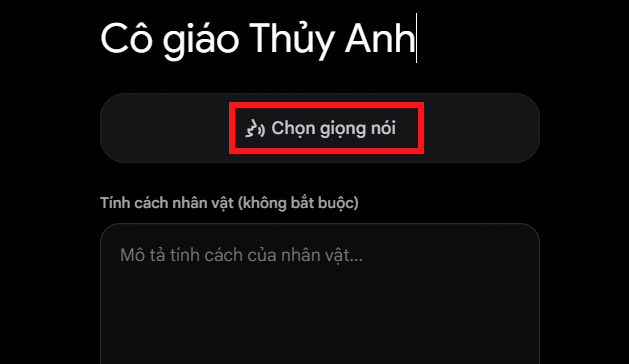
Enter a distinctive name that will be easy to find in a project with several cast members. If Flow provides a character-information field, add a compact description of traits that should remain stable.
Select Choose voice or Select a voice, depending on the current interface.
Select or create the character’s voice
4. Preview the available voices
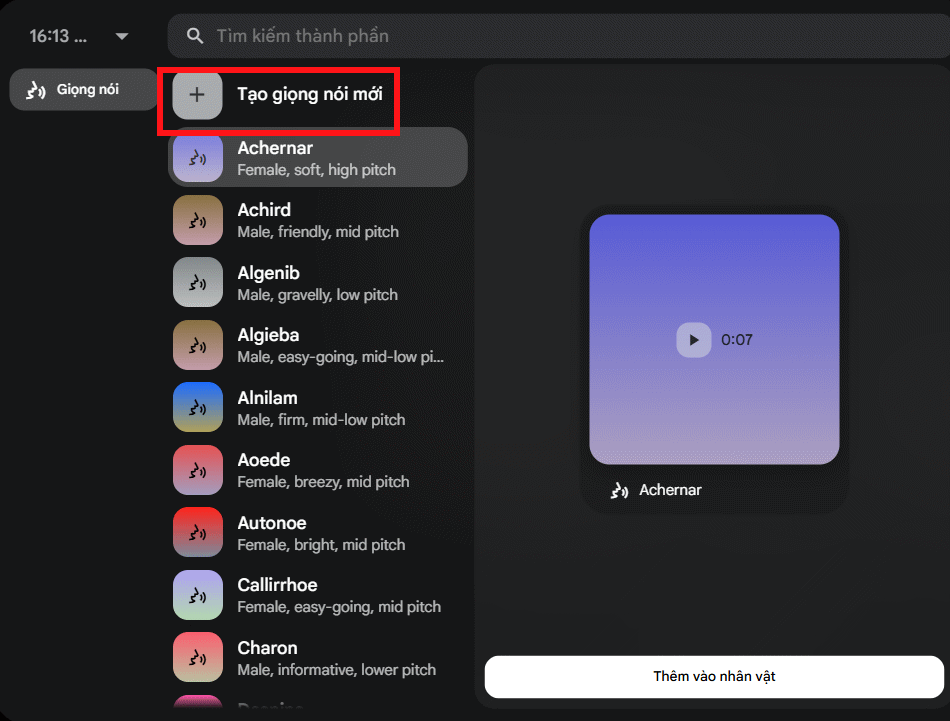
Listen to several preset voices before choosing one. Evaluate intelligibility, emotional range, pacing, and whether it fits the character—not just whether the first sample sounds appealing.
If a preset is suitable, select it. To define a more specific delivery, choose Create New Voice.
5. Write a useful voice description
Describe audible qualities rather than using vague praise. A practical voice prompt can specify:
- Register: low, mid-range, or high
- Tempo: slow and measured, conversational, or energetic
- Tone: warm, authoritative, curious, dry, or reassuring
- Accent or dialect: only when appropriate and stated respectfully
- Delivery: documentary narration, casual dialogue, classroom explanation, or product demonstration
- Constraints: avoid shouting, excessive breathiness, or dramatic pauses
A concise example is: “Warm mid-range voice, measured pace, clear consonants, calm documentary delivery, and restrained emotion.” Test small changes rather than stacking contradictory adjectives.
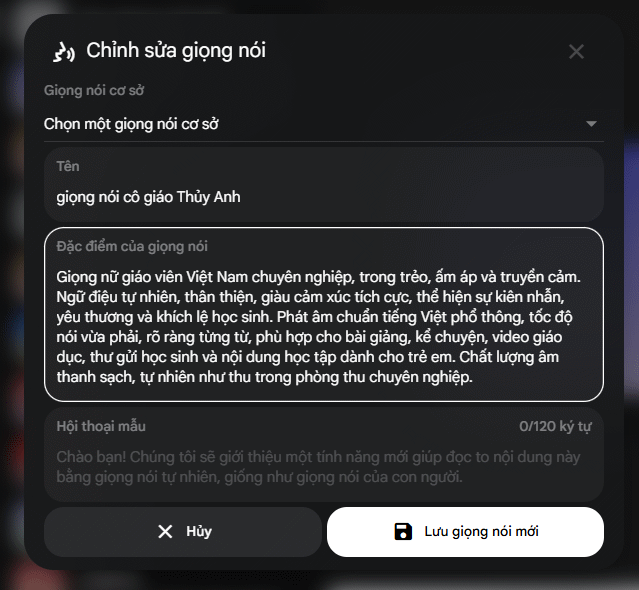
6. Choose a base voice and save the variation
Open Base Voice and select the closest starting voice. The base determines much of the result, while your description guides the variation. Preview it with representative dialogue if that option is available.
Select Save New Voice only after the sample is clear and appropriate for the intended language and content.
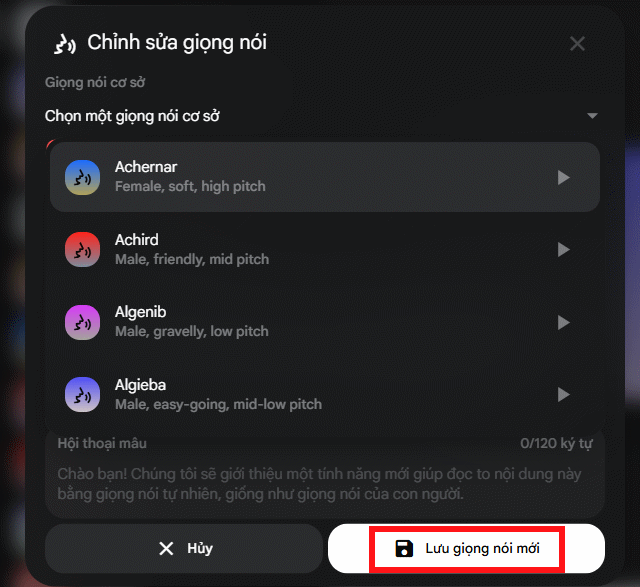
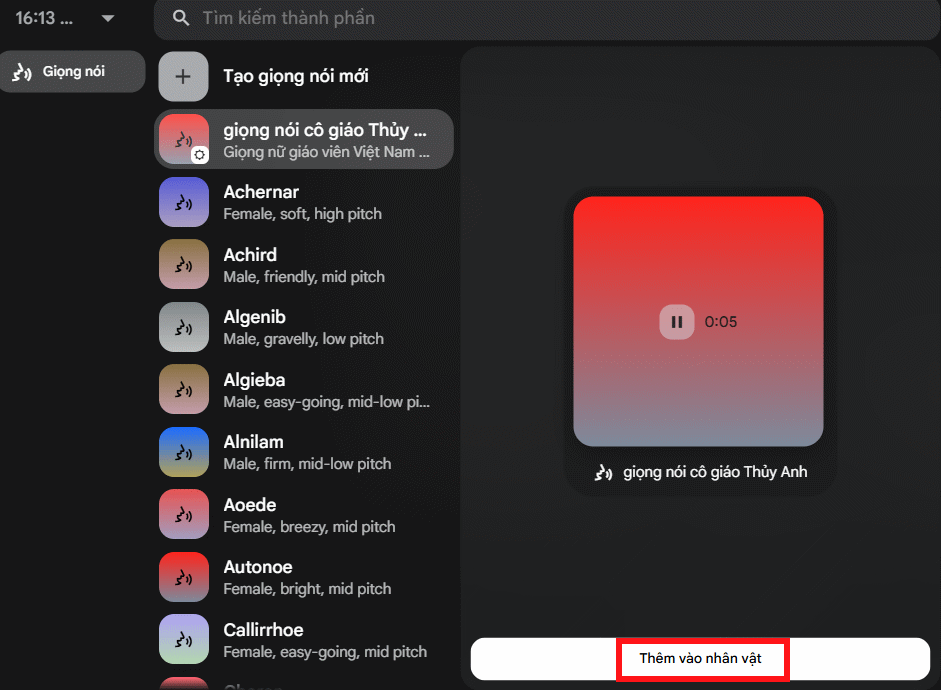
7. Attach the voice to the character
Find the saved voice in the list and select Add to Character. This association makes the voice available with the visual character in future generations.
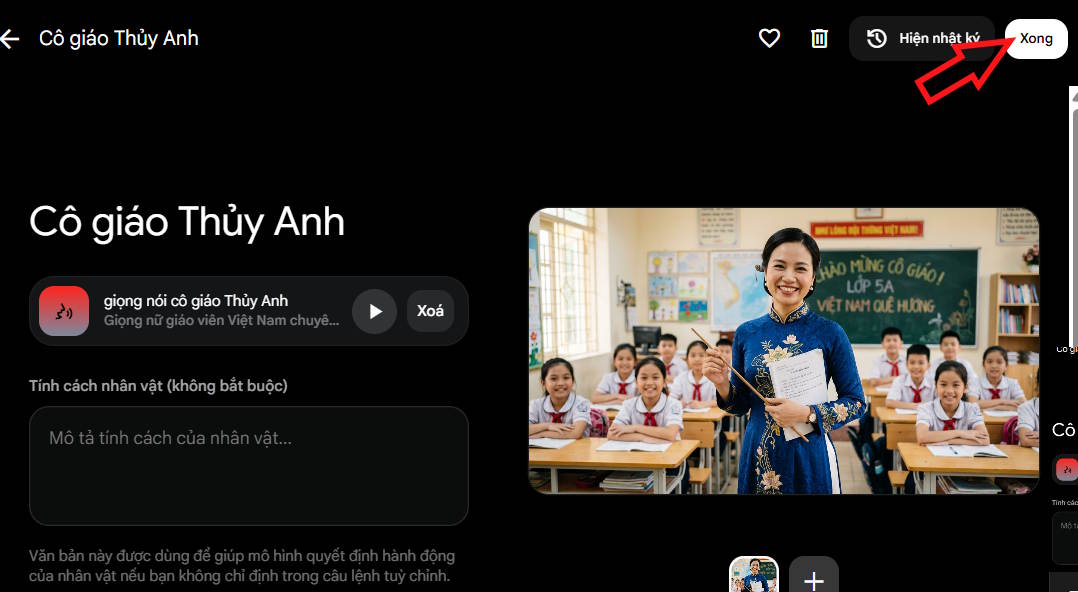
8. Save the completed character
Review the name, reference images, selected voice, and profile. Choose Done to save the character to the project.
Use the character in a video
Start a video generation and select the saved character as a reference. Write the scene prompt around the action, environment, camera, and dialogue; do not repeatedly redefine the character’s identity unless a detail needs to change.
For example: “Medium shot of the saved field scientist inside a greenhouse at dawn. She looks toward the camera and explains why the seedlings need less water. Natural hand gestures, restrained camera movement, clear spoken delivery.”
If you are starting with a still image, see how to create a video from one image in Google Flow. For a complete commercial workflow, the Flow product-advertising video guide explains how to plan shots around a product.
How to improve consistency across scenes
- Reuse the saved asset: do not alternate between slightly different uploads of the same person.
- Keep identity and scene prompts separate: let the character asset define appearance; use each prompt for action and setting.
- Change one variable at a time: test wardrobe, lighting, voice, or camera changes separately.
- Use short dialogue first: confirm the voice and lip movement before generating a longer passage.
- Maintain a prompt sheet: record approved pronunciation, tone, wardrobe, and negative constraints.
- Inspect every output: watch for face drift, accessory changes, inconsistent eye color, distorted hands, and altered logos.
Troubleshooting
The Characters option is missing
Confirm that you are working in a supported Flow account and region. Feature access and limits can differ by subscription and may roll out gradually. Refresh the project or start a new project before assuming the account is unsupported.
The custom voice changes between clips
Confirm that the saved voice—not a similarly named preset—is attached to the selected character. Keep the speaking style in the scene prompt compatible with the voice definition, and generate a short test line before a full scene.
The character’s face or clothing drifts
Use a clearer reference with an unobstructed face, avoid contradictory appearance instructions, and reduce extreme camera angles until the base identity is stable. If two reference images disagree, replace one rather than adding more.
The voice sounds like a real person
Do not publish a deceptive imitation. Replace the base voice or description and disclose synthetic media where required. Consent, publicity rights, platform rules, and local law may apply.
A reusable character is most effective when the reference, profile, and voice are treated as controlled production assets. Test the combination in a short clip, correct identity or audio problems, and only then use it across a larger sequence.
Related Articles
 How to Create a Video from Photos Using a Storyboard on Flow4 minutes read
 Who Is the Voice Actor for the Classic Cartoon Characters4 minutes read
 How to Create a Dialogue Video from Just Two Images Using Google Flow6 minutes read
 How to Create Your Own Video Editing Tools Directly on Flow?4 minutes read
 How to Create a Video from a Single Image Using Google Flow3 minutes read
 How to Combine Photos Using Google Flow3 minutes read
Reader Comments 0
Sign in with email or Google to join the discussion.