Table of Contents
The "Nvidia Display settings are not available" error isn't difficult to spot, but if you're not paying attention, you'll never know when it occurs. Typically, users can detect this error by opening the Nvidia Control Panel by right-clicking on the Desktop, or, a less obvious way, by playing games daily and noticing that the gameplay is choppy and laggy.
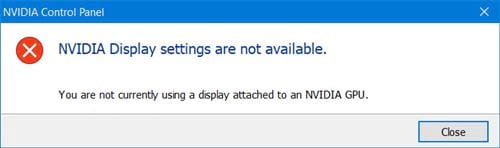
Those are the signs and ways to check if your graphics card is working. But what about fixing the "Nvidia Display settings are not available" error? If you leave the "Nvidia Display settings are not available" error as is, your graphics card will not work, even though the system checks and it's still present. Follow the instructions below to learn how to fix the "Nvidia Display settings are not available" error.
Instructions for fixing the "Nvidia Display settings are not available" error.
Step 1
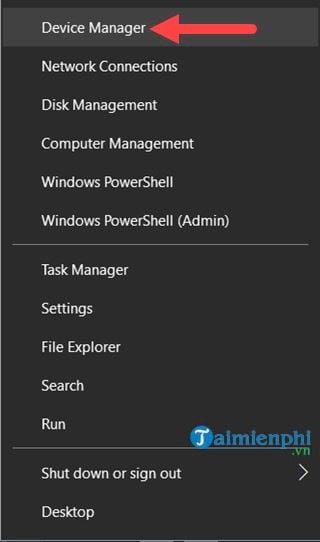
To fix the "Nvidia Display settings are not available" error, first press the Windows key + X , then select Device Manager .
Step 2
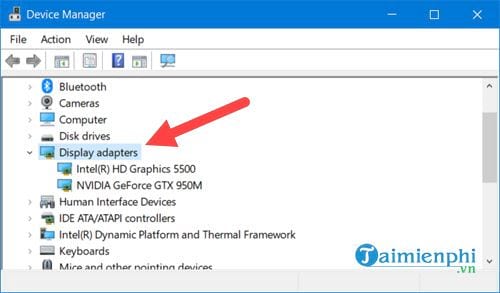
Next, select the Display adapters section , where you will see the VGA cards currently installed in your system.
Step 3
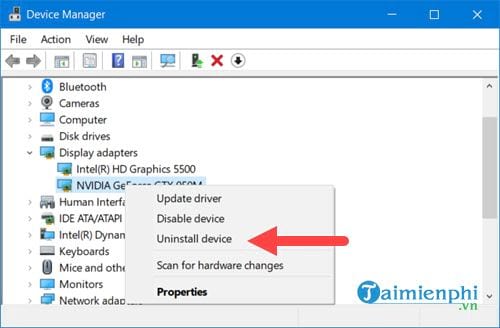
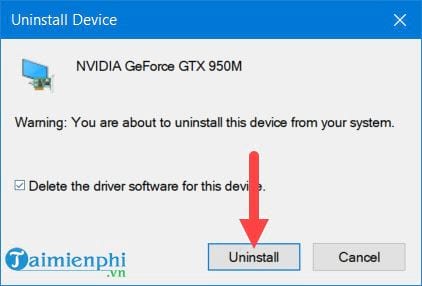
However, to fix the "Nvidia Display settings are not available" error, we must uninstall it by right-clicking > selecting "Uninstall device" .
Step 4
Confirm the uninstallation one more time and click Uninstall .
Step 5
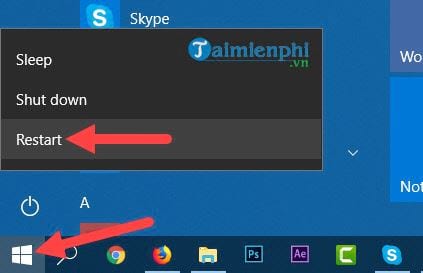
After uninstalling the Nvidia driver, restart your computer immediately .
Step 6
Make sure your computer restarts before proceeding to this step. Download the latest Nvidia driver from here, extract it, and install it.
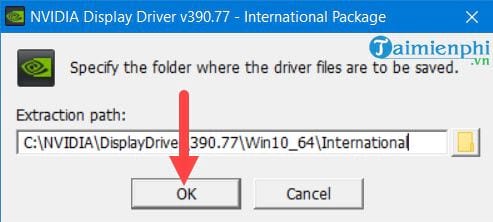
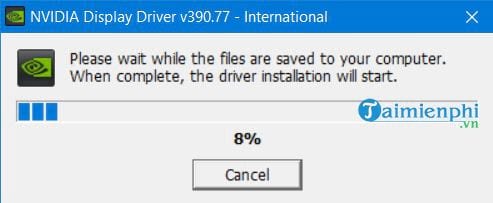
The extraction process may take a few minutes of your time.
Step 7
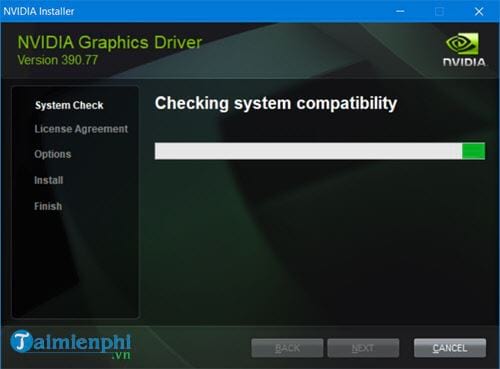
After the extraction is complete, the system will check for driver compatibility. If we did not restart the computer in the previous step, this step will definitely fail.
Step 8
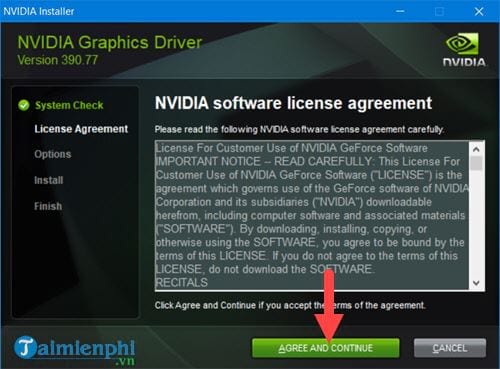
Click on Agree and continue to agree to install the Nvidia driver.
Step 9
Leave the default Express settings and click Next to continue the installation.
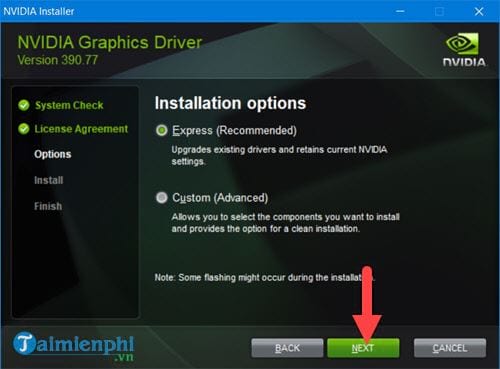
After this step, please restart your computer once the installation process is complete.
Step 10
Right-click on the desktop and select Nvidia Control Panel .
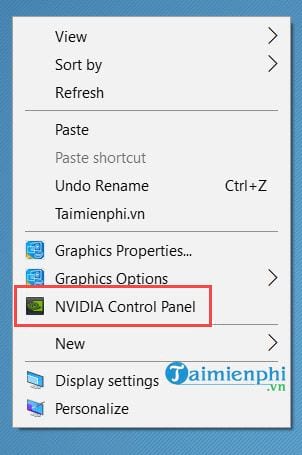
If it works, then you have successfully fixed the "Nvidia Display settings are not available" error.
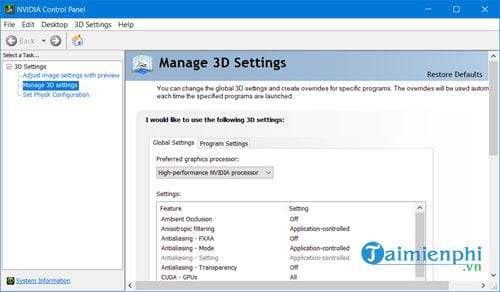
With just a few basic steps, the "Nvidia Display settings are not available" error is completely resolved. It's incredibly simple, isn't it? While this isn't the only error Nvidia VGA users encounter, this method can be applied to many other issues. This demonstrates the importance of updating your Nvidia card; not only will you receive the latest patches, but it will also help you avoid unnecessary errors.
For those using Nvidia graphics cards, besides the "Nvidia Display settings are not available" error, you may also have encountered the "nvidia installer cannot continue" driver update error. If you unfortunately encounter this again, you can refer to our article to learn how to fix the "nvidia installer cannot continue" driver update error .
Related Articles
 NVIDIA Control Panel: Complete Guide9 minutes read
 10 Ways to Open Display Settings in Windows 118 minutes read
 Steps to Open Nvidia Control Panel3 minutes read
 NVIDIA Releases Displayid Firmware Update for Geforce RTX4 minutes read
 How to Restore Display Settings on Windows 114 minutes read
 How to Fix Black Screen Error After Adjusting Display Settings in Windows6 minutes read
Reader Comments 0
Sign in with email or Google to join the discussion.