Table of Contents
One of the hardest lessons people learn right after starting a Plex server is to never skip organizing your library. It's one of those little things you wish someone had told you before you started using Plex, but life is all about learning, right? Having a good foundation up front is important and will save you hours, if not days, of going back and fiddling.
That said, there is one app that is particularly great at not only completing your library, but also editing cover art, illustrations, captions, and even naming. If you plan on running your own Plex server, FileBot will double-check the work so you don't have to.
FileBot is a simple yet effective proofreading tool
Like second in command
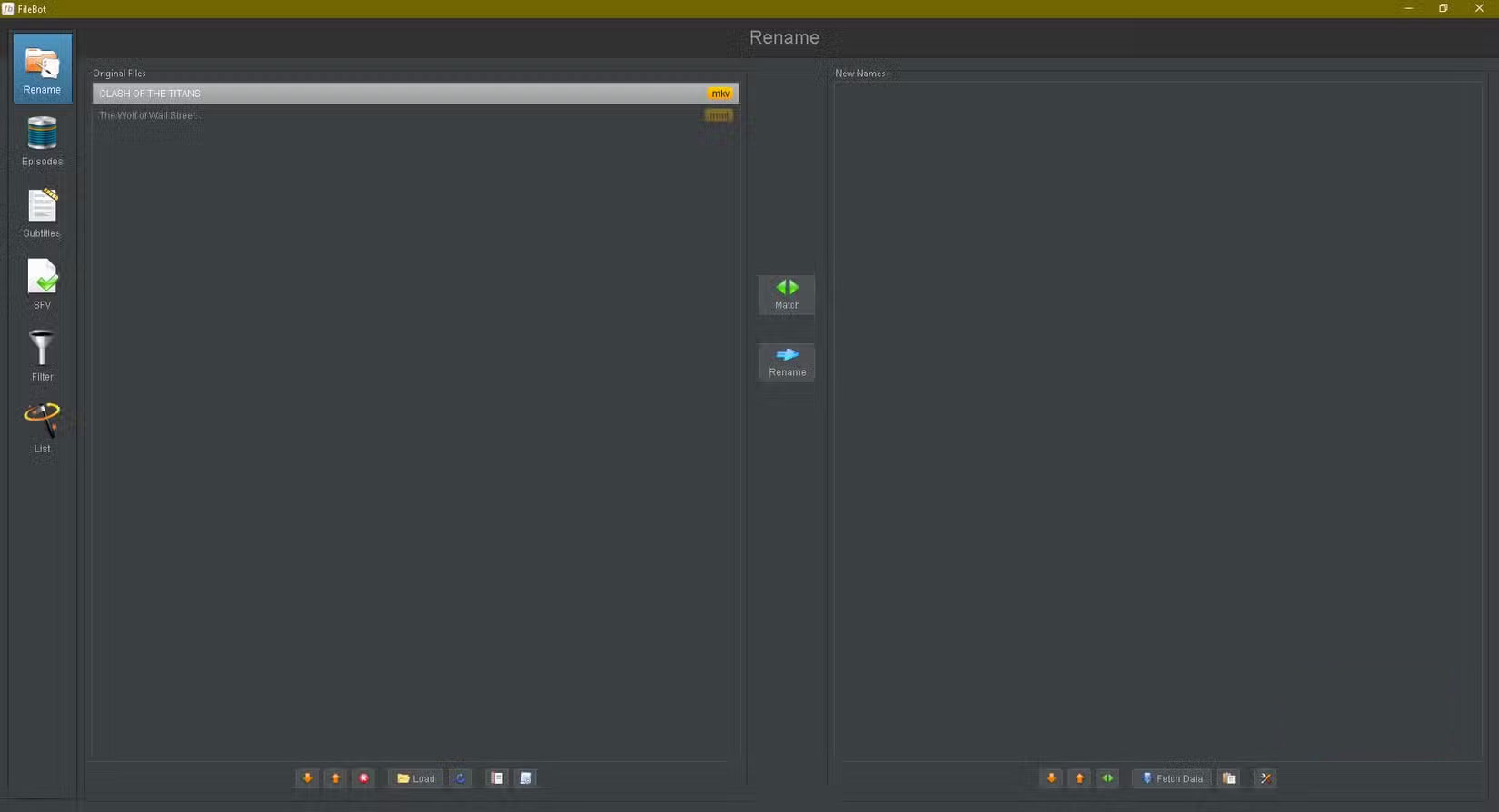
FileBot isn't a Plex plugin or add-on, but a separate application, so you won't need to tinker with Docker (although that option is still available). You download the application and use it to navigate your library folders, though there's a choice between a one-year or lifetime license. Installation is still free, but a license is required to continue using it. Older versions will work, though, as long as you don't update them.
What you do with FileBot is let it scan your Plex library for a bunch of media. Are you making mistakes naming movies and TV shows haphazardly? Are you creating enough folders? Maybe your media is missing cover art (or needs new art) or subtitles? FileBot will fix those errors by fetching metadata that Plex might have missed.
Fix problems with cover photos
Sometimes Plex doesn't get the cover art right
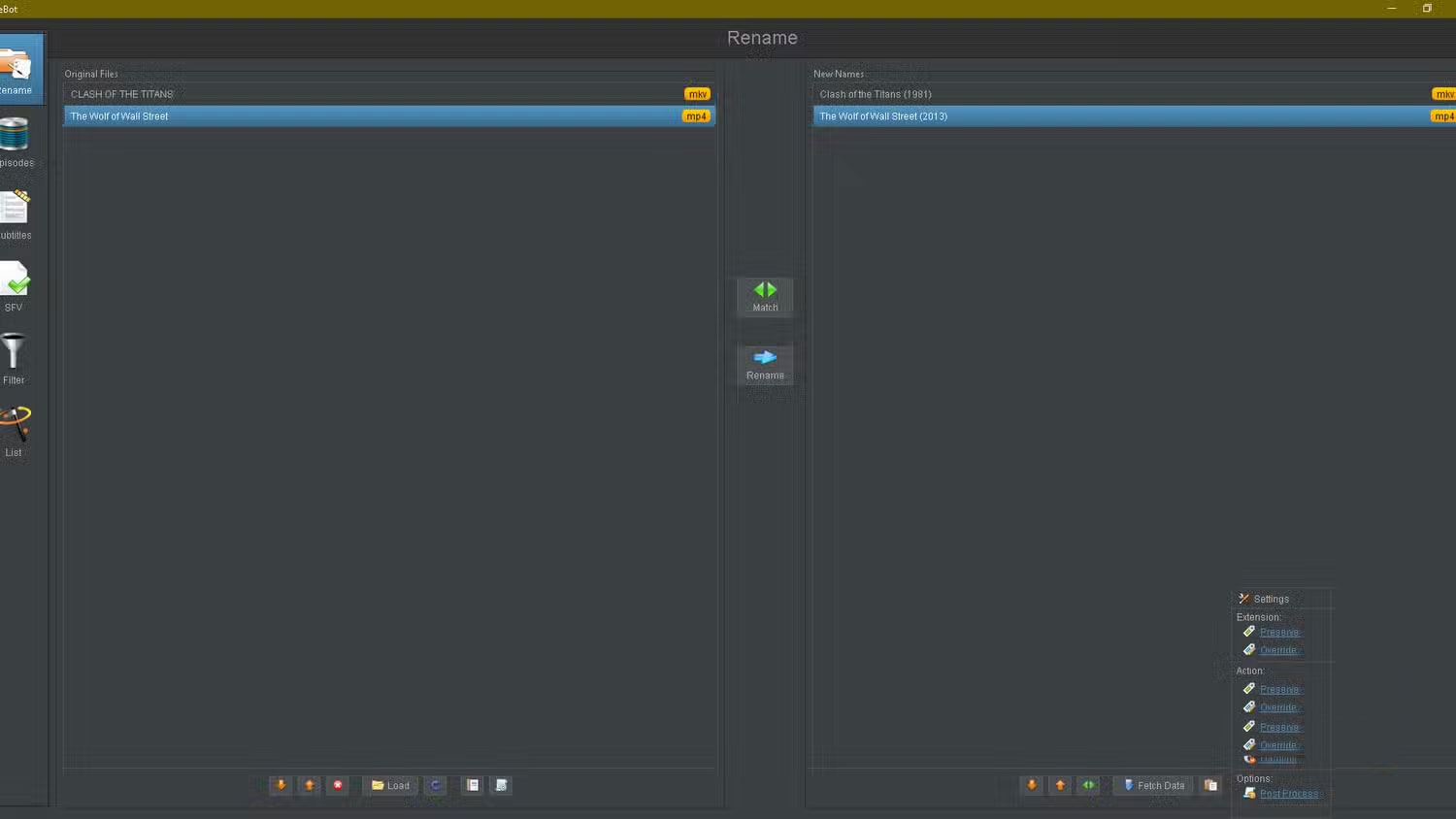
It's not that Plex is bad at pulling cover art, but it doesn't always get it right. For example, for Clash of the Titans on the server, Plex mistakenly picked the cover art from the 2010 remake, when it was actually the original 1981 film, in all its stop-motion glory.
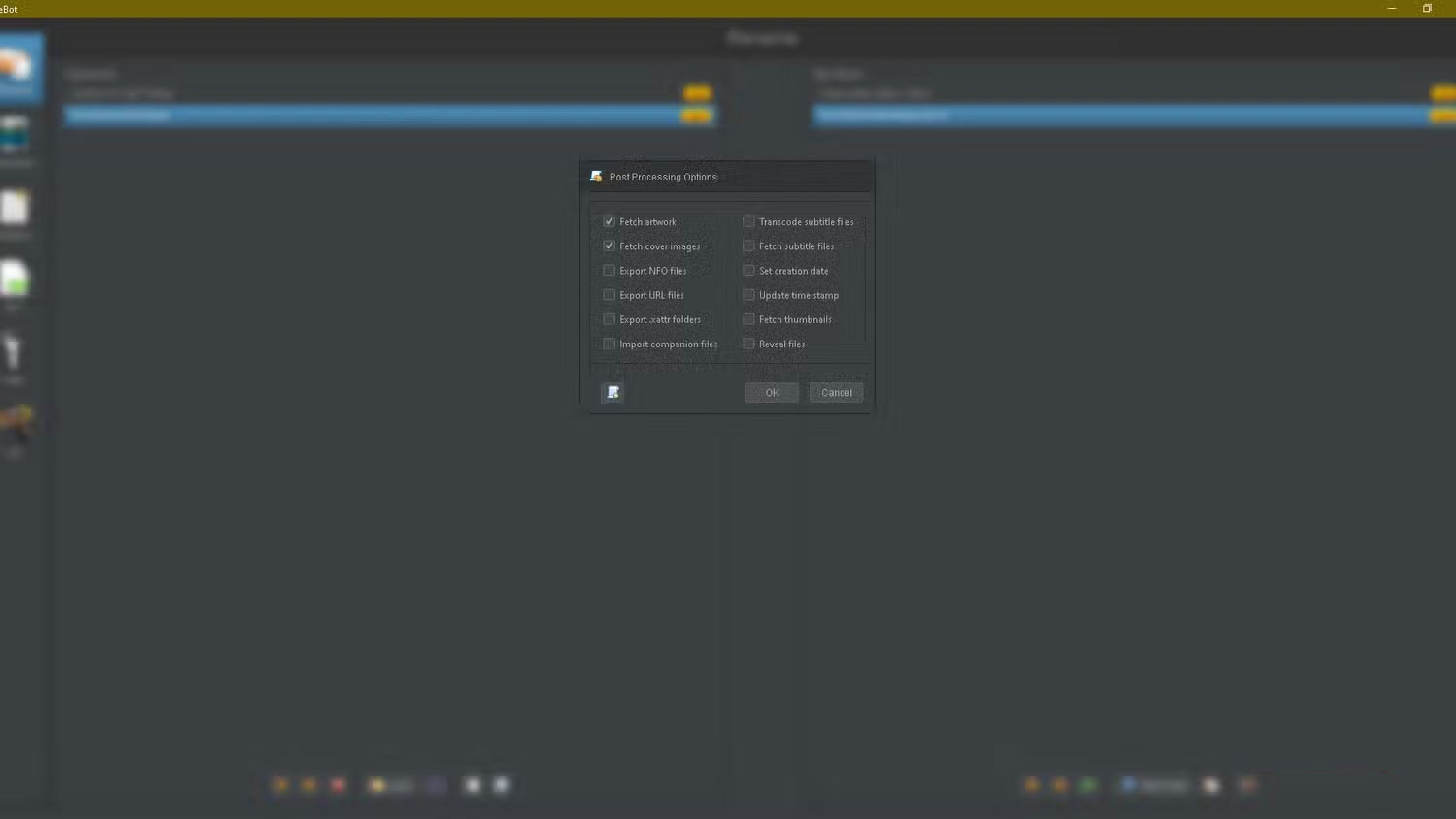
Ideally, you should do this before renaming the media file so you can "kill two birds with one stone". On the right side, in the Rename tab, click Settings - the little wrench and screwdriver icon, then open Post Process .
Make sure Fetch artwork and Fetch cover images are checked, then click OK . When you're ready to rename your media file, FileBot will download the images as well. More importantly, Plex will look nice and tidy when it's all done.
Unify Plex library naming
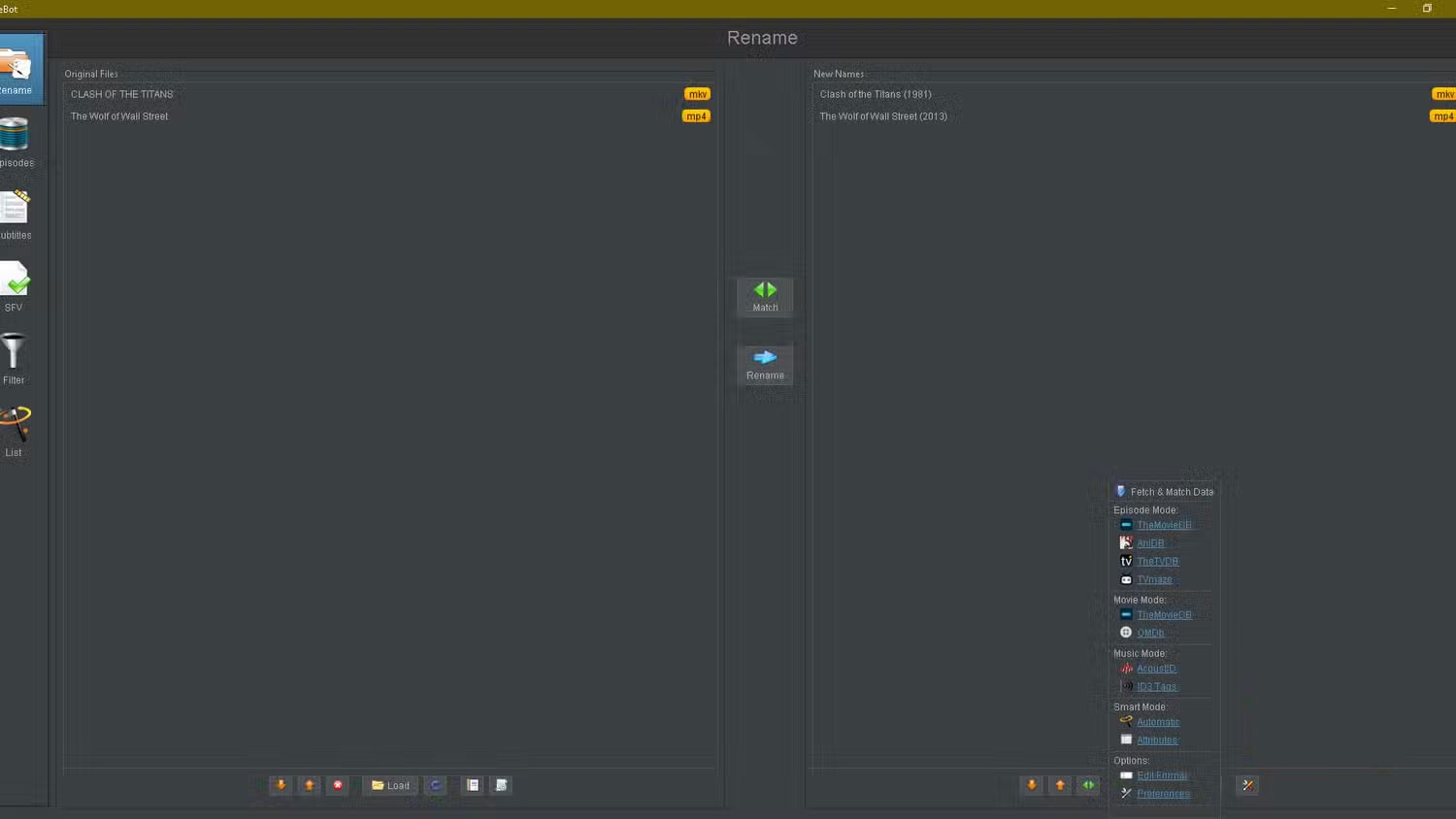
The most useful application of FileBot is to fix the really inefficient naming practices that exist today. Many people are sloppy with their file naming, such as not capitalizing, using abbreviations, or simply lacking basic episode structure. It's frustrating to have to search for a specific episode because the name is duplicated or doesn't specify an episode number.
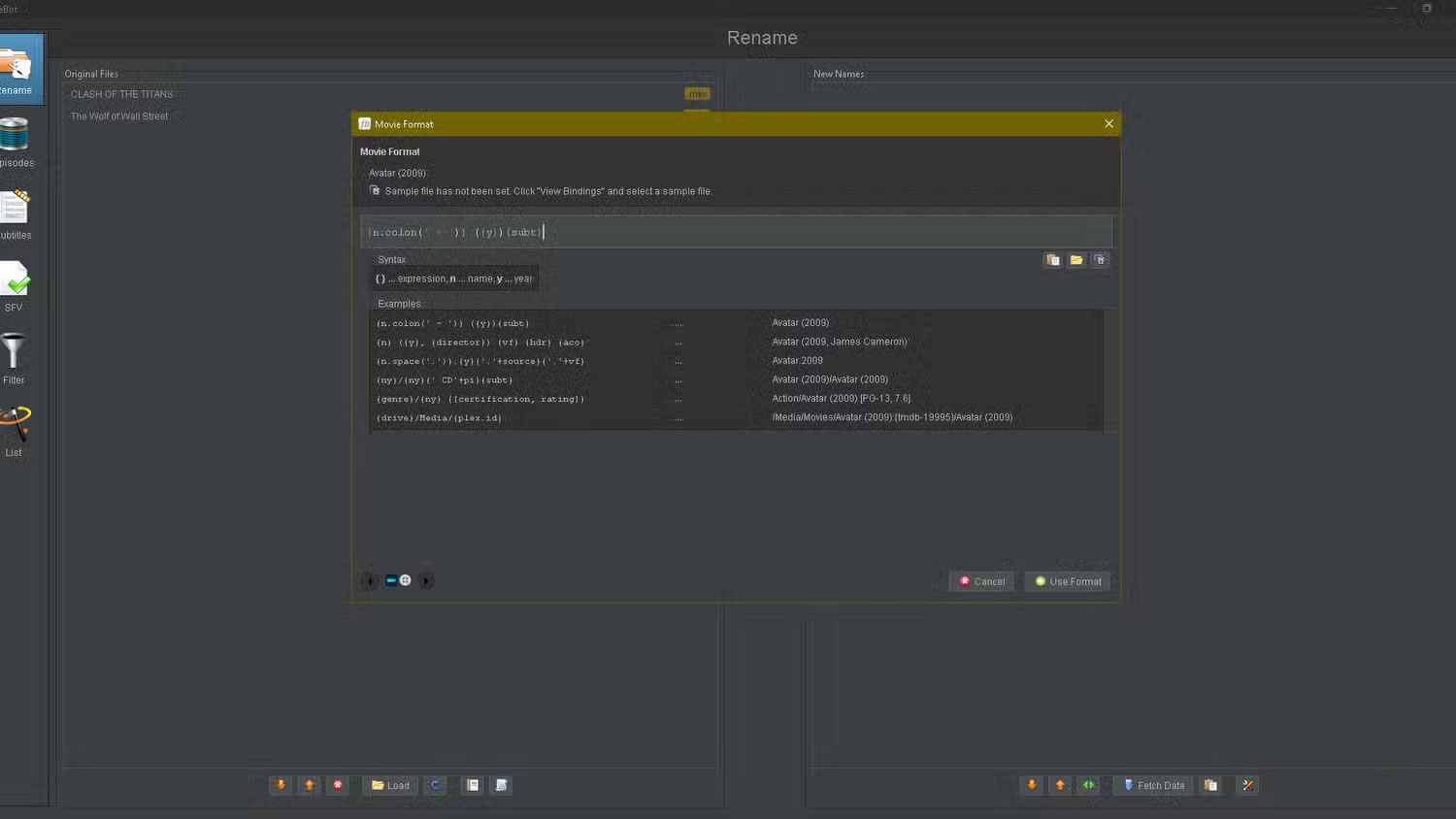
FileBot can take your entire Plex library and rename it with just a few clicks. You can also tweak how movies, shows, and even music are formatted. Click Rename on the left, then select Load at the bottom and find the folder you want to edit. On the right, click Fetch Data , then select Edit Format from the menu.
This is where you can write your own script or choose from any of the pre-written formats in the Examples section. Also, in the bottom left corner, use the arrows to switch between content types, such as movies, TV shows, and music. Clicking on the line of code will then set the format, and you can finish by selecting Use Format . Exit the menu, then select all the files on the left. Click Match , then finish by selecting Rename . It's that easy!
Save time downloading subtitles
You can choose multiple languages
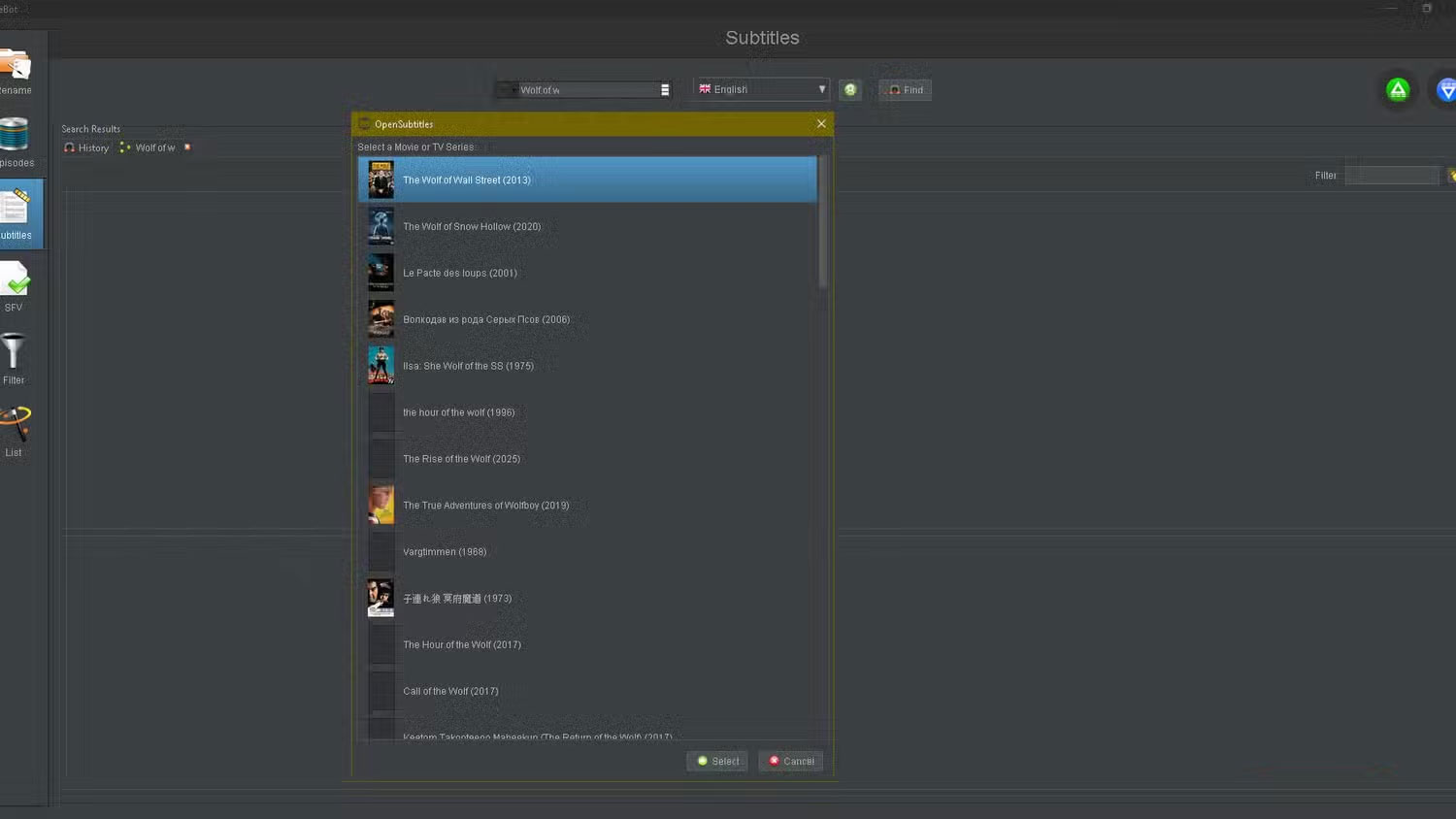
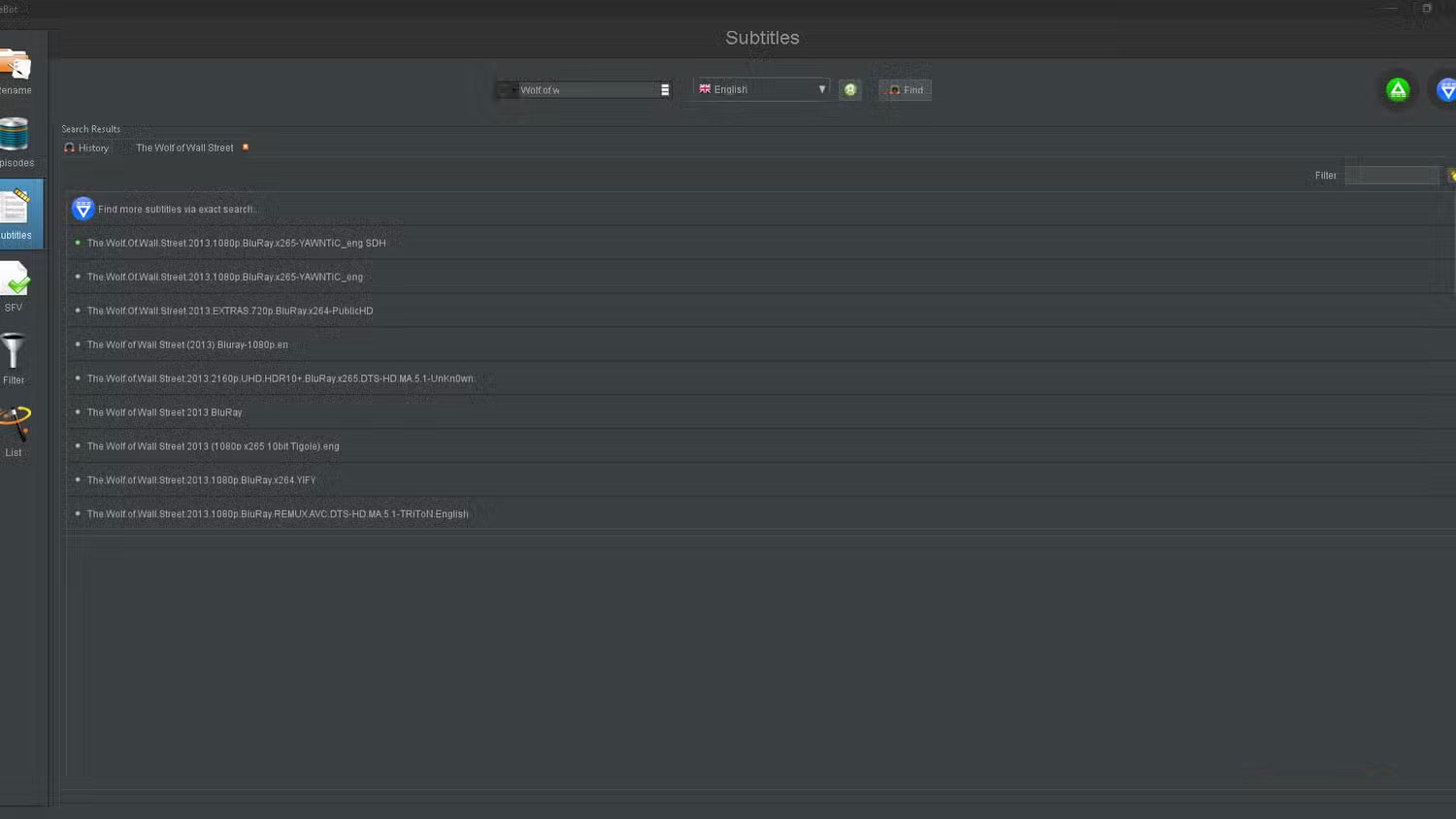
Depending on the software you use, ripping DVDs can be a long and tedious process. This is the hardest part of setting up a Plex server, since you can only play one movie at a time. So what you do is limit the amount of content you copy, which means saying goodbye to subtitles. However, this brings up another problem: Many people prefer subtitles, especially when watching anime in the original language.
Luckily, FileBot can help you do that too. In fact, it's easier to rip a few movies without subtitles, then download them and even find a few languages that the original DVD might not have. You'll need an OpenSubtitles account, though, because that's where FileBot gets its translations. It's simple, thanks to FileBot's basic user interface.
On the left, click Subtitles . You can then log into your OpenSubtitles account using the small green button next to the language drop-down menu at the top. The left is where you search for a specific movie, and the Find button to the right of the language drop-down menu is what you use to scan for subtitles. Double-click any search result, and FileBot will download it immediately.
Your Plex library would probably still be a cluttered mess without FileBot. What people appreciate about FileBot is that it's easy to fix naming and illustration errors, thanks to its surprisingly simple user interface. Many people are willing to trade features if it makes installing apps and navigating menus easier.
Final Thoughts
Overall, FileBot is best understood by considering the main facts, practical context, and limitations together. Use the details above as a clear starting point and confirm time-sensitive information when necessary.
FAQ
What does this article explain about FileBot?
One of the hardest lessons people learn right after starting a Plex server is to never skip organizing your library. It's one of those little things you wish someone had told you before you started using Plex, but life is all about learning, right?
What should you know about Like second in command?
FileBot isn't a Plex plugin or add-on, but a separate application, so you won't need to tinker with Docker (although that option is still available).
Should time-sensitive details be verified?
Yes. Software features, game codes, product specifications, prices, and research findings can change. Confirm important details with an official or primary source when accuracy affects your decision.
Related Articles
 8 Plex Plugins You Need to Have: Complete Guide6 minutes read
 7 Plex Apps Everyone Should Try Once6 minutes read
 How to Play Pokémon GO on a Computer6 minutes read
 How to Play Pokémon GO on a Smartphone6 minutes read
 26 Types of Poké Balls Explained: Part 25 minutes read
 How to Earn and Use Stardust in Pokémon GO5 minutes read
Reader Comments 0
Sign in with email or Google to join the discussion.