Table of Contents
If you've ever missed a perfect shot because your camera app was lagging, or looked back at your photos later and wondered why the colors were so vibrant, you know the frustration. For years, some people stuck with Samsung's default Camera app because it was available and seemed good enough. But after running into those same problems over and over again, many people decided to look for other camera apps.
That search led them to Open Camera. It's a free, open-source app that solves some of the most annoying problems with the default camera app. After using it for a few months, I'd recommend it to anyone looking for an alternative.
What people love most about the Open Camera app
Small details make a big difference
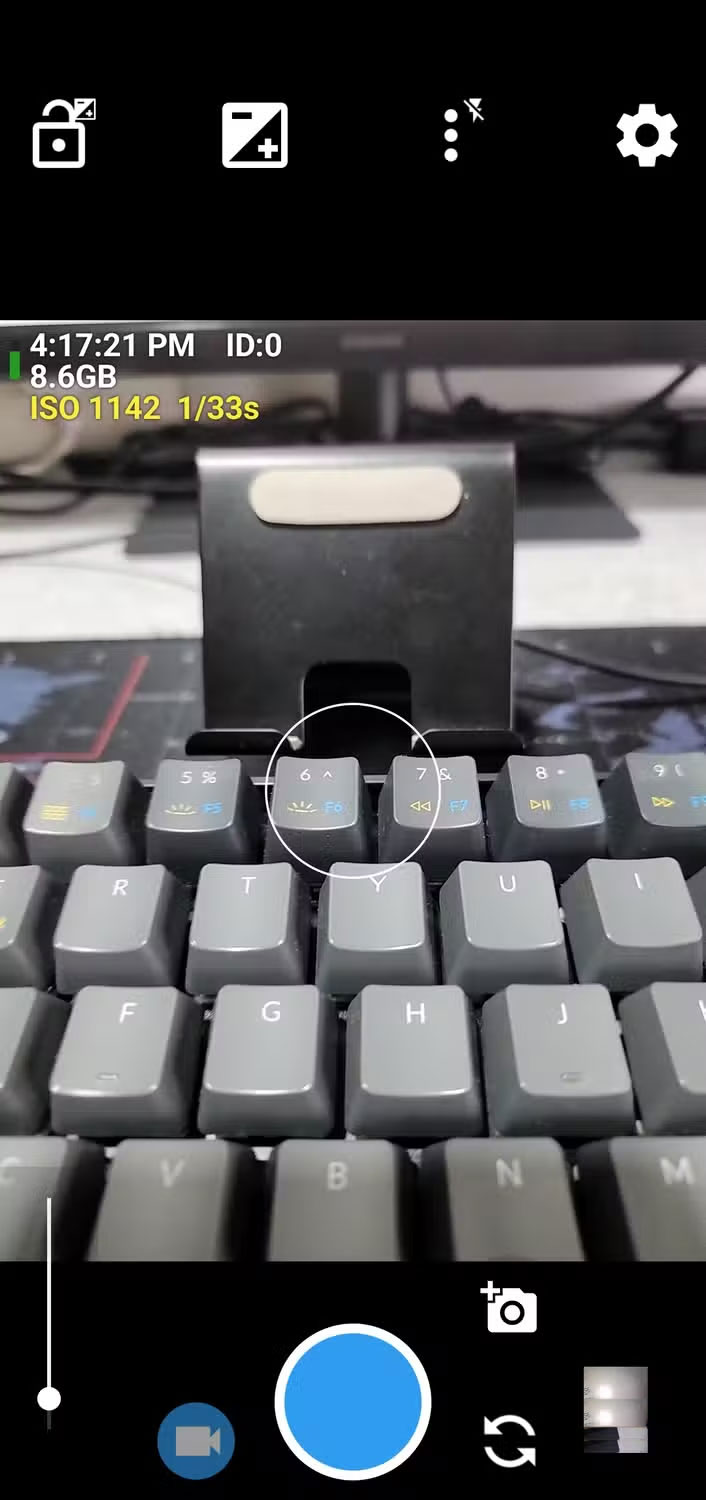
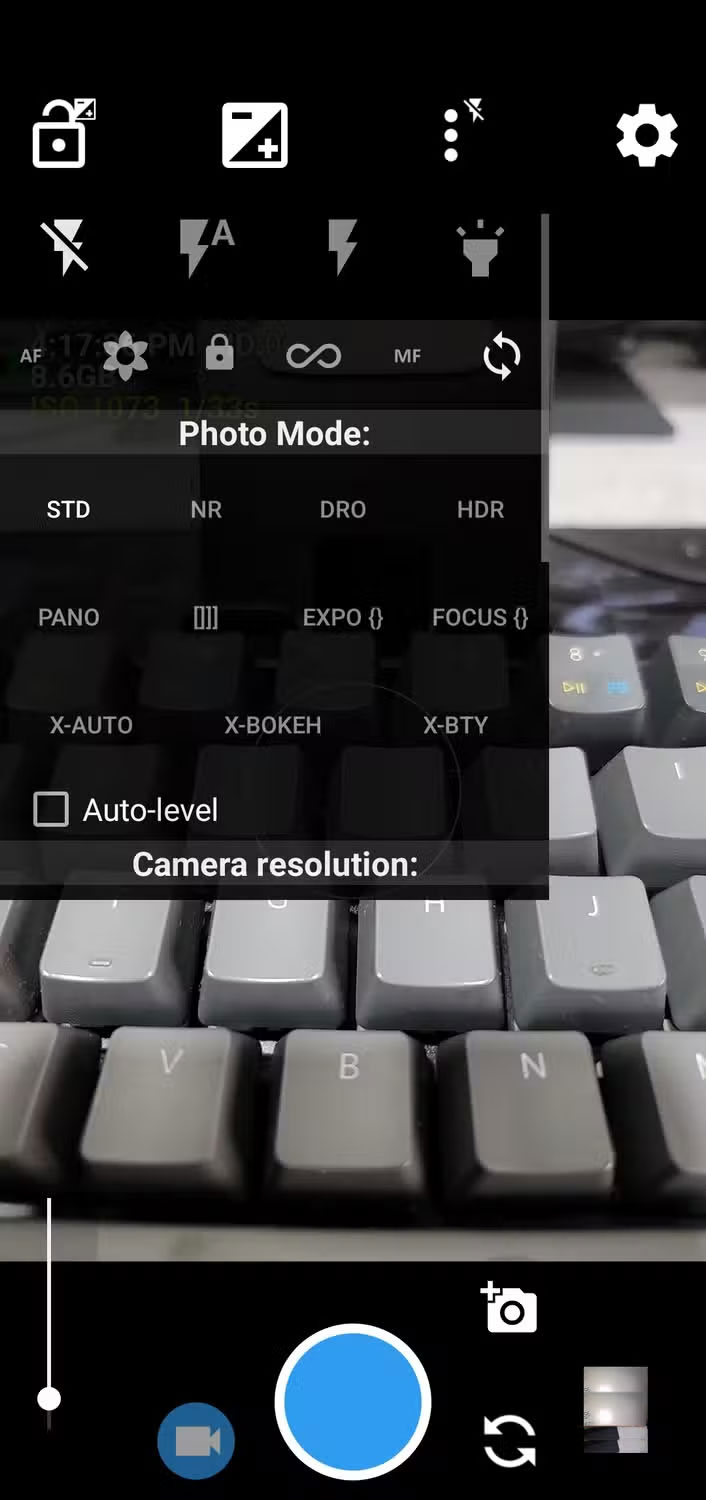
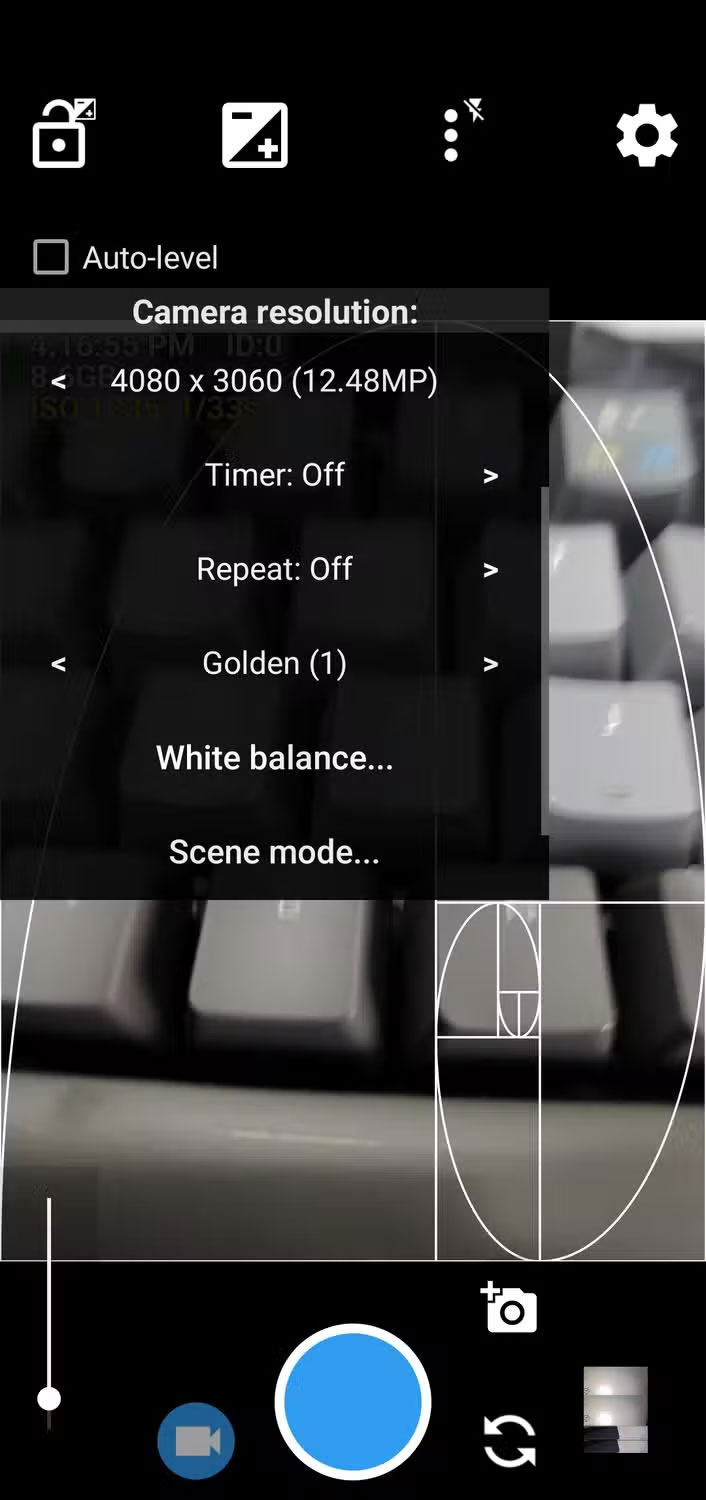
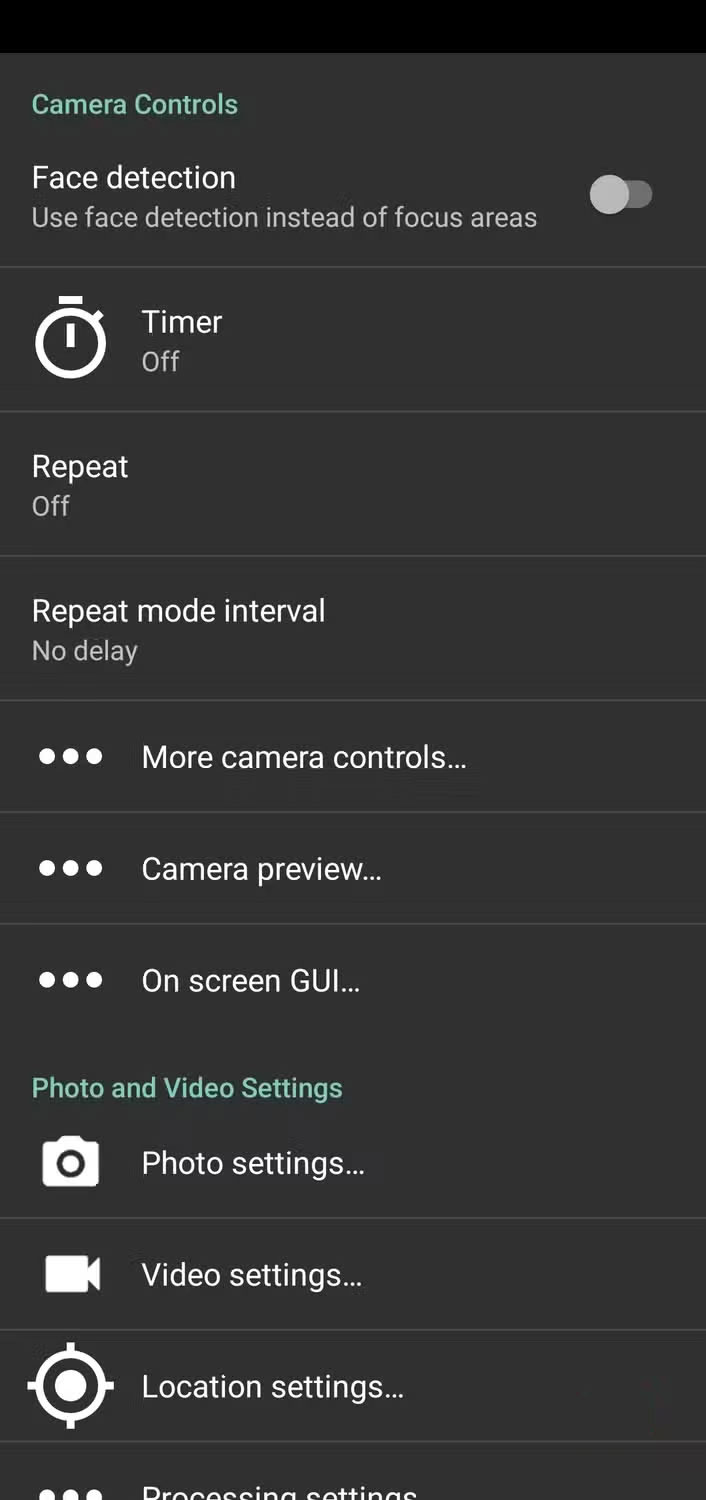
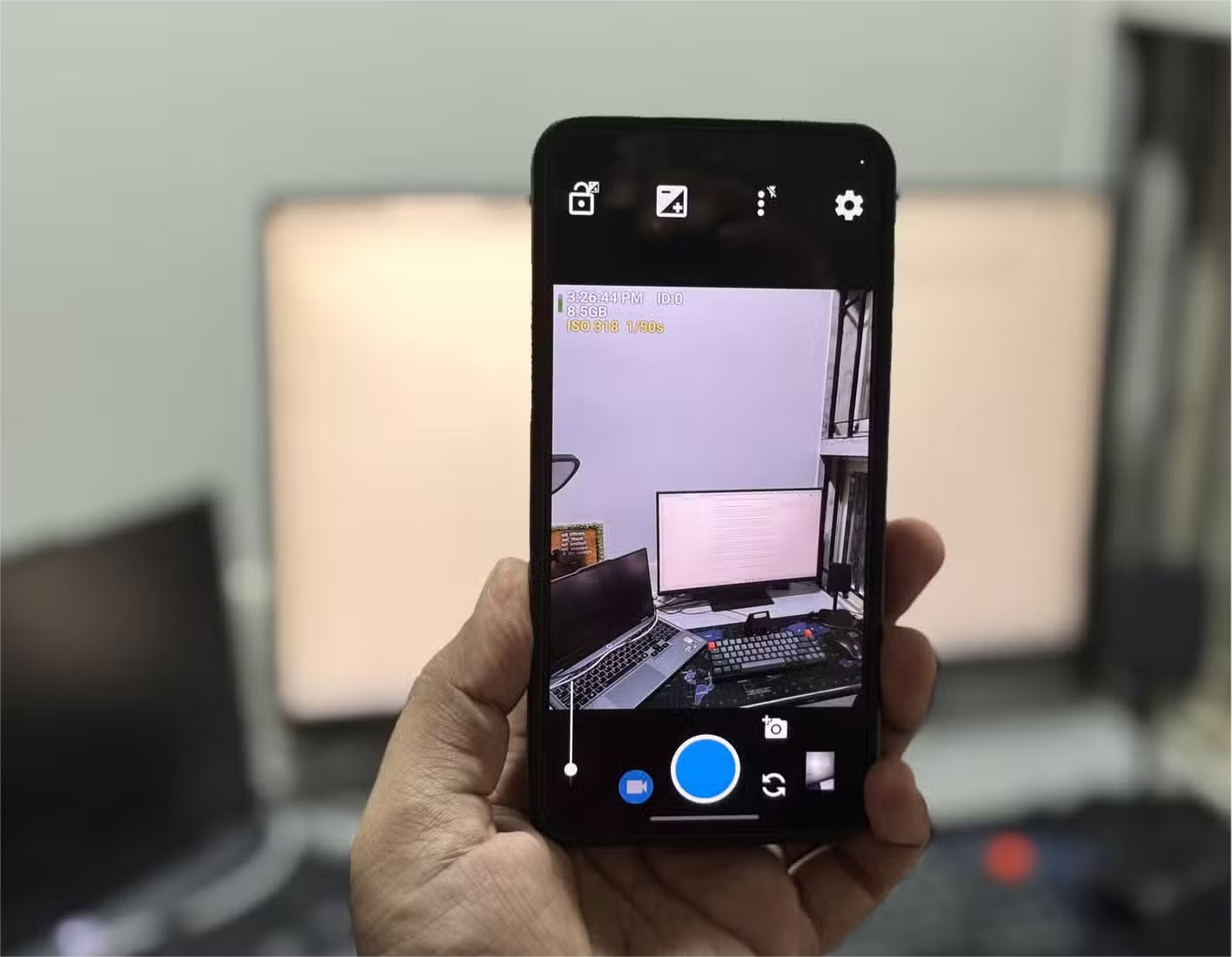
One of the first things you'll love about Open Camera is its interface. Instead of hiding controls behind endless menus, nearly all of the important settings are right there on the screen. Tapping the three-dot icon reveals more options, saving you time swiping and searching through tabs.
At first glance, the interface may seem simple, but don't let that fool you. Open Camera is packed with all the advanced features you could ever need, including burst mode, RAW capture, HDR with auto-alignment, and even noise reduction for low-light photos.
What really makes the app stand out, however, are the little details that improve the photography experience. Take its various grid overlays, for example. Instead of just offering the usual rule of thirds, Open Camera includes diagonals, lines of sight, triangles, golden ratio grids, and more. Another handy feature is Auto Level, which automatically aligns your photos so they look perfect, even if you're holding your phone at an angle.
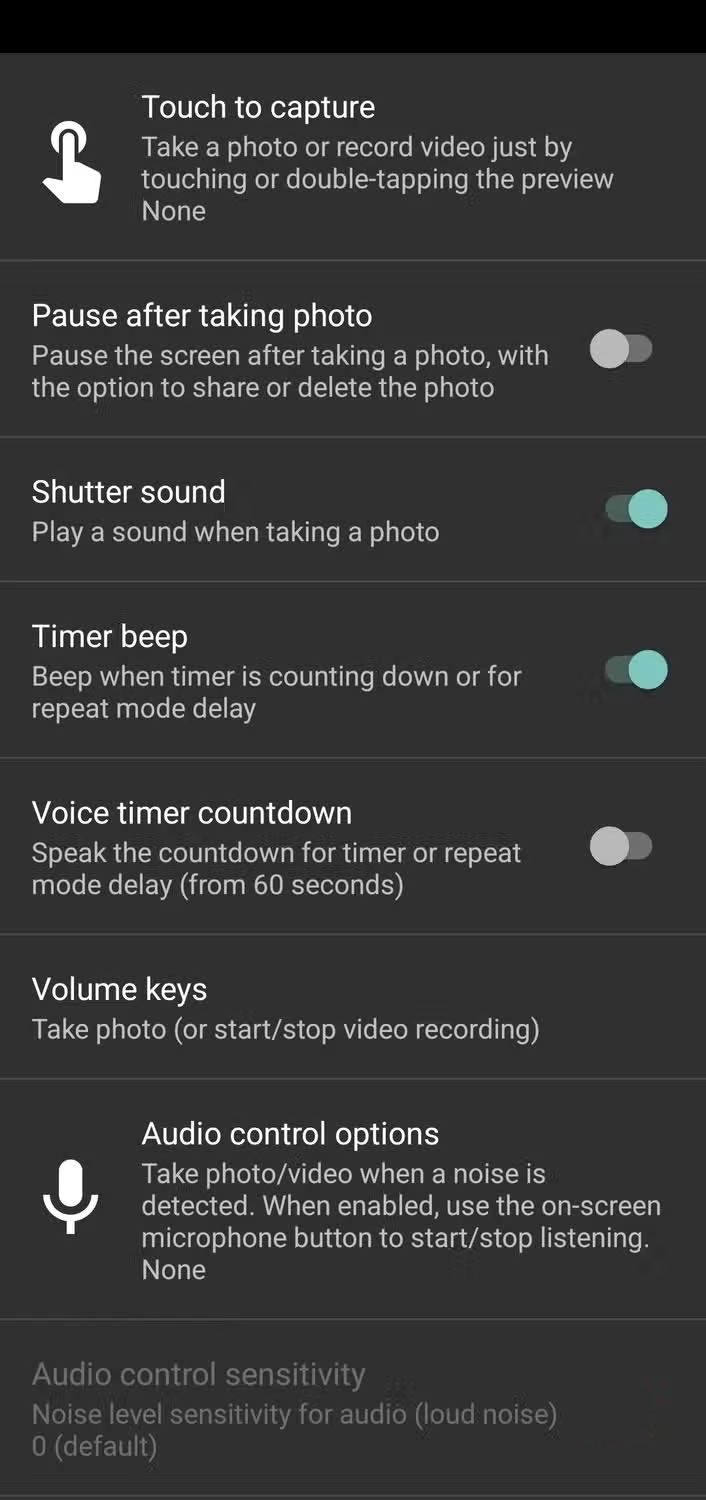
Dig into the settings and you'll find even more useful features. You can mute the shutter sound for discreet shots, lock the shooting orientation in portrait or landscape mode, or turn on the flashlight instead of flashing it every time you take a photo.
Even a simple function like the timer is customizable – you can set the timer to go beyond the standard 3 or 10 seconds to 20, 30, or even minutes. Even better, you can enable a voice countdown so you always know exactly when the shutter will go off.
Why is Open Camera the best alternative to the default Camera app?
Free, open source and reliable
When you start looking for alternative camera apps, you'll quickly realize there are a lot of options. Many people have tried a few of them themselves, including the very popular GCam.
GCam is a solid option, but since it's not officially available yet, you'll have to sideload it. Even after you get it up and running, you'll still run into issues like the app randomly crashing. And that's the last thing you want when you're trying to record something important.
Open Camera is completely free, easy to use, and packed with useful features. Being open source, the app also benefits from a community of developers who are genuinely interested in improving the app.
Willing to accept some disadvantages
Not perfect, but worth it
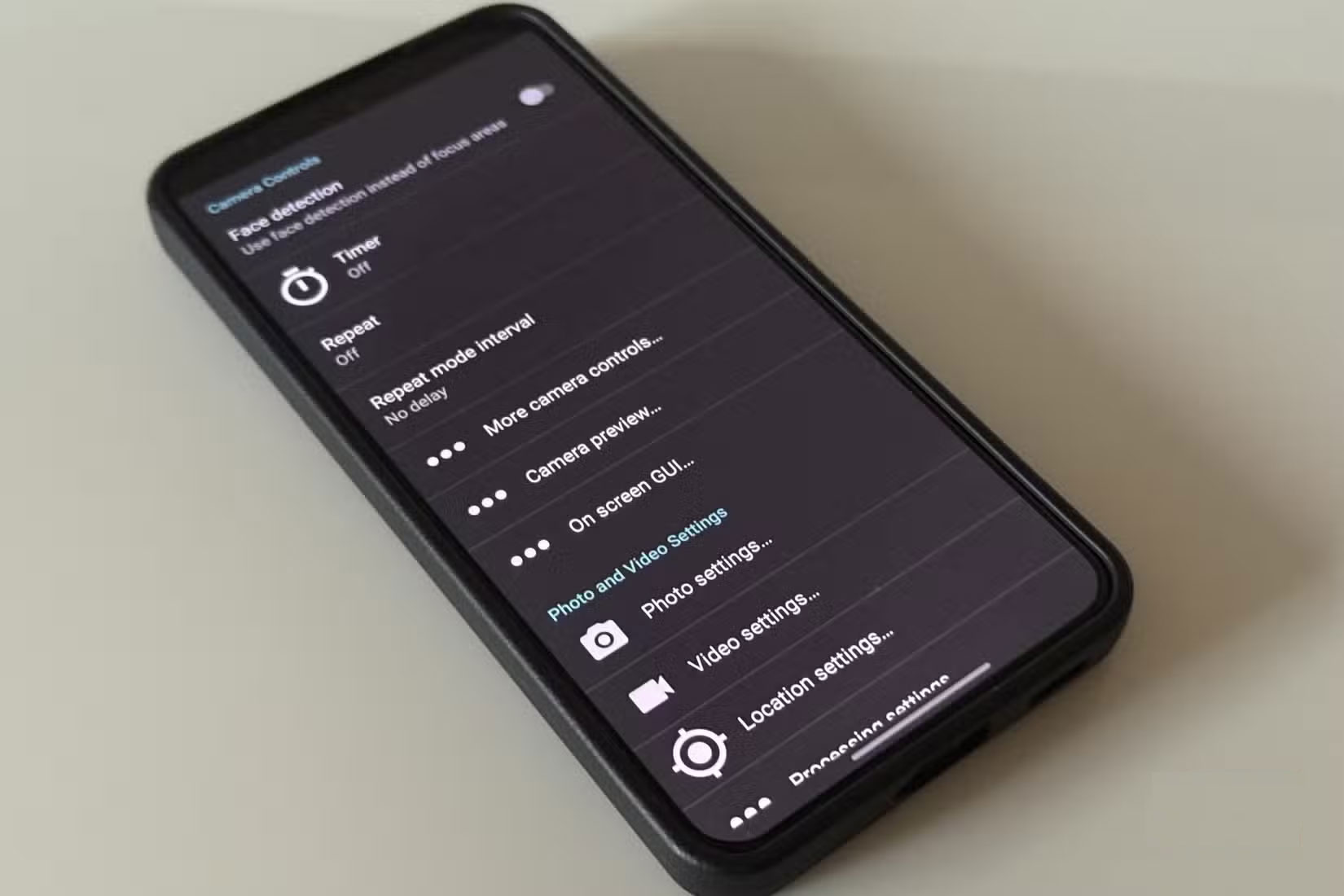
Of course, Open Camera isn't perfect. The UI, while useful, can feel a bit dated compared to the sleek design of native apps. This can be a plus. Unlike native apps, you don't have to worry about options being moved or hidden under new layouts with each update.
Admittedly, I'll still occasionally go back to the stock Samsung Camera app to take advantage of its best features, like scanning documents, creating GIFs, or experimenting with Director's View. But for everyday shots, Open Camera is always the top choice.
If you've ever been frustrated by slow shutter speeds, oversaturated colors, or a clunky interface, Open Camera is a great alternative. It's one of those apps that you'll quickly fall in love with the more you use it.
For anyone who's serious about taking better photos with their phone — or is simply fed up with struggling with the default camera — Open Camera is definitely worth a try.
Final Thoughts
Overall, Open Camera is best understood by considering the main facts, practical context, and limitations together. Use the details above as a clear starting point and confirm time-sensitive information when necessary.
FAQ
What does this article explain about Open Camera?
If you've ever missed a perfect shot because your camera app was lagging, or looked back at your photos later and wondered why the colors were so vibrant, you know the frustration.
What should you know about Small details make a big difference?
One of the first things you'll love about Open Camera is its interface. Instead of hiding controls behind endless menus, nearly all of the important settings are right there on the screen.
Should time-sensitive details be verified?
Yes. Software features, game codes, product specifications, prices, and research findings can change. Confirm important details with an official or primary source when accuracy affects your decision.
Related Articles
 How to Open the Camera on Laptop Windows 7/8/106 minutes read
 2 Fastest Ways to Open Camera on iPhone3 minutes read
 How to Open Camera on Windows 7/8/10/11 Laptop: Step-by-Step13 minutes read
 4 Fastest Ways to Open Camera on iPhone: Complete Guide5 minutes read
 Why Can't My Laptop Open the Camera? Steps to Turn on the6 minutes read
 How to Open the Camera on a Windows Computer or Laptop5 minutes read
Reader Comments 0
Sign in with email or Google to join the discussion.