Table of Contents
Unless you're a seasoned editor, editing photos to achieve a specific result can be daunting. Any editing tool will give you dozens of tools and sliders to explore, and not everyone knows what they do.
That's where AI comes in. A lot of people have decided to edit their selfies with the Pixel's AI, and they're great. But editing with Gemini can put Photoshop to shame.
Photoshop problem
Photoshop is a great piece of software. It has a wide range of professional tools, including some AI-powered tools, that help editors of all levels achieve professional results seamlessly. In case you get stuck, there are also plenty of tutorials and resources online to help you along the way.
That said, there is still a certain level of skill required to master Photoshop. On top of that, you need a computer powerful enough to run the program and pay for an Adobe subscription. This means you have to make a significant financial investment before you open your first photo in Photoshop.
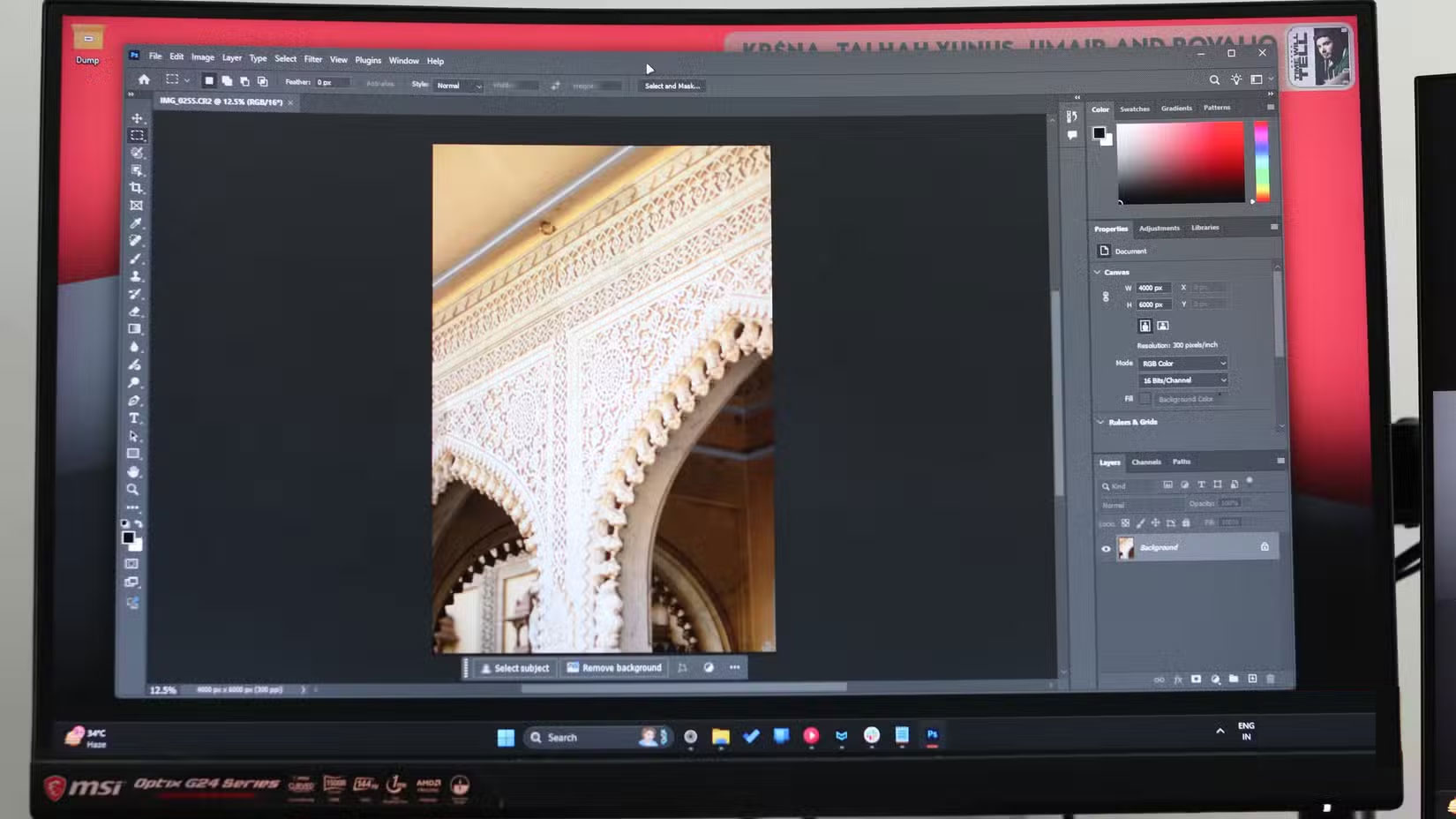
Despite this great level of control, you don't need Photoshop unless you're a professional photographer.
Gemini makes photo editing easy
Gemini's Flash 2.5, also known as Nano Banana, is the image editing model. To get started, visit the Gemini website on your computer or open the Gemini application and select the Create images mode. Once you select the mode, click the "+" icon to upload your image and enter the edits you need.
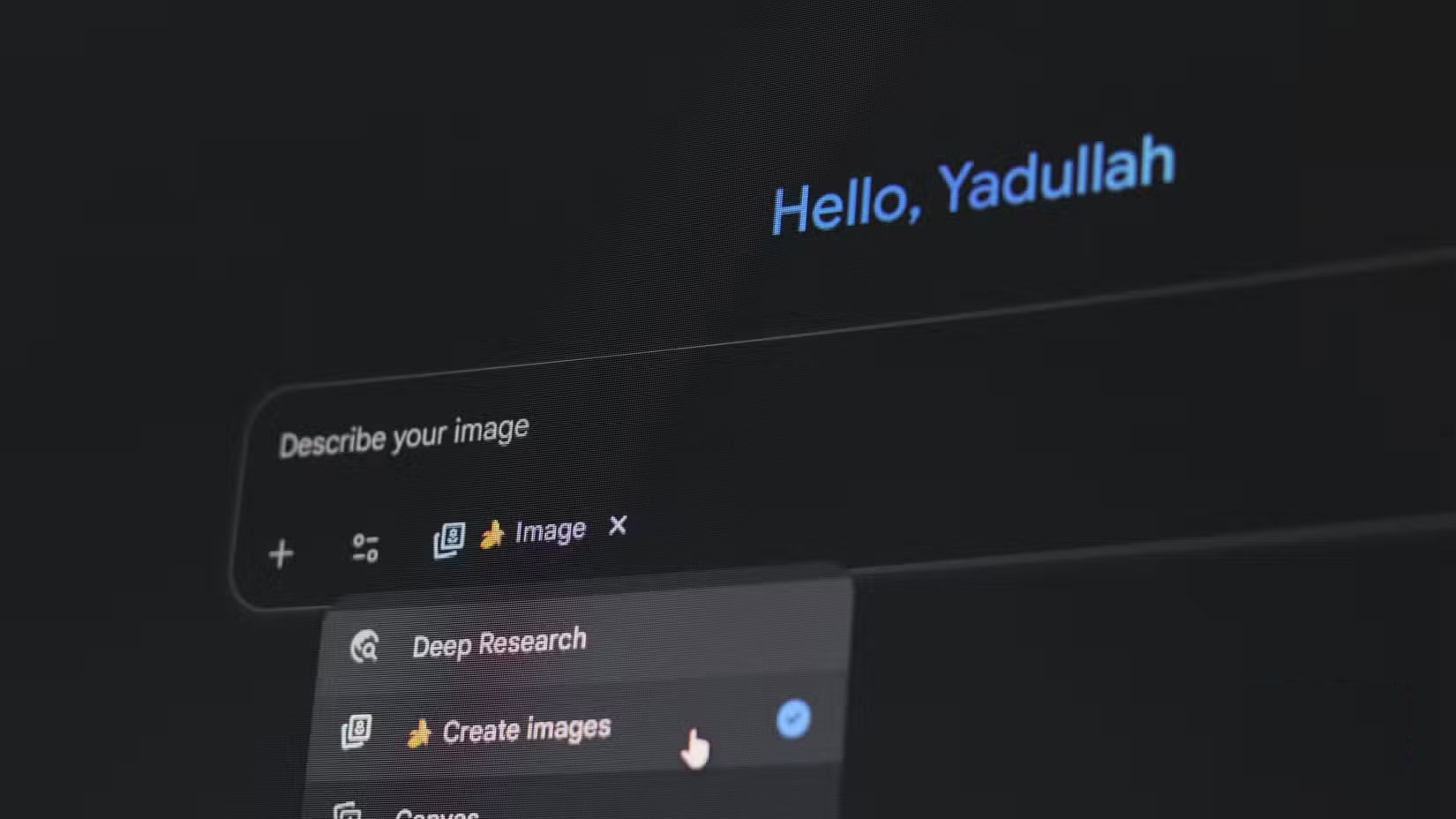
And that's all you need to do to start editing photos in Gemini - no registration or powerful computer required. From this point on, you can chat with Gemini about the edits you want.
At the time of writing, Gemini particularly excels at:
- Delete and add objects
- Replace background
- Switch styles between photos
- Adjust color and light
- Blend multiple images
Conversational editing
One of the great things about editing photos with Gemini is the ability to make edits in iterations. This means you can build on previous edits in a conversational way. You don't have to specify all your edits in one prompt. For example, you can ask Gemini to change the sky in a photo in the first prompt, and make lighting changes or add or remove background elements in the next prompt.
Being able to describe your edits also changes your relationship with editing. Instead of being limited by your tools and skill level, you can be much more creative and bring your vision to life. Because editing is much faster and less labor intensive, you also have the opportunity to experiment with more ideas. This allows you to maximize your creativity rather than your technical skills.

Complex edits happen much faster
When editing in Photoshop, it's easy to spend hours trying to do a simple background swap. With Gemini, your edits take seconds.
In Photoshop, a seasoned professional can spend minutes meticulously manipulating layers or masks to remove an object, change the background, or move elements between images. In our tests, Gemini achieved similar results in under 30 seconds. It can easily remove watermarks, swap backgrounds, and add or remove elements from photos almost as quickly as a mouse just by describing the change.


Gemini Fixes Consistency Issues
One of the most frustrating things about AI-based editing is that most AI tools change the face or subject of the image. When editing photos of yourself or people you know, small mistakes can make a big difference. An AI-edited image that looks almost like you but not exactly like you is not going to work.
Google has set up Gemini to make photos of yourself, your friends, family, and even your pets look exactly like themselves. So no matter how you edit the photo, chances are the person in the photo will still look the same.
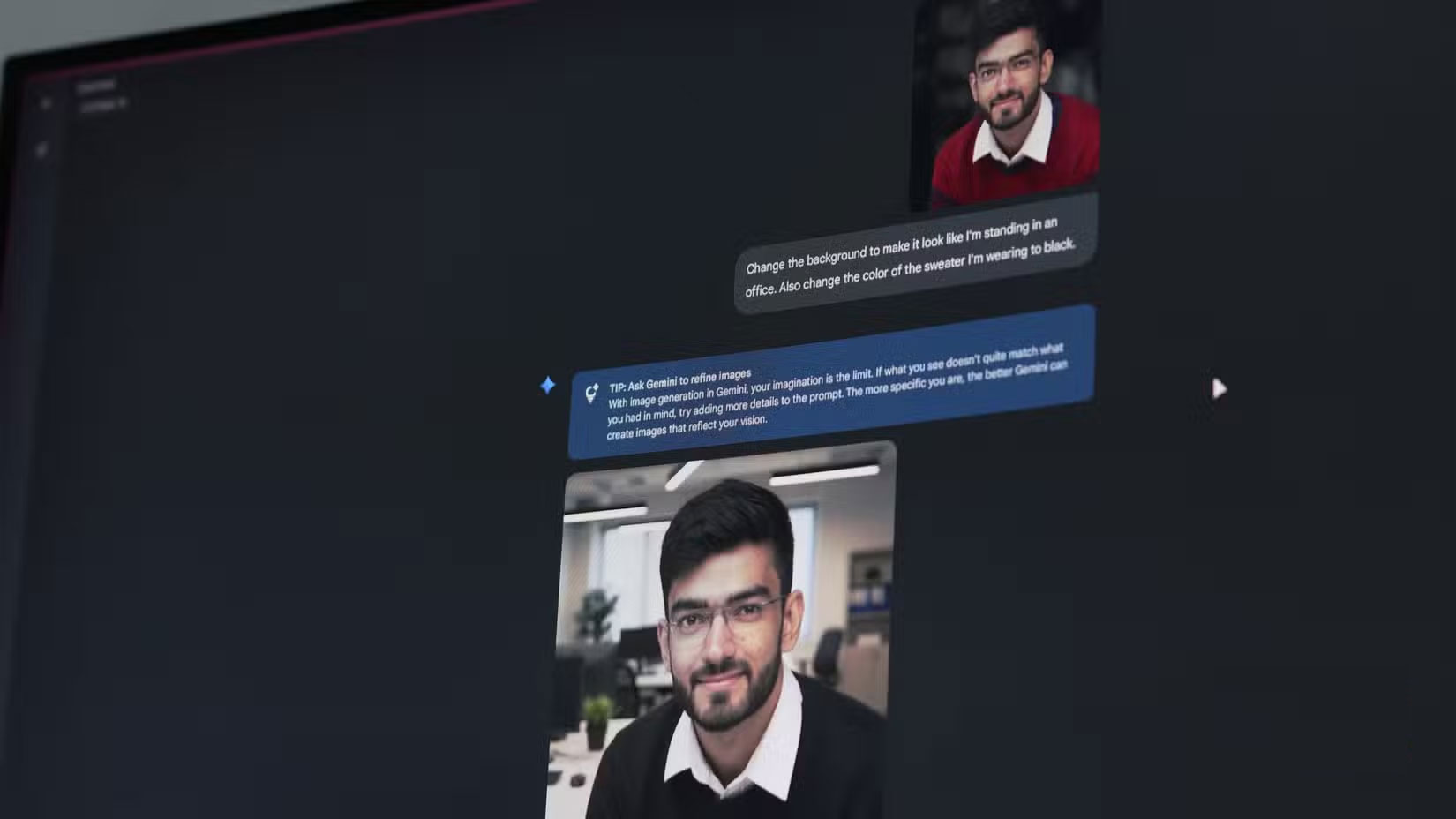
This is especially useful when you want to combine two or more photos to create a result where everyone in the two photos is combined into one frame. Everyone looks as expected, except for the edits you specified, not the edits the AI model thinks it should add.
Final Thoughts
Overall, Gemini Photo Editing Is Actually Better Than Photoshop is best understood by considering the main facts, practical context, and limitations together. Use the details above as a clear starting point and confirm time-sensitive information when necessary.
FAQ
What does this article explain about Gemini Photo Editing Is Actually Better Than Photoshop?
Unless you're a seasoned editor, editing photos to achieve a specific result can be daunting. Any editing tool will give you dozens of tools and sliders to explore, and not everyone knows what they do.
What should you know about Photoshop problem?
Photoshop is a great piece of software. It has a wide range of professional tools, including some AI-powered tools, that help editors of all levels achieve professional results seamlessly.
Should time-sensitive details be verified?
Yes. Software features, game codes, product specifications, prices, and research findings can change. Confirm important details with an official or primary source when accuracy affects your decision.
Related Articles
 Best AI Photo Editing Tools10 minutes read
 Instructions for Using Photoshop CS5 to Edit Photos in Full Set5 minutes read
 Advantages of Using Photoshop in ChatGPT for Photo Editing: Explained8 minutes read
 GIMP or Photoshop Is the Right Tool for You?8 minutes read
 How to Delete a Person from a Photo in Photoshop3 minutes read
 minutes read
Reader Comments 0
Sign in with email or Google to join the discussion.