Table of Contents
HJSplit divides a file into smaller numbered pieces and joins those pieces back into the original file. This is useful when a transfer or storage service limits individual file size. Splitting does not compress the contents or make them private: the recipient needs every part to reconstruct the file.
This guide describes the legacy HJSplit interface shown below. Current installer availability is not established in this guide; avoid unverified download mirrors. If you already have a trusted copy, extract its package into a folder before opening the program.
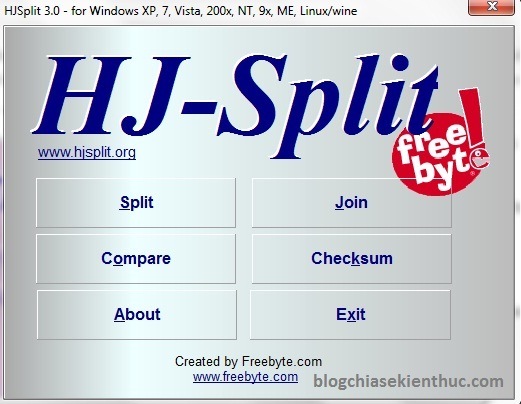
Split a large file
- Choose Split.
- Select the source through Input File.
- Choose an Output folder with enough free space for the generated parts.
- Enter the desired maximum part size under Split file size and select the intended unit, such as MB.
- Select Start and wait for completion.
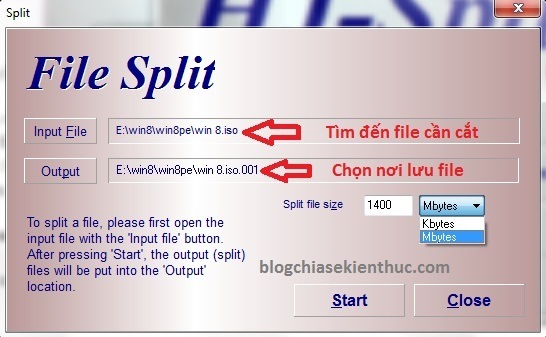
For example, a file of about 200 MB split into 100 MB parts produces roughly two parts, depending on the exact byte size and unit interpretation. The final part may be smaller. If a service has a strict upload limit, choose a part size slightly below that limit.
Keep the source file until you have checked that all parts transferred successfully. Send the complete numbered set, without changing the base name or suffixes.
Join the numbered parts
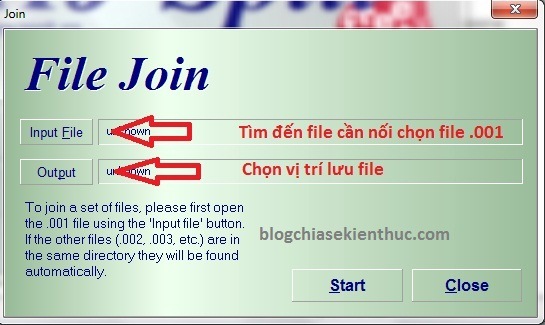
- Put all parts of the same split file in one folder.
- Confirm that the sequence starts with
.001and has no missing numbers. - Choose Join → Input File and select the
.001part. - Select an output location with enough space for the complete reconstructed file.
- Choose Start. After completion, verify the result before deleting the parts.
Do not combine pieces from different downloads merely because their names look similar. A missing or incomplete part can leave an unusable result. Also check what created the parts: a numbered multipart archive may need its archive tool rather than a raw file joiner.
For additional interface examples, see the HJSplit splitting and joining walkthrough.
Generate and compare a checksum
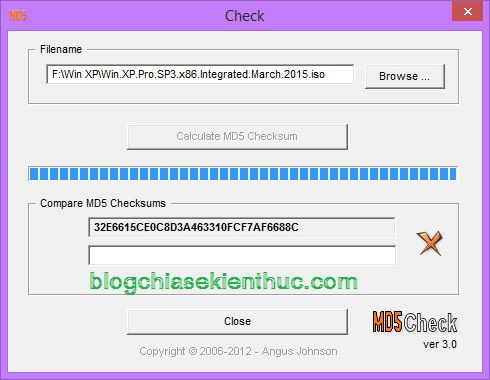
In HJSplit, choose Checksum, select the file, and start the calculation. The displayed MD5 value can be copied and compared with an MD5 value for the same complete file. The hash of a single part will not match the hash of the reconstructed whole.
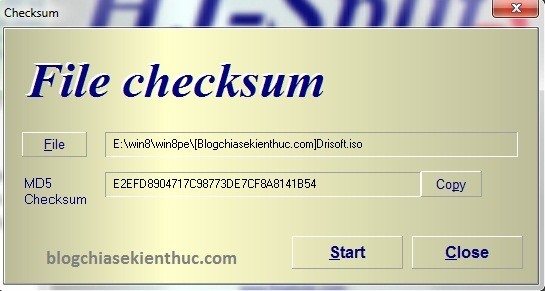
A mismatch means the values do not describe identical data, assuming you selected the same algorithm and intended file. A match can help detect accidental transfer damage, but MD5 is not considered secure against deliberate tampering. A checksum also cannot show that a program is malware-free.
Use a value supplied through a trusted publisher’s channel. A hash posted alongside a malicious file by the same untrusted uploader does not establish trust.
Use Compare for two local files
The Compare window takes two local file selections. Select the original and reconstructed copies, then run the comparison and read the reported result. This differs from pasting a publisher’s checksum into a verification field.
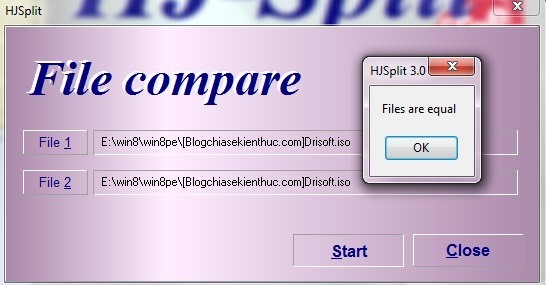
Do not infer that two files are identical from their names or sizes alone. For an independent integrity check, calculate a modern hash for both complete files.
Check a hash with PowerShell
You do not need a separate MD5-checker download for ordinary hash calculation on a Windows system with PowerShell. Replace the sample path below with your actual file path:
Get-FileHash -LiteralPath "C:Downloadsexample.iso" -Algorithm SHA256Compare the Hash value with the publisher’s SHA-256 value. If a legacy source provides only MD5, use -Algorithm MD5 to make a like-for-like comparison, while keeping MD5’s security limitations in mind.
Microsoft’s Get-FileHash documentation explains the supported algorithms. The Windows checksum guide shows additional verification methods.
If the joined file will not open
Check for missing parts, interrupted transfers, renamed suffixes, or insufficient output space. Confirm that the parts belong to one file and that you are using the correct joining or archive tool. Re-download a damaged part from the trusted source, then join again and compare the final checksum before discarding your working copies.




Reader Comments 0
Sign in with email or Google to join the discussion.