Table of Contents
Internet Download Manager (IDM) is a Windows download manager for organizing transfers, capturing supported browser downloads, and resuming files when the server permits it. Its segmented downloading can help use available bandwidth, but it cannot exceed your connection speed or a file host’s limits.
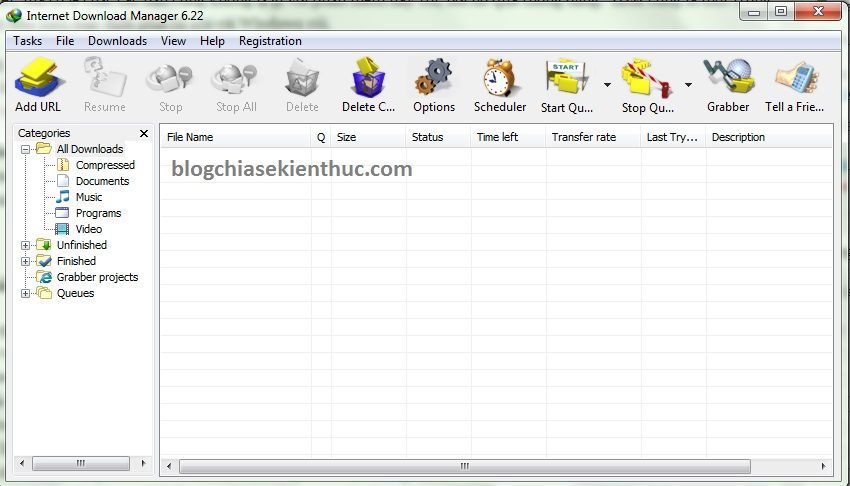
Use it when you need a download queue, scheduling, or more control over ongoing transfers. You do not need to install it simply because you use Windows, and no downloader can guarantee that every interrupted or restricted file will be recoverable.
Download and set up IDM
Start at the official Internet Download Manager website. Review the current trial and license terms, install the supported release, and follow the developer’s instructions for browser integration. Avoid unofficial activation tools or download buttons on unrelated pages.
Restart the browser if the installation requests it. If download capture does not work, check IDM’s General options and the official integration module for that browser. The developer’s integration troubleshooting page provides the appropriate extension guidance.
Add a download URL manually
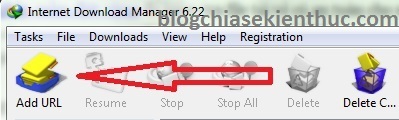
- Open IDM and choose Add URL.
- Paste the actual download address and confirm. A webpage URL is not always a direct file link.
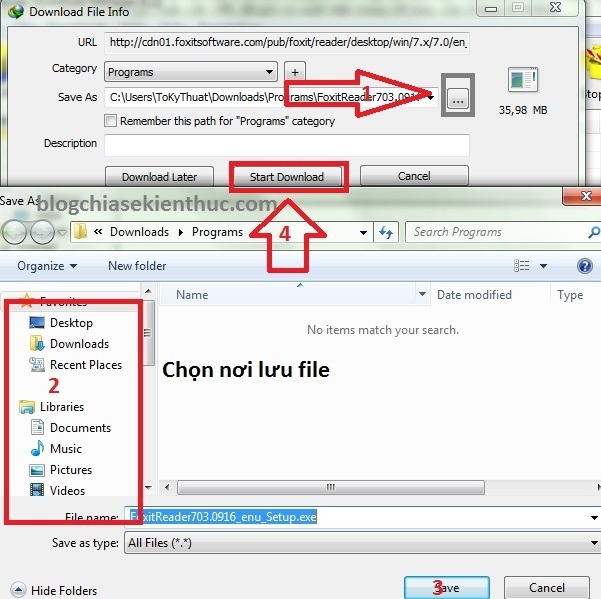
- Check the filename, file type, and destination folder.
- Choose Start Download, or defer the transfer if you want to put it in a queue.
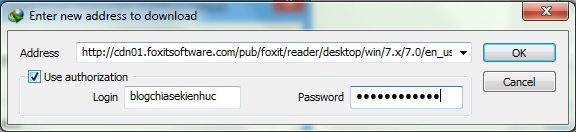
If the server requires authentication, use only the credentials intended for that trusted server. Do not enter an unrelated email or browser-account password simply because a download dialog requests one.
The option to remember the folder for a category affects where later downloads are saved. Check it only if that is the behavior you want. For another illustrated walkthrough, see adding a link when IDM does not capture it automatically.
Resume an interrupted transfer
In the download list, right-click the interrupted item and choose Resume Download. Resuming depends on the server supporting it and the download address still being valid. It is not guaranteed after every power failure, login expiry, or server change.
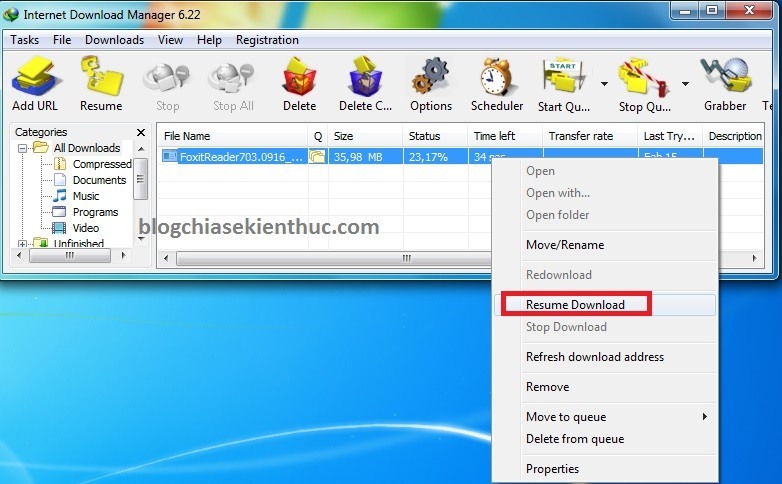
If the server returns a webpage instead of the file, you may need a fresh authorized link from the original download page. Follow the official resume-error instructions rather than deleting the partial download immediately.
Choose what happens after a download
The older interface shown here includes an Options on completion section and a Turn off computer when done option. Use automatic shutdown only after saving work and checking that other applications or transfers do not need the computer to remain on.
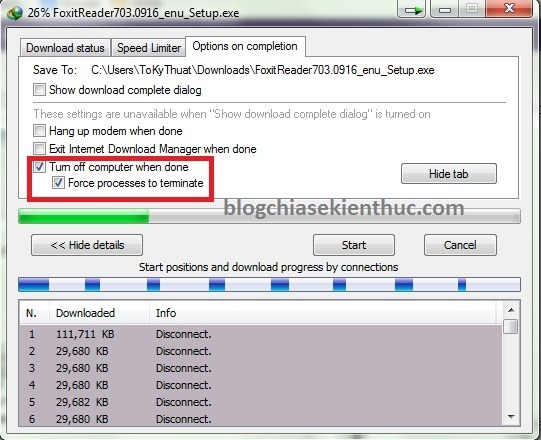
For a group of downloads, inspect the queue or scheduler settings as well. A completion option for one transfer may not express what you want for the whole queue. Leave automatic shutdown disabled when you are unsure.
Control browser integration and file handling
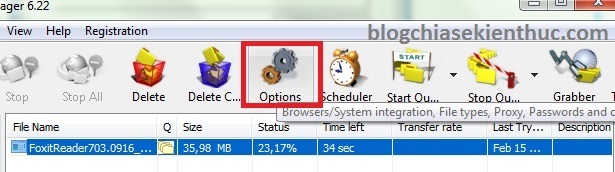
Open Options → General to review the browsers IDM integrates with. Clear a browser’s selection if you want its own download manager to handle downloads instead, then save the setting. The browser names in this old screenshot are historical and are not a current compatibility list.
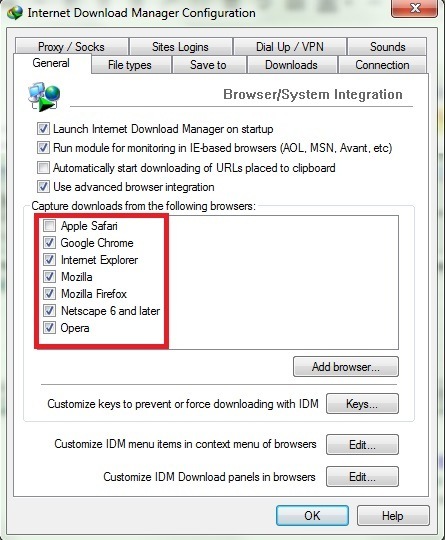
- File types: controls which extensions IDM should capture. These include archives and documents, not just video formats.
- Save to: sets destination folders and categories.
- Connection: contains connection-related settings. Raising limits indiscriminately will not overcome host restrictions.
- Proxy/SOCKS: configures a proxy when your network requires one. A proxy is not inherently a download-speed improvement.
If downloads consume bandwidth needed for calls or other work, use IDM’s Speed Limiter. See setting an IDM download-speed limit for the controls.
Understand the limits
A missing video button can result from browser integration, a website change, or an unsupported media-delivery method. Download only content you are authorized to save, and do not assume IDM can retrieve every streaming video.
IDM is also not an antivirus product. Keep your normal security software active and evaluate the source of downloaded files before opening them. If transfers are consistently slow, compare different legitimate sources and check whether the same connection is busy elsewhere before changing advanced settings.
Related Articles
 Top download acceleration software for Mac
 Top 8 best free download support tools for Windows
 To enable Hardware Acceleration in Chrome, Firefox
 Speed up download - upload BitTorrent
 If you want VLC to consume less battery, just enable Hardware Acceleration
 How to Use JDownloader: A Free Alternative to IDM
Reader Comments 0
Sign in with email or Google to join the discussion.