Table of Contents
YouTube Music is worth trying if your library includes live performances, covers or remixes you already find on YouTube. Before switching from Spotify, make sure YouTube Music has the versions you want and works on the devices you listen on.
1. Share a lyric as an image
Open a track’s Lyrics tab. When sharing is available, select a few lines and use the preview to choose how the image looks before sending or saving it. Lyrics and sharing controls can vary by track or app version.



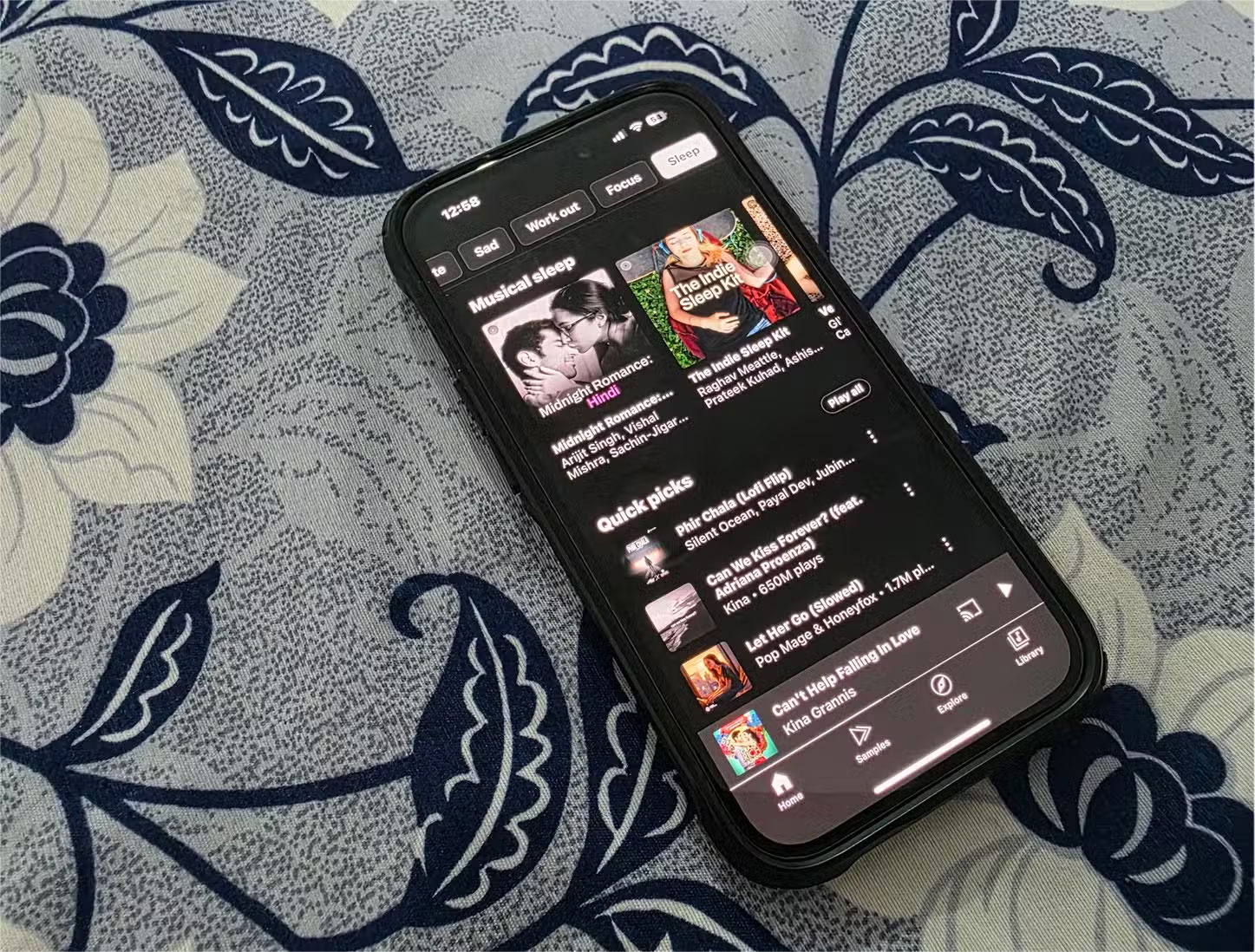
2. Browse by mood or activity
On the Home tab, use chips such as Workout or Relax when you want a starting point. Try a filter on two different days to see whether the recommendations actually fit what you want to hear.


3. Find live versions, covers and music videos
Search by artist and song, then add the venue, year or “acoustic” if you want a specific recording. Check the artist, duration and uploader before adding it to a playlist. On eligible tracks, Song and Video modes also depend on subscription and availability.
4. Read the discussion around a release
Some tracks or videos show comments. They can help you identify a live version or see how other listeners heard the song. Comments and other community features vary by upload.

Test a small playlist before switching
Recreate one playlist with a mix of studio tracks and rare recordings, then check that every match is the right version. Test offline playback and your car, speakers or TV on the plan you intend to use. Compare the cost and features with the Spotify, Apple Music and YouTube Music comparison before cancelling your current subscription.
Related Articles
 Which is better Spotify or YouTube Music?
 5 Spotify Features That Can Make Switching Harder
 How to play playlist Spotify into Youtube video and vice versa
 Do you know Spotify has more interesting things than you think?
 How to listen to offline music on PC with Spotify
 YouTube Music vs. Spotify and Apple Music: Where It Stands Out
Reader Comments 0
Sign in with email or Google to join the discussion.