Table of Contents
A loud laptop fan is usually reacting to heat, not causing it. Start by checking CPU or GPU load, airflow, and the type of sound. A smooth rush of air during gaming or rendering can be normal; grinding, clicking, or rattling can indicate a damaged fan or an obstruction that a Windows setting will not repair.
Power changes can reduce heat during light work, but they also reduce performance. Make one change at a time, note the original setting, and test the same workload before deciding whether it helped.
First identify why the fan is loud
- Open Task Manager with Ctrl + Shift + Esc and sort the Processes list by CPU and GPU use. A stuck update, browser tab, scan, or application may explain the heat.
- Place the laptop on a hard, flat surface and make sure its intake and exhaust vents are not covered.
- Restart Windows and test again after startup activity settles.
- Install BIOS, firmware, graphics, and chipset updates from the laptop manufacturer when they address thermal or fan behavior.
- Use the manufacturer's diagnostic or monitoring utility to check temperatures and fan errors. Compare readings with the limits documented for the exact model rather than relying on one universal temperature threshold.
If the case is swelling, the trackpad is lifting, there is a burning smell, the laptop shuts down from heat, or a fan makes a mechanical grinding sound, shut it down and arrange service. A swollen battery and a failing fan are safety or hardware problems, not power-plan problems.
Use a balanced Windows power mode
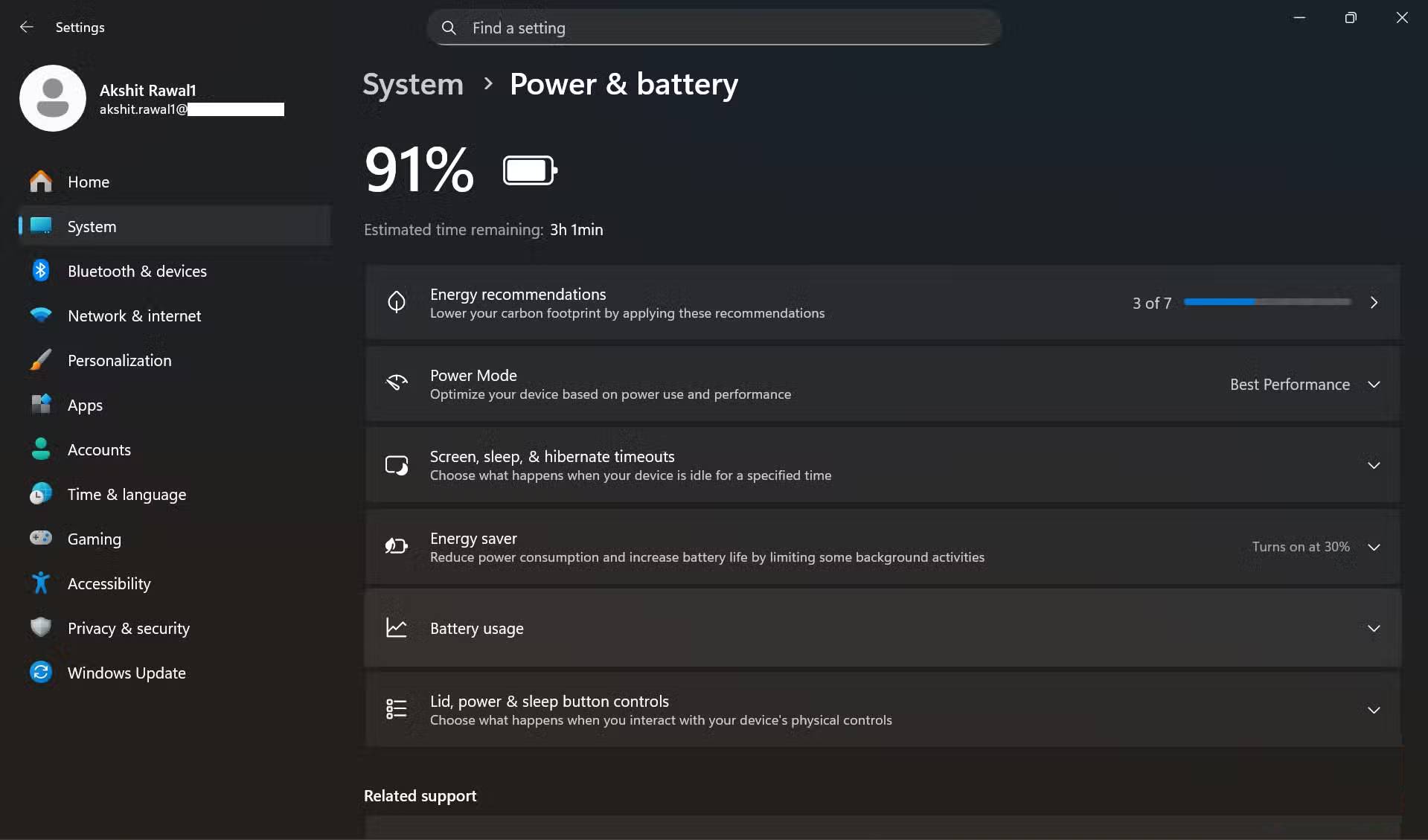
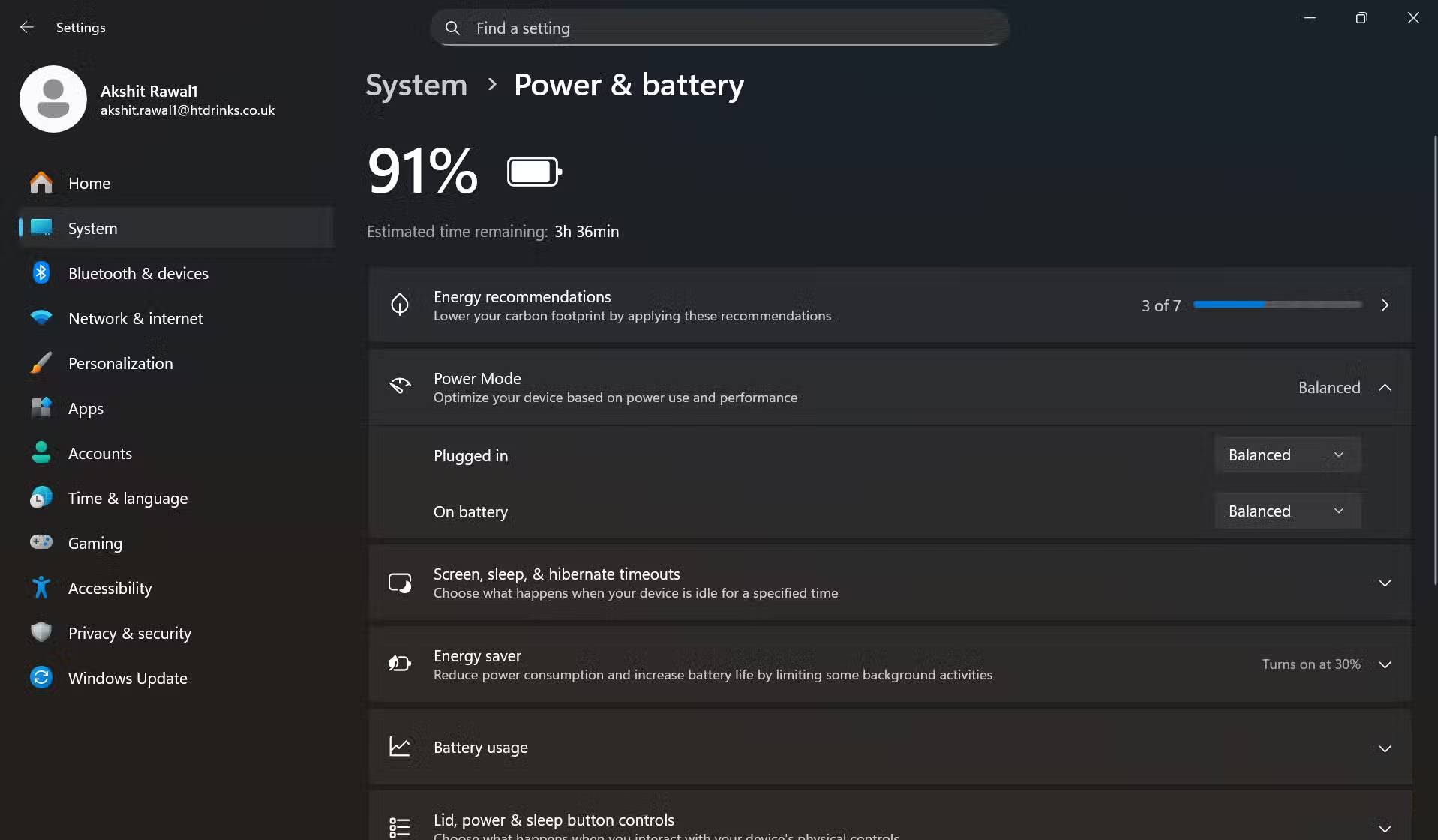
Best performance mode lets the system favor responsiveness and may keep processor clocks and fans more active. Balanced mode can still increase performance when required, but it reduces power during lighter work.
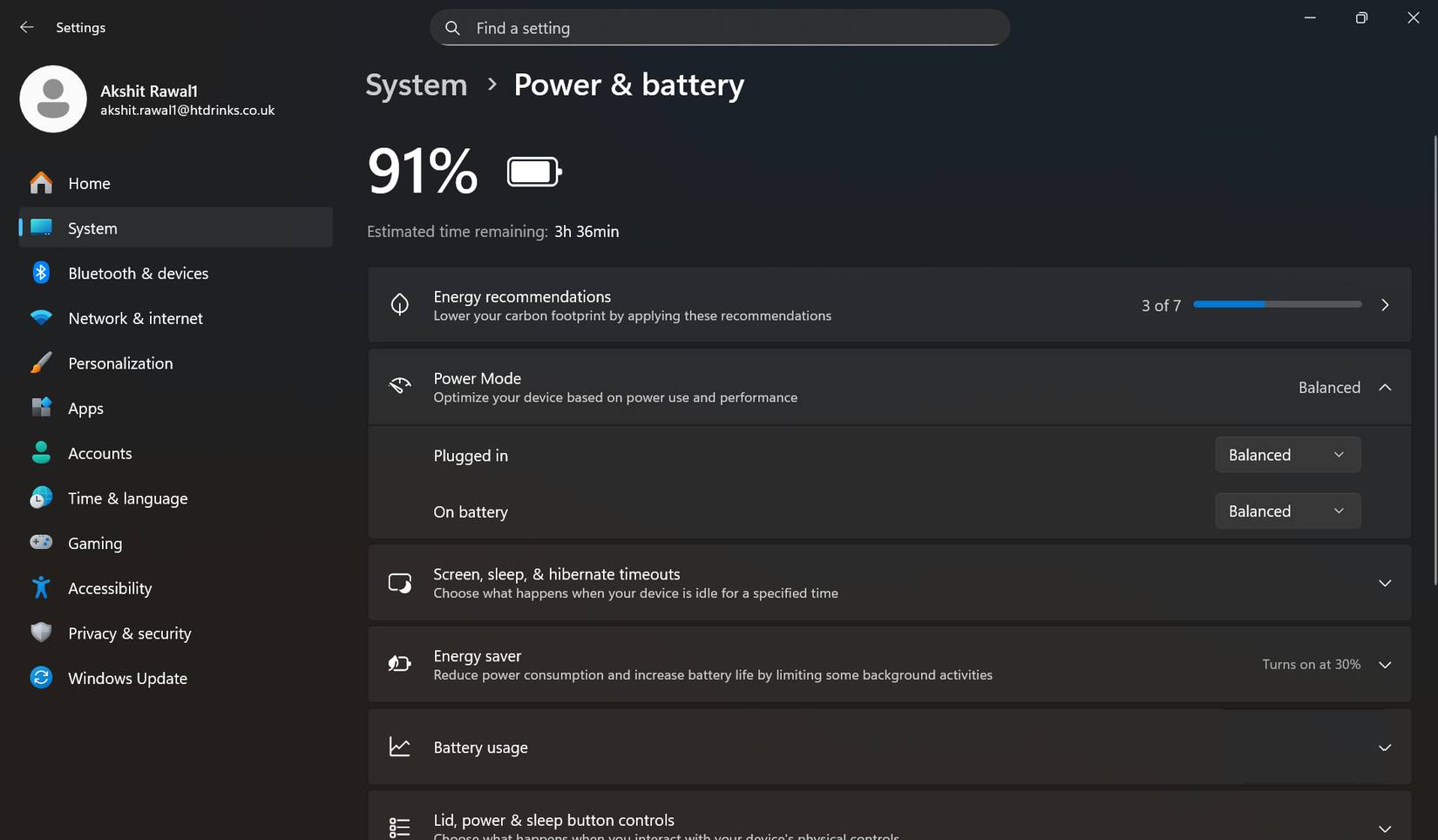
Windows 11
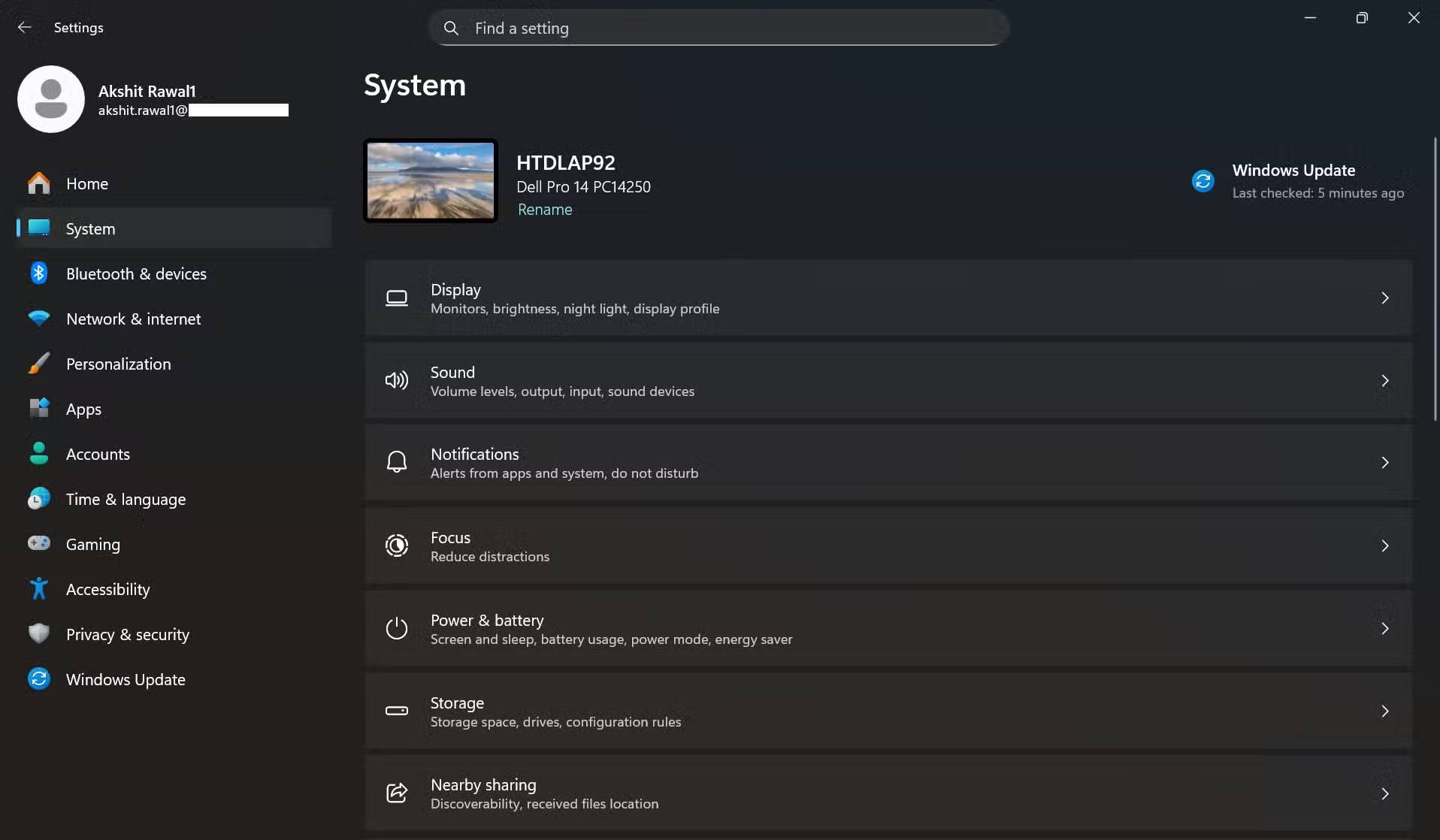
- Open Settings > System > Power & battery.
- Under Power, locate Power mode.
- Select Balanced. If battery life matters more than speed, test Best power efficiency.
Windows 10
Click the battery icon on the taskbar and move the power-mode slider away from Best performance, or open Control Panel > Hardware and Sound > Power Options and select Balanced. Options vary by manufacturer and Windows configuration.
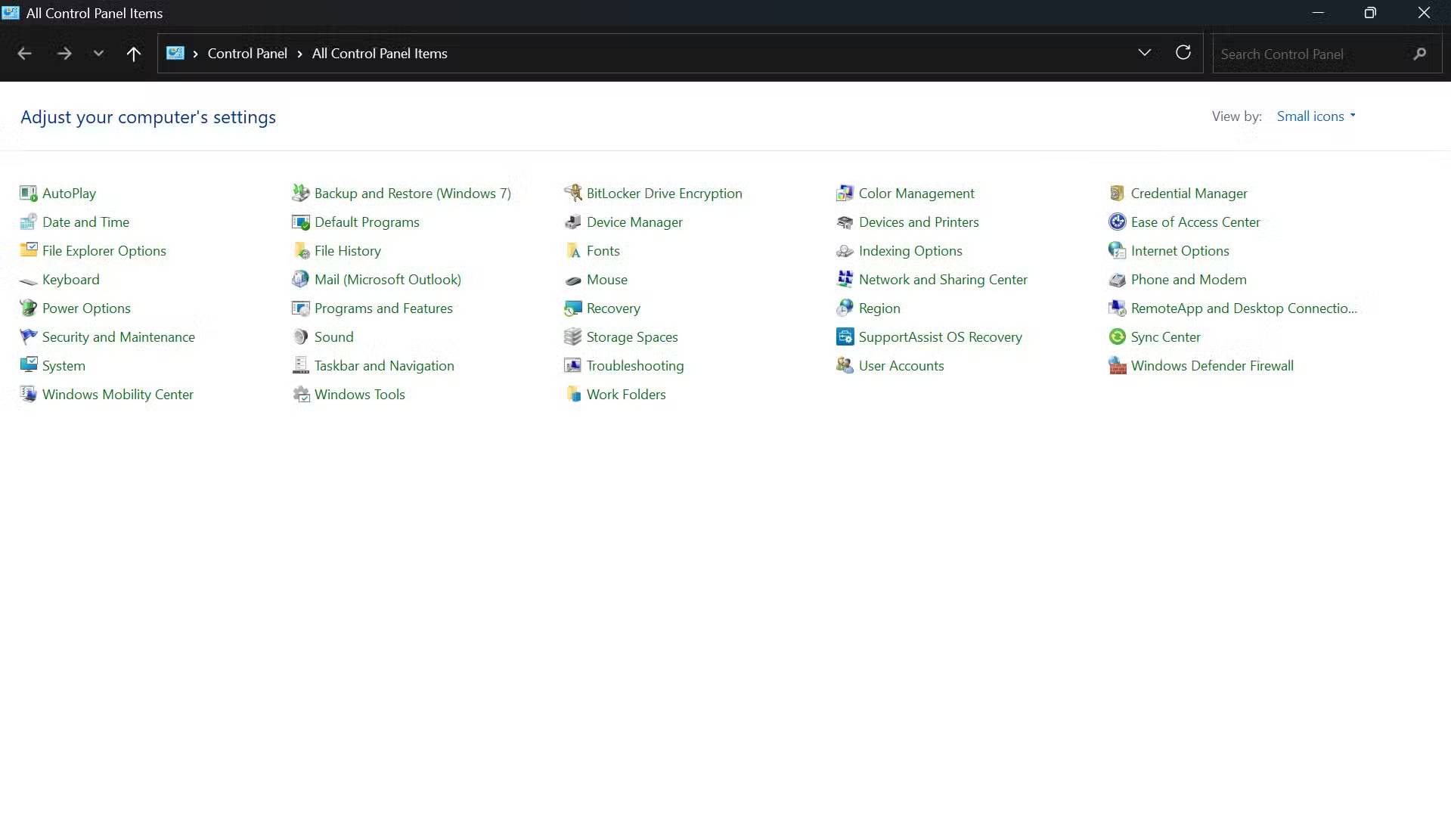
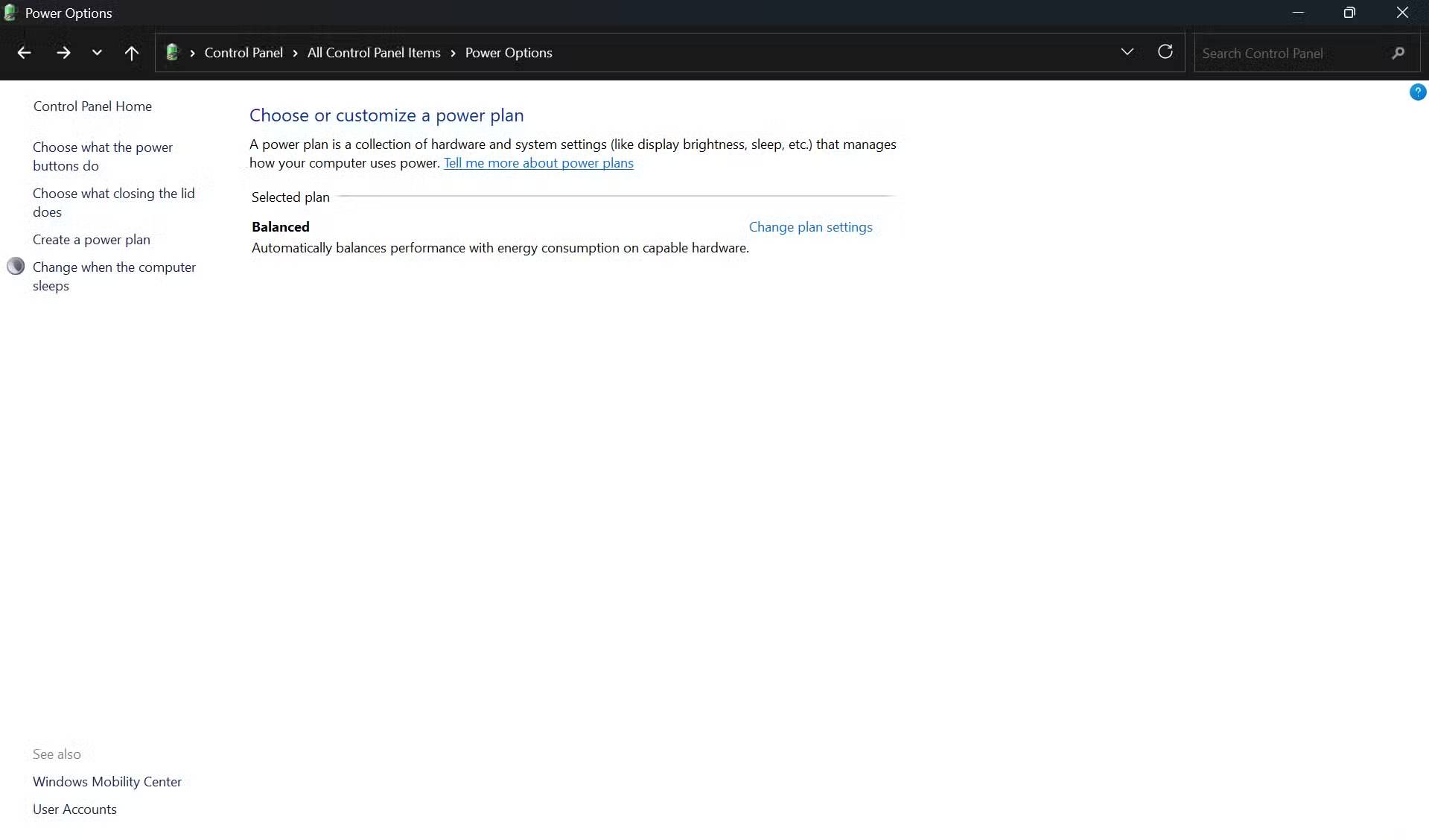
The change is reversible. Test a video call, browser workload, or other normal task and listen for a difference. For more battery-focused settings, see these Windows 11 laptop power adjustments.
Optional: reduce the maximum processor state
Windows' advanced power settings may expose Maximum processor state. Lowering it can reduce peak CPU performance, power use, and heat. It is a workaround, not a repair, and it may slow games, compilation, editing, and other demanding work.
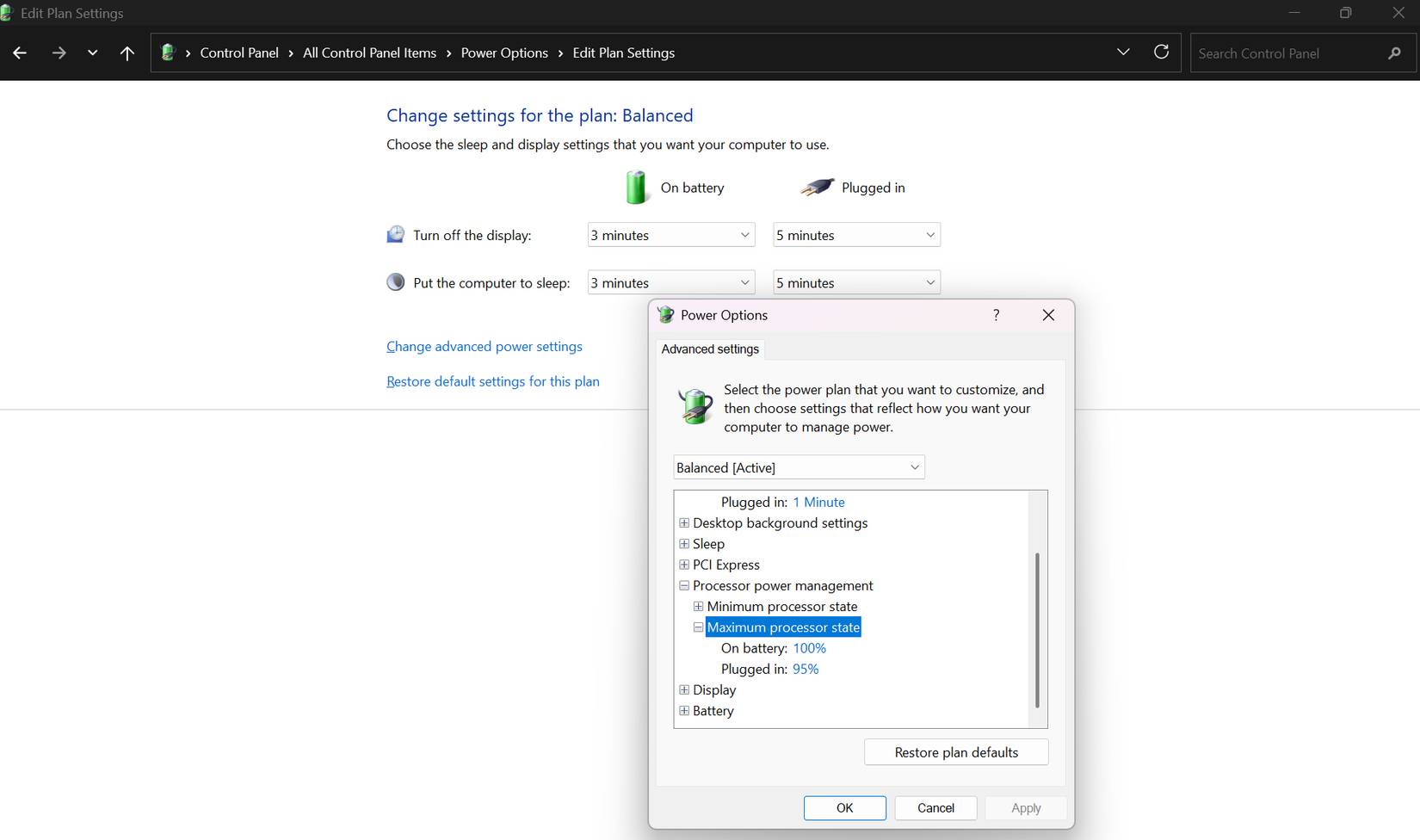
- Open Control Panel > Hardware and Sound > Power Options.
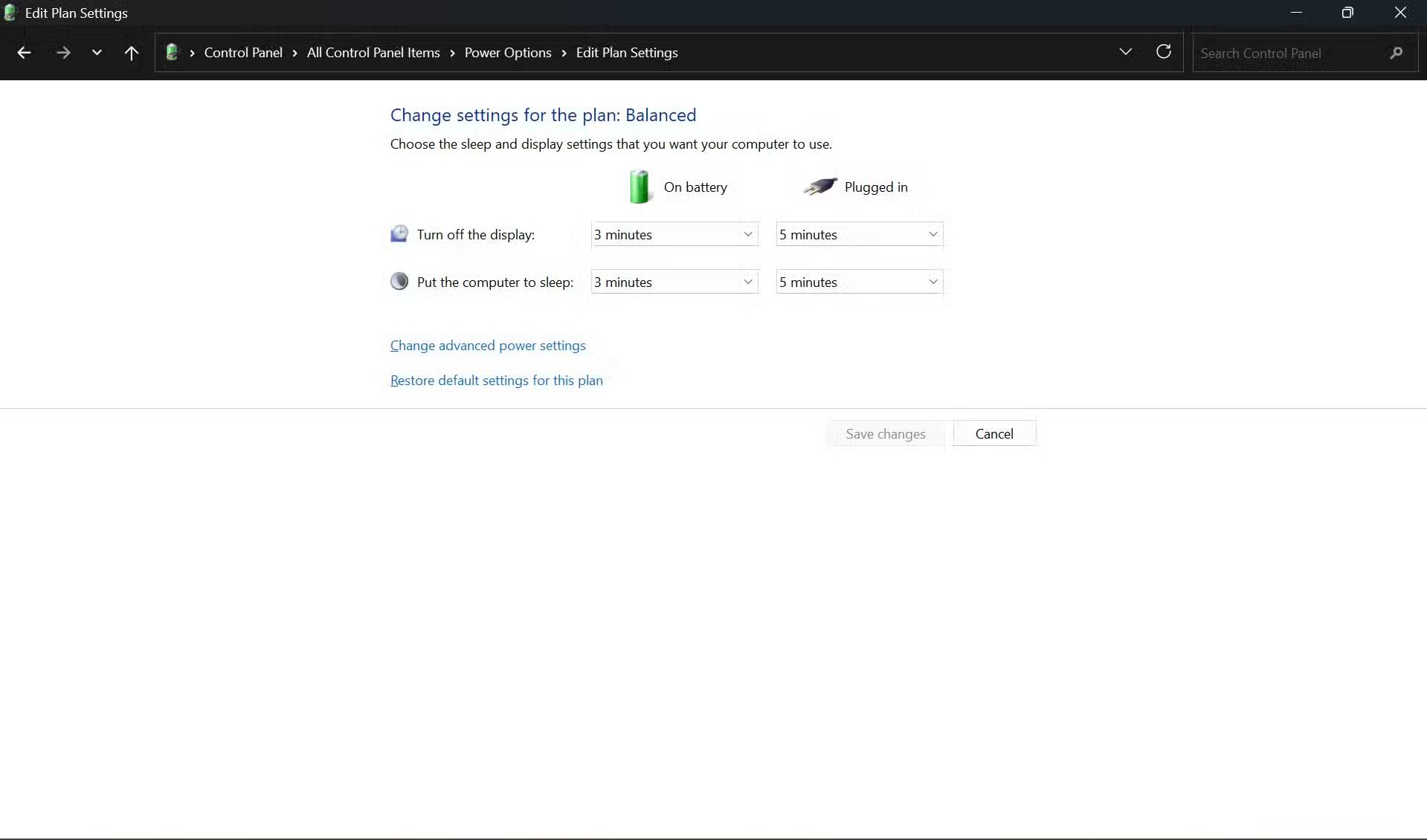
- Beside the active plan, select Change plan settings.
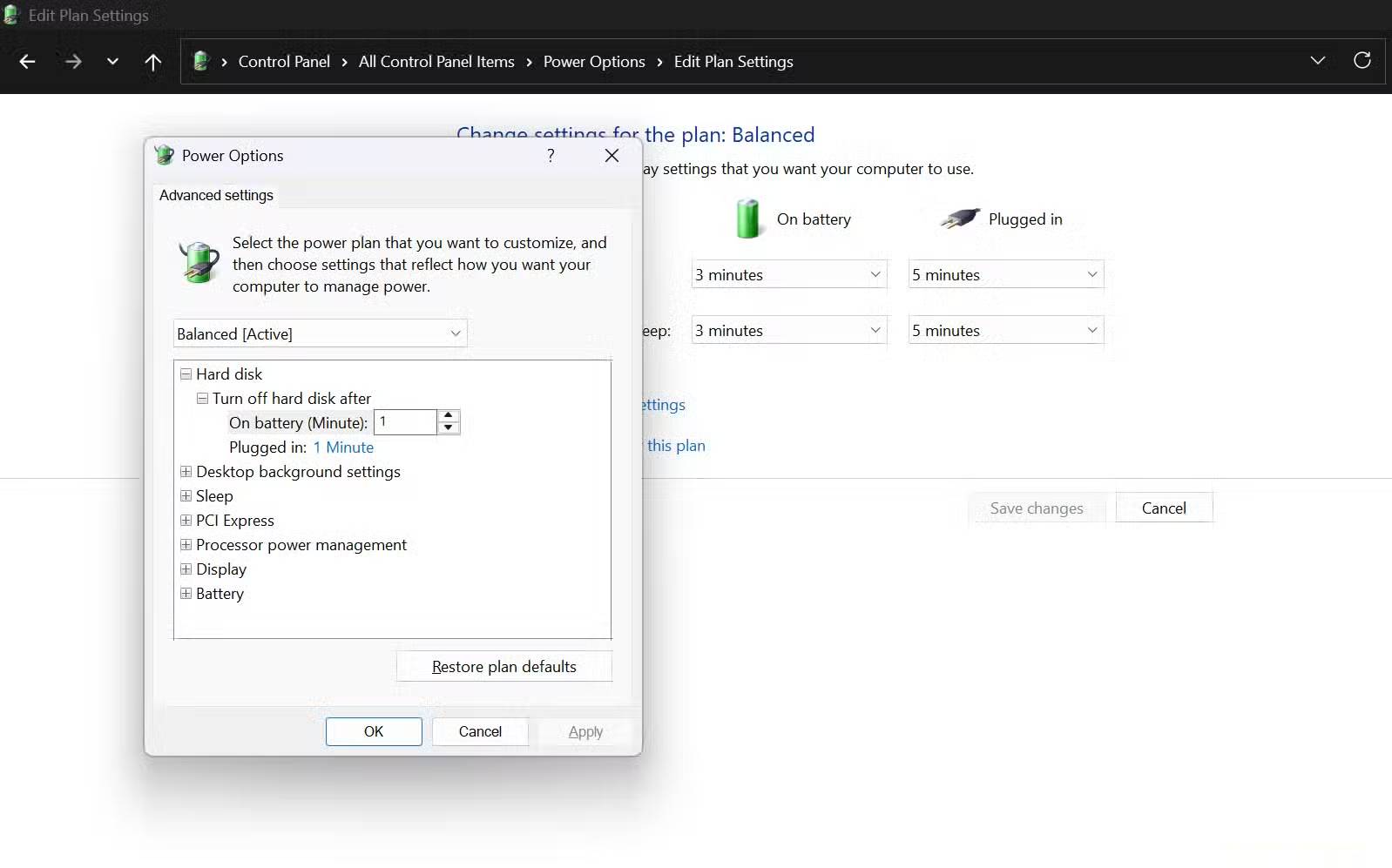
- Select Change advanced power settings.
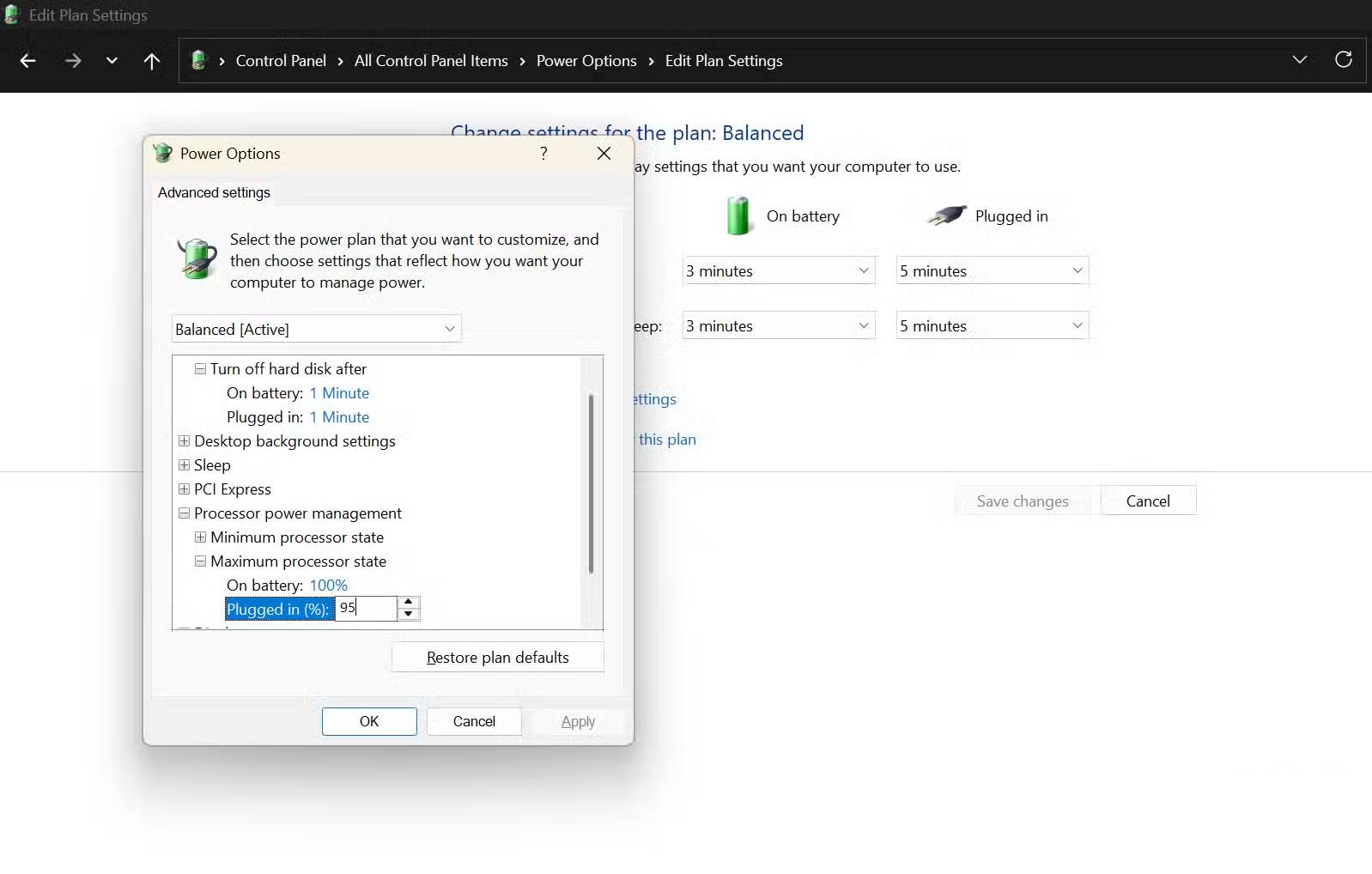
- Expand Processor power management, then Maximum processor state.
- Record the current values for On battery and Plugged in.
- Reduce one value in small steps, select Apply, and retest. Restore the original value if performance suffers or the change does not help.
Some systems hide this setting or manage CPU boost through manufacturer firmware. A value of 99% is often described as a way to disable turbo boost, but that behavior is not guaranteed across processors, Windows power frameworks, and OEM designs. Do not treat one percentage as universally correct.
Fix airflow and maintenance problems
If changing the workload or power mode does not help, inspect the cooling path:
- Shut down and unplug the laptop before cleaning its exterior vents.
- Do not push tools into a vent or spin a fan aggressively with compressed air.
- Follow the service manual before opening the case; opening some models can affect warranty coverage.
- Have compacted dust, a failing fan bearing, damaged heat pipe, or dried thermal interface material serviced when disassembly is beyond your experience.
- Do not apply thermal paste on top of existing pads or paste without cleaning and following the model's service procedure.
You can use this computer temperature-checking guide as a starting point, but interpret every reading using the laptop maker's documentation.
What each symptom usually suggests
- Fan surges with high CPU or GPU use: close or repair the responsible process, or use a less aggressive power mode.
- Fan runs hard on a soft surface: uncover the intake and retest on a desk.
- Rattling, scraping, or repeated clicking: inspect for an obstruction or arrange fan replacement.
- High heat after cleaning and updates: the cooling assembly may need professional inspection.
- Normal temperature but irritating fan behavior: check the laptop maker's supported fan profile or firmware settings.
Balanced mode and a modest processor limit are reasonable diagnostic steps because they are reversible. They should not be used to hide an overheating condition, failing fan, blocked vent, or swollen battery.
Related Articles
 6 Potential Hardware/software Issues That Cause Laptops to Overheat10 minutes read
 Causes and Effective, Simple Solutions for Laptop Overheating12 minutes read
 Causes of GPU Overheating and How to Fix It8 minutes read
 Reasons Why Headphones Are Noisy and How to Fix Them: Key Facts9 minutes read
 How Much CPU Temperature Is Overheating?10 minutes read
 Bluetooth Headset Is Noisy, What Is the Cause and How to Fix It?7 minutes read
Reader Comments 0
Sign in with email or Google to join the discussion.