Table of Contents
This article provides a clear overview of Apple's Family Sharing Feature Saves You Money. Here's How, with the main facts, useful context, and practical details organized for easy reading.
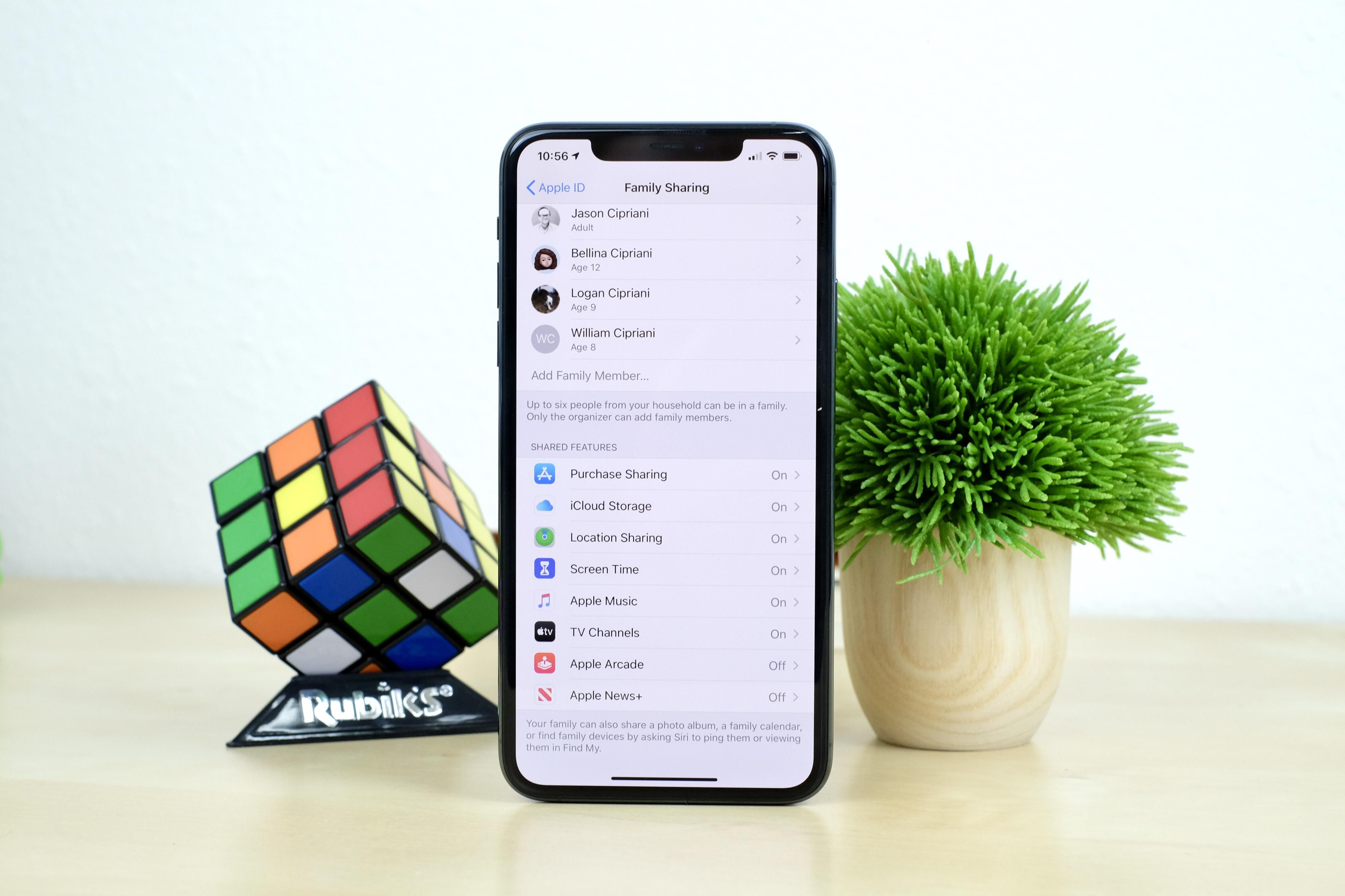
With Family Sharing, you can still see which app other family members have paid for, and then download those apps for yourself without having to pay. There are other benefits to Family Sharing, too, like a group calendar, reminders list and even the option to track down a member's lost device.
Family Sharing isn't complicated to set up, and only takes a few minutes for each member of the group. Before you create a group, make sure you decide who will be the family organizer -- they are responsible for setting up the group and sending out invites.
Family Sharing Requirements and Limitations
- All family members will need to have an iOS device running iOS 8 or newer, or a Mac running OS X Yosemite or newer.
- You'll all need an Apple ID and iCloud account.
- Family Sharing groups are limited to six members.
- If purchase sharing is enabled, the family organizer's payment method will be used to pay for all purchases.

What's Shared Between Members?
With Family Sharing enabled, you have the option to share (or not share) the following:
- iTunes and App Store purchases
- Apple Music subscription
- iCloud Storage
- Location sharing (via the Find My app)
- Apple News+
- Apple TV+
- Apple Arcade
- Screen Time settings
Additionally, a Reminders list and a Calendar for your family group is created automatically. There's also a "Family" album created and shared between in the group in the Photos app.
Start a Family Group
After you've decided who in your family is going to be the organizer of your group, that person will need to set up Family Sharing and send out invites.
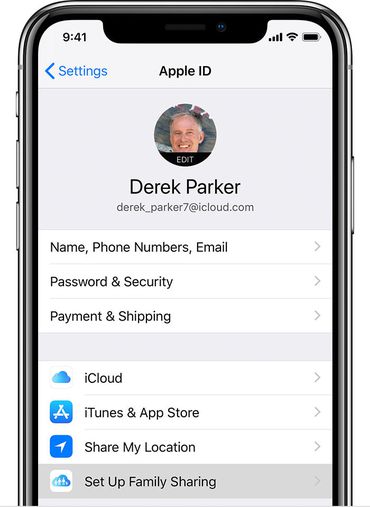
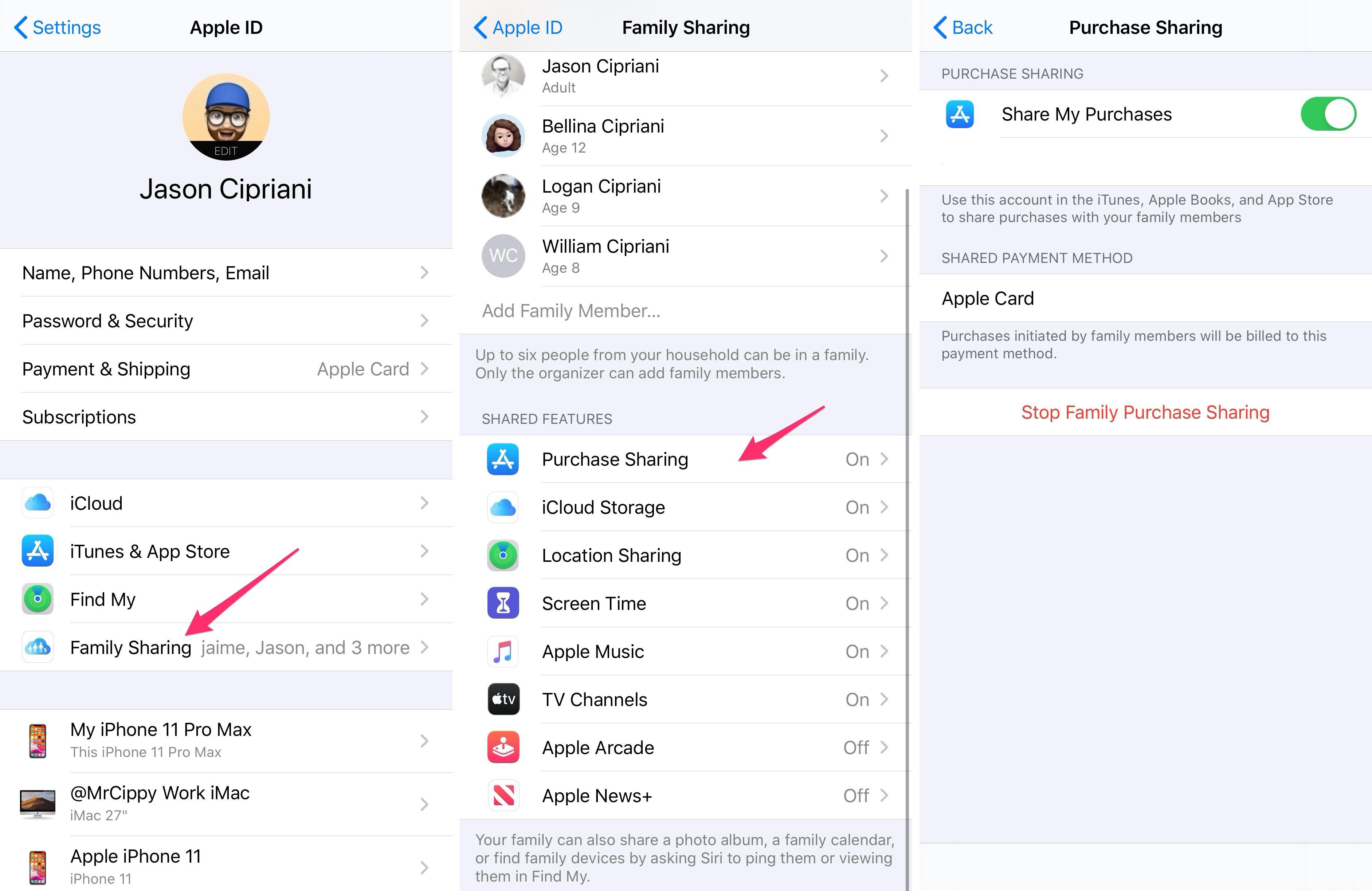
On an iPhone, iPod Touch ($170 at Amazon) or iPad ($400 at HSN), open the Settings app, tap on your name and then Set Up Family Sharing .
On a Mac, open System Preferences > iCloud and click the Set Up Family button.
Your device will walk you through the rest of the process, asking you to pick what you may need to share with family members. Once you've enabled everything you may need to share, you can begin sending invites to family members.
After You Join a Family Group
You can opt-in or out of most of the shared categories, save for Apple Music and iCloud storage. Those two categories are left up to the family organizer to control.
On an iOS device, go to Settings > tap on your name > Family Sharing and look through the list of shared features. Tap on a category to view how what controls you have available to you, and then make adjustments as needed.
Whenever you download an app that's already been purchased by a family member, you'll see a prompt letting you know that you won't be charged for the app -- but only after tapping on the buy now button, which can be confusing.
A better way to see which purchased apps you can download for without being charged again is to browse a family member's purchase history by opening the App Store tapping on your profile icon followed by Purchased and then selecting a family member's name and scrolling through the list of apps they've purchased.
What Happens When You Leave a Family Sharing Group?
You can leave or be removed from a Family Sharing group at any time. Once you are no longer part of that group, you lose access to any apps, moves, music, books and services purchased by another family member. For example, if you installed an app that was purchased by someone else in the group, the app will remain installed on your device, but you won't be able to use it until you pay for it yourself.
Your purchase history will stop being shared with the family group, as will your location, and the shared Reminders, Calendar, and Photos features will stop working. You can join another family group, or start your own, immediately after leaving a group.
After setting up Family Sharing, make sure to check out our latest tips and tricks for iOS 13. We even have a roundup of hidden features in iOS and iPadOS 13 that are key to getting more out of your phone or tablet.
FAQ
What is the main focus of Apple's Family Sharing Feature Saves You Money. Here's How?
The article explains the most important facts, context, and practical details related to Apple's Family Sharing Feature Saves You Money. Here's How.
Who may find this information useful?
It is useful for readers who want a clear overview, practical context, and a better understanding of the subject.
What should readers verify before taking action?
Check current product versions, official requirements, regional availability, and any details that may have changed since the original publication.
Related Articles
 Instructions for Using Family Sharing Feature for iPhone / iPad6 minutes read
 Valve Updated the Steam Family Sharing Feature for the First Time in 10 Years7 minutes read
 How Many Red Apples Should You Eat a Day: Main Insights4 minutes read
 How to Unsubscribe from Family Sharing on iPhone3 minutes read
 How to Share Location in Family Sharing iPhone3 minutes read
 5 Great Benefits from Apples You May Not Know4 minutes read
Reader Comments 0
Sign in with email or Google to join the discussion.