Table of Contents
An agent using generative orchestration can select the best tools, knowledge, topics, and other agents to answer user queries or respond to trigger events. The alternative is classical orchestration, where an agent responds to the user by triggering the topic whose trigger phrase best matches the user's query.
Important note:
- If you create an agent from a pre-built agent, the configuration of the pre-built agent will determine the scheduling method the agent uses.
- If an administrator disables the ability to use orchestration generation in an environment, agents created in that environment can only use classical orchestration.
The following table compares agent behavior between generative and classical scheduling.
| Behavior | Coordination of reproduction | Classical coordination |
|---|---|---|
| Topics | The agent selects topics based on descriptions of their purpose. | The agent selects topics based on matching the user's query with trigger phrases. |
| Sub-agents and related agents | The agent selects sub-agents and connected agents based on their descriptions. | Not applicable |
| Tools | The agent can choose to call tools based on their names and descriptions. | Tools can only be explicitly called from within a thread. |
| Knowledge | The agent can proactively search for knowledge to answer user queries. | Knowledge can be used as a fallback option when no other topic matches the user's query (or is explicitly called from within a topic). |
| Utilize a variety of topics, tools, and knowledge sources. | Agents can use a combination of different topics, tools, and knowledge. | The agent attempts to select a single topic to respond to the user, and will utilize existing knowledge if configured. |
| Requires the user to add input. | The agent can automatically generate questions to prompt users to provide missing information needed to fill in the input fields for the subject and tool. | You must use question nodes in the topic to create messages that remind users of any necessary information. |
| Responding to users | The agent automatically generates responses using information available from topics, tools, other agents, and the knowledge it has already utilized. | You must use message nodes in the topic to compose user response messages (or call a tool from the topic). |
Tip: There are key differences between classical orchestration and generative orchestration, such as how knowledge is sought and which data sources are supported. Before enabling generative mode for an existing agent, read about the known limitations.
How do we coordinate and create activities?
Using Generative AI to determine how your agent should respond can make conversations feel more natural and fluid for the user. An agent using Generative AI can also perform actions automatically.
Choose the right topic, tools, other agents, and knowledge sources
Note: When your agent determines how to respond to a user's message or event, it may use previous conversation history and context to influence its decision. This behavior explains why you might see different responses to the same query between a new conversation and an ongoing one. For example, between a new test conversation in the Copilot Studio test console and a longer conversation in Microsoft Teams, there are previous messages. This behavior is normal and allows your agent to respond to follow-up questions or avoid asking for information it already has.
When a user sends a message, your agent selects one or more tools, topics, other agents, or knowledge sources to prepare a response. Many factors determine this selection. The most important factor is the description of the topics, tools, agents, and knowledge sources. Other factors include the names of the topics, tools, agents, or knowledge sources, any input or output parameters, as well as their names and descriptions. Descriptions help your agent more accurately link the user's intent to the tools, other agents, and topics. You don't need to anticipate all the ways the user might indicate what they need.
When you configure an agent to use orchestration generation, it can select one or more tools, threads, other agents, or knowledge sources to handle user queries (including any multi-intention queries) or to automatically respond to events. If the agent selects multiple tools, agents, or threads, it will call them sequentially, after generating any questions to ask the user about missing information.
User input response or triggering event
The agent will retrieve information returned from all the knowledge sources, tools, agents, and topics it has selected to respond to user input or triggering events, and summarize the answer to any user query.
Tip: Because an agent configured with orchestration can use information from knowledge, tools, other agents, and threads to generate responses, you can make your threads more flexible by not sending their final responses in a notification button, but instead returning it as an output variable to the agent. This approach allows your agent to provide contextual responses to your users.
Check
When testing an agent using orchestration in Copilot Studio, you can open the activity map to see how your agent responds.
Disable agent generation scheduling
- Go to the Settings page for your agent.
- In the Generative AI section, under Orchestration, select No for Use generative AI orchestration for your agent's responses?. Currently, your agent is configured to use classic orchestration.
Enable the agent generation scheduling feature
- Access the Settings page for your agent.
- In the Generative AI section, under Orchestration, select Yes for Use generative AI orchestration for your agent's responses?
Tip: It's a good idea to inform users that some conversations (e.g., questions generated when running a tool) may be AI-generated. For example, you could add an additional notification in the system topic Conversation Start, which would control the notifications displayed to the user when starting a new conversation with the agent.
Drafting the description
If you configure an agent to use the orchestration feature, provide high-quality descriptions for each child agent, connected agent, topic, tool, and knowledge source. Good descriptions ensure the agent selects the correct topic, tool, other agents, and knowledge source to respond to the user.
For tools, writing descriptions is part of a wizard used to add them to the agent. Descriptions are usually pre-filled for you, but you can make changes if needed.
For topics, after you enable orchestration, "The agent chooses" appears on the Trigger nodes (instead of "User says a phrase "), allowing you to add or edit the topic description.
Tip: If you enable orchestration generation for an agent that you originally designed to use classic orchestration, Copilot Studio will automatically generate default descriptions for each existing topic, based on the topic's trigger phrases. The generated descriptions are usually good enough to allow these topics to be selected in response to relevant user queries. However, it is advisable to follow the advice in this article to modify the generated descriptions.
Multilingual support with genesis coordination
For an agent using orchestration generation, any content it generates is in the currently active language—either the agent's primary language or one of its secondary languages. The agent automatically determines the user language from the client's or browser's language.
Best practices
Use the following best practices to name topics, tools, and knowledge sources. Then, use them to craft clear, concise, and relevant descriptions for these elements.
Tip: If multiple topics have similar descriptions, your agent might call all of them to answer a single question. To prevent this, thoroughly check your agent and modify any duplicate descriptions.
Writing style
Use simple and direct language. Avoid jargon, slang, or technical terms.
Use the active voice and the present tense for the description. For example, write "This tool provides weather information" instead of "Weather information is provided by this tool."
Use bulleted and numbered lists to clearly separate a series of items, actions, or considerations.
Relevance
Use keywords related to the tool's function or topic and the user's intent. For example, if a tool provides weather information, use keywords such as "weather," "forecast," "temperature," "rain," "snow," etc.
For the description, write a brief and informative summary of the tool's or topic's functionality. Limit the summary to one or two sentences. Explain what the tool or topic does and what benefits it provides to the user.
Use descriptive and unique names that are concise. Avoid generic or vague names that could cause confusion. For example, instead of naming the tool "Weather," name it "Weather Forecast" or "Weather Report."
Use specific language to avoid confusion between similar topics and tools.
For example, if your system already has a tool that provides information about current weather conditions, but you want to add another topic to provide a weather forecast for tomorrow, make sure the names and descriptions of these topics are specific enough to avoid confusion. Ensure that similar topics have different names and descriptions. Indicating what they cannot do can also be helpful. Here are some examples of names and descriptions you can use:
Name: Current Weather
Description: This topic provides weather forecasts for any location in the world. You can ask about the current weather, including temperature and whether it will rain or snow. It does not provide weather forecasts for future days.
Name: Tomorrow's Weather Forecast
Description: This theme provides weather information for any location in the world for tomorrow. It provides the temperature. It does not retrieve current weather information for today.
Examples of things you shouldn't do
The following examples do not follow the guidelines. The first example is too vague because it doesn't specify what types of questions the tool can answer.
Name: Answering the question
Description: This tool can answer the question.
The next example uses jargon. Instead, it should clearly state earnings per share (EPS).
Name: Get EPS
Description: Get EPS for any stock code.
An example of interacting with an agent that uses orchestration to handle user requests
The following examples are based on an agent with two custom themes—one to find store opening hours and one to locate nearby stores—and a tool based on the built-in MSN Weather connector.
Example 1
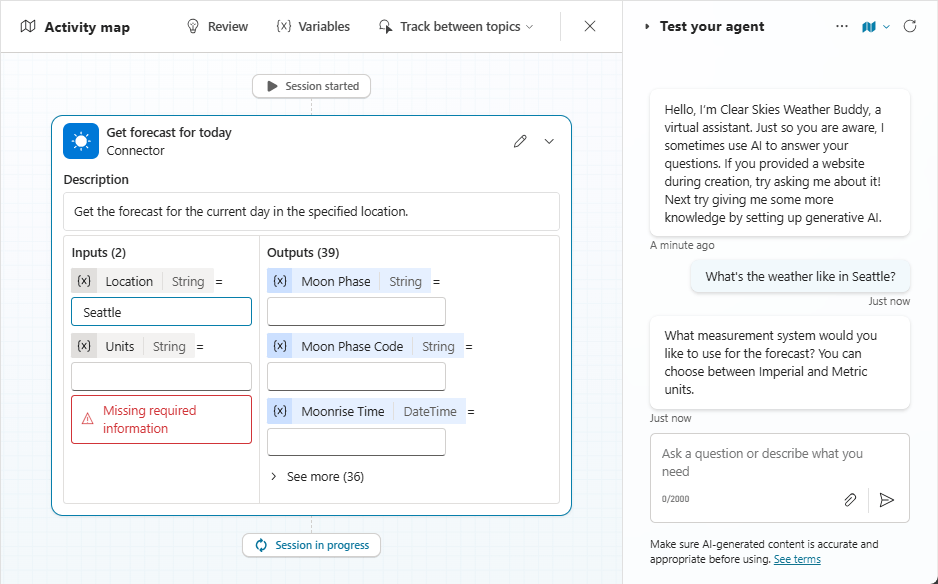
In this example, the user asks, "What is the weather like in Seattle?". The agent selects the current weather tool and also pre-fills the Location field with "Seattle", which it recognized from the user's question.
Example 2
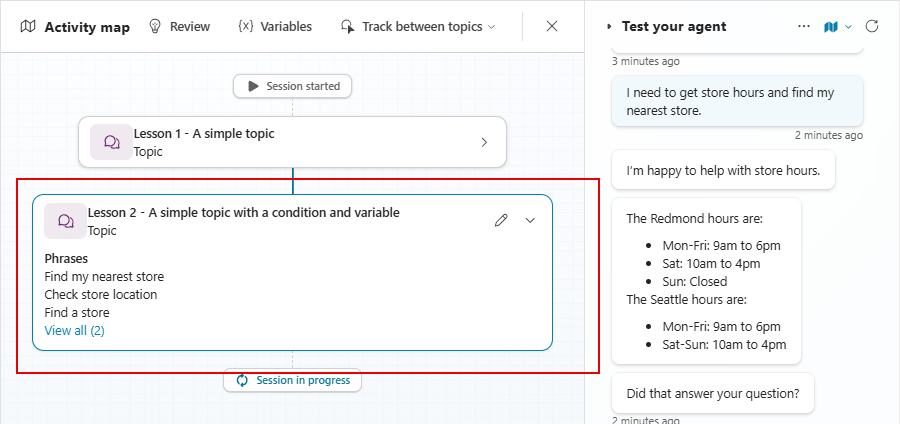
In this example, the user says, "I need to see the store opening hours and find the nearest store." The agent selects two items, the Store Hours topic and the Store Locator topic, and connects them together to respond to both parts of the user's query.
Example 3
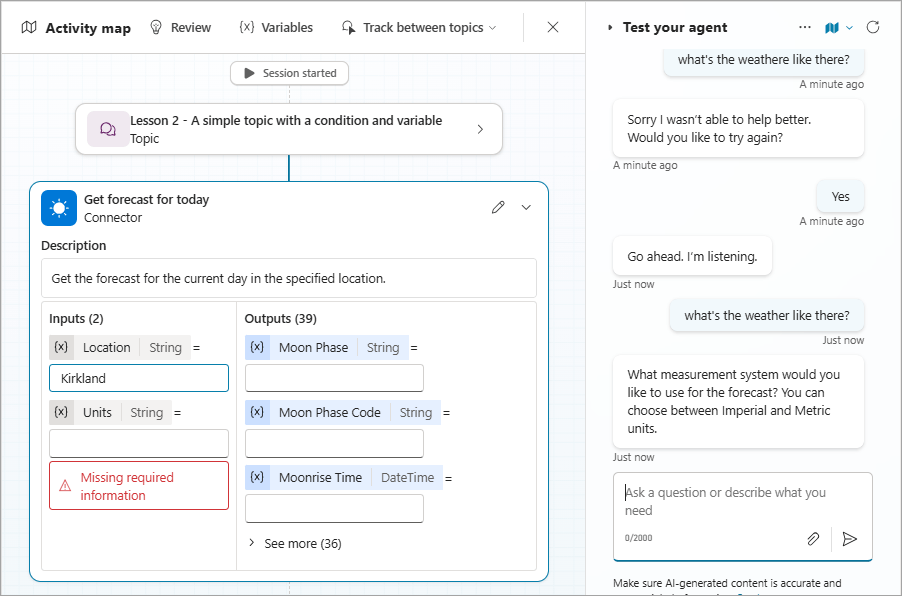
In this example, the user finds their nearest store, identified as Kirkland, earlier in the conversation. Then, the user asks, "What's the weather like there?". Here, the agent selects the current weather tool but pre-fills the location as "Kirkland," based on the context of the recent conversation.
Add control options for spawning scheduling
Cancel the current plan
Use the "End all topics" node in a topic to cancel any remaining steps that the dispatcher had planned to take in response to a user or triggering event.
Use the theme trigger and control the use of conversation history
Use one of the following theme triggers to define the agent's behavior:
- AI responses are generated when the agent creates a response for the user.
- A plan is complete when a plan is fulfilled (i.e., when the agent has taken all the steps to respond to the user).
Control your conversation history
Agents use recent conversation history when making decisions about how to respond to users or when performing other actions, such as creating responses or filling in input from available context. Some channels, such as Microsoft Teams, maintain extensive conversation history by design. If you want your agent to support restarting conversations from scratch, configure it to clear conversation history used by the planner at any time using the Clear variable values node, with the Conversation history for the current session option.
Note: By default, the Reset Conversation system topic does not delete conversation history. It only deletes global variables for the current session.
Known limitations on the coordination of spawning
The following known problems and limitations exist when using the genotyping mode.
Knowledge
When orchestration is enabled, the agent does not use the Conversational boosting system theme when searching for knowledge sources. Therefore, the agent does not use any modifications you make to this system theme to customize how knowledge is searched. This limitation also applies to classic data sources configured in the generated answer nodes, including custom data sources.
Supports custom entities for theme and tool input parameters
The tools and themes currently do not support custom entities (closed lists and regex entities) as input parameters. To collect information using custom entities, use the Question node in a theme.
Clearly distinguishable
The agent may fail to distinguish between topics when more than one topic closely matches the user's intent. Normally, the agent would prompt the user to choose between one or more topics that match their intent via the Multiple Topics Matched system topic. However, agents using orchestration currently do not call this topic. If you leave the "Multiple Topics Matched" system topic enabled, your agent will automatically begin distinguishing between topics once this issue is resolved. To prevent your agent from automatically distinguishing between topics in the future, disable the "Multiple Topics Matched" system topic. Disabling this topic allows you to test your agent. You can choose to re-enable the distinction by re-enabling the topic after testing the agent.
Previous conversational context
An agent using orchestration has access to recent conversations with the user, providing context to make decisions about which tools to call or fill in input fields. The amount of conversation history is currently limited, meaning that sometimes the agent cannot see or use information from earlier parts of the conversation. In these cases, it may be necessary to re-collect some information from the user or ensure that important information is periodically included in the log.
Links from knowledge source data
Links found in knowledge sources such as Word documents, PDF files, or websites appear as plain text in the agent's response.
Related Articles
 Run the Test and View the Agent Evaluation Results9 minutes read
 What Is Generative AI?9 minutes read
 Explaining the Most Common AI Terms Today11 minutes read
 TOP Generative AI Tools and Applications by Field10 minutes read
 Upload Files as Knowledge in Microsoft Copilot Studio12 minutes read
 5 Security Risks of Generative AI and How to Prepare to Address Them11 minutes read
Reader Comments 0
Sign in with email or Google to join the discussion.