Table of Contents
Run a Copilot Studio evaluation after creating a test set and confirming its user profile, connections, cases, and scoring methods. Results appear while the run is in progress and classify each case as Pass, Fail, Invalid, or Error. Investigate the individual cases; the overall pass rate alone does not explain whether the agent, test configuration, or connection failed.
Before you run the test set
- Save the current agent and test-set changes.
- Confirm that expected answers, keywords, and tools are populated where required.
- Verify the selected user profile has appropriate—not excessive—access.
- Repair any connection warnings.
- Record the agent version or change being evaluated.
Copilot Studio allows one evaluation test set to run at a time. A run can take several minutes. Evaluations that use user authentication also depend on access through the Microsoft Copilot Studio connector; an administrator can disable that connection.
Run an evaluation
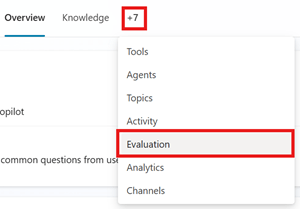
- Open the agent and go to Evaluation.
- Open the saved test set and select Evaluate, or use the run action shown for that test set.
- If the Manage profile and connections dialog opens, select an account and resolve every required connection warning.
- Start the evaluation.
- Watch the cases appear as they are processed. Stop the run if a systematic problem—such as a broken connection or incorrect profile—makes the remaining results unhelpful.
During a run, Copilot Studio uses the connected account to send each case to the agent, collects the response, applies the configured evaluation methods, and calculates a pass rate from valid pass/fail outcomes.
Understand the four result states
- Pass: the response met the configured criterion.
- Fail: the response was evaluated successfully but did not meet the criterion.
- Invalid: the case could not be scored as configured, often because required expected data is missing.
- Error: execution failed, for example because of a connection, authentication, tool, or service problem.
Do not count Invalid or Error cases as evidence that the agent's answer quality improved or declined. Repair the test or environment and run the same set again.
Open the evaluation summary
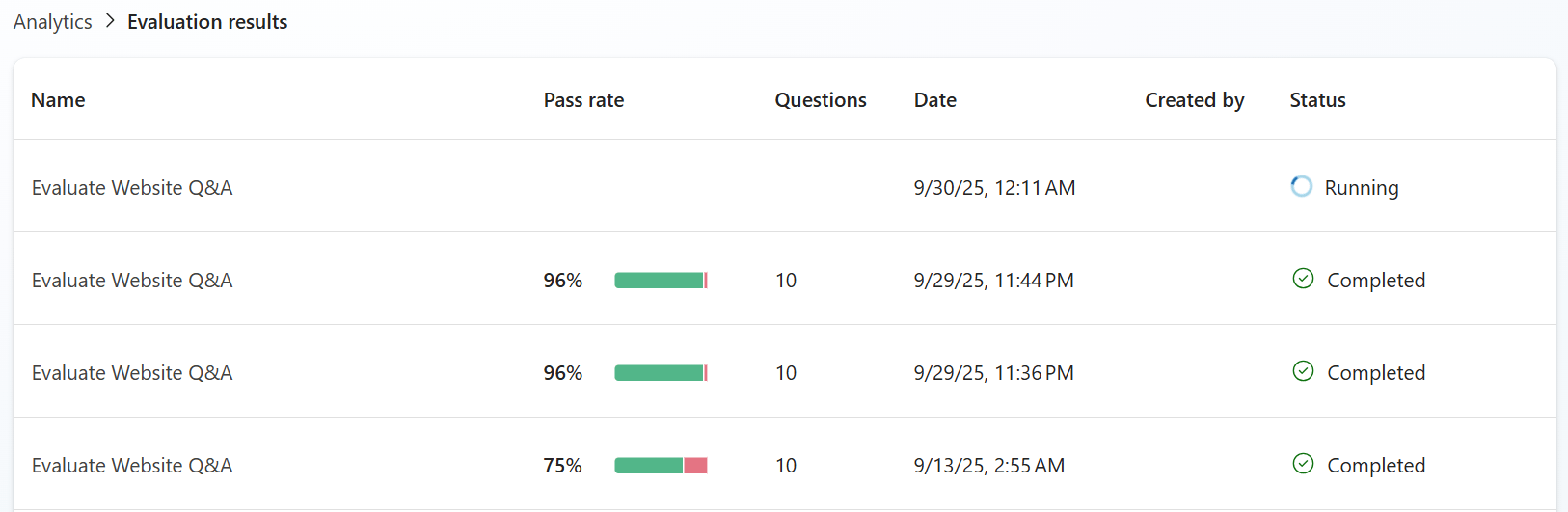
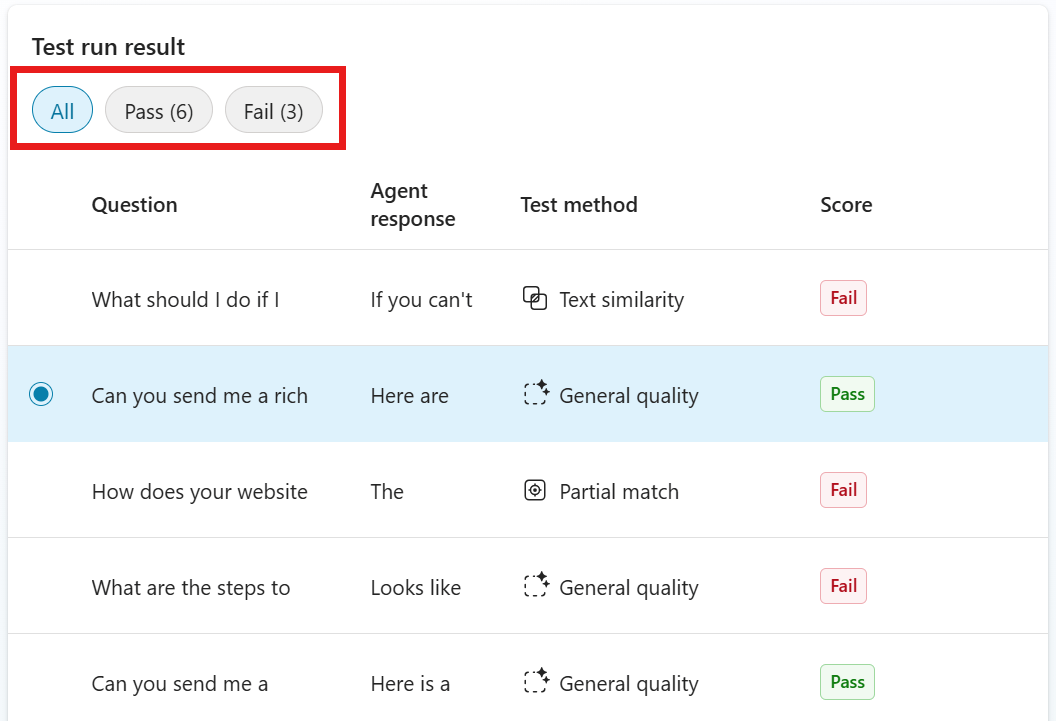
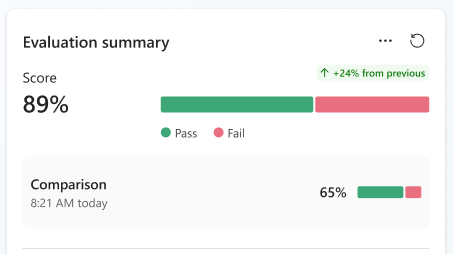
Completed runs appear under Recent results on the Evaluation page. Open a run to see its overall pass rate, the cases it executed, agent responses, and per-method outcomes. Use the result filters to focus on failed cases first.
Investigate a test case
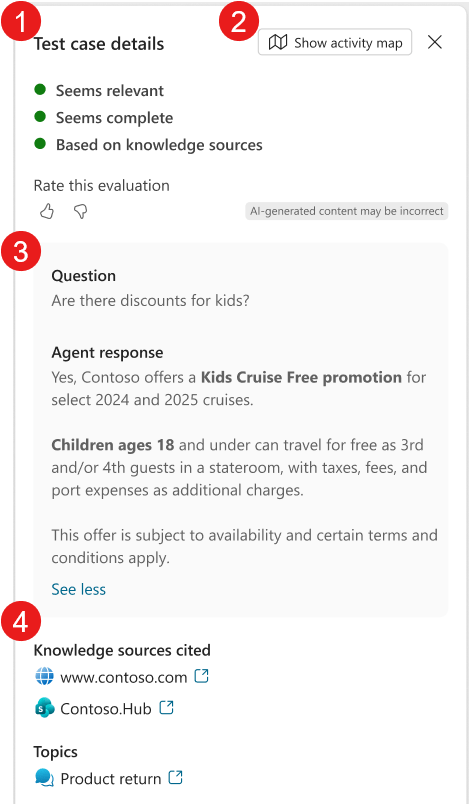
Select a case to inspect:
- the user's test question or conversation;
- the expected and actual responses;
- the evaluator's result and explanation;
- the knowledge sources, topics, and tools used;
- the activity map showing inputs, decisions, and outputs.
An evaluator explanation is diagnostic evidence, not unquestionable truth. Verify important failures against the source policy or expected system behavior. If the response is correct but the score is wrong, improve the evaluation method, threshold, or reference answer rather than changing a good agent response to satisfy a weak test.
Compare two runs
Run the same test set at least twice—before and after a controlled agent change—then:
- Open the newer or baseline result under Recent results.
- Open Compare with and select the other run by date and time.
- Review cases that changed from Fail to Pass and from Pass to Fail.
- Open each changed case to compare scores, responses, sources, and tool activity.

A comparison is meaningful only when the cases, scoring methods, profile, connections, and relevant data are equivalent. Otherwise, label the differences and avoid attributing the entire score change to the agent edit.
Export results to CSV
Copilot Studio currently retains evaluation results in the product for 89 days. Export important runs for longer retention:
- On the Evaluation page, find the run under Recent results.
- Open its three-dot menu and select Export test results. You can also open the result and export it from the Evaluation summary menu.
- Save the downloaded CSV with the test-set name, run date, agent version, and change identifier in your own records.
The CSV includes case questions, expected values where configured, methods, thresholds, agent responses, results, and analysis. Handle the export according to the sensitivity of the agent's data; it may contain content retrieved with the selected account.
Turn failures into useful fixes
- Group failures by cause: retrieval, instruction, tool, permission, data freshness, response formatting, or evaluation configuration.
- Fix one cause at a time.
- Add or preserve a regression case that reproduces the failure.
- Rerun the unchanged test set.
- Review both improvements and regressions before publishing.
Microsoft's evaluation-results documentation covers the current run, comparison, and export controls. For setup, see our guides to choosing evaluation methods and editing test cases.
Related Articles
 Automate Agent Evaluation Using the Power Platform API7 minutes read
 Choose a Method for Evaluating Agents13 minutes read
 Overview of Agent Evaluation7 minutes read
 Evaluating Agent Performance in Microsoft Copilot Studio15 minutes read
 Check the Copilot Studio Agent7 minutes read
 Apple Is Working on an AI Agent That Can Describe Street View Scenes6 minutes read
Reader Comments 0
Sign in with email or Google to join the discussion.