Table of Contents
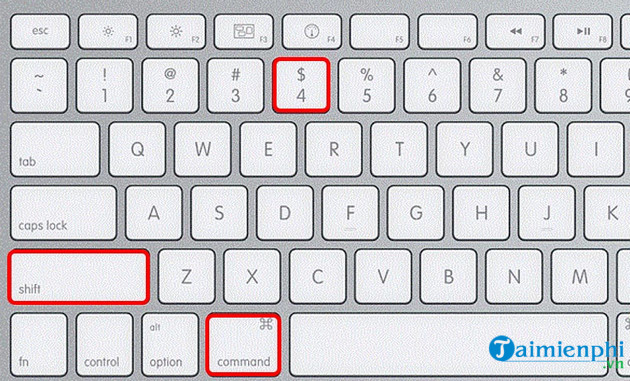
For part of a Windows screen, press Windows + Shift + S; for part of a Mac screen, press Shift + Command + 4. To create a full-screen file automatically, use Windows + PrtScn on Windows or Shift + Command + 3 on macOS. Laptop keyboards may also require the Fn key.
Windows screenshot shortcuts at a glance
| Shortcut | Capture | Destination |
|---|---|---|
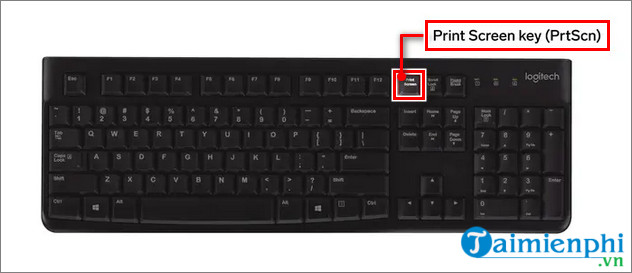
| PrtScn | Full screen | Clipboard, or Snipping Tool on some Windows 11 PCs |
| Alt + PrtScn | Active window | Clipboard |
| Windows + Shift + S | Area, window, or full screen | Clipboard and Snipping Tool |
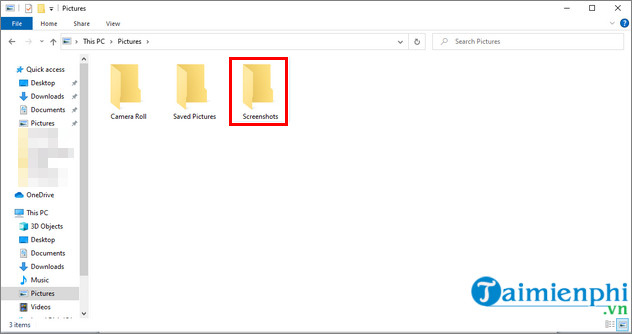
| Windows + PrtScn | Full screen | Pictures > Screenshots |
| Windows + Alt + PrtScn | Game or compatible app | Videos > Captures |
Copy the whole Windows screen with PrtScn
Press PrtScn to copy the display. Nothing may appear immediately because the image is on the clipboard. Open Paint, Word, an email, or another image-aware app and press Ctrl + V, then save the result.
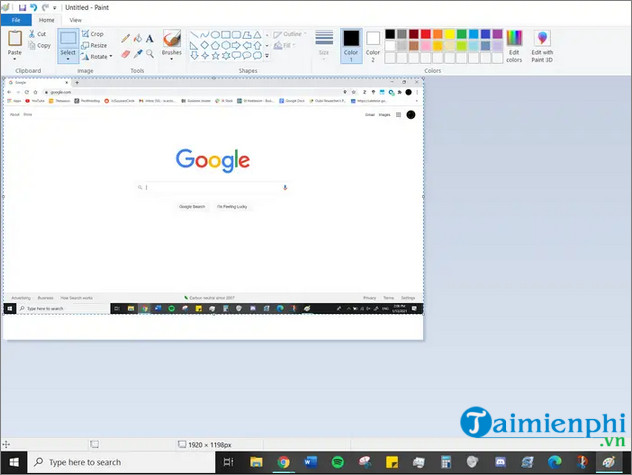
Windows + V opens clipboard history only if that feature is enabled; it is not required to take or paste a screenshot.
Save a full-screen file with Windows + PrtScn
Press Windows + PrtScn. The screen may dim briefly, and Windows saves a PNG file under Pictures > Screenshots. If OneDrive screenshot backup is enabled, check the corresponding OneDrive Pictures folder as well.
Capture only the active window
Select the window and press Alt + PrtScn. Open Paint and press Ctrl + V. This avoids cropping the desktop out of a full-screen image.
Search for Paint from Start, or press Windows + R, type mspaint, and press Enter.
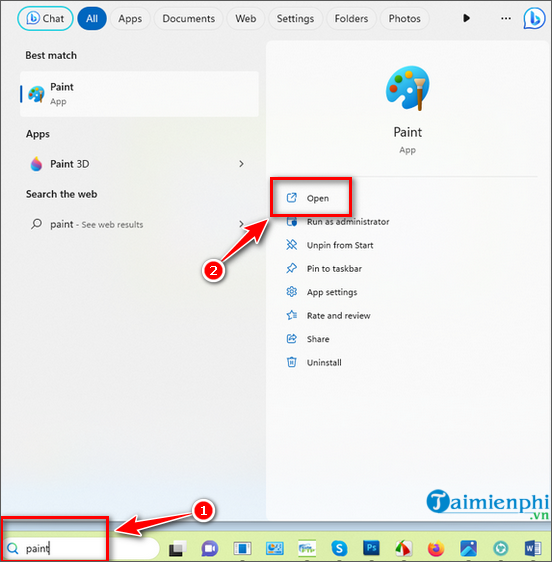
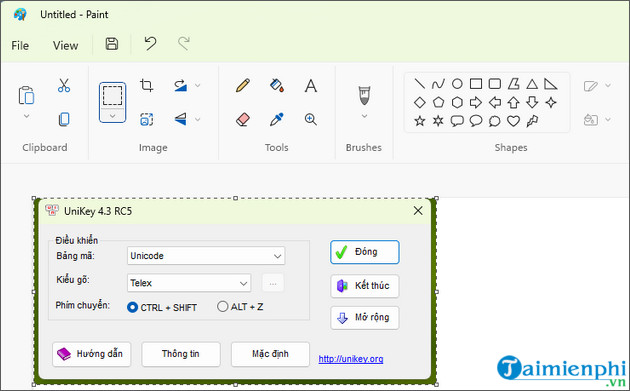
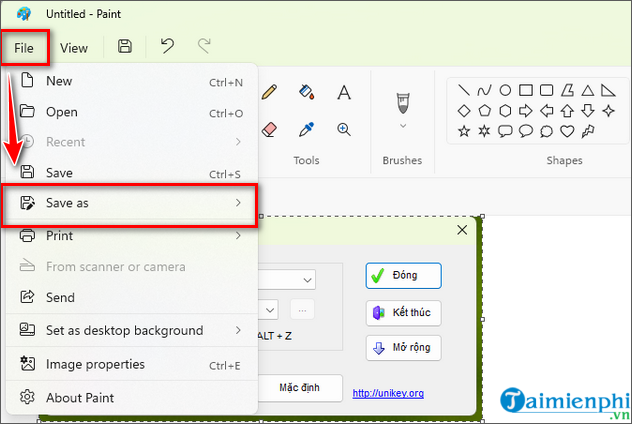
Crop, resize, or add a short label, then choose File > Save as. PNG preserves interface text and sharp edges better than a heavily compressed JPEG.
Capture an area with Snipping Tool
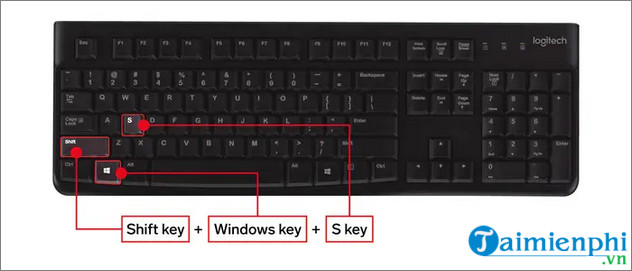
Press Windows + Shift + S and select Rectangular, Freeform, Window, or Fullscreen mode. Drag over the required area. The image is copied to the clipboard, and selecting the notification opens it for cropping, markup, text actions, or saving.
Snip & Sketch is the older name shown in some screenshots; current Windows 11 versions use the unified Snipping Tool.
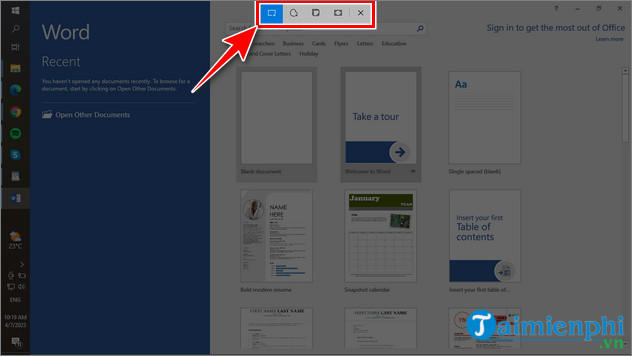
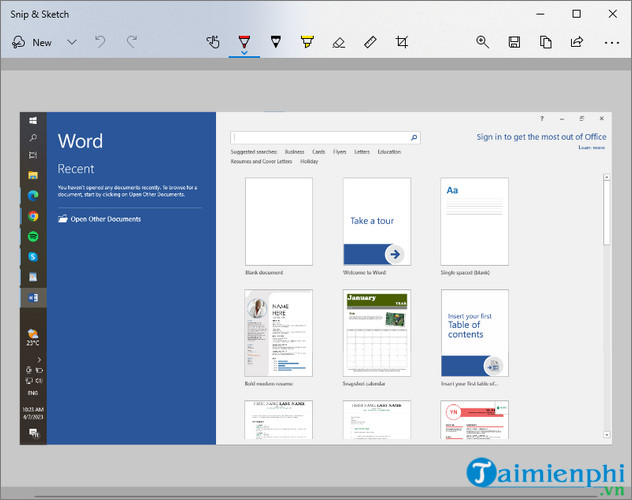
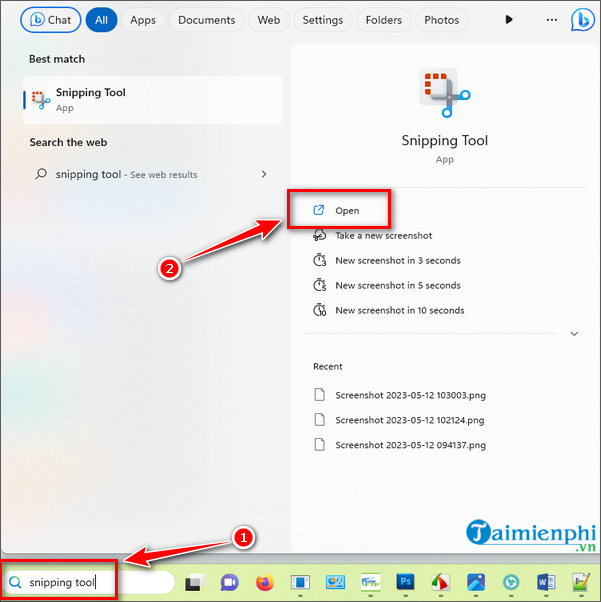
You can also search Start for Snipping Tool, which is useful when you want a capture delay or the editor open first.
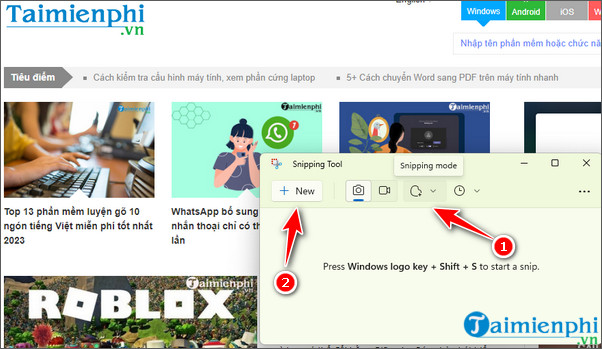
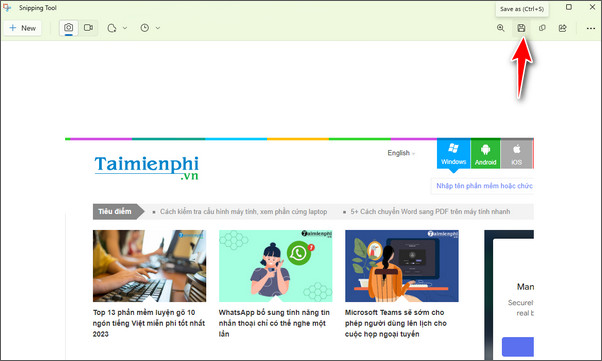
See Microsoft’s current Snipping Tool instructions and TipsMake’s Windows screenshot guide for more detail.
Capture a game with Xbox Game Bar
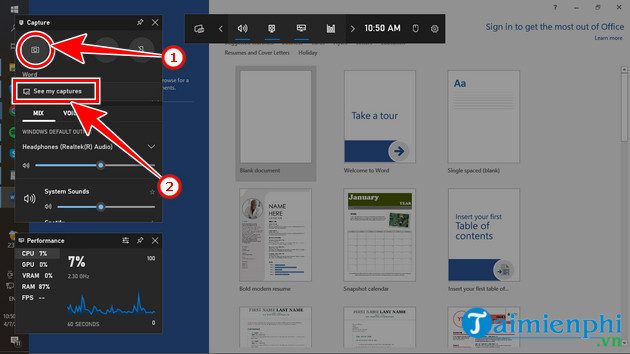
Press Windows + G and choose the camera icon in the Capture widget, or press Windows + Alt + PrtScn. Game Bar saves PNG files to Videos > Captures. It is intended for games and compatible apps, not general desktop or File Explorer captures.
Use FastStone Capture for scrolling pages
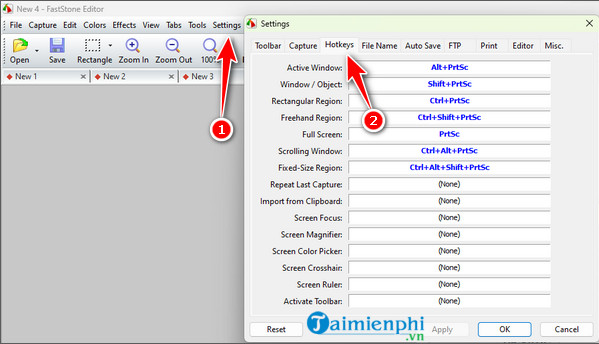
The built-in tools satisfy most screenshot needs. FastStone Capture adds scrolling-window capture, fixed-size regions, annotations, and configurable hotkeys. It is commercial Windows software with a trial; download it only from FastStone’s official site.

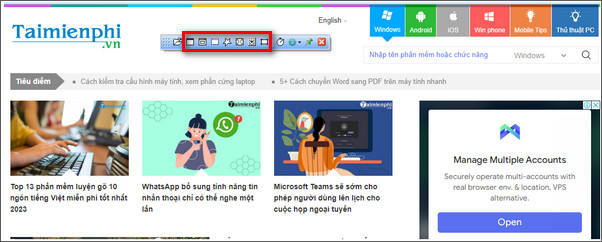
Open FastStone and choose a toolbar icon for active window, window/object, rectangular region, freehand region, full screen, scrolling window, or fixed region. Use scrolling capture for a webpage longer than the visible browser window.
After capture, crop and annotate in FastStone Editor. Keep labels concise and blur private information before sharing.
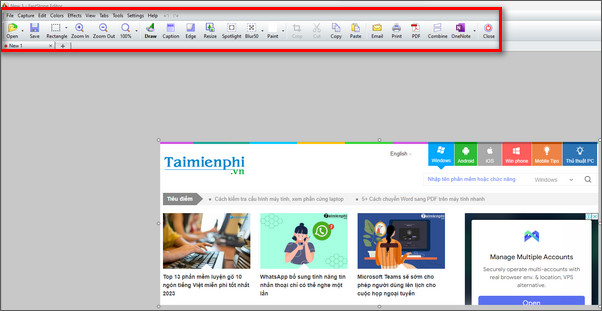
Choose File > Save or Save As. Retain an editable FSC copy if you may need to change FastStone annotation objects later; create a PNG or JPEG copy for sharing.
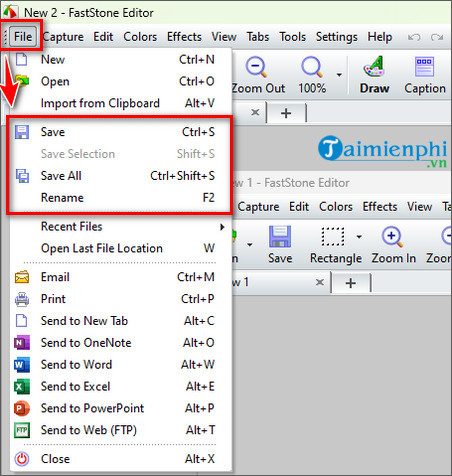
Hotkeys can be changed in Settings. Check for conflicts with Windows and other apps before assigning a global shortcut.
Compare other choices in 15 useful screen-capture applications.
Mac screenshot shortcuts at a glance
| Shortcut | Capture |
|---|---|
| Shift + Command + 3 | Entire screen |
| Shift + Command + 4 | Selected area |
| Shift + Command + 4, then Space | Window or menu |
| Shift + Command + 5 | Screenshot and recording toolbar |
| Shift + Command + 6 | Touch Bar on supported models |
Take a full-screen screenshot on a Mac
Press Shift + Command + 3. Click the thumbnail that appears in the corner to edit immediately, or wait for the file to save.
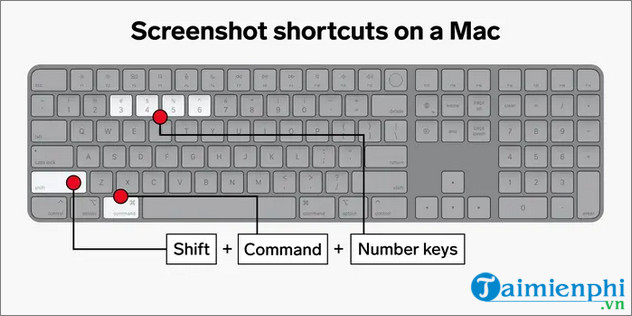
Capture part of the Mac screen
Press Shift + Command + 4, drag the crosshair over the area, and release. Press Esc to cancel. While dragging, hold Space to move the selected area without changing its size.
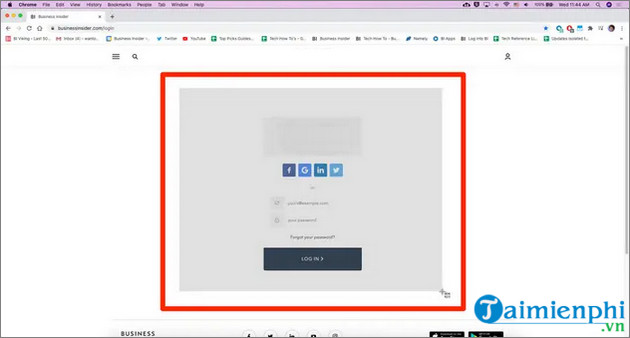
Use the macOS Screenshot toolbar
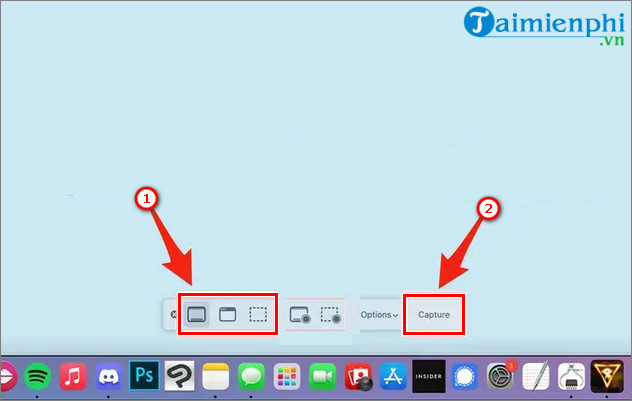
Press Shift + Command + 5. Choose Capture Entire Screen, Capture Selected Window, or Capture Selected Portion, then select Capture. Options controls the timer, pointer display, floating thumbnail, and save destination.
Capture a Mac window without cropping
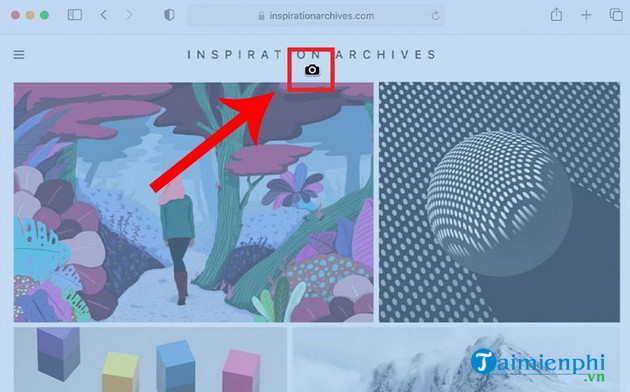
Press Shift + Command + 4, then press Space. Move the camera pointer over a window and click. Hold Option while clicking if you want to omit the window shadow.
Change where Mac screenshots are saved
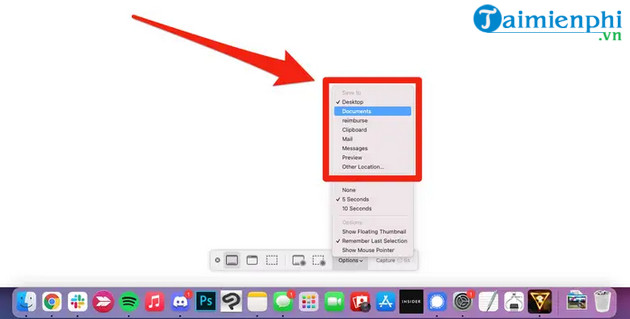
By default, screenshots are normally saved to the desktop. Press Shift + Command + 5, open Options, and select a location under Save to. Choose Other Location for a custom folder.
Add Control to a Mac screenshot shortcut when you want to copy the result to the clipboard instead of creating a file. Apple’s screenshot and screen-recording guide lists the current commands. TipsMake also provides a focused guide to screenshots on macOS.
Before sharing a screenshot
- Crop out unrelated browser tabs, filenames, and notification previews.
- Remove passwords, one-time codes, private chats, account numbers, and location data.
- Use PNG for text-heavy screenshots and JPEG for photos when a smaller file is needed.
- Add arrows or labels only when they make the next action clearer.
- Open the saved file and verify that it contains the intended screen and no private information.
Related Articles
 The Quickest and Simplest Way to Take a Screenshot on a Computer or Laptop18 minutes read
 How to Take Screenshots on HP Laptop Computers7 minutes read
 The Easiest and Fastest Steps to Take Screenshots of Windows10 minutes read
 How to Effectively Delete Applications on Windows Laptops and MacBooks14 minutes read
 How to Take Screenshots on Lenovo Laptops7 minutes read
 How to Enable Bluetooth on Windows Laptops and MacBooks (Detailed Guide)9 minutes read
Reader Comments 0
Sign in with email or Google to join the discussion.