Table of Contents
This guide provides a clear overview of [99 fixed] clock watchdog timeout blue screen error, including how it works, key details, and practical considerations that can help you use the information effectively.
It can be said that the blue screen error clock watchdog timeout is the nightmare of many computer users. If your computer unfortunately reports an error, TipsMake will help you immediately.
As you know, blue screen error is one of the quite serious errors that can appear on the computer. However, blue screen error will often come with various messages and the handling for each case will also be various.
In today's computer tips Section, we will learn about The clock watchdog timeout blue screen error . To know why the computer has an error and can find an effective solution, read this article now!
![[99 Fixed] Clock Watchdog Timeout Blue Screen Error visual guide](../data8/images/[99-fixed]-clock-watchdog-timeout-blue-screen-error-picture-1-xgWu9zvB8.jpg)
What Is the Clock Watchdog Timeout Blue Screen Error and Why Does It Appear?
Like every normal day, you turn on your computer to work but receive a clock watchdog timeout message on a blue screen. So what exactly is Clock Watchdog Timeout? As introduced at the beginning of the article, it can be simply understood as a 'deadly' blue screen error. When your computer displays this message, it means that it has encountered a serious problem. According to my research, in most cases, the Clock Watchdog Timeout error will often originate from the following causes.
1: There is a miscommunication between threads in a multi-core processor.
2: Due to the user performing hardware overclocking of the computer.
3: Faulty hardware or incompatible ram.
4: Firmware is out of date.

Instructions on How to Handle Clock Watchdog Timeout Windows 10 Error
The annoying thing about the clock watchdog timeout error is that it can appear both before and after booting. In case you cannot enter Windows, try to boot the computer in safe mode to fix it. If the system cannot boot in safe mode, go to the Advanced Startup Options menu to fix it. If possible, try to back up the data on the computer to a safe place and try some of the following methods.
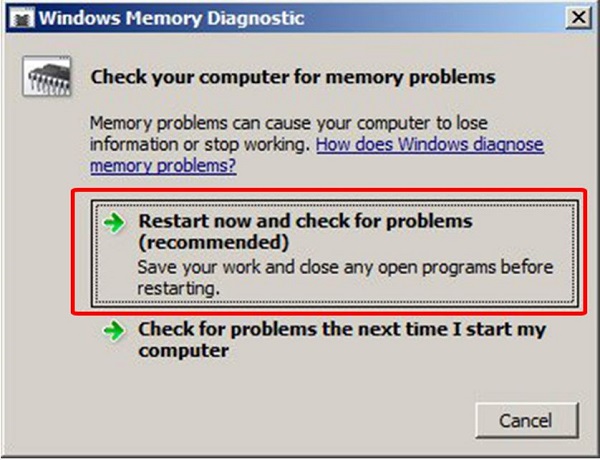
1: Use Windows Memory Diagnostic
Using the Windows Memory Diagnostic utility that comes with Windows 10 is the way many people choose to fix the Clock Watchdog Timeout error. All you need to do is open this program, then choose to restart the computer. At this time, the system will automatically check and help you fix the error if any.
2: Use System Restore
If you are lucky enough to have created a restore point for your computer in the past, use System Restore to restore your computer to a state before the problem occurred. Also, if you are overclocking your CPU, stop doing it immediately!
3: Update Windows
Windows updates usually come with bug fixes. If your computer suddenly develops an unusual error, updating the operating system version will also be a fairly effective solution for you.
4: Check Driver
If the error occurs after you update the driver for your computer, it is likely that the driver you installed is incompatible or faulty. At this time, the best way is to go back to the driver version you were using before. Or if you have not updated the new driver, you can also check and update. At the same time, if you have recently installed strange software, try uninstalling this software.

5: Disconnect External Hardware Devices
Sometimes, connecting your computer to a 'strange' hardware will also cause the computer to fail. To be sure, try disconnecting your computer from external hardware or checking and installing the appropriate driver for the hardware. If you are looking for a way to fix the Clock Watchdog Timeout Windows 11 error, this is also the way you should try.
6: Uninstall Antivirus Software
Sometimes due to their special nature, some antivirus software can cause the computer to have the Clock watchdog timeout error. Therefore, if you are using antivirus software, you can also uninstall it and check if the computer fixes the error or not.

In general, the clock watchdog timeout blue screen error is quite annoying but there is a way to handle it. Hopefully, the information I provide will help you handle this annoying error on your computer.
- Fix the error of drive D having a yellow exclamation mark on Windows 11 very efficiently
- Fix Notepad error not wrapping lines immediately
FAQ
What is error?
It is the main topic covered in this guide, including the relevant tools, settings, features, or steps connected with [99 Fixed] Clock Watchdog Timeout Blue Screen Error.
Why is error useful?
It can make [99 Fixed] Clock Watchdog Timeout Blue Screen Error easier to understand, compare, configure, or troubleshoot by organizing the most important information in one place.
What should I check before using this guide?
Confirm that the instructions match your device, software version, region, and intended use, then back up important data before making major changes.
Related Articles
 How to Fix Clock Watchdog Timeout Errors in Windows 106 minutes read
 Instructions to Fix Blue Screen Error on Computer15 minutes read
 How to Fix 'the 504 Gateway Timeout' Error12 minutes read
 How to Fix Error 524: a Timeout Occurred6 minutes read
 What Is DPC Watchdog Violation? How to Fix DPC Watchdog7 minutes read
 Who Wrote the 'Dead Blue Screen' Message for Windows?4 minutes read
Reader Comments 0
Sign in with email or Google to join the discussion.