Table of Contents
Once you get used to the right tools, keyboard shortcuts, and some of PowerPoint's hidden advanced features, you'll be able to create great presentations in less time.
Microsoft PowerPoint often seems simple until you spend hours trying to make your slides look perfect. Dragging shapes into the right places, finding the right fonts, and making your slides look consistent can easily take up hours.
The PowerPoint interface can be confusing, as you search for the right menu, option, or setting. The good news is that it doesn't have to be that complicated. Once you get used to the right tools, keyboard shortcuts, and some of PowerPoint's hidden advanced features, you'll be able to create great presentations in less time.
7. Resize multiple objects or shapes at once
Adjust everything at once
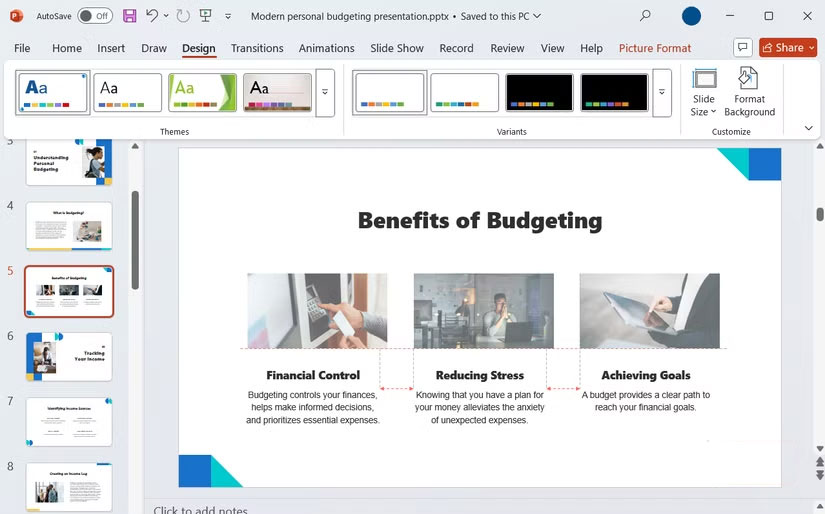
You know that frustrating moment when you've perfectly aligned multiple shapes, icons, or images on a slide, only to realize they're all slightly off in size? The perfectionist in you might want them to match, but resizing each one individually can be time-consuming.
Luckily, there's a faster way. You can hold down Shift While Clicking on each object, or just drag the selection box around. Once all the objects are highlighted, grab any of the corner handles and resize them. Each object will automatically adjust, so you can quickly fix any inconsistencies.
6. Reuse existing slides instead of rebuilding them
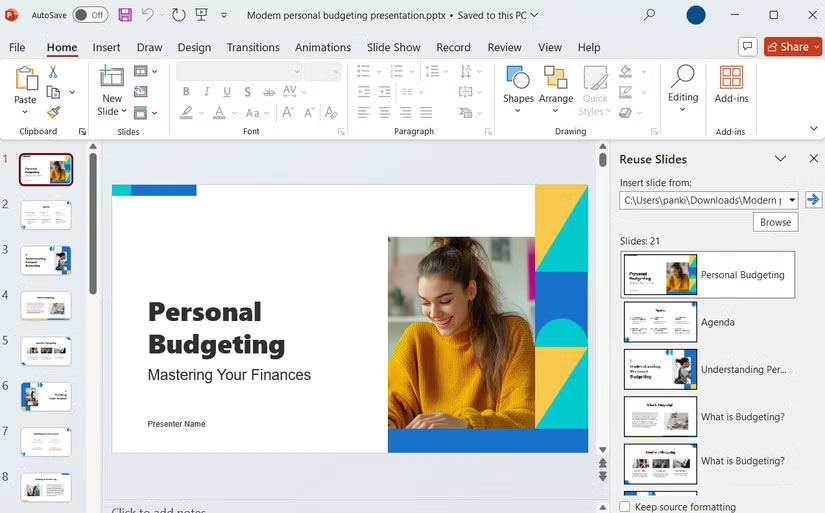
Go to the Insert Tab and click New Slide > Reuse Slides In the Slides Section of the ribbon. In the panel that appears on the right, click Browse And select the presentation where you want to import slides.
Select the slides you want and they'll automatically adapt to your current theme. If you want to keep the original design, just check the Keep source formatting Box.
5. Smooth out your slides with formatting tools and Slide Master
Edit once, edit everywhere
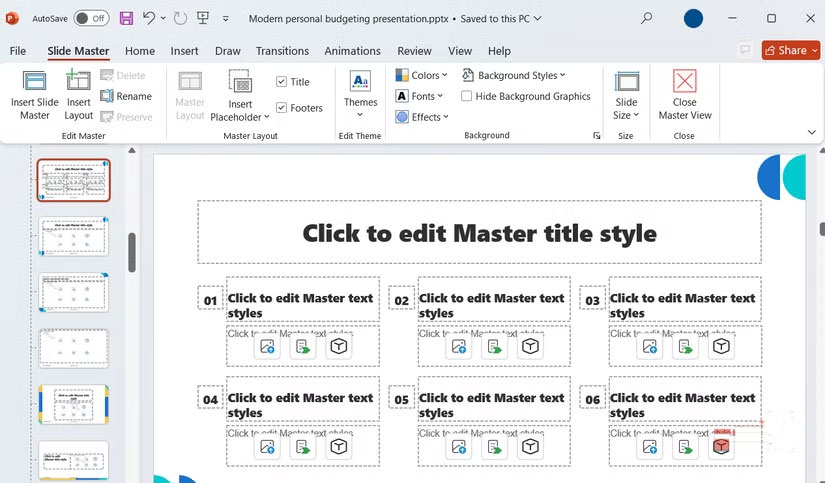
Using slides from an existing presentation is a great way to save time, but if the fonts, colors, or borders don't match, the end result can look messy. While it's possible to fix these errors, doing them manually can be time-consuming, especially for large presentations.
Format Painter offers a quicker solution. Select the object with the style you want, click the Format Painter Button on the Home Tab, then click the object you want to adjust. The formatting is transferred instantly, with the font, size, color, border, and background color aligned with just one click.
4. Get design suggestions from PowerPoint
Let AI-inspired suggestions spark your creativity!
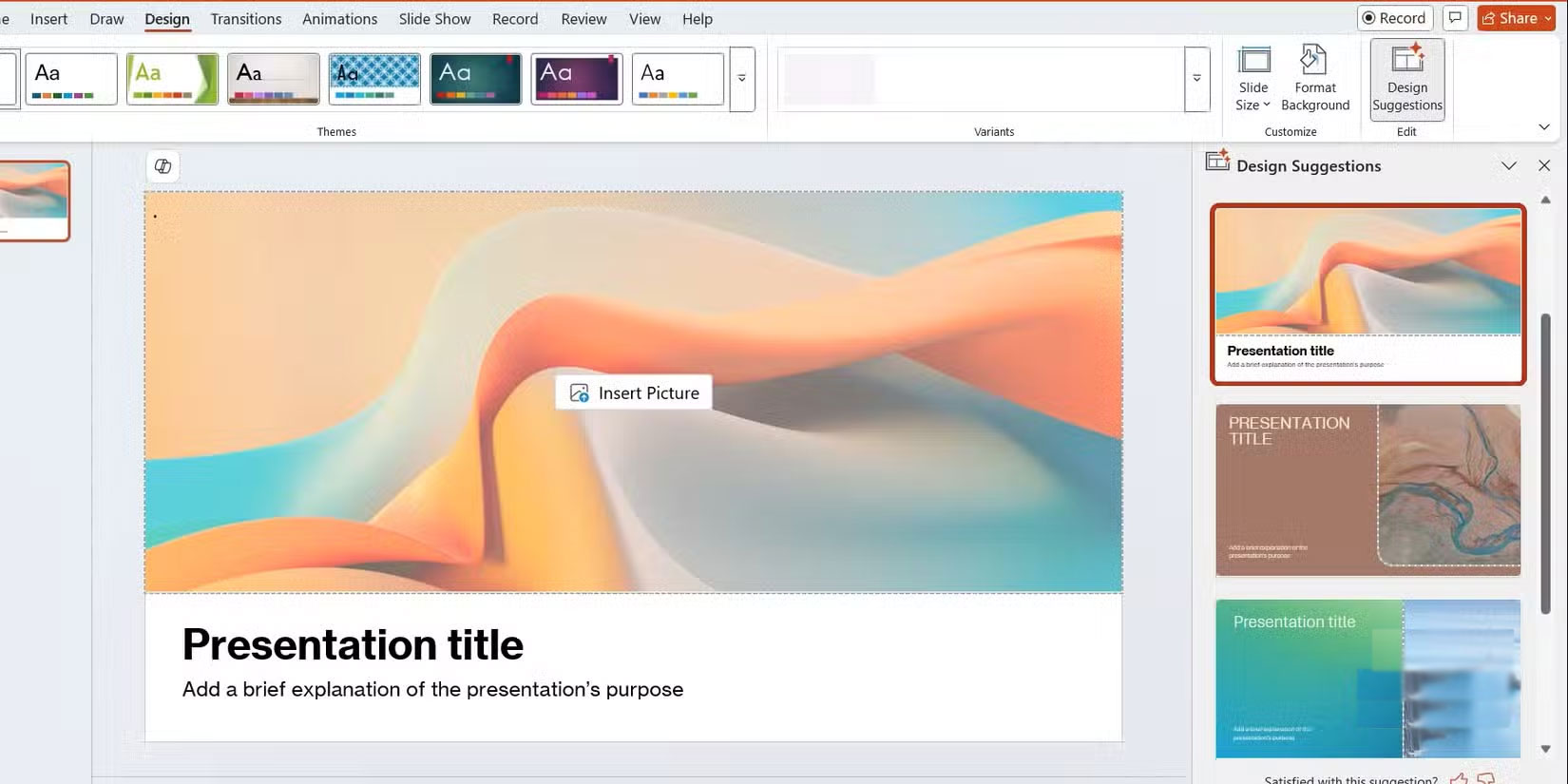
If you're short on time or out of ideas, PowerPoint's Designer feature can be a lifesaver. After adding your content, whether it's a list, a set of images and icons, or plain text, go to the Design Tab and click Design Ideas . A panel will appear on your right with some layout suggestions.
The Designer feature doesn't just provide random layouts. It analyzes the content on your slides and suggests suitable designs.
After you choose a design, PowerPoint automatically adjusts spacing, font size, and element placement to ensure consistency.
Note : You need a Microsoft 365 subscription to use Designer.
3. Customize Quick Access Toolbar for Workflow
No more fumbling around for commands
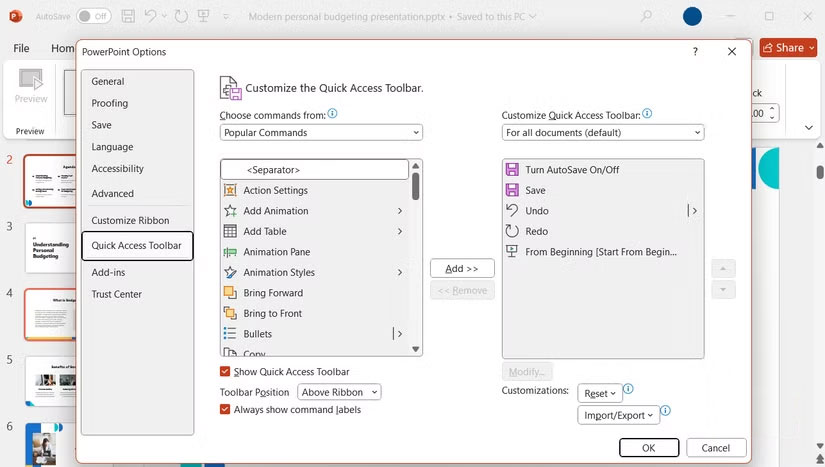
PowerPoint offers many tools, but constantly navigating through ribbons can slow you down. To avoid this, you can use the Quick Access Toolbar and keep your most used commands just a click away.
PowerPoint also lets you customize the Quick Access Toolbar if the default options don't work for you. Click the down arrow at the top of the window and select More Commands . Select a command from the list on the left, click Add To move it to the right, and then click OK .
Arranging your tools in the order you use them may take a little time at first, but once set up, your workflow will become much faster.
2. Make the most of your stock image library
Upgrade your presentation
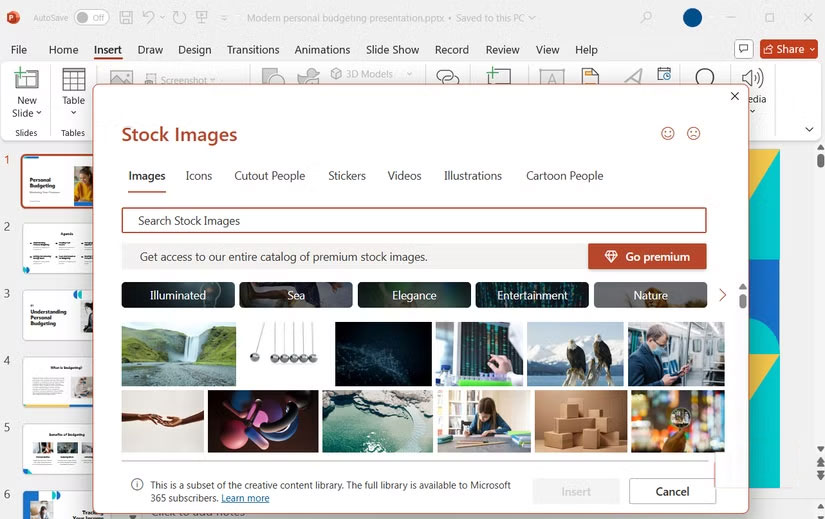
To access these assets, go to the Insert Tab and explore Pictures , Icons , or Stock Images . Use the search function to find images that match your theme, then click to add them directly to your slide. Once added, PowerPoint lets you resize, recolor, or layer these elements like any other.
Even if your presentation is already filled with original images, adding a few icons or illustrations can help you easily highlight key points.
1. Unlock hidden efficiency with keyboard shortcuts
Become a PowerPoint expert
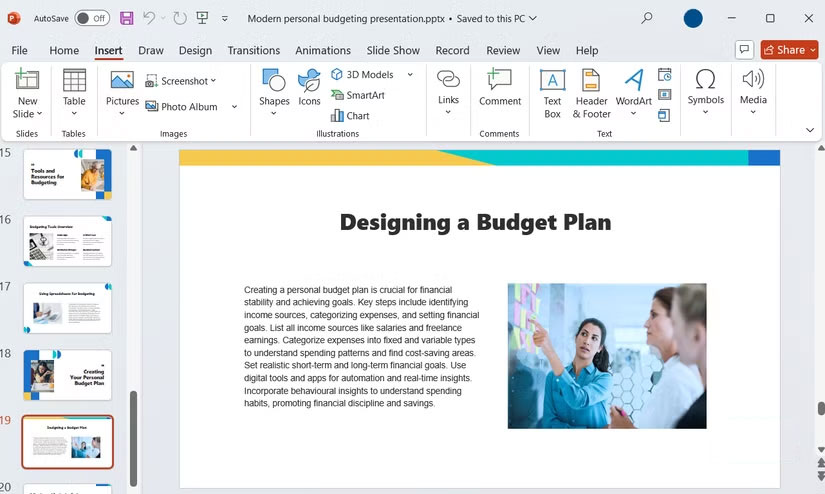
Keyboard shortcuts are one of the easiest ways to speed up your work in PowerPoint. Even mastering just a few key combinations can save you from clicking the same menu over and over again.
|
Shortcuts |
Act |
|---|---|
|
Alt + Shift + Left/Right Arrow |
Promote or demote a paragraph in a text box or list |
|
Ctrl + Shift + G |
Ungroup selected objects |
|
Ctrl + Shift + C |
Copy the format of the selected object |
|
Ctrl + Shift + V |
Apply copied formatting to another object |
|
Shift + F5 |
Start slideshow from current slide |
|
Ctrl + M |
Insert a new slide quickly |
|
Ctrl + Shift + Up/Down Arrow |
Move the selected slide up or down in the slide sorter |
|
Alt + N, P |
Insert an image from a file |
|
Ctrl + K |
Insert hyperlink |
|
Shift + F10 |
Context Menu |
Getting used to these PowerPoint tips can take a while, but with practice, they can change the way you approach presentations.
FAQ
What should you know about the options in this guide?
In practical terms, once you get used to the right tools, keyboard shortcuts, and some of PowerPoint's hidden advanced features, you'll be able to create great presentations in less time.
Which option is the best choice?
The best choice depends on your priorities, compatibility, budget, and the specific features discussed in the comparison.
What should you compare before deciding?
Compare core features, limitations, ease of use, compatibility, and long-term value before making a decision.
Related Articles
 4 Habits to Help You Stop Wasting Time on Your Phone6 minutes read
 3 Functions to Help You Stop Wasting Time in Excel8 minutes read
 15 Habits of Wasting Time Need to Be Removed Immediately8 minutes read
 10 Tips to Work More Effectively with PowerPoint: Slide10 minutes read
 How to Convert from Canva to PowerPoint Quickly and Easily3 minutes read
 13 Signs That You Are Wasting Time in Vain10 minutes read
Reader Comments 0
Sign in with email or Google to join the discussion.