Table of Contents
The operating system and system files are usually stored on drive C.
Transferring data from drive C to drive D is essential to free up disk space without losing important data. Do you know how to transfer data from drive C to drive D or to another drive? Follow the detailed instructions in this article to safely transfer your data!
Why is it important to know how to transfer data from drive C to drive D?
The operating system and system files are usually stored on drive C. Over time, as the number of files increases, more and more space is occupied on this drive. When the C drive's capacity reaches its maximum, it will cause the PC or laptop to run slower. It can even cause some errors on the device such as inability to access the network, inability to download files, or the computer freezing.
Moving data from drive C to drive D helps free up space and refresh storage on the main drive, thereby increasing the device's speed. Additionally, when you want to reinstall or upgrade Windows (for example, from Windows 8 to Windows 10), moving data from drive C to drive D will prevent the loss of important data.
Should I move data from drive C to drive D?
Learning how to transfer data from drive C to drive D is a simple but essential trick, as it offers many benefits for your computer, specifically:
- Freeing up space on drive C allows the operating system to have more processing power and run more smoothly.
- Boost system performance with more free space on the C drive, improving boot speed and task processing.
- Protect your data securely by separating personal data on drive D from system data.
- It's easy to back up your data when all your important files are centralized in one location.
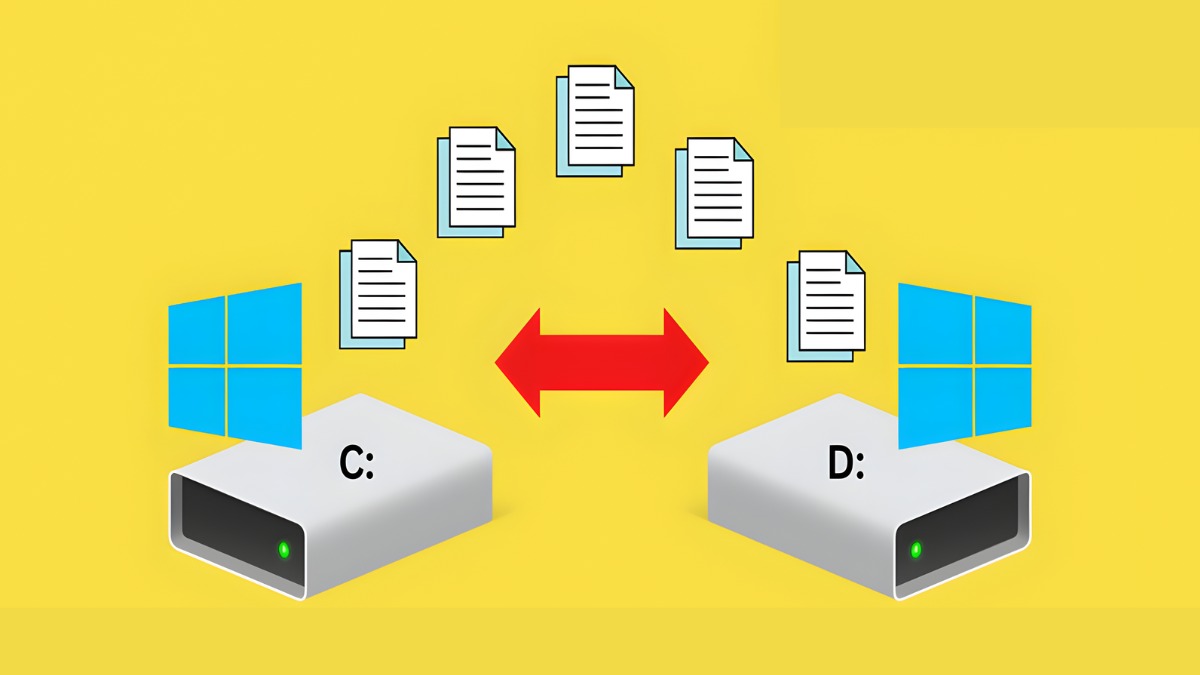 Benefits of moving data from drive C to drive D
Files and folders you should not move manually
Although moving data from drive C to drive D is very useful, not every folder or file on drive C can be moved. In fact, moving to the wrong folder can even prevent your operating system from booting, specifically:
Windows folder
This area contains all the core files of the operating system. Therefore, simply moving or interfering with this folder incorrectly can cause serious errors or prevent the operating system from booting. So, regardless of the situation, this folder must be kept absolutely intact to ensure the computer runs stably and efficiently.
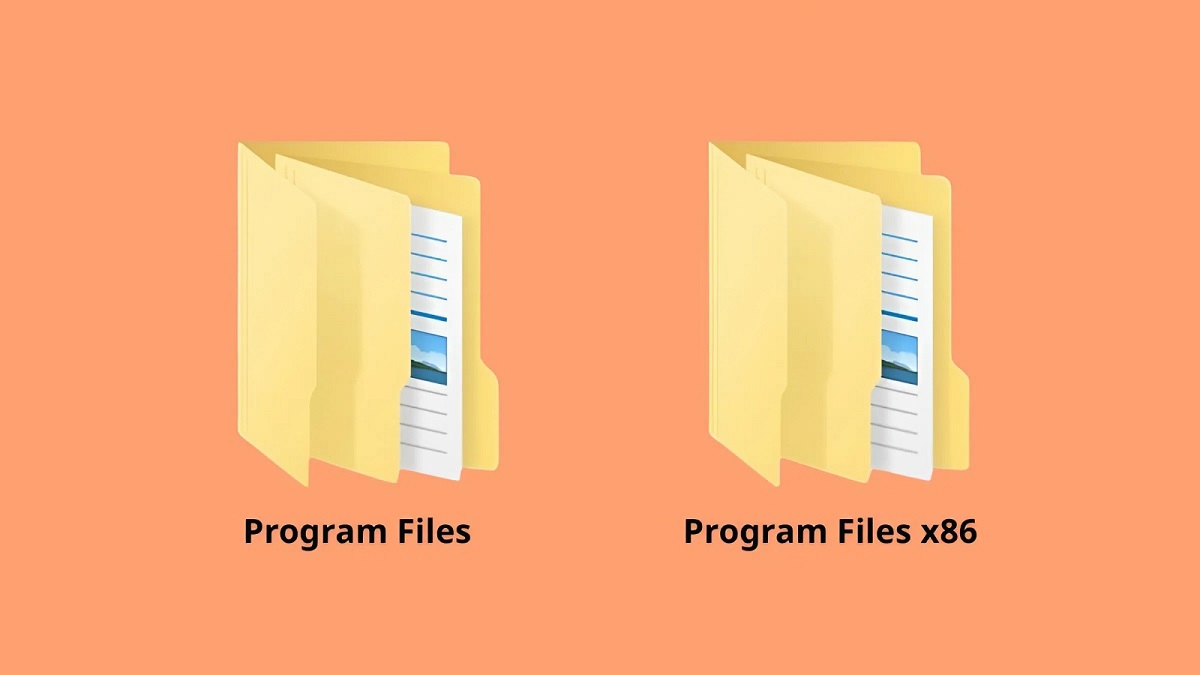
Program Files/Program Files x86 folder
These two folders store installed applications along with important system links. Moving them will cause the software to lose its path and become inoperable. Instead, you should uninstall and reinstall the application, and select drive D as the storage location during setup.
System32 folder
System32 is one of the most important folders in the Windows operating system. It currently contains many libraries, drivers, and executable files that Windows needs to run. At this time, moving data from drive C to drive D also puts your operating system at risk of serious damage.
Boot files and BCD
Boot files such as bootmgr and boot configuration data (BCD) are the first files a computer uses when it powers on. They help the computer know where Windows is located to start up. If you move these files, the computer will not find the operating system and will report an error when it starts up.
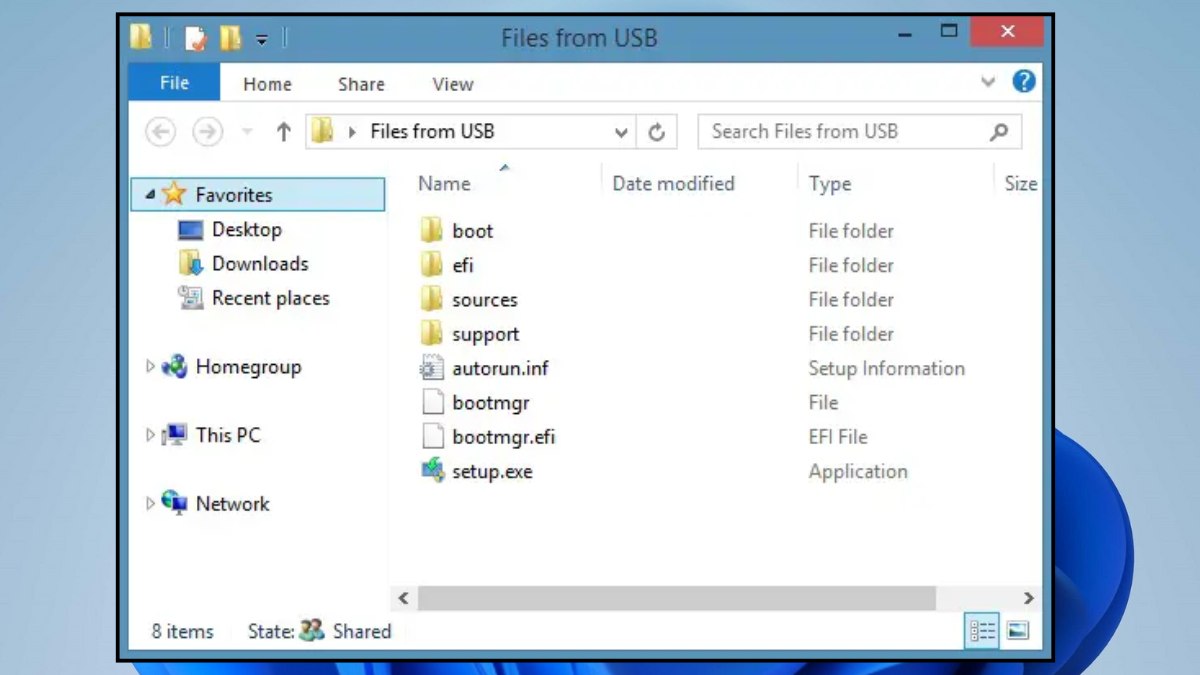
Files pagefile.sys, hiberfil.sys and swapfile.sys
These files are related to virtual memory and system hibernation. Windows automatically manages them, and moving them could cause the computer to slow down, freeze, or generate unpredictable errors. Ideally, they should be kept on drive C to ensure stability.
Users folder
Essentially, you can safely move these subfolders to drive D. However, note that the AppData folder is hidden in drive C and stores configuration data, settings, and cache. Manually moving the AppData folder may cause applications to lose their settings, fail to start, or malfunction.
Prepare before transferring data from drive C to drive D
How to safely and quickly transfer data from drive C to drive D is a problem that many users wonder about. Transferring data from drive C to drive D or to another drive won't take much of your time if you know the detailed instructions below.
Copy the data before converting
To avoid accidentally transferring data from drive C to drive D, which could lead to the loss of folders and files, back up your data beforehand. Important images, videos, and Word files should be backed up to Google Drive, iCloud on Zalo, etc. These are all secure data storage locations where you can retrieve data whenever needed if it is lost from your computer.
Use the built-in data transfer tool
The tool that helps you safely and quickly transfer data from drive C to drive D is File Explorer. This is a built-in Windows tool that allows users to easily drag and drop folders and files from one drive to another. Alternatively, you can use automatic data transfer tools such as Macrium Reflect, EaseUS Todo PCTrans, etc.
Move a personal folder to drive D
Transferring data from drive C to drive D using File Explorer is relatively simple and convenient. Below are detailed step-by-step instructions to help you successfully transfer your data. Please follow along.
Step 1: Press the Windows key (the icon with four small squares) and the E key simultaneously to open File Explorer . Then left-click to select ' Desktop ', and then right-click again to select ' Properties '.
Step 2: Click on the ' Location ' tab in the Desktop Properties menu , then select ' Move ', and then select drive D on the left.
Step 3: Open a new folder ' Desktop ' on drive D by right-clicking -> selecting New -> then selecting Folder -> typing the name Desktop and pressing Enter .
Step 4: Click ' Apply ', then select ' Yes ' to complete the transfer of data from drive C to drive D.
Important things to know when transferring data from drive C to drive D
After transferring data from drive C to another drive (specifically drive D), check the transferred data on that drive to ensure the transfer was successful. Avoid deleting important data from drive C before the transfer is complete. Sometimes, slow devices or large amounts of data on drive C may take time to transfer; please be patient.
Besides built-in Windows tools like File Explorer, users can utilize several other tools and applications to assist in data transfer. However, it's crucial to select safe applications and avoid downloading fraudulent apps that could infect your computer with viruses, allowing hackers to infiltrate and steal important data.
Your computer is constantly showing a full storage limit, running slowly, and hindering your work many times. You're looking to buy a genuine, new-generation computer with powerful specifications that can handle smooth graphic design. Then check out these quality products in this price range!
How to restore data to its original location
Is it possible to recover data to the original drive (from drive D to drive C)? Of course, you can recover data on drive C after freeing up space and reinstalling Windows. Here's how to recover data transferred from another drive to drive C:
Step 1: Press the Windows key and the E key simultaneously to open File Explorer , then select drive D, select the Desktop folder , and then right-click and select Properties .
Step 2: Click on the Location tab in the Desktop Properties menu , then select Restore Default to return the data to its original location.
Step 3: Click "Apply" and then click "Yes" twice to complete the recovery of the moved data.
Some software can quickly transfer data from drive C to drive D
If you want to safely move your data and installed applications, using specialized software to transfer data from drive C to drive D is the best option. Some of the best data transfer software include:
EaseUS Todo PCTrans
EaseUS Todo PCTrans is one of the most popular software programs for transferring files from drive C to drive D. It allows users to transfer data, applications, and accounts from drive C to drive D or between computers. In particular, the App Migration feature supports the safest possible transfer of installed programs.
AOMEI Partition Assistant Professional
More than just a data transfer tool, AOMEI Partition Assistant is also highly regarded for its App Mover feature. This allows you to select one or more applications on drive C and move them to drive D with just a few clicks. It also ensures the software runs smoothly after being moved to the new location.
MiniTool Partition Wizard
MiniTool Partition Wizard is a comprehensive disk management tool. The paid version offers features like Migrate OS to SSD/HD and App Move. These two features make transferring data and programs from drive C to drive D easy without needing to reinstall.
Laplink PCmover
PCmover is specialized software for moving data from drive C to drive D. Its advantage lies in its highly detailed transfer capabilities, even transferring complex application settings and configurations. However, the software may be more expensive than other options.
Steam Mover
Steam Mover is a completely free software for transferring data from drive C to drive D. It works by moving entire folders to drive D, then creating a virtual link in the same location on drive C. At this point, although the system still recognizes the files on drive C, the actual space has been transferred to drive D.
The article above has provided detailed instructions on how to transfer data from drive C to drive D, as well as how to restore the data to its original location. If you are still unclear about any step in transferring data from drive C to drive D or to another drive, please comment below so we can provide more detailed instructions!
See more articles in the following categories: Computers - Laptops - Tablets, Computer Tips and Tricks
Related Articles
 Ways to Transfer Data Between Phone and Computer Without Connecting8 minutes read
 How to Transfer Data to a New Xbox 360 Hard Drive4 minutes read
 Experience USB Flash Drive, the Data Manager for USB on Windows4 minutes read
 Multcloud: A Comprehensive Cloud Management Solution: Cloud Service4 minutes read
 How to Transfer Data from iPhone to Android Using Google Drive4 minutes read
 How to Transfer Photos from Onedrive to Google Drive3 minutes read
Reader Comments 0
Sign in with email or Google to join the discussion.