Table of Contents
iOS 18 added scheduled iMessages, more Home Screen controls, and a standalone Passwords app. These seven features first appeared in iOS 18. The exact menus and availability may differ by iPhone model, country, and the version you use today.
1. Schedule an iMessage
In Messages, open a conversation and choose + > Send Later. Pick the date and time, then send the scheduled message. The feature works with iMessage.
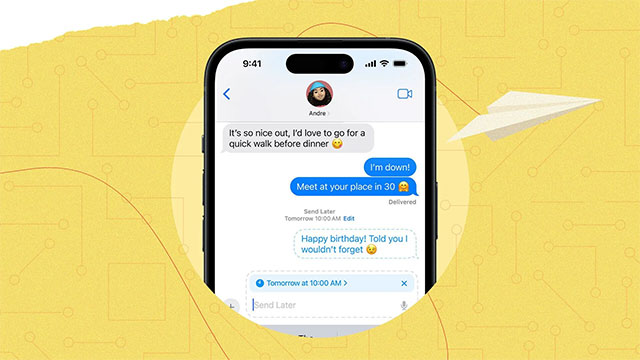
2. Use more Tapback reactions and text effects
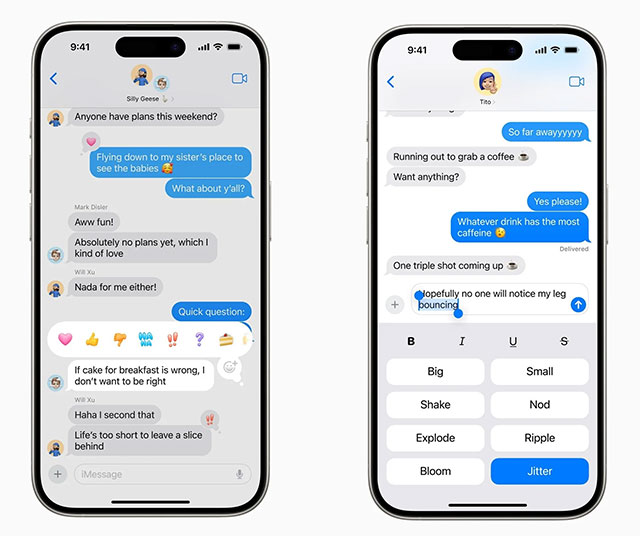
Touch and hold a message to choose a reaction, including emoji or stickers. When writing an iMessage, use the formatting controls to apply styles such as bold or an effect such as Shake.
3. Send messages by satellite on a supported iPhone
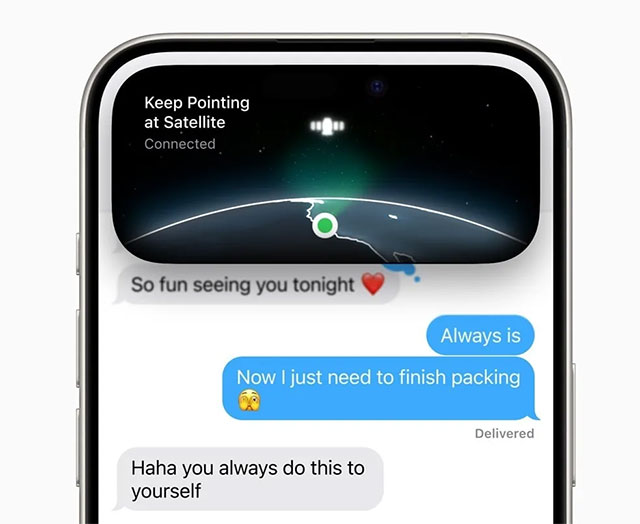
With an iPhone 14 or later in a supported region, Messages can help you connect to a satellite when you have no cellular or Wi-Fi coverage. Check Apple’s requirements before traveling. For emergencies, use the Emergency SOS options your device offers.
4. Rearrange the Home Screen and Control Center
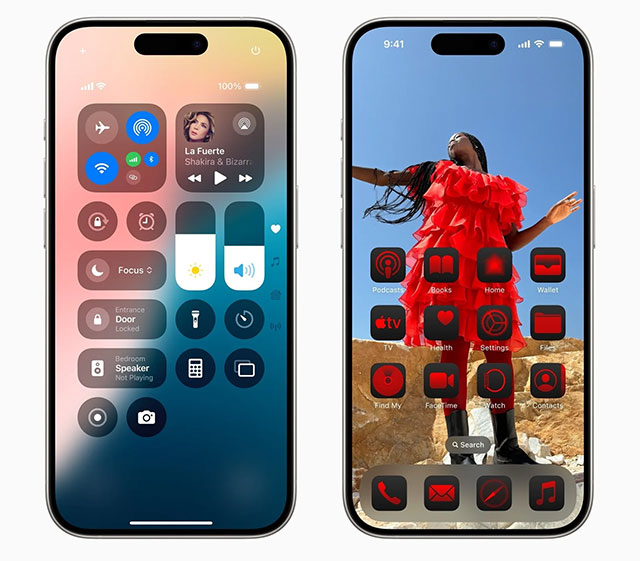
Touch and hold the Home Screen to move app icons and widgets. In Control Center, enter editing mode to add or rearrange controls and build a page for frequently used shortcuts.
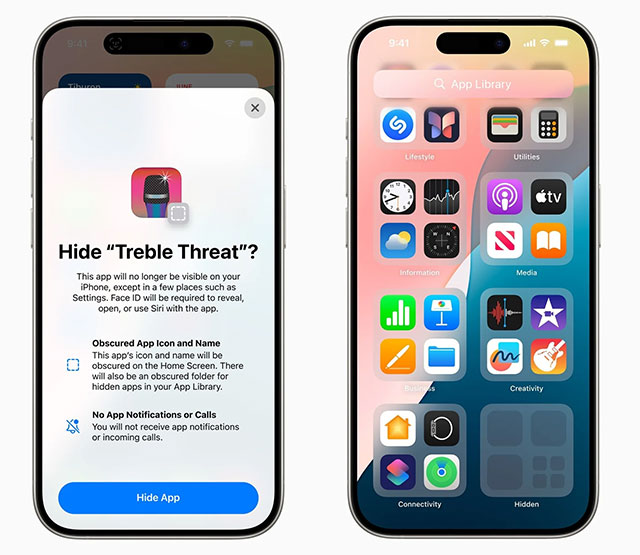
5. Lock or hide eligible apps
Touch and hold an app icon and check whether it offers Require Face ID or the equivalent for your iPhone. Eligible apps also offer an option to hide the app in the App Library’s Hidden folder.
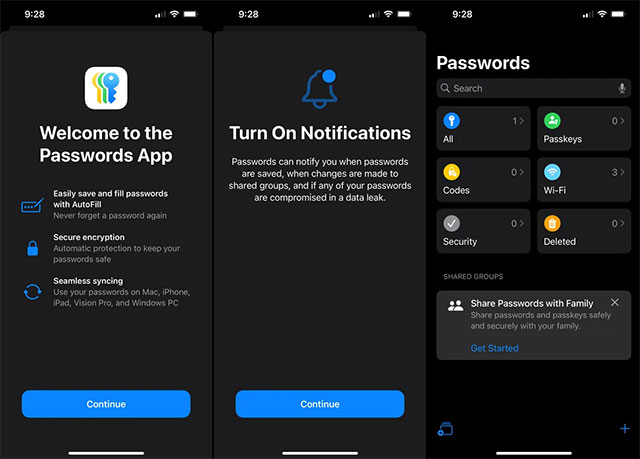
6. Find saved logins in the Passwords app
Open Passwords to see saved logins, passkeys, and verification codes. Check iCloud Passwords and Keychain settings if you expect those items to sync across supported devices.
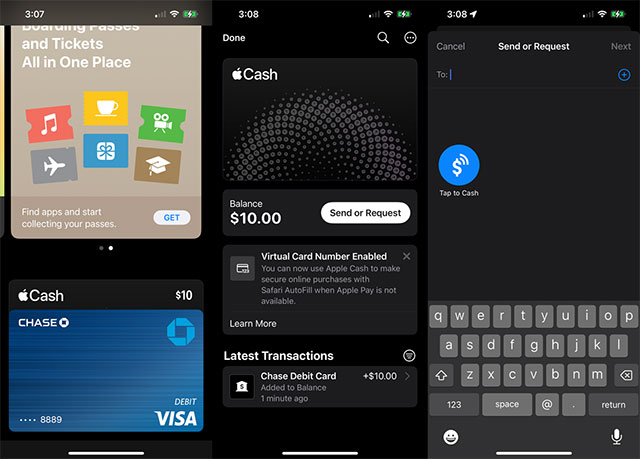
7. Send Apple Cash with Tap to Cash
Where Apple Cash is available, compatible devices can use Tap to Cash to transfer money nearby. Check the amount and recipient on the screen before authorizing a payment.
Related Articles
 4 iPhone 13 camera features you may not know
 Apple Still Has Two Unannounced Features for iOS 26
 Some useful tips and tricks on iOS 10 - iPhone devices (Part 1)
 3 exciting new features coming soon in the new Office application
 Top 10 features worth exploring on iPhone 12 Pro Max
 Why should you skip the iPhone 17 to buy the iPhone 16 Pro?
Reader Comments 0
Sign in with email or Google to join the discussion.