Table of Contents
To finish a usable design with ChatGPT and Canva, start with a clear brief, refine the draft, check the facts and layout, then inspect the exported file. The goal is a design that works in its intended setting, not just a convincing chat preview.
Choose one real task: a social post, event flyer, invitation or small presentation. Confirm the final text before generating so the tool does not have to invent dates, offers or locations.
1. Write the design brief
Connect the intended Canva account through the available ChatGPT app or plugin and review its access. For setup, see using Canva in ChatGPT. If the integration is unavailable, use the same brief directly in Canva.
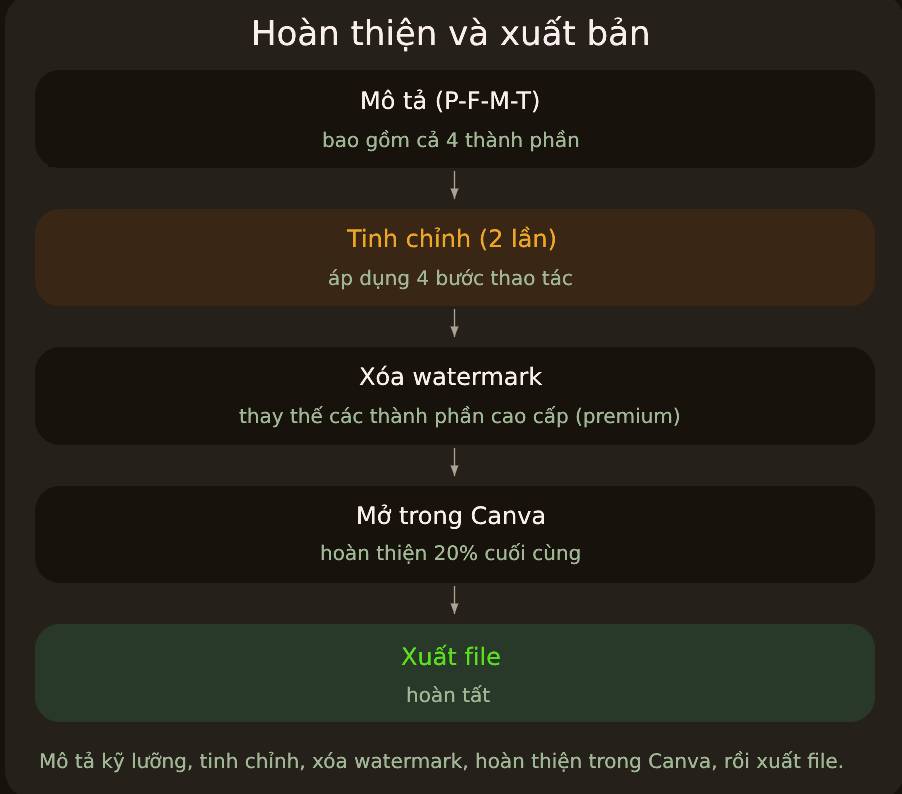
Canva, create a [design type and dimensions] for [purpose and audience]. Use a [two or three style words] visual style with [colors or brand requirements]. Include exactly: "[line 1]", "[line 2]", "[line 3]" and "[line 4]". Make [key message] most prominent. Do not add unverified facts. Use free elements where possible and flag any paid assets.Specify the final destination. “A4 portrait flyer for printing” is more useful than “a nice poster.” For a social post, state the target format and leave essential text away from likely crop areas.
2. Refine the draft with specific changes
Review the first version and change the most important defect first. Name the element, the change and what should stay fixed.
- Text: “Keep the offer unchanged, but shorten the headline.”
- Layout: “Move the date to its own line and make it larger. Keep the illustration in place.”
- Style: “Use warmer colors while retaining strong text contrast.”
- Element: “Replace the decorative photo with a simpler free graphic.”
Two revisions can be a useful practice target, but they are not a guarantee of completion. Keep refining while a material defect remains, and avoid changes that solve one issue by hiding another.
3. Review six practical criteria
| Check | What to verify |
|---|---|
| Format | Dimensions and orientation match the final feed, page or screen |
| Readability | Text is legible at the actual viewing size, with clear hierarchy and sufficient contrast |
| Tone | Colors and imagery suit the audience and occasion |
| Assets and licensing | No unintended premium content, watermarks or unlicensed material remains |
| Facts | Names, dates, prices, addresses and contact details match the verified brief |
| Export | The downloaded file has the intended pages, format and quality |
4. Try a complete example
This is a fictional example; replace every offer and opening detail with verified information before using it.
Canva, create a square Instagram post announcing a fictional reopening for Corner Books & Coffee. Use a cheerful, welcoming style. Include exactly: "We're back this Saturday!", "Open from 9 a.m.", "20% off this weekend" and "Corner Books & Coffee". Make the reopening headline largest. Keep the text editable and flag any premium elements.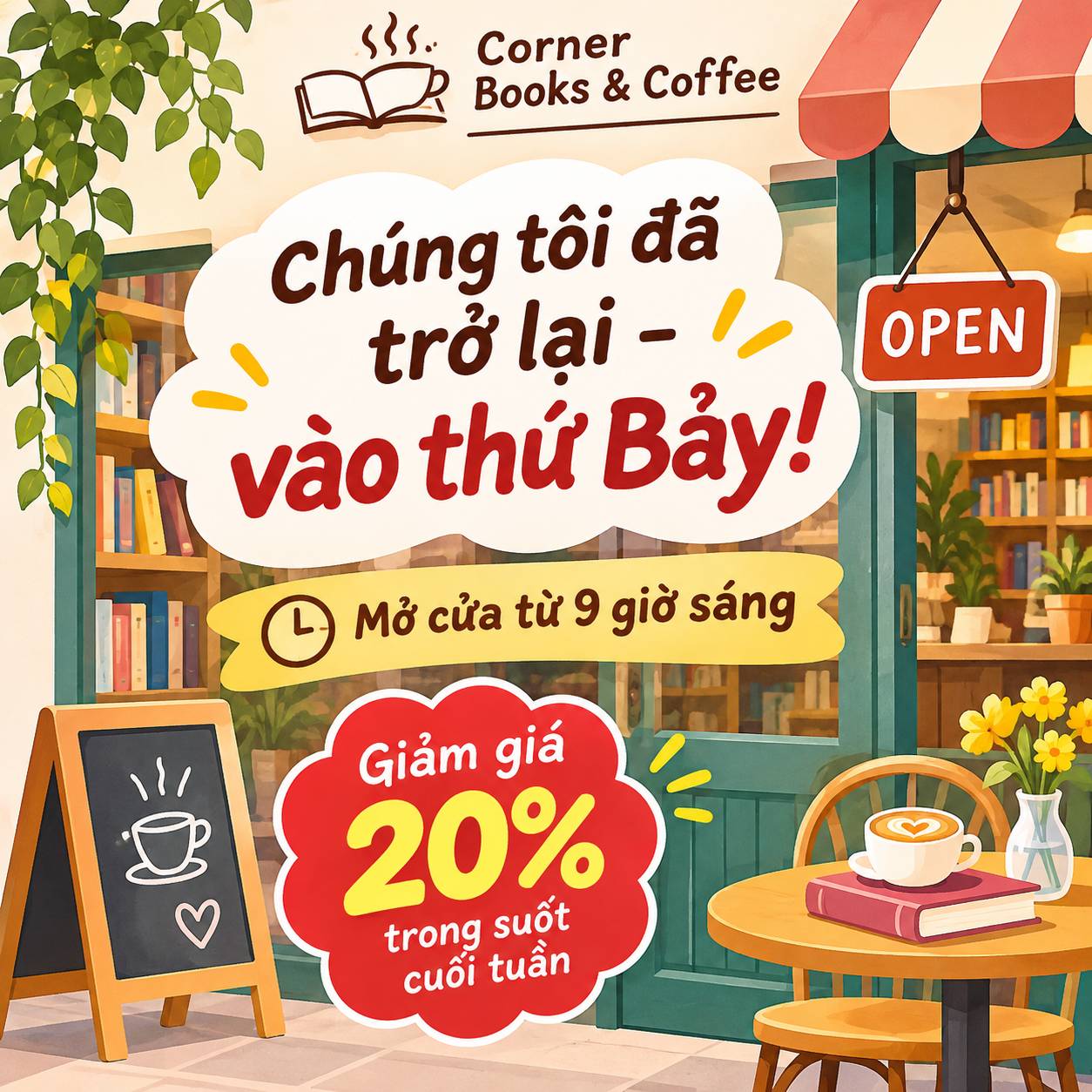
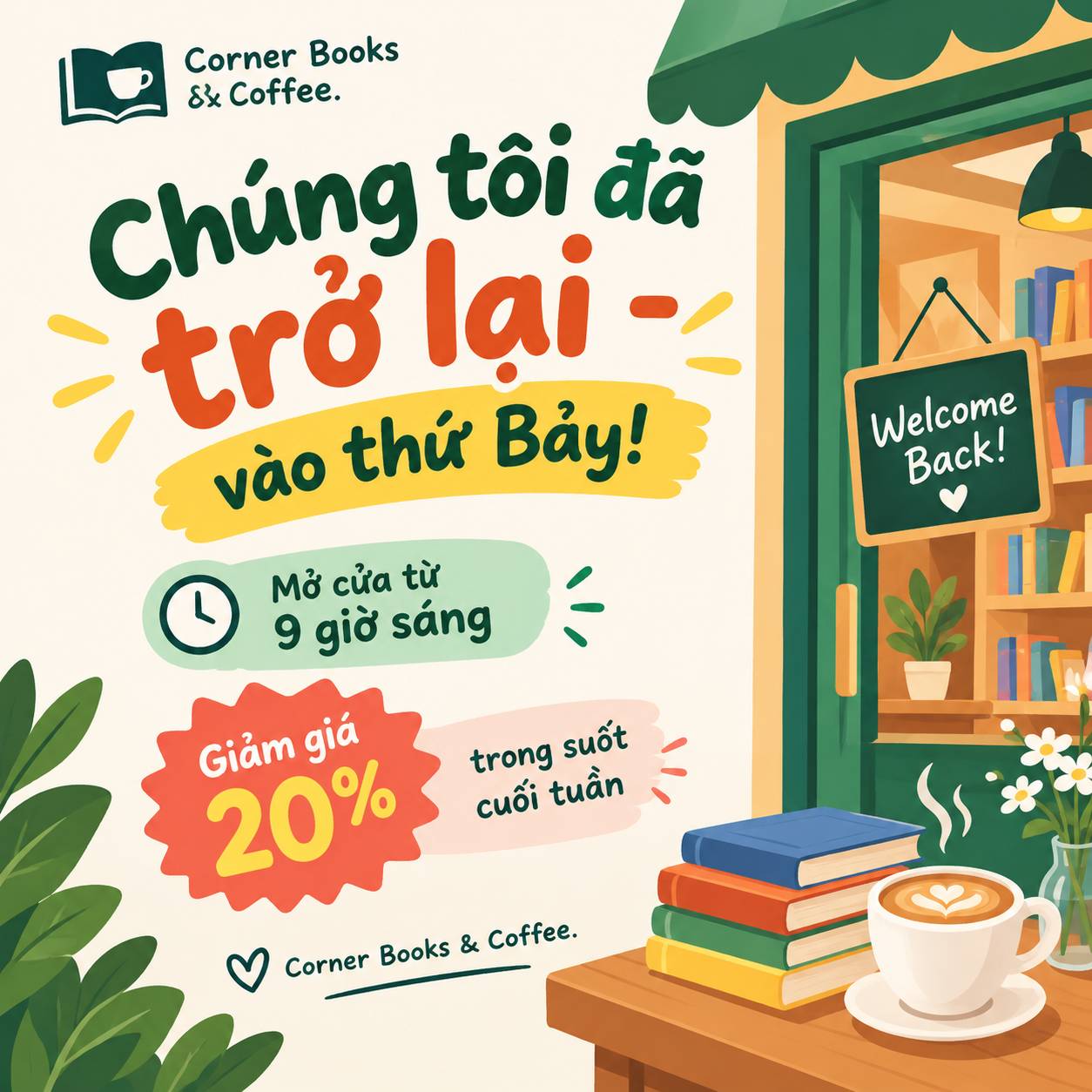
Inspect the offer and date text first. If it is cramped, ask for more space and a clearer hierarchy. Do not remove important conditions simply to make the layout cleaner.
5. Finish in Canva and export
Open the design in Canva, check all pages and adjust precise spacing, alignment and fonts. If a premium element creates a watermark or payment prompt, replace it with a suitable free asset or obtain the required license. An AI message saying the design is “clean” is not proof of export eligibility.
Choose the file type for the destination: an image format for a post or the printer's requested PDF settings for print. Check any paid download options. See adapting a Canva design to another format if you need another size.
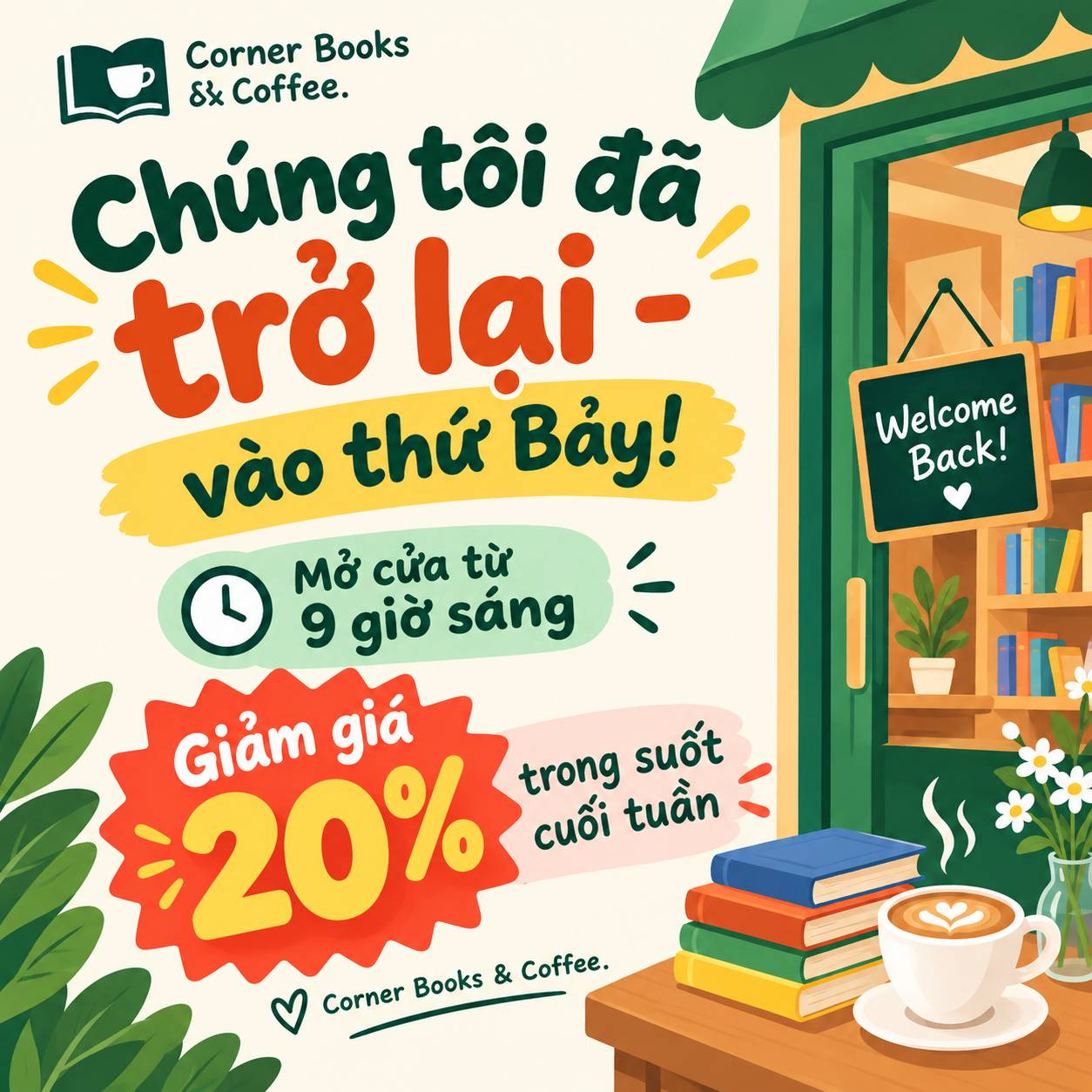
Open the downloaded file and compare it with the editor. Check for cropped text, substituted characters, watermarks and missing pages. For important printed work, print a sample at the intended size. Enlarging a blurry image does not guarantee restored detail.
Keep the editable Canva design, the final export and the approved text. That makes later corrections easier than rebuilding the project from a flattened image.
Related Articles
 5 Canva Prompts for ChatGPT: Posts, Flyers, Slides and More
 How to Use Canva in ChatGPT to Create Editable Designs
 Canva Free vs Pro: Watermarks, AI Limits and Export Features
 How to Use Canva and ChatGPT to Create Mass Content Designs
 5 Steps to Design a Free Logo on Canva
 How to Create a Data-Driven Infographic With Canva AI
Reader Comments 0
Sign in with email or Google to join the discussion.