Table of Contents
Explore 3 reasons typora is the first offline writing app that feels better than.
1. Live preview makes Markdown easy
A unified editor that lets you write and format at the same time
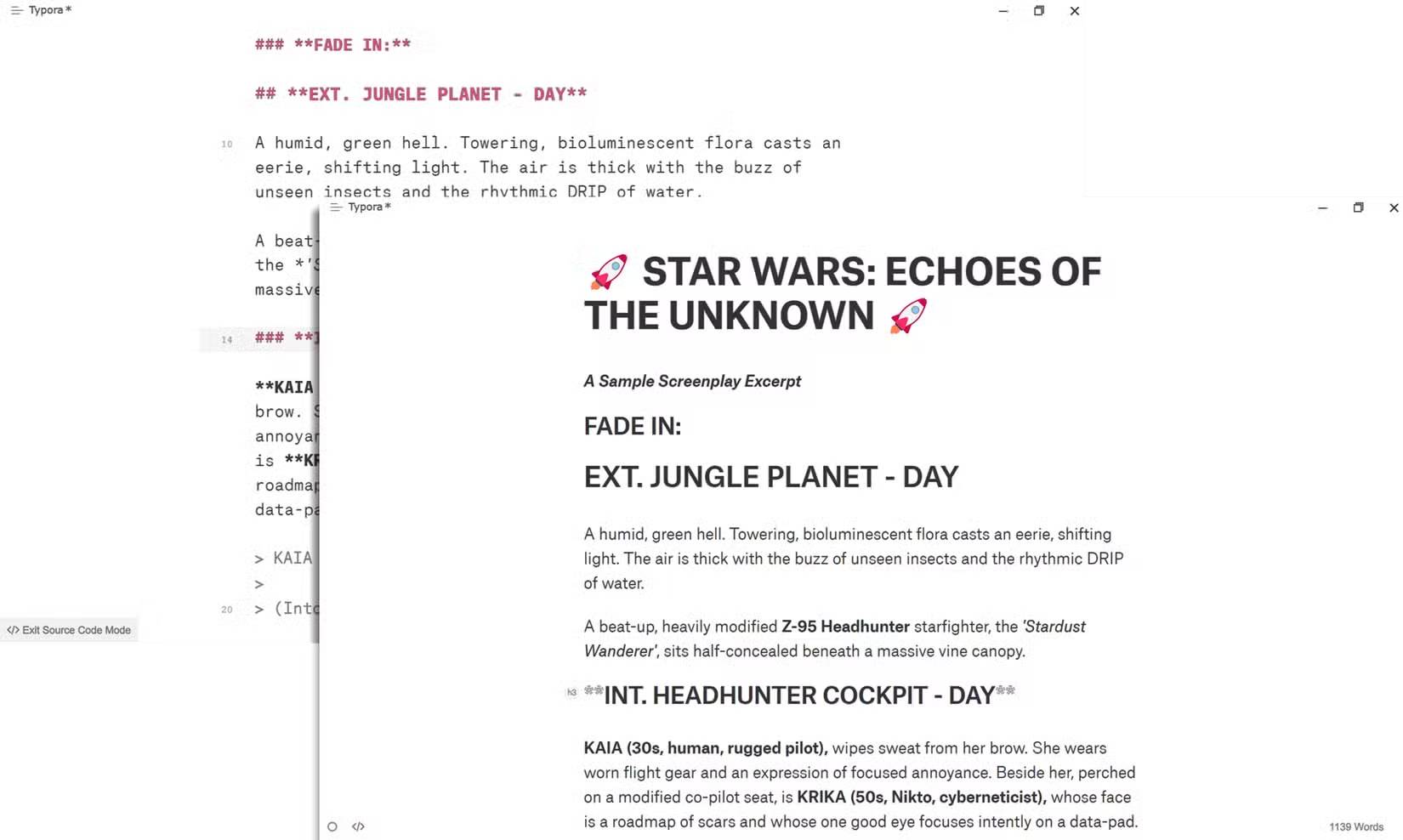
Typora's biggest strength is its seamless live preview. Unlike most Markdown apps that split the screen into an editor and a preview pane, Typora merges them. Formatting appears as you type, so you don't have to think about syntax as you write. Markdown's WYSIWYG (What You See Is What You Get) feature helps you focus on ideas rather than structure, which is especially helpful when you're typing quickly. Of course, you'll need to master the basics of markdown syntax, but it's easier than learning the alphabet!
Google Docs has a set of Markdown features (italics, bold, strikethrough, and links). If you're used to its formatting toolbar, Docs still makes formatting separate. Typora combines everything into a single flow. It feels almost like handwriting, without having to stop and move the mouse.
2. Customizable interface turns the editor into a personal writing space
Adjust the editor's appearance to suit your writing mood
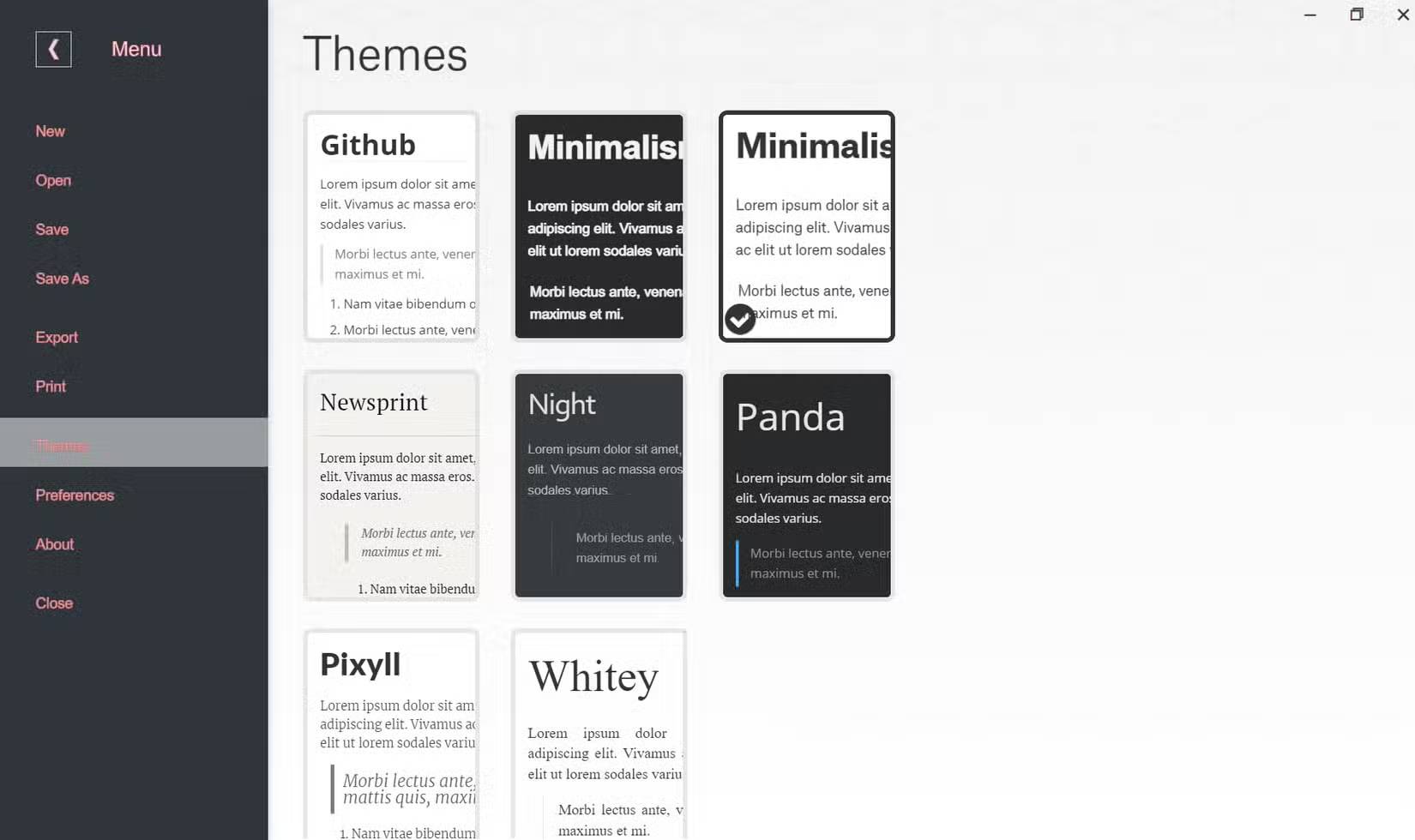
Typora allows you to switch between multiple skins, tweak your typography, and even install community-created custom CSS skins. This visual flexibility can greatly enhance your writing. Google Docs also has Page setup and a variety of templates for every situation. The extensive collection of Google Fonts also helps make the editor comfortable to set up. Typora feels a bit more intentional because it focuses on writing and not on anything else.
Tip : Go to Preferences > Appearance > Themes > Use separate theme in dark mode for more flexibility and a better mood. The default themes in Google Docs feel dry; a warm sepia theme or a high-contrast dark mode can make long work sessions less tiring.
3. Powerful features that support the simplicity of Markdown
Typora has advanced features but is still extremely beginner-friendly
It's all designed for people who want to write first and format later. But Typora does more than just give you the typewriter feel.
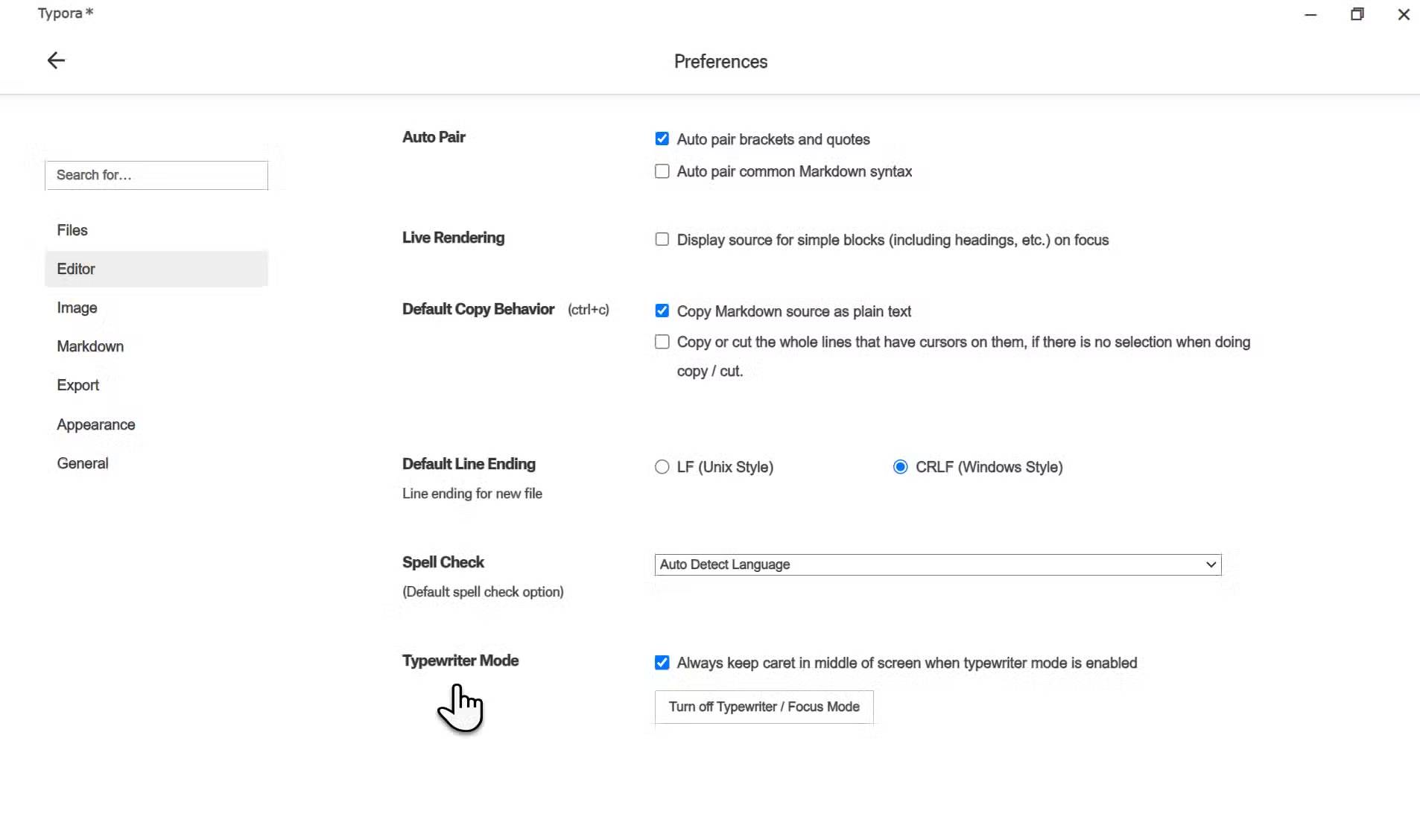
- Want to eliminate all distractions? Turn on Focus mode and Typewriter mode from Preferences. Focus mode will highlight the current line or paragraph and blur the rest; Typewriter mode will keep that line or paragraph centered. This is another way to overcome writer's block, as it sometimes blurs everything except the confusing paragraph you're facing.
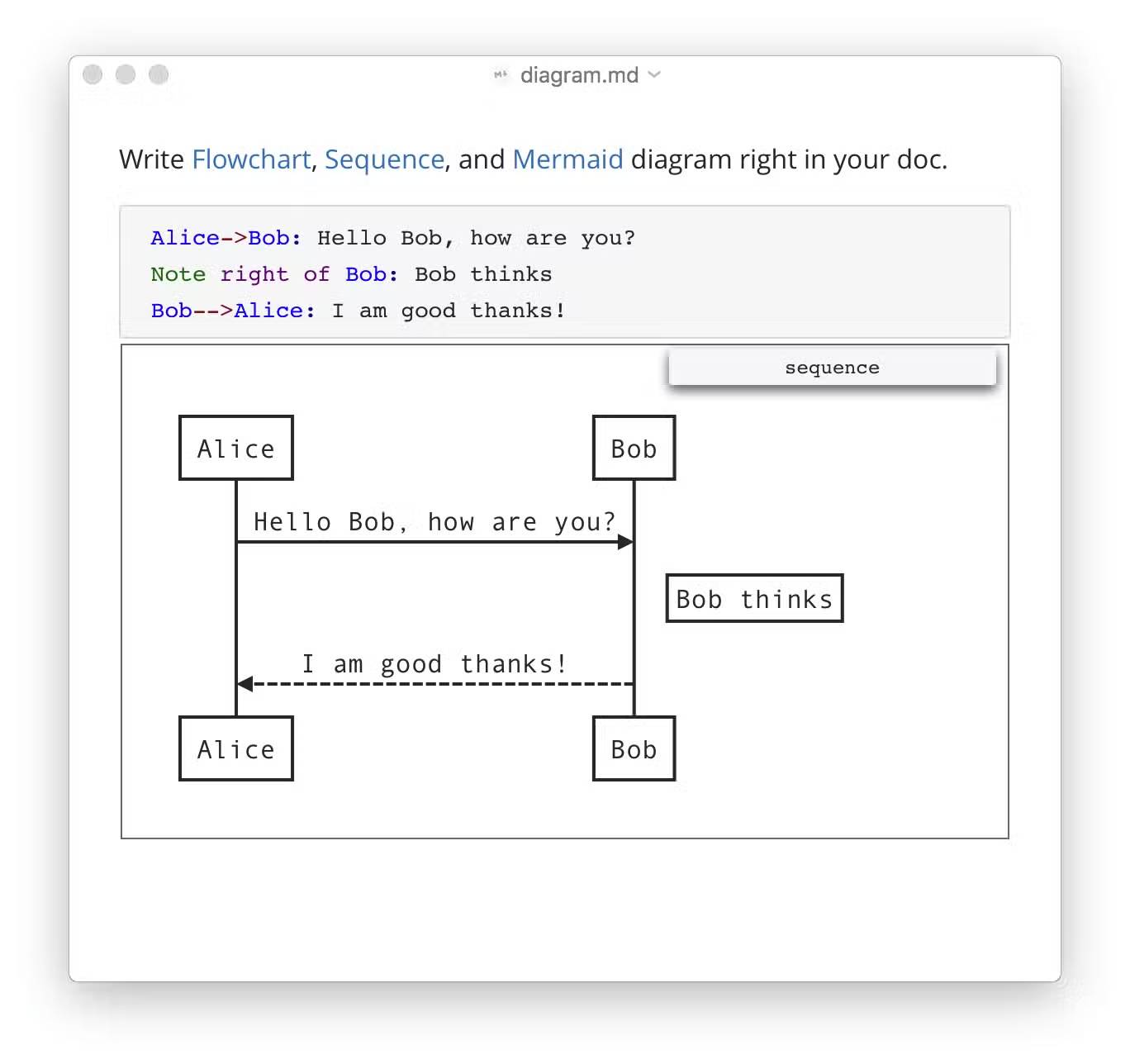
- When you want to illustrate a process, use Mermaid , Typora's diagramming tool. It supports sequence diagrams, flowcharts, Gantt charts, class diagrams, state diagrams, and pie charts. It's not a technical syntax, as you create diagrams by writing text instructions inside delimited blocks of code.
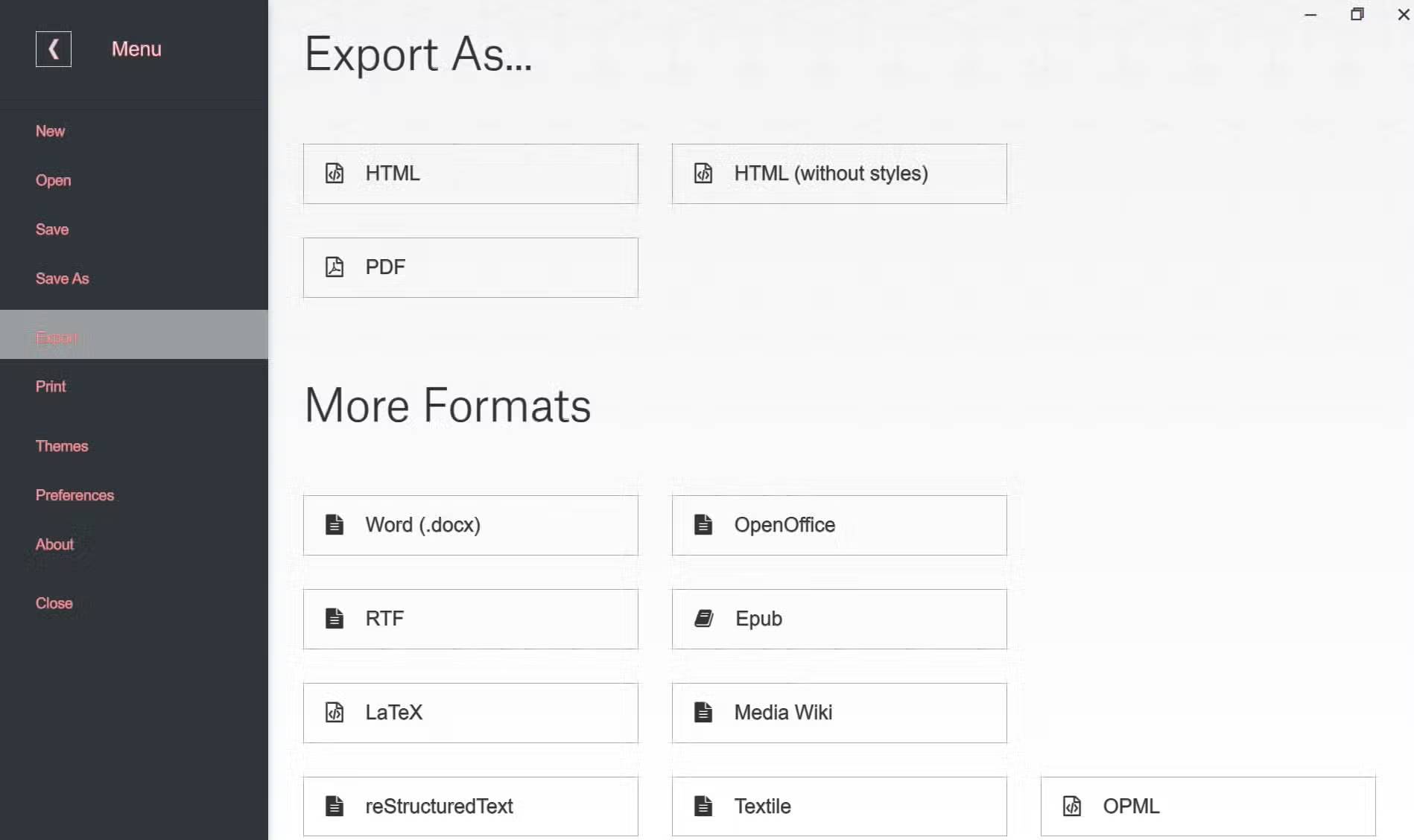
- Write once and reformat for different clients or platforms to save time. Pandoc allows you to export to PDF, Word, HTML, ePub, and LaTeX, so the same Markdown becomes an article, eBook, or scholarly paper.
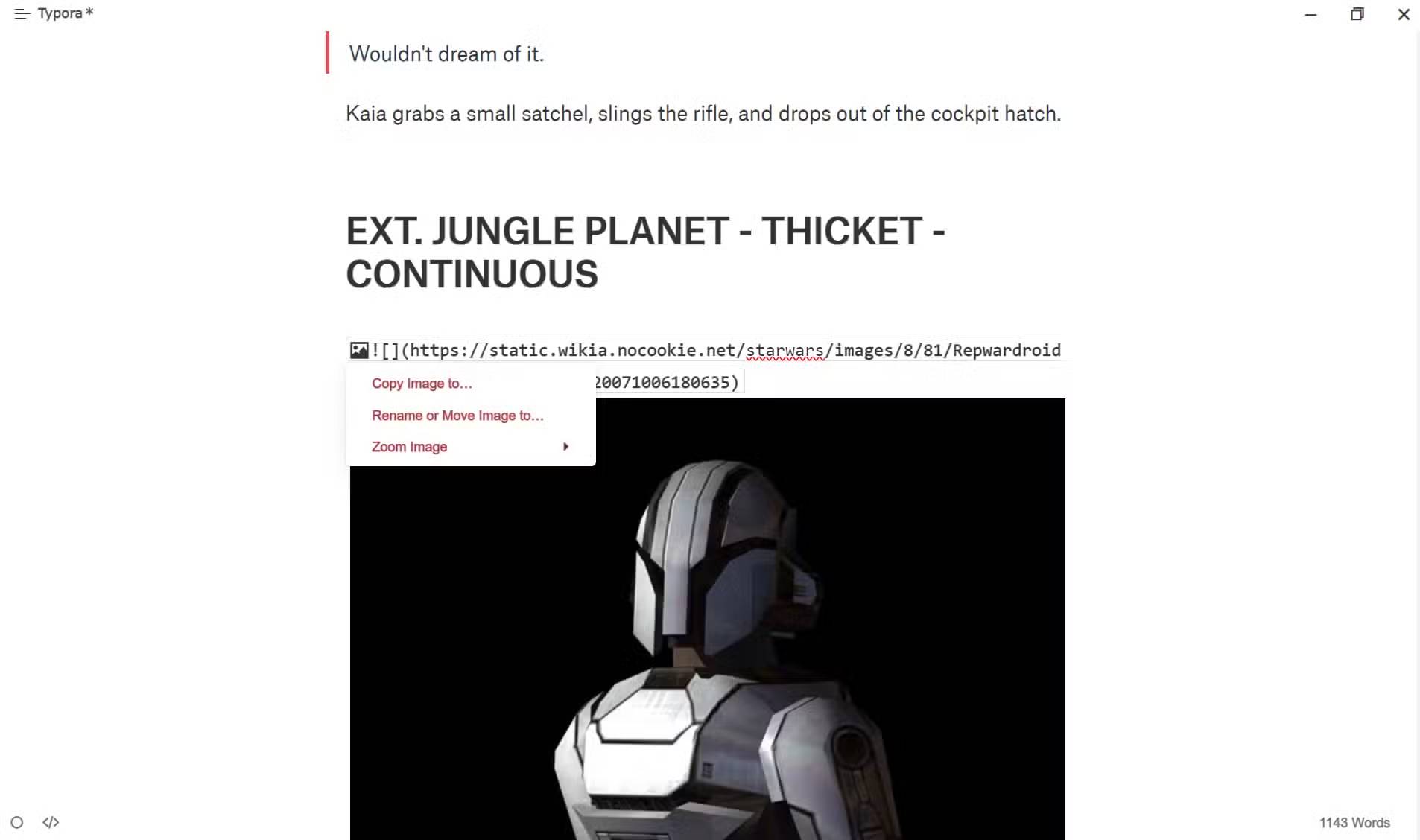
- Google Docs resizes images unpredictably. Typora inserts images (drag and drop is an option) and references their location. You can then copy/save the images to any folder you specify. Typora also supports uploading images to various cloud servers when you want your document ready for the web.
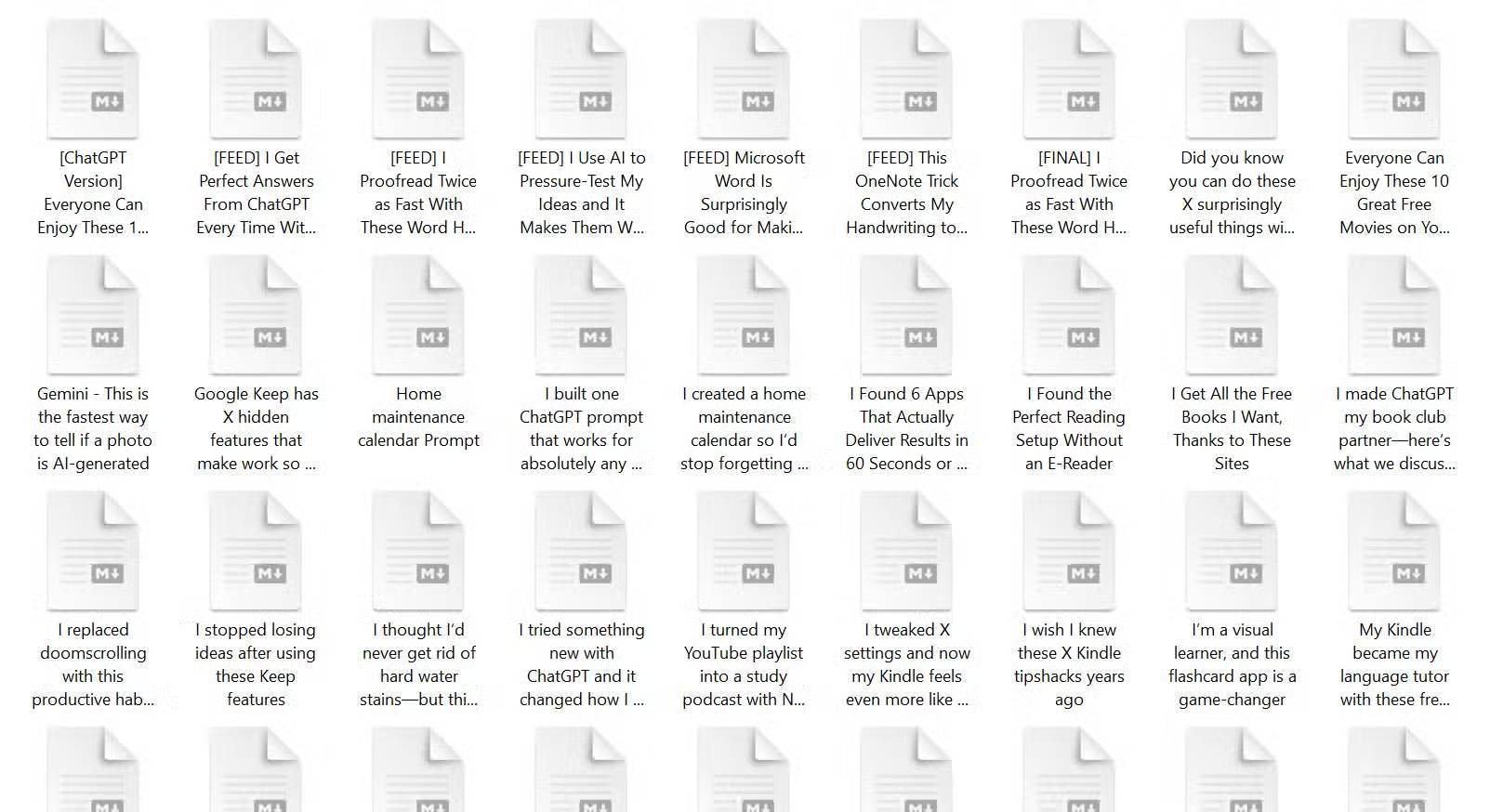
- Your work in Typora is stored locally on your machine. This can be an advantage or a disadvantage depending on how you work. On the plus side, there is no server downtime, no accidental account suspensions, and no loss of access. If backed up, plain text MD formats can be opened by many other applications, anytime, anywhere. You can back up Typora files using Time Machine or Git, where you have control over the backups.
- Cloud access is a two-pronged approach. Google Docs is a private ecosystem in the cloud (although it works offline too). Typora is private, and writing on a plane or in a coffee shop with poor Wi-Fi shouldn't be a problem. Unfortunately, Typora doesn't have a mobile app. To get around this, you can choose any Markdown editor that supports iCloud Drive or other third-party cloud storage for your MD files.
Final Thoughts
Understanding 3 reasons typora is the first offline writing app that feels better than google docs makes it easier to evaluate the information and apply the most relevant recommendations. Focus on the key points above and verify details that may change over time.
FAQ
What is 3 reasons typora is the first offline writing app that feels better than google docs?
Explore 3 reasons typora is the first offline writing app that feels better than.
What key points does this article cover?
The article focuses on 1. Live preview makes Markdown easy, A unified editor that lets you write and format at the same time, 2. Customizable interface turns the editor into a personal writing space, with practical explanations and examples.
How can you use this information in practice?
Use the explanations to compare options, verify important details, and make a more informed decision. Apply the recommendations that best match your goals and situation.
Related Articles
 How to Using Google Docs Offline: Use Google Docs Offline3 minutes read
 How to Activate Google Docs Offline on a Chromebook3 minutes read
 Guidelines for Writing Text on Google Docs (Google Docs)5 minutes read
 Writing Gmail on Chrome Does Not Need the Internet: Edit Email3 minutes read
 How to Fix Offline Google Docs Not Working5 minutes read
 Install and Use Google Docs Offine6 minutes read
Reader Comments 0
Sign in with email or Google to join the discussion.