Table of Contents
A file deleted with Shift + Delete, or removed from the Recycle Bin, may still be recoverable. “Permanently deleted” means it is no longer available through the normal undo or Recycle Bin workflow; it does not promise that recovery software will find an intact copy.
This guide uses AnyRecover to scan a Windows drive. Before trying it, stop writing to the affected device. Do not install the program there or recover results onto it.
Check Windows and backup copies first
- Open the Recycle Bin and confirm whether the file is actually absent.
- If it was stored in a synchronized folder, check that service's deleted-items and version-history features.
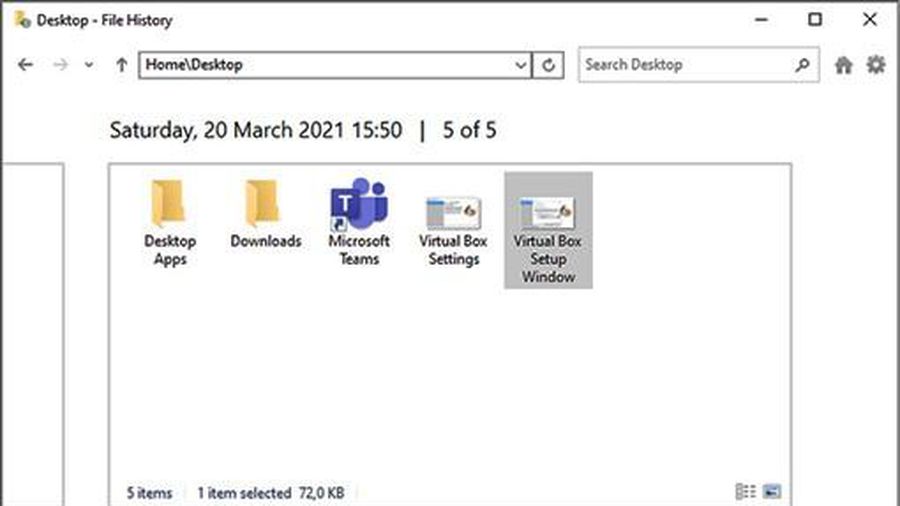
- Check any File History, external backups or other copies you already maintain.
- Search by filename in case the file was moved rather than deleted.
A known backup is preferable to a partial scan result. The lost and overwritten-file guide explains why continued writes can make recovery harder.
Install without writing to the source
Use the official AnyRecover guide to find the appropriate installer and current requirements. Review the setup prompts rather than accepting every option automatically.
![[QC] How to recover permanently deleted files on a Windows PC Picture 1](/data8/images/[qc]-how-to-recover-permanently-deleted-files-on-a-windows-pc-picture-1-D3yc7vZ6n.png)
Choose another drive for installation if the lost files are on a data device. When the affected device is the Windows system drive, ordinary use and installation can create additional writes; a separate suitable computer may be a better place to work.
Check current trial restrictions before purchasing. The old claim that the free version recovers eight files should not be assumed to apply to a present release. Scanning, previewing and exporting can have different limits.
Select and scan the original location
Open the PC or hard-disk recovery section. Select the location where the files were stored, then start the scan. The destination you select here is the source being searched, not the place where recovered files will be saved.
- For a deleted folder, choose its original volume or location.
- For a USB drive or memory card, confirm the device by capacity and model.
- For a missing partition, use the program's documented missing-location option. Do not create or format a replacement partition first.
Allow the scan to progress while the device remains stable. Available pause and stop controls vary by version. A deeper scan can take longer and may return generic filenames or duplicate results.
Filter and preview the results
Use file-type categories, dates, names and paths to locate likely matches. A path indicates where the program believes a file was previously stored; a result listed under the right folder can still be incomplete.
Preview important files where possible. If a format cannot be previewed, its recoverability remains uncertain until the exported copy is opened in a suitable application. A visible filename is not a quality check.
![[QC] How to recover permanently deleted files on a Windows PC Picture 2](/data8/images/[qc]-how-to-recover-permanently-deleted-files-on-a-windows-pc-picture-2-7tuQzW8S5.png)
Recover to another physical drive
Select the required files and choose Recover or the equivalent control in your version. Choose a separate healthy physical drive with sufficient free space. Another folder on the source volume is not an appropriate destination.
![[QC] How to recover permanently deleted files on a Windows PC Picture 3](/data8/images/[qc]-how-to-recover-permanently-deleted-files-on-a-windows-pc-picture-3-gsHvXGPV2.png)
Open the saved copies and verify their contents. Check several documents, full-size photos and videos beyond their first few seconds. Retain the original device unchanged until you have confirmed that essential files are usable.
When software recovery is the wrong next step
Do not keep scanning a disk that clicks, disconnects repeatedly or shows signs of physical damage. Consult the damaged-drive recovery guide and consider specialist help for valuable data.
A scan also cannot guarantee recovery after overwriting, reinstallation or a destructive format. If results are unusable, recheck backups and the selected source instead of repeatedly making changes to the affected drive.
Related Articles
 How to Recover Deleted Photos on Windows, Mac, Android, and iPhone
 4 ways to recover files from Recycle Bin in Windows 10
 How to recover deleted files permanently in the trash
 How to recover deleted files in Windows 10
 Recover Google Drive files after deleting or emptying Trash
 How to Recover a File Quarantined or Removed by Microsoft Defender
Reader Comments 0
Sign in with email or Google to join the discussion.