Table of Contents
This guide organizes the entries in "6 Hidden Tricks That Can Be Applied to Samsung Cameras" and explains what each option, idea, or example offers. It also highlights practical details that matter when comparing the choices.
6. Record video without turning off the music
Most phones will turn off the music as soon as you start recording a video, but Samsung phones don't have that limitation. If you're listening to a song from Spotify or YouTube Music, open the Camera app, switch to Video mode, and tap the record button. The music will continue playing in the background, and your phone will record both the video and the surrounding audio.
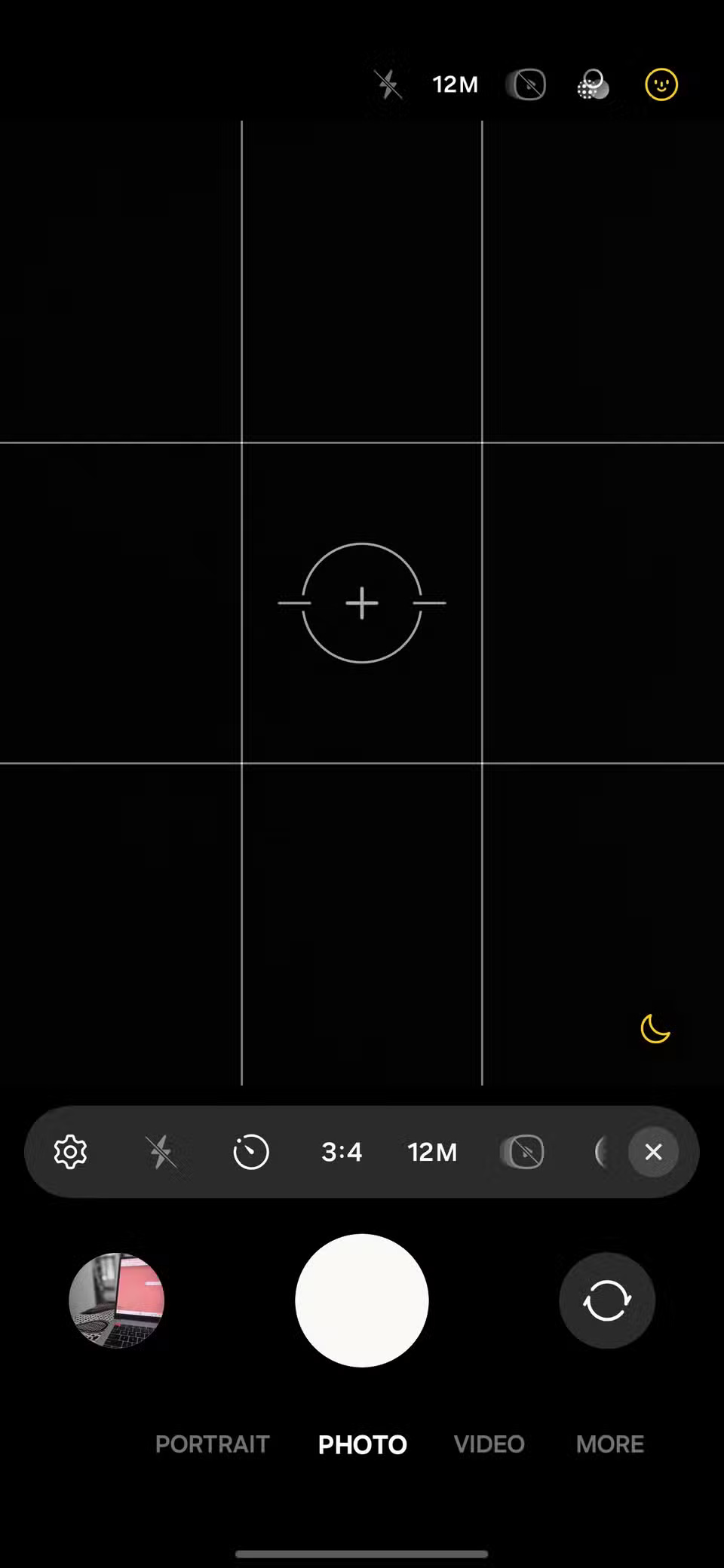
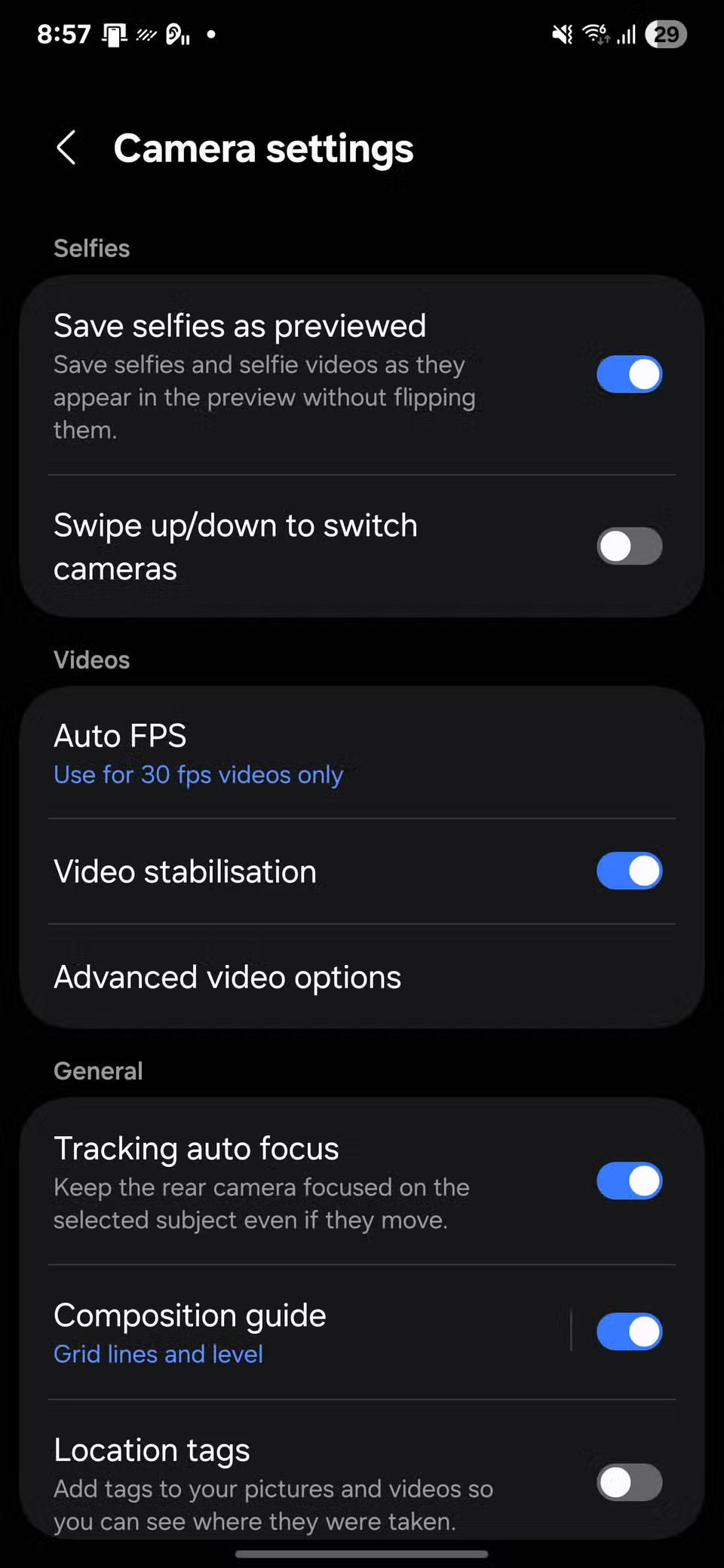
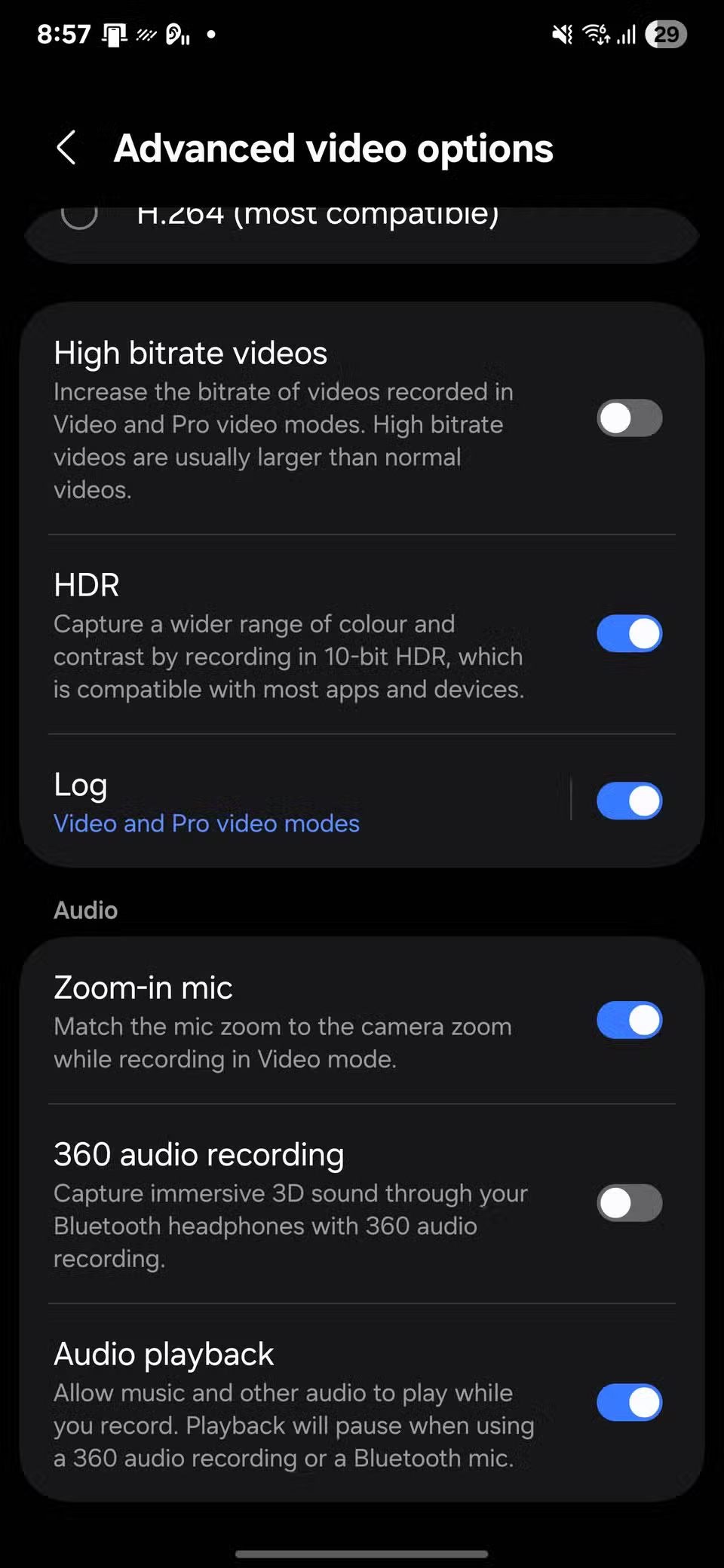
To do this, however, you'll first need to enable a quick setting. Open Camera and tap the gear icon to access settings. In Settings, scroll down to Advanced video options and turn on Audio playback .
5. Automatic document capture - No touch required
To enable this feature, open the Camera app, tap the gear icon, and turn on Scan documents and text . Then tap that icon and turn on Auto scan , which lets your phone take a photo as soon as it detects a stable frame.
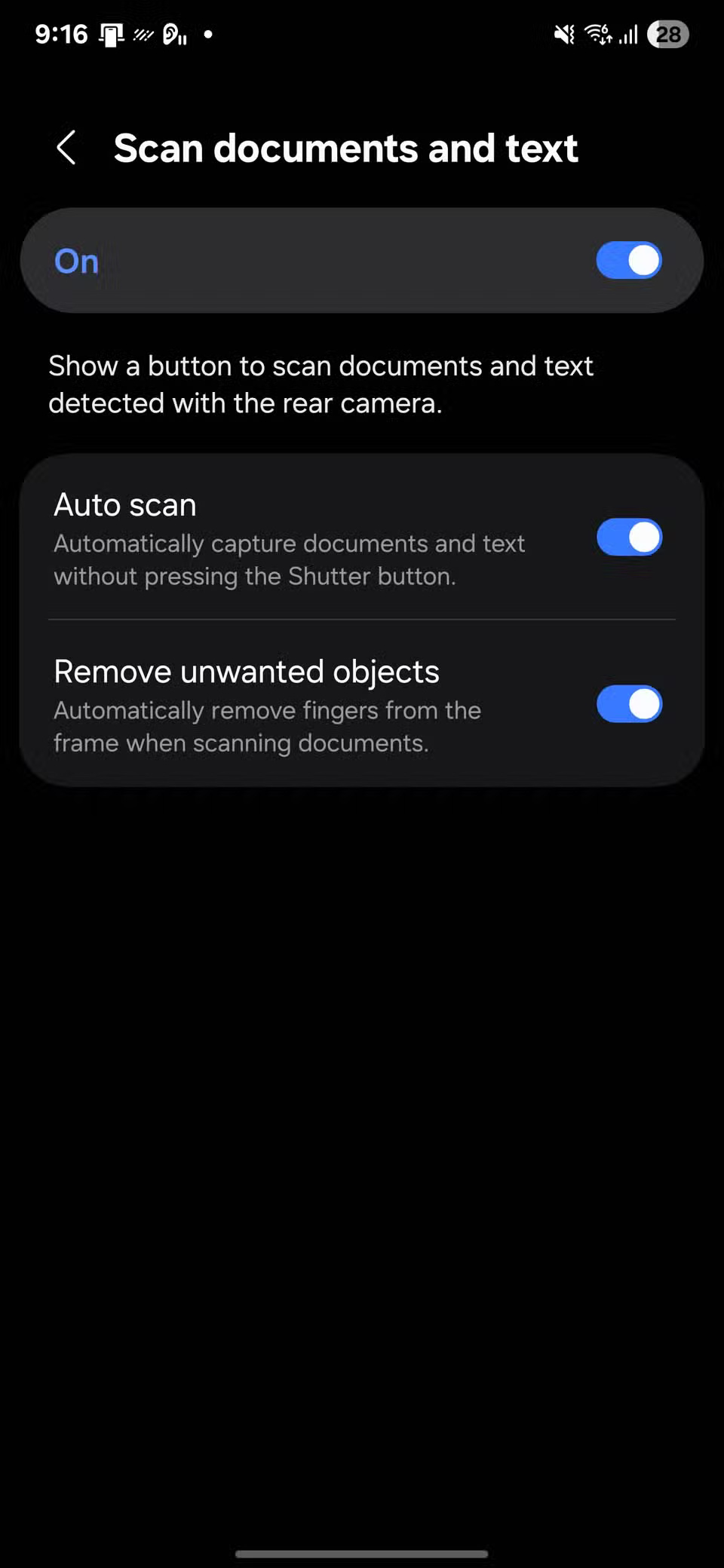
You can also turn on Remove unwanted objects to cut out any obstructions, like fingers near the edge. Then all you have to do is point the camera at the subject and let it do the rest.
4. Turn the shutter button into a GIF maker
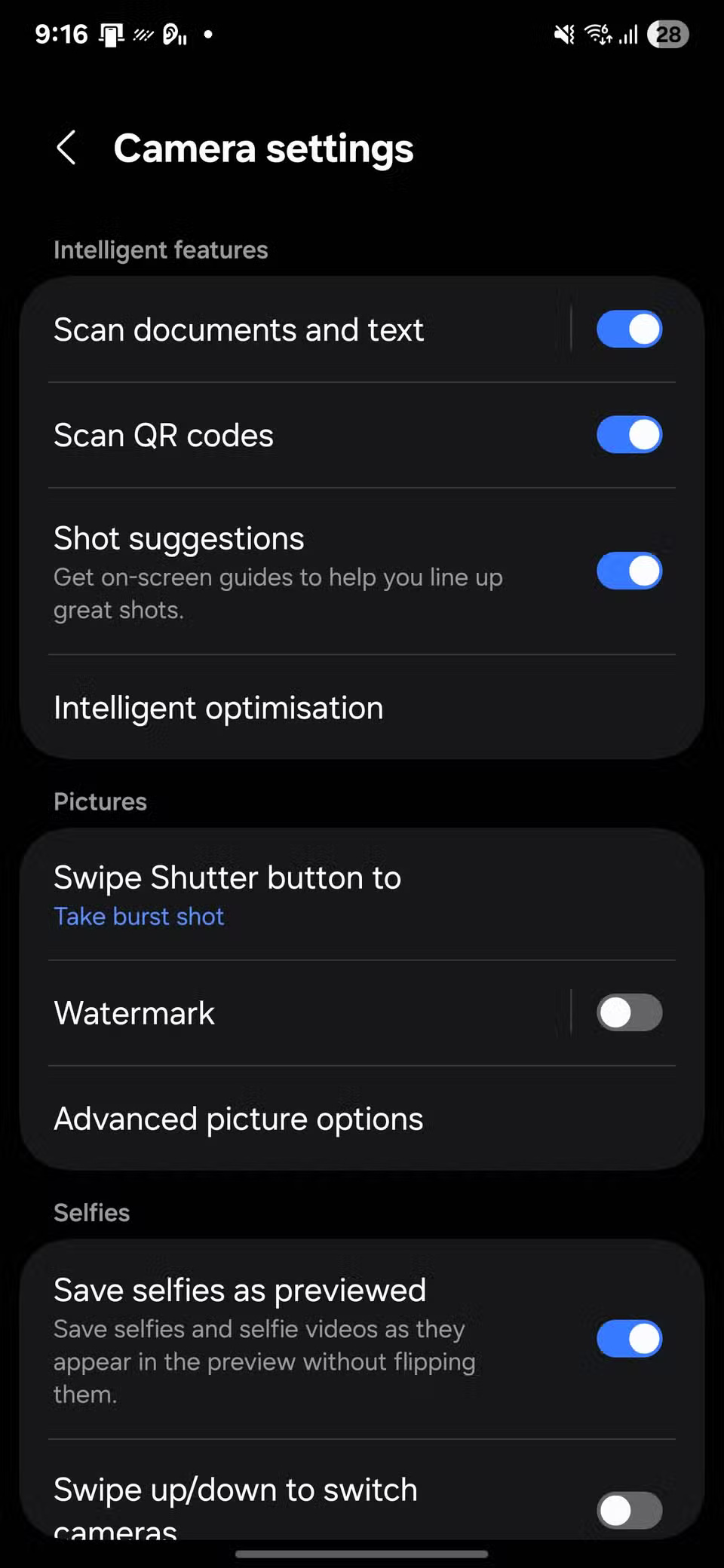
To enable this feature, open the Camera app, tap the gear icon, then scroll down to Pictures . Tap Swipe Shutter button to, which is set to Take burst shot by default. Switch to Create GIF and you're done.
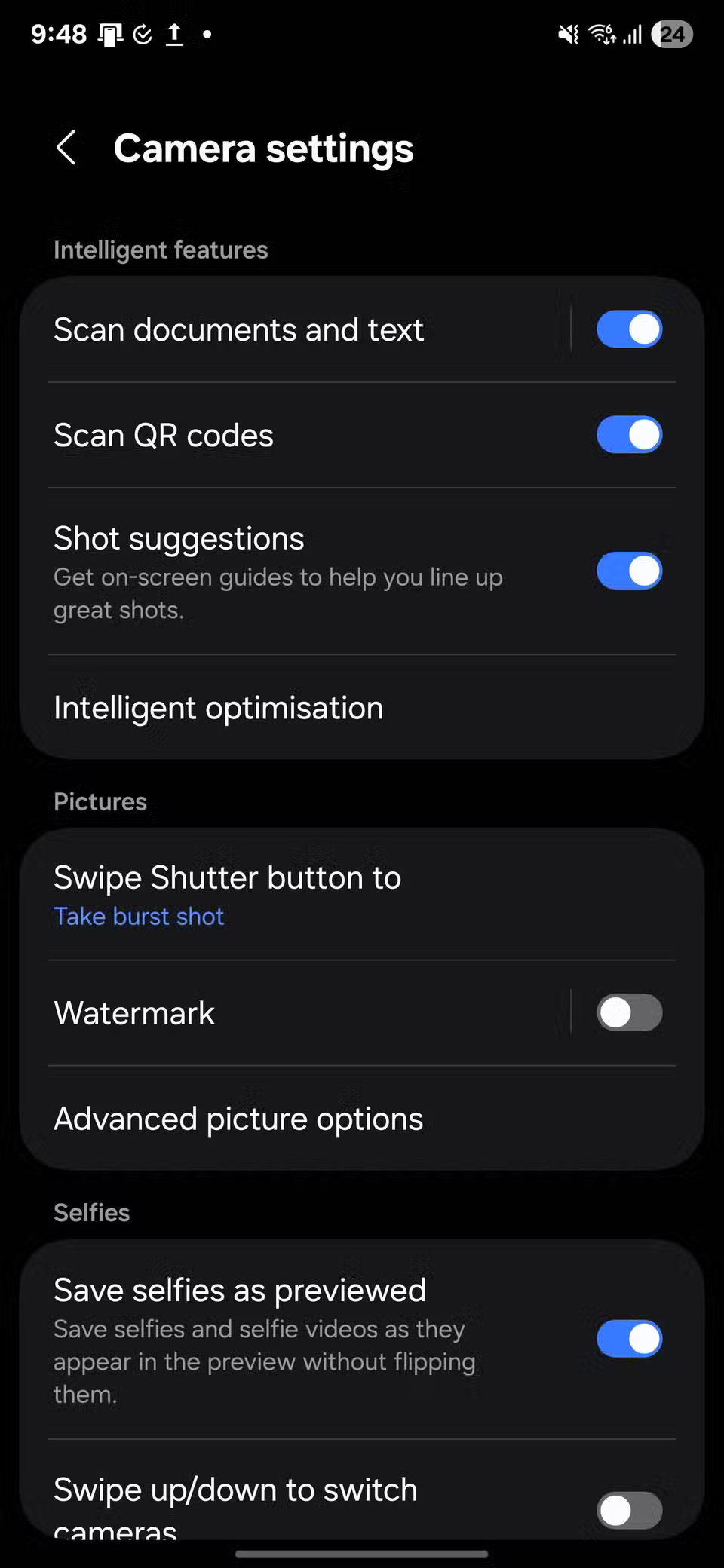
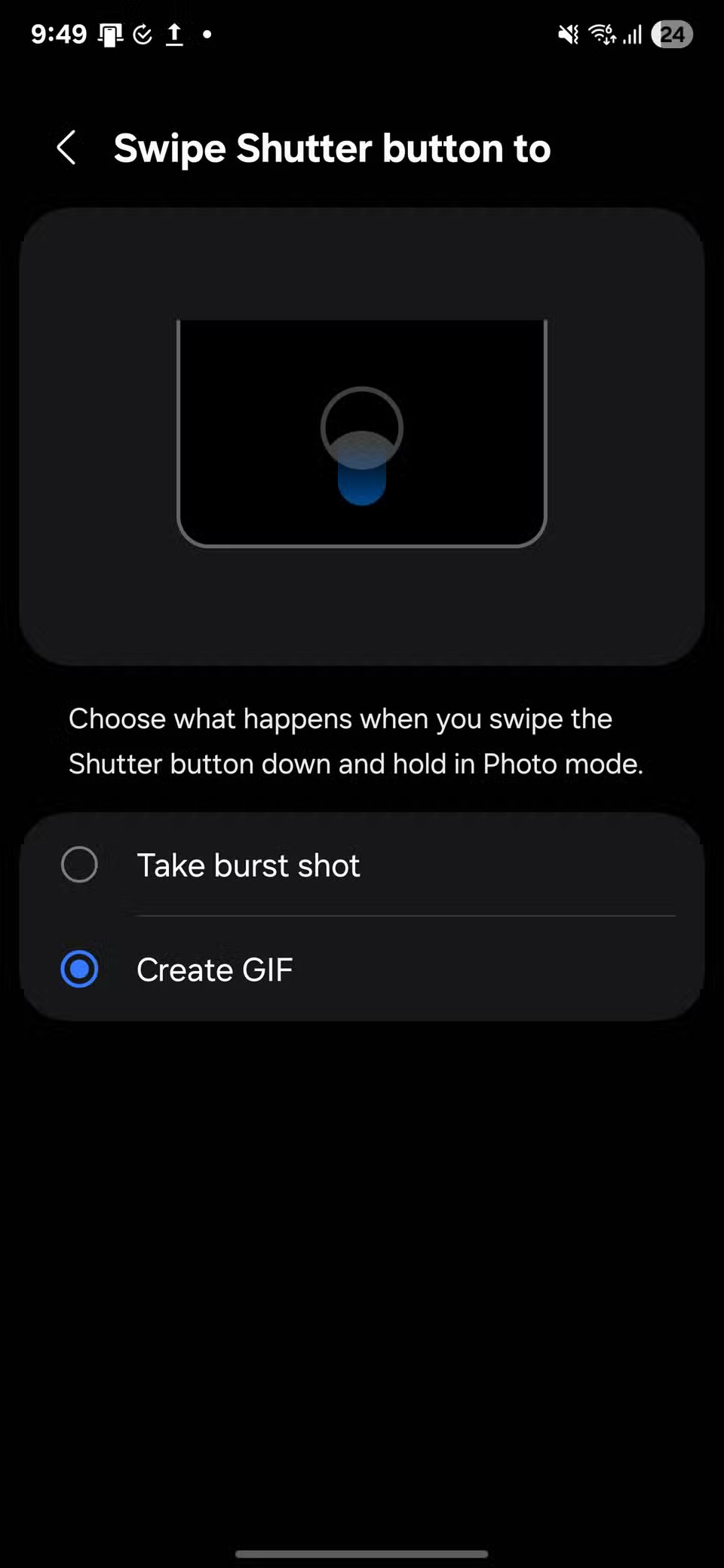
Now, when you're in Photo mode, slide and hold the shutter button down. Your phone will take multiple photos in quick succession and automatically combine them into a short, looping GIF. This works great for reactions, playful expressions, or anything that moves. Once saved, you can share it right away without having to convert.
3. Let the camera optimize your photos for you!
To enable this feature, open the Camera settings and navigate to Intelligent optimisation . From there, turn on Scene Optimizer .
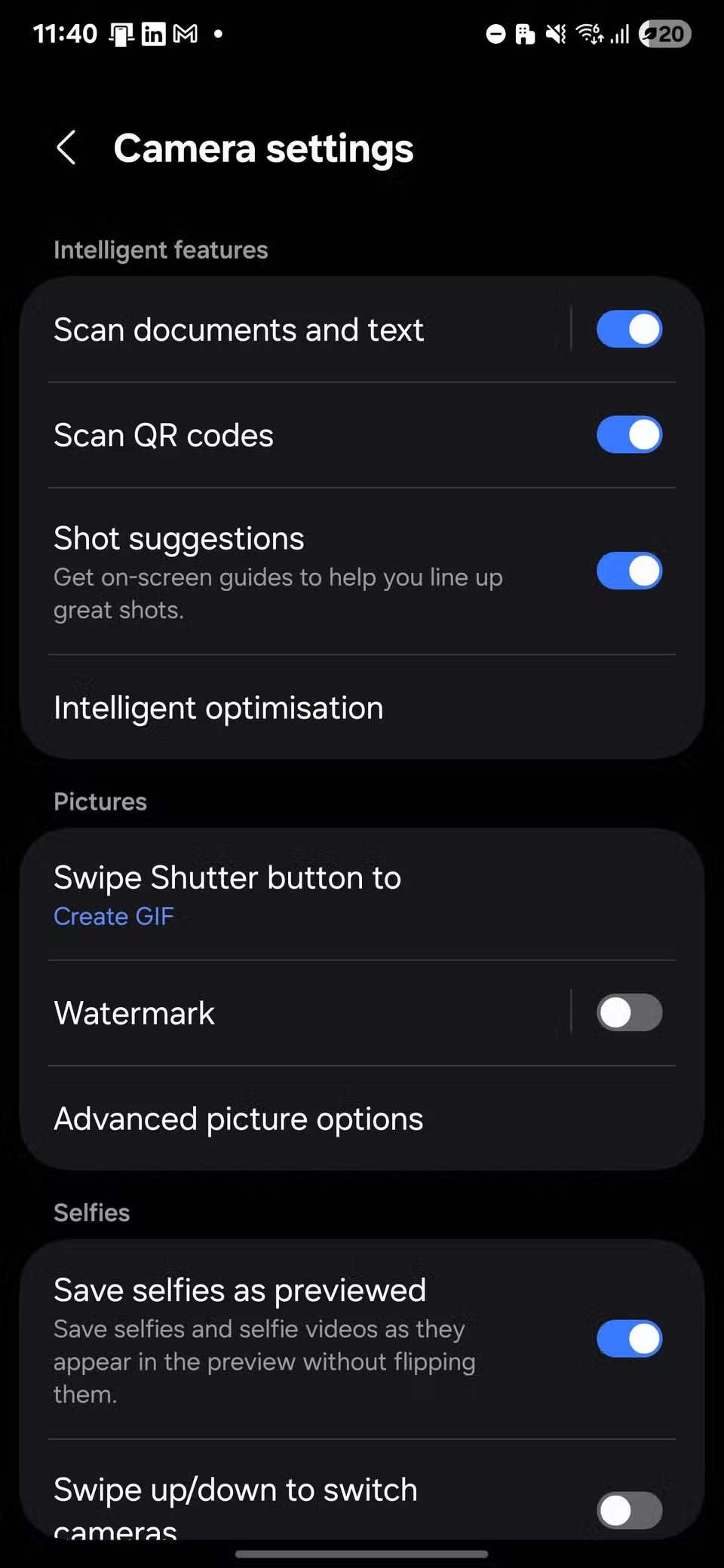
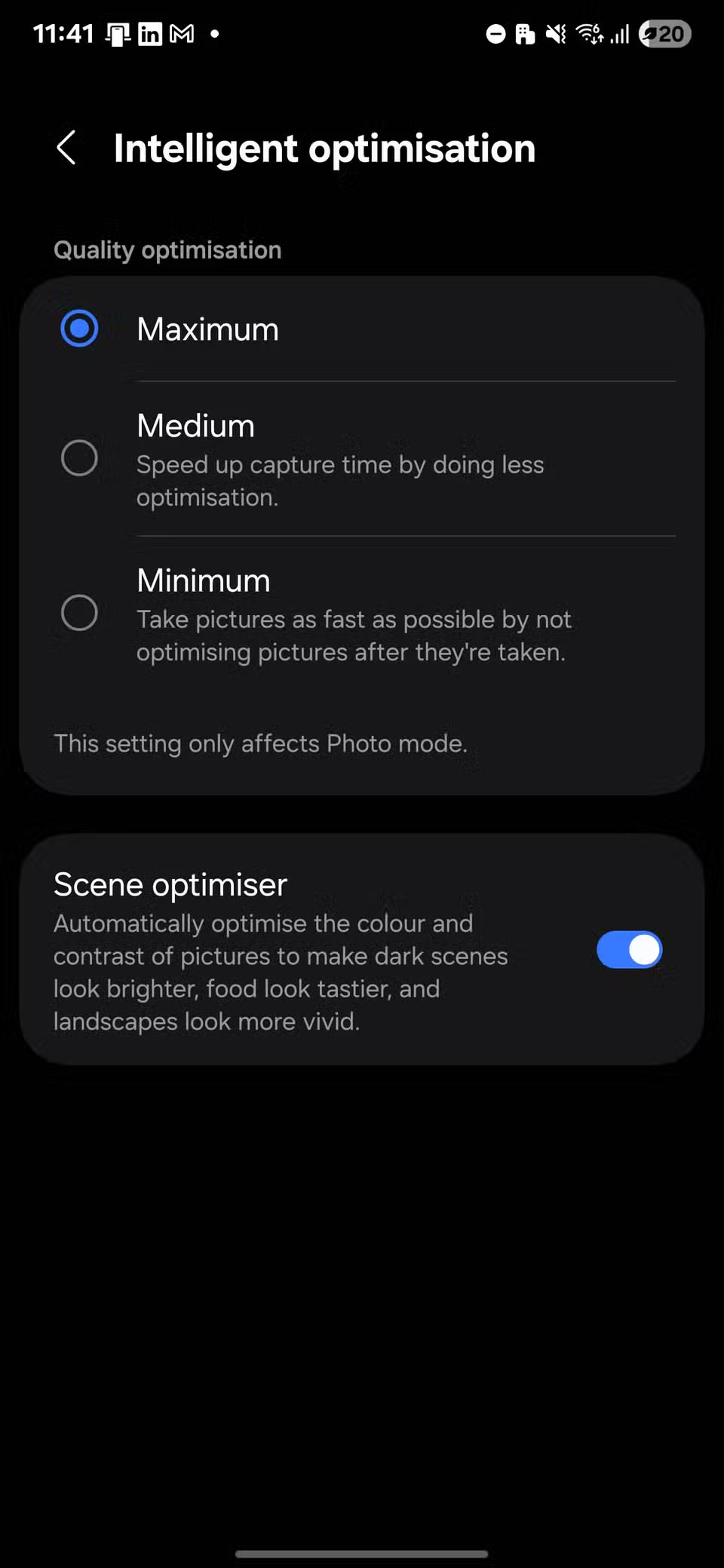
Once turned on, the camera recognizes the scene in real time and applies subtle adjustments to enhance the final result without you having to move a finger.
2. Highlight portraits with Color Point
To try this feature, open the Camera app and switch to Portrait mode. Tap the Effects icon to the left of the zoom controls, then select COLOR POINT from the list of filters.
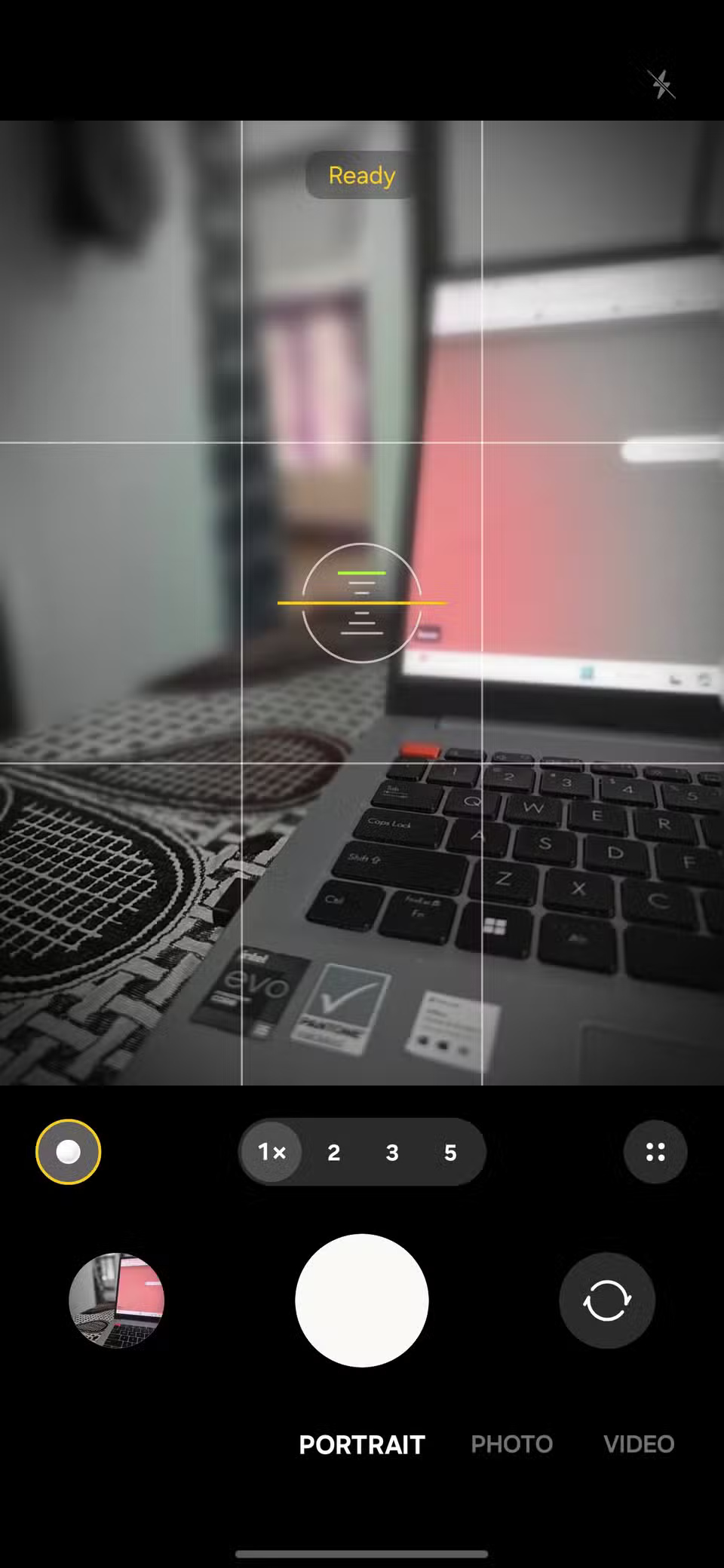
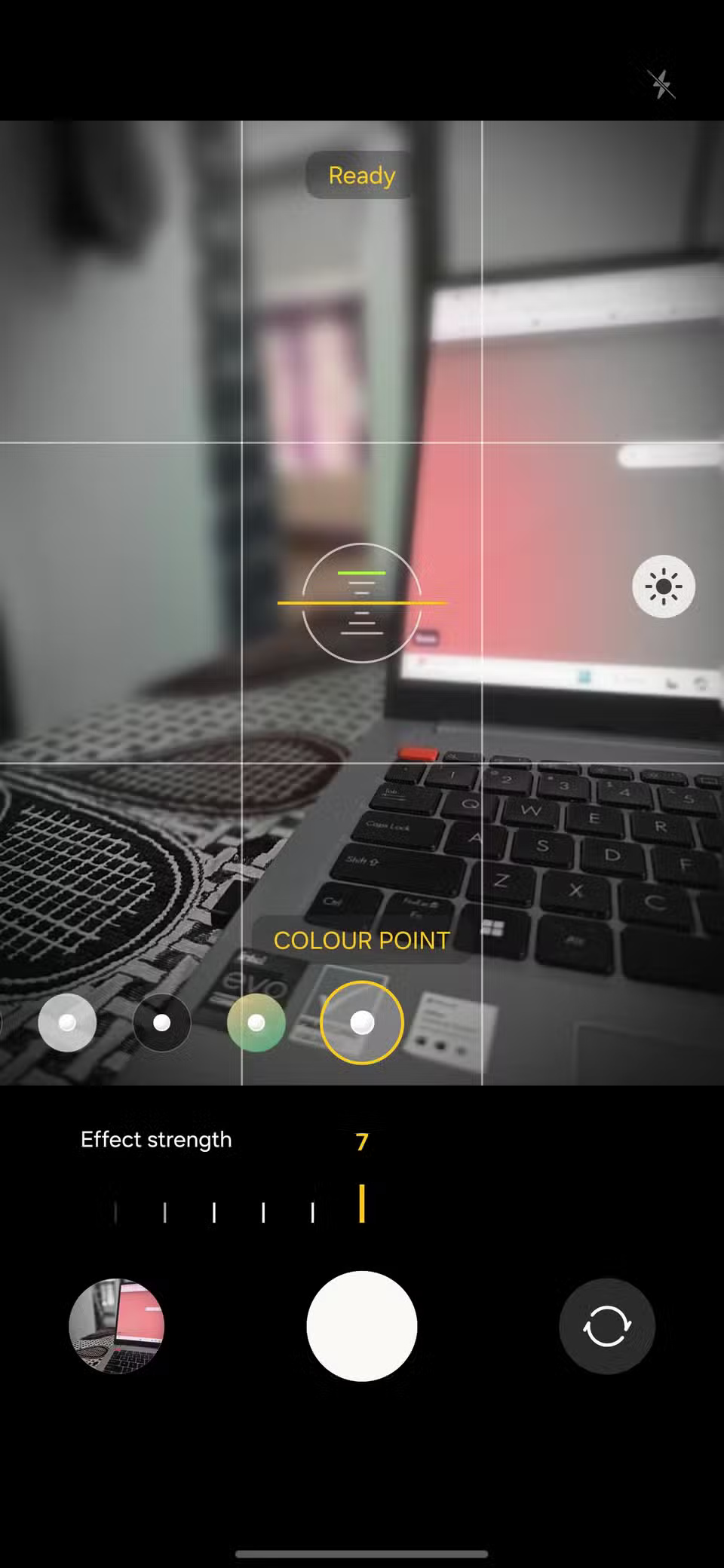
Once selected, the effect will appear directly in the viewfinder so you can align the photo exactly how you want it. You can also adjust the background blur right on the screen using the slider.
1. Turn off camera shutter sound
To set it up, open Settings , navigate to Modes and Routines , then tap Routines . Tap the + icon to create a new routine. Under If , tap + , then search for App opened > Camera and tap Done
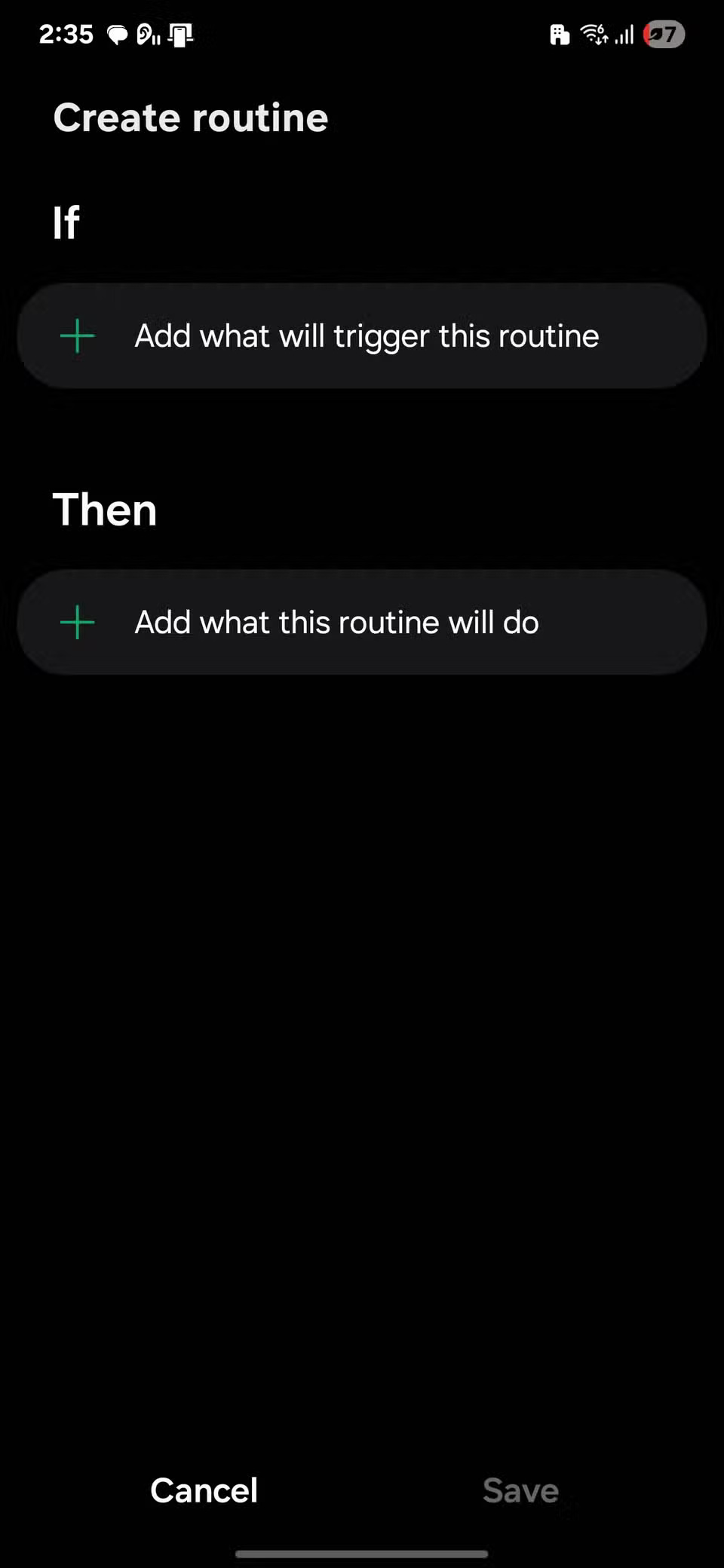
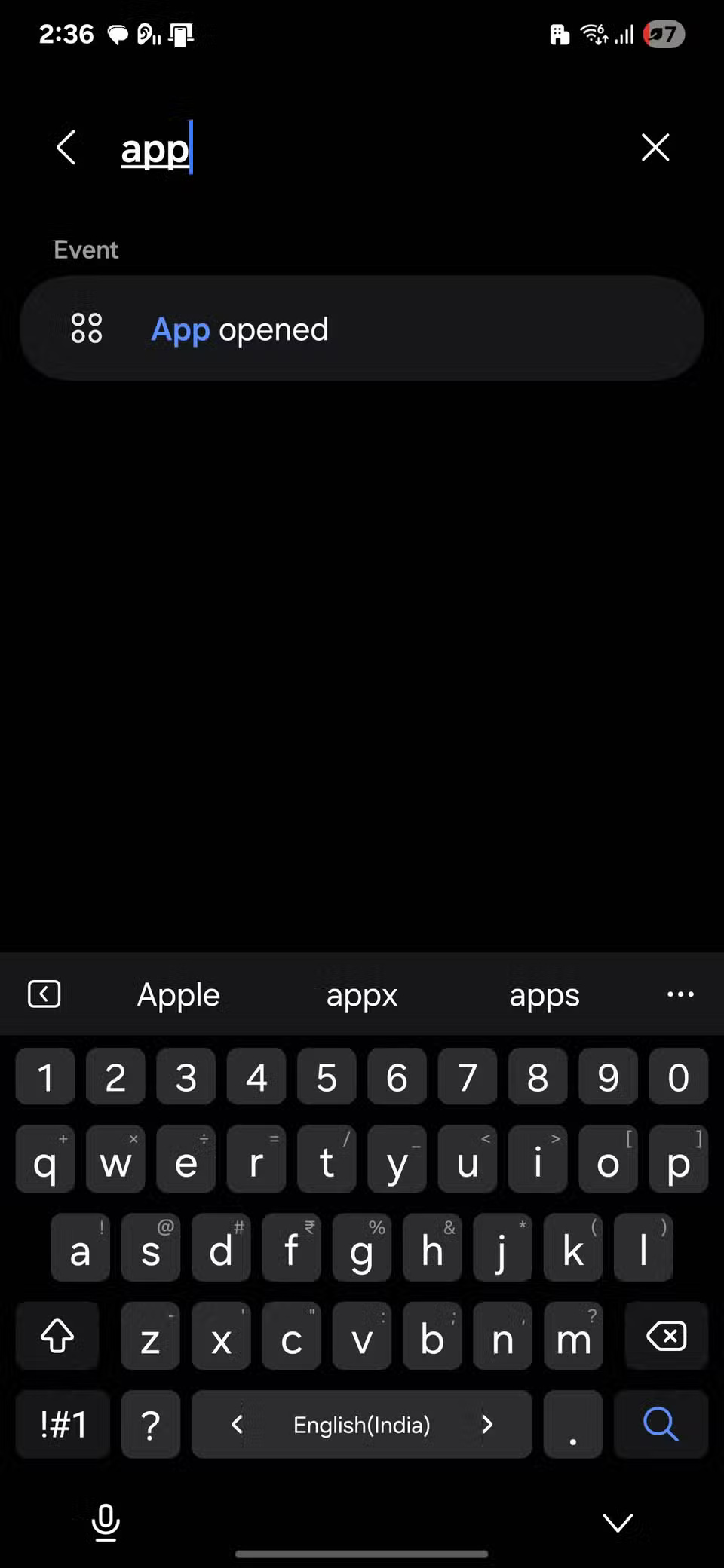
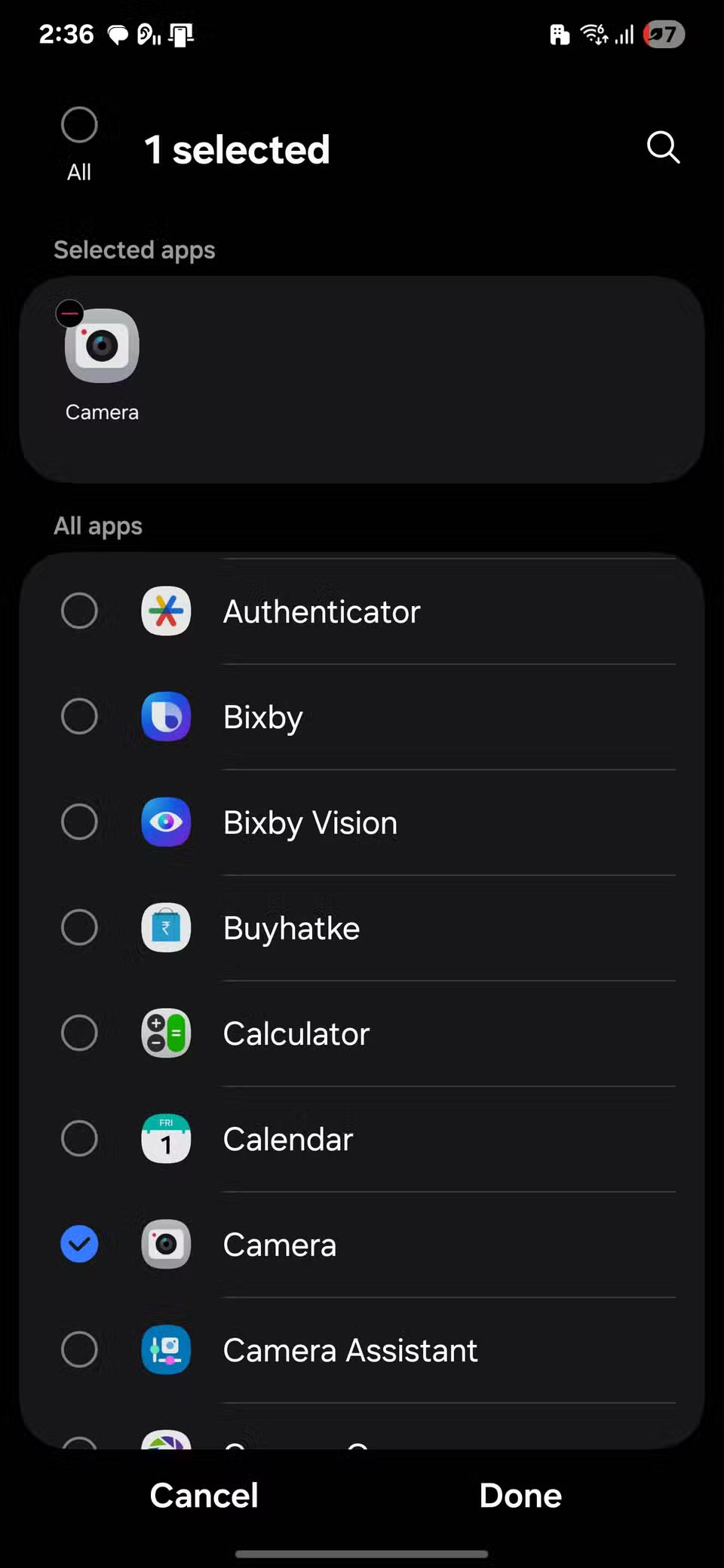
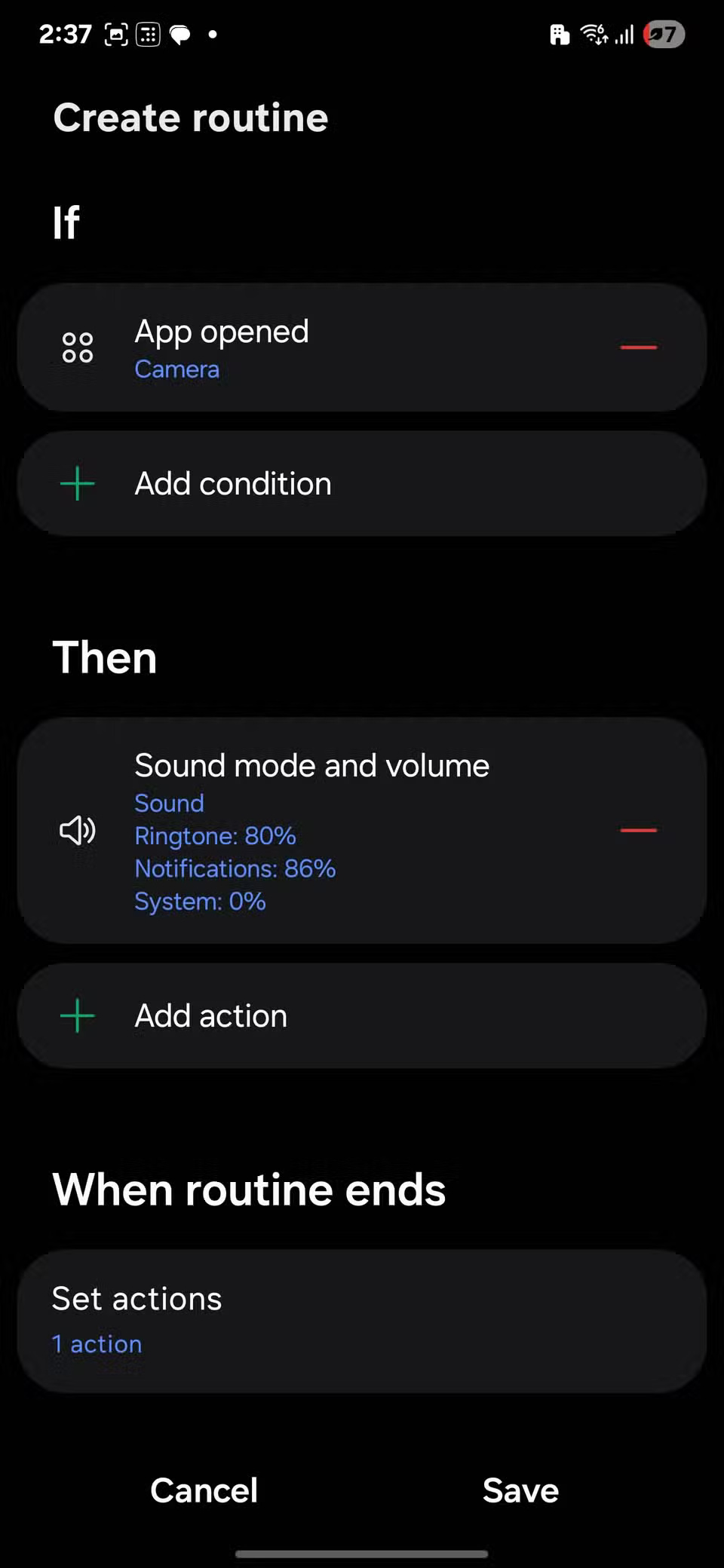
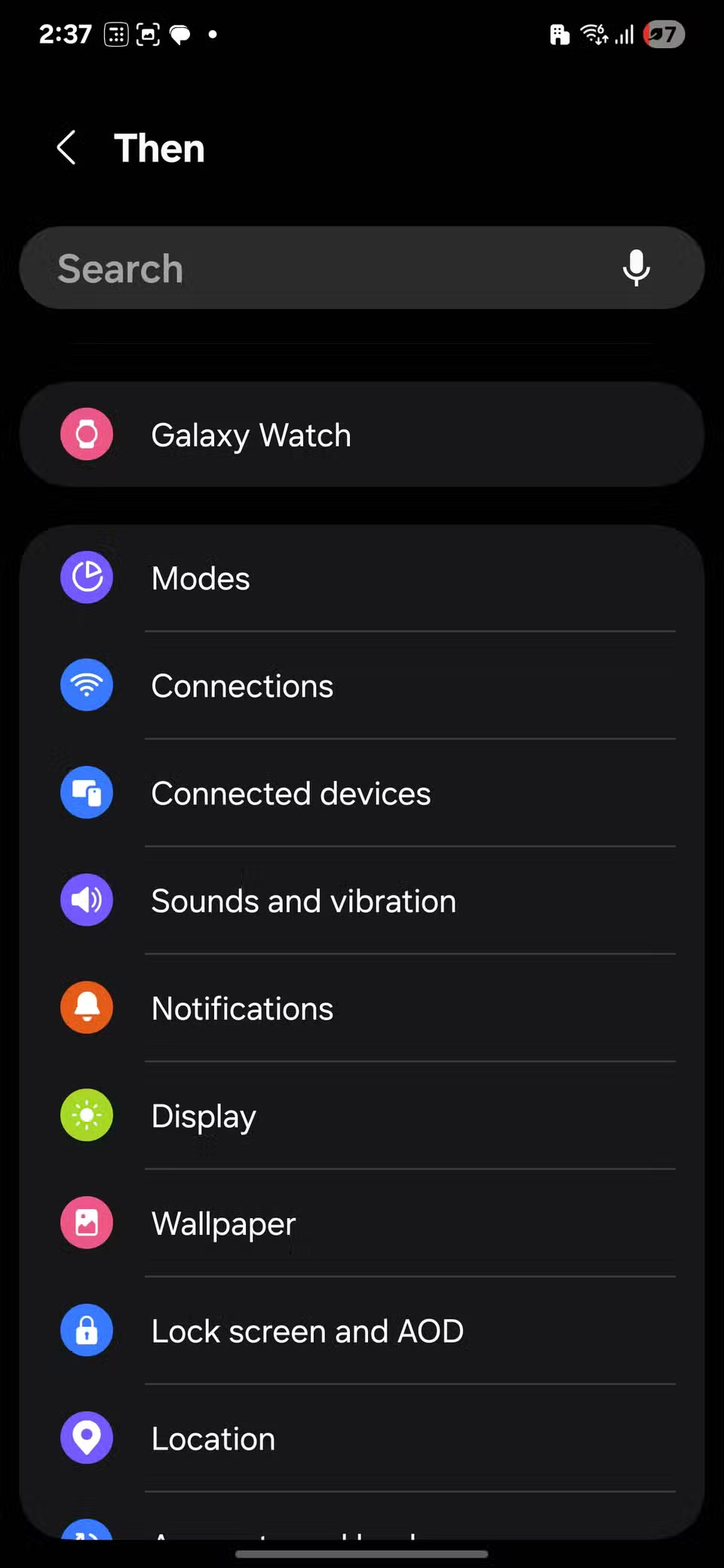
Now, go to Then , tap + , scroll to Sounds and vibration , then select Sound mode and volume. Drag the System sound slider to 0% , tap Done , then select Save . If you want, assign an icon to the routine, then tap Done again to finish setting it up.
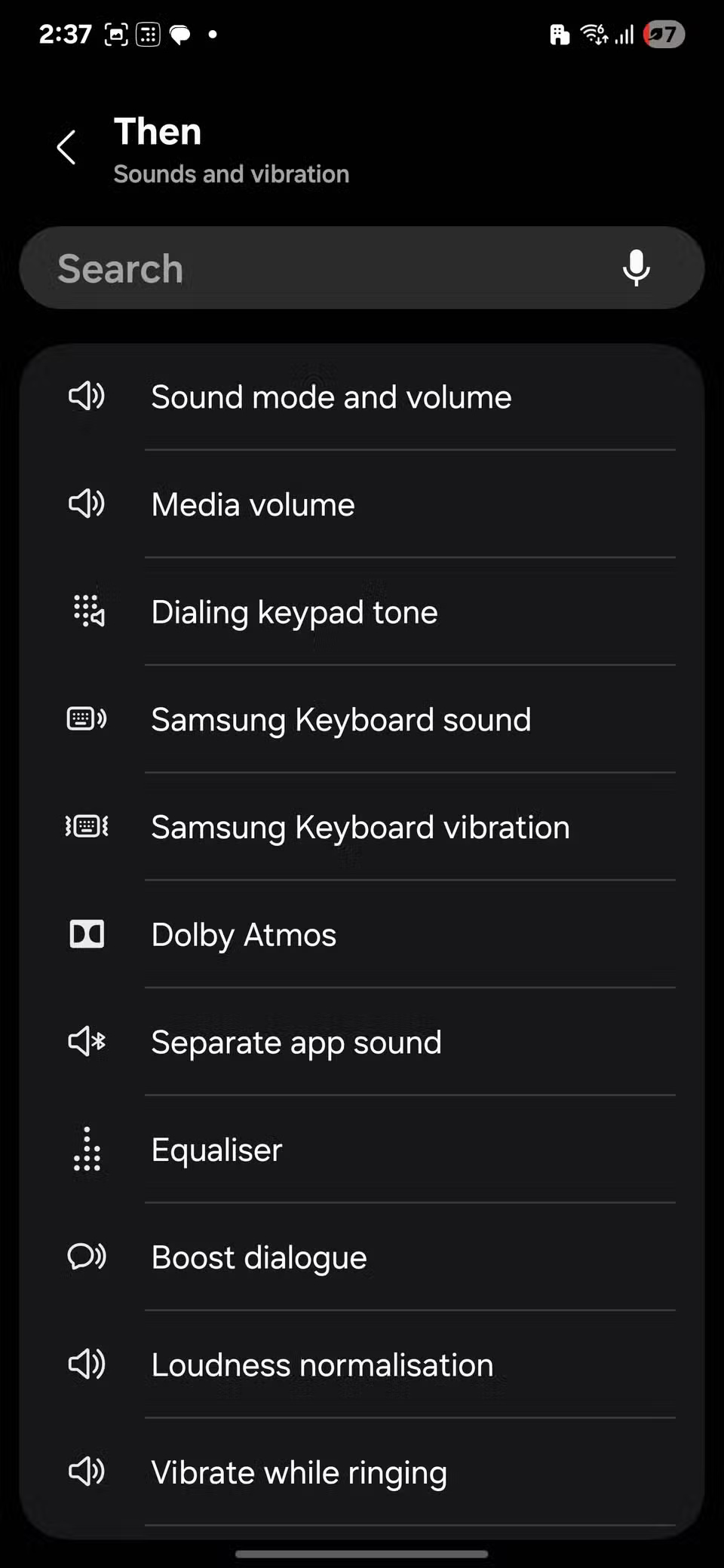
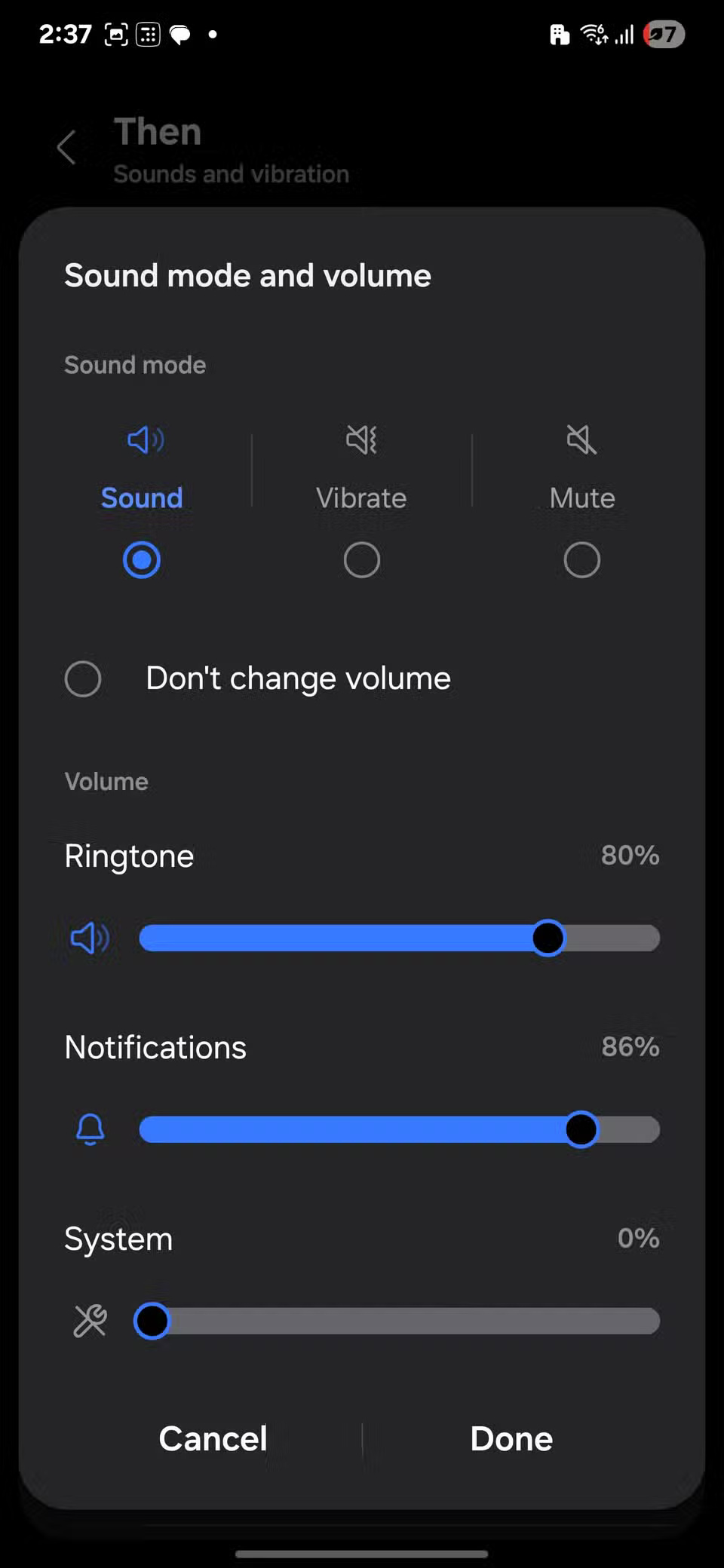
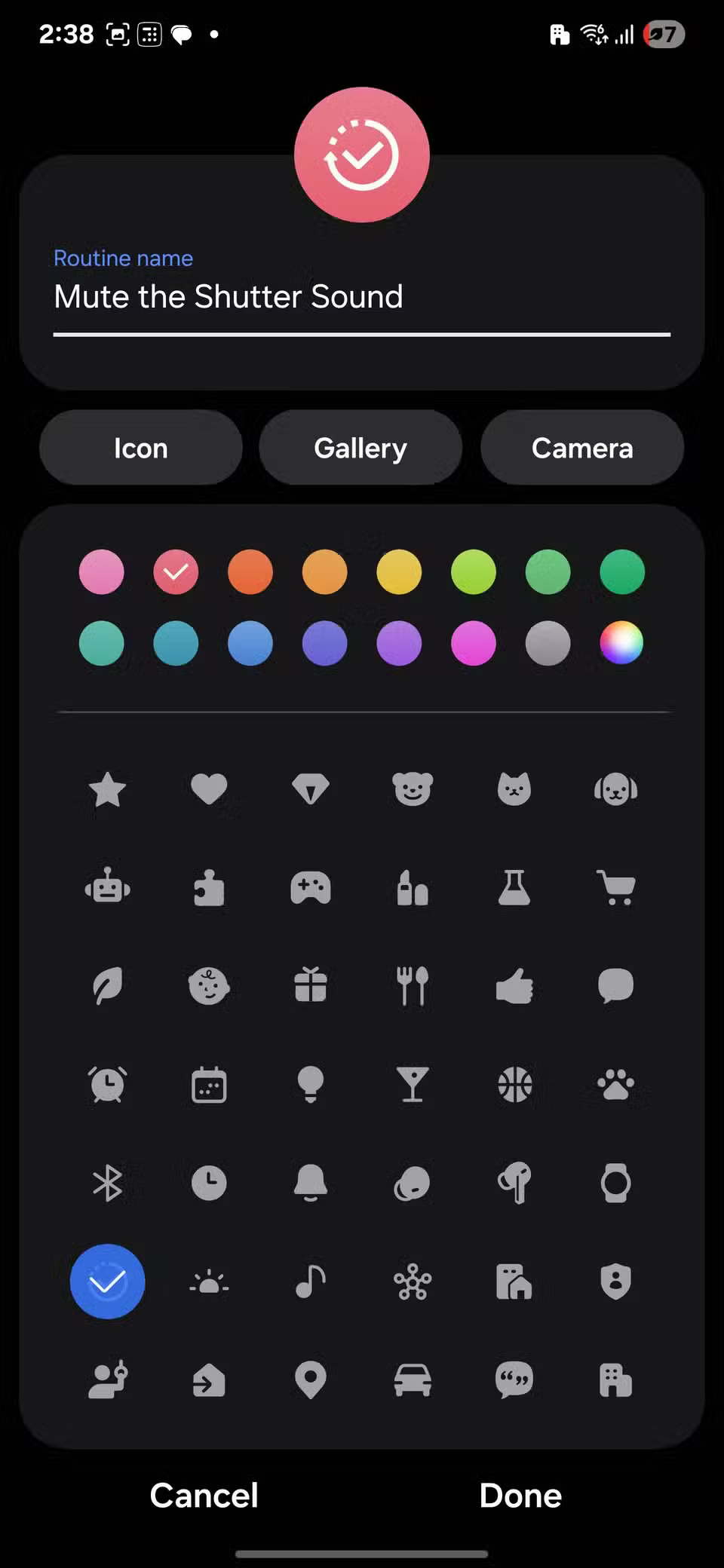
Now your phone will automatically mute the camera shutter sound every time you open the Camera app. No more fumbling with volume buttons or worrying about making noise when you need to keep quiet.
FAQ
What should you know about 6. Record video without turning off the music?
Most phones will turn off the music as soon as you start recording a video, but Samsung phones don't have that limitation. If you're listening to a song from Spotify or YouTube Music, open the Camera app, switch to Video mode, and tap the record button. The music will continue playing in the background, and your phone will.
What should you know about 5. Automatic document capture - No touch required?
To enable this feature, open the Camera app, tap the gear icon, and turn on Scan documents and text. Then tap that icon and turn on Auto scan, which lets your phone take a photo as soon as it detects a stable frame.
What should you know about 4. Turn the shutter button into a GIF maker?
To enable this feature, open the Camera app, tap the gear icon, then scroll down to Pictures. Tap Swipe Shutter button to, which is set to Take burst shot by default. Switch to Create GIF and you're done.
What should you know about 3. Let the camera optimize your photos for you!?
To enable this feature, open the Camera settings and navigate to Intelligent optimisation. From there, turn on Scene Optimizer.
Related Articles
 Top 6 Hidden Cameras to Protect Your House7 minutes read
 How to Detect Hidden Cameras and Microphones13 minutes read
 How to Detect Hidden Cameras in Hotel Rooms4 minutes read
 Ways to Detect Hidden Cameras in Motels and Hotels9 minutes read
 Keep Home Security Cameras Safe: Step-by-Step Guide12 minutes read
 15 Samsung Gear S3 Tips and Tricks You Need to Know12 minutes read
Reader Comments 0
Sign in with email or Google to join the discussion.