Table of Contents
If your laptop camera looks blurry, open your computer’s camera app and compare the live preview with what you see in a call. If the local preview looks clear, check the calling app and connection. If both look soft, start with the lens, lighting and focus.
Clean the lens and add light
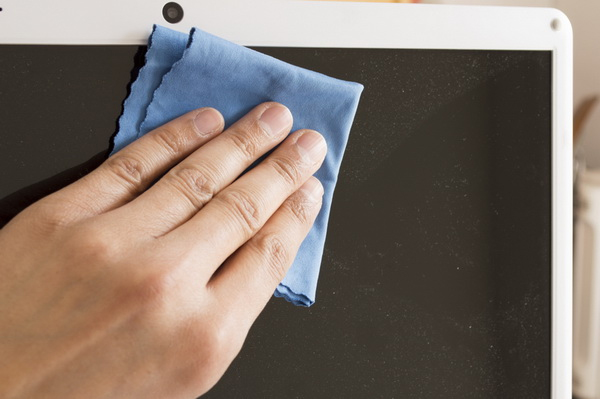
Open any privacy shutter fully and check whether a removable protective film or webcam cover overlaps the lens. Wipe the outside gently with a clean, dry microfiber cloth. Leave the display bezel in place. If you see moisture inside the camera or the lens cover is scratched, check your warranty or contact the laptop manufacturer.

Face a window or lamp so that your face is lit from the front. In a dim room, the camera may use a longer exposure, which makes movement look smeared. A bright window behind you can also make your face hard to see.
Check focus in a local preview
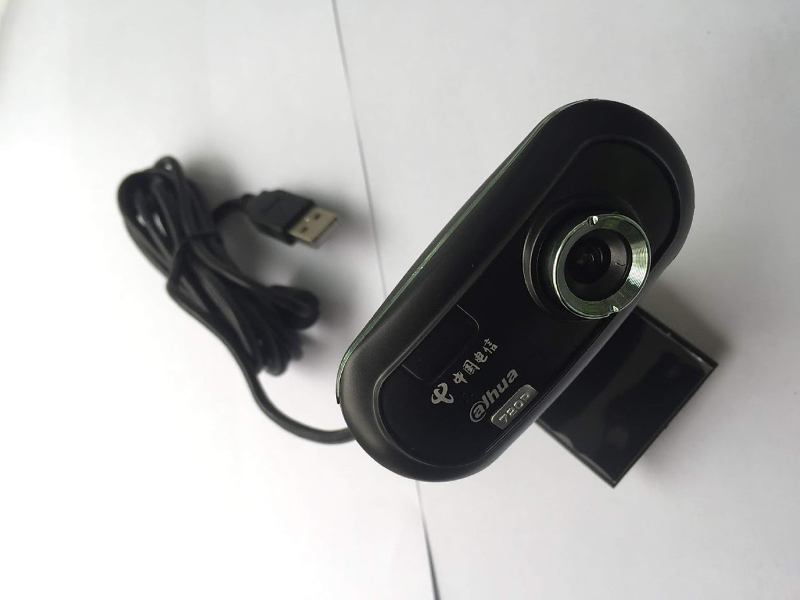
On Windows, open Camera from Start. On a Mac, use Photo Booth. Sit at your normal screen distance and move a little closer and farther away. Some built-in cameras have a fixed focus and look soft when you lean in. If an external webcam has a focus ring, turn it slowly while watching the preview. Check its camera settings if it supports autofocus.
If the blur only appears on calls
- Choose the intended camera in the meeting app. It may be using the built-in camera even when you have a USB webcam connected.
- Turn off background blur, portrait effects, digital zoom and appearance filters. Re-enable them one at a time if the picture clears.
- If your local picture stays sharp but other people see a soft or blocky image, pause uploads and test on a stronger Wi-Fi connection or Ethernet. The app may be reducing video quality to keep the call running.
If the camera is still blurry or missing
Close other apps that use the camera and restart the laptop. If the camera is missing or the preview is blank, check the privacy shutter and camera permissions. Where a driver update is needed, use Windows Update or the laptop maker’s support page for your exact model. If the built-in camera stays blurry in good light across multiple apps, try a known-good USB webcam. A sharp picture from the external webcam helps isolate the issue to the built-in camera.
Related Articles
 How to Fix a Blurry Laptop Screen or Bright White Spots
 How to fix iPhone camera error simply and effectively
 Laptop Screen Dim, Blurry, or Flickering? Causes and Fixes
 Causes and how to fix dark, dim laptop screen
 How to fix laptop camera left and right reversed win 10 effectively
 Why can't my laptop open the camera? Steps to turn on the camera on the laptop
Reader Comments 0
Sign in with email or Google to join the discussion.