Table of Contents
System Preferences is the Control Panel on the Mac
This guide provides a practical overview of Is the Control Panel on the Mac, including its main features, benefits, limitations, and important considerations.
On newer Mac and MacBook desktops, System Preferences will be defaulted right out of the Dock. It's gray, the icon is a cog, click on it to open System Preferences.
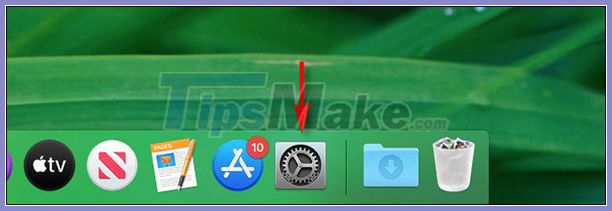 The System Preferences icon in the Dock
Another way to open System Preferences
If the System Preferences icon is not in the Dock, or you want to get to it faster, click the Apple icon in the left corner of the screen and choose System Preferences.. from the list.
 Accessed from the Apple menu
Another way is to use Spotlight or Launchpad search. With both of these methods, you must type system preferences then press Enter to open the app.
A quick introduction to System Preferences
After opening System Preferences, you will see a window with lots of icons divided into four sections.
 Four sections are in the System Preferences menu
First, we have the Apple account area. If you are signed in to your Apple account, click on it to change the personal information on your account, iCloud settings, App Store payment methods.
Just below are basic macOS software tuning settings, including Dock, wallpaper, and notifications. These settings will show how the Supported operating systems works.
Next we have the hardware settings of the Mac, have audio input and output, mouse or trackpad, Bluetooth, monitor.
Finally, you will see a few icons for external applications, such as Adobe Flash. Every icon here (if applicable) is installed and is not an official macOS app.
Adjust System Preferences
Using System Preferences is easy, just find the setting you want to change and click on it.
Usually, you can use the two arrow buttons at the top of the System Preferences window to switch between tabs in an application. You can also click the main menu return button (the button with 12 black dots) to see the entire Preferences menu again.
 The main controls on System Preferences
If you can't find the setting you want to fix, you can use the 'Search' bar in the right corner of the window to search in System Preferences.
 Search bar
Click on a result that most closely resembles what you're looking for and you'll be taken straight to the feature settings page.
FAQ
What should I know about Is the Control Panel on the Mac?
Focus on the key features, requirements, limitations, and practical use cases explained in this guide.
How do I get the best results with Is the Control Panel on the Mac?
Follow the recommended steps, use current software or information, confirm compatibility, and review settings before major changes.
Are there any risks or limitations?
Potential limitations depend on compatibility, data quality, cost, privacy, support, and how the product or method is used.
Related Articles
 Instructions to Disable Control Panel on Windows 74 minutes read
 How to Open Control Panel on Windows 10, 8.1, 712 minutes read
 Control Panel Will Soon Disappear on Windows 103 minutes read
 Menu: Quickly Open the Control Panel Tools3 minutes read
 Learn Control Panel in Win. XP: Tips and Examples5 minutes read
 Change the Default Control Panel View to a Windows Computer6 minutes read
Reader Comments 0
Sign in with email or Google to join the discussion.