Table of Contents
Overview
This guide explains MBR and GPT hard drives in clear, practical terms. It covers the key concepts, recommended steps, common limitations, and useful checks so you can make a better-informed decision.
When using hard drives, we often come across two popular formats: MBT and GPT. So what are these two standards? How are they different? How to distinguish them? Let's explore through this article!

What Are MBR and GPT standard hard drives?
MBR
MBR – Abbreviation for Master Boot Record (roughly translated as boot management record) is a standard for managing distributed information that was born in 1983 at the same time as IBM PS DOS 2.0. But until now it is still widely used. MBR can support hard drives with a maximum capacity of 2 TB (2000 GB) and can support up to 4 partitions on the drive.
GPT
GPT stands for GUID Partition Table. This is a new standard, gradually replacing the MBR standard.
GPT is linked to UEFI, which is replacing the aging BIOS on many new motherboards. It's called a GUID Partition Table because every partition on your drive has a 'globally unique identifier' (GUID). GPT doesn't have the limitations of MBR, it can support drives up to 256TB and allows for up to 128 partitions on a drive.
How are they different?
| Advantage | Disadvantages | |
| MBR hard drive | Works well on all current Windows platforms, meaning compatibility with many new and old computers. | MBR data is stored only on a certain partition, so it is prone to errors and cannot be recovered. Supports up to 4 primary partitions. If you want to divide the hard drive into multiple partitions, you must create a Logical partition (Extended Partition), but this method has some limited features (such as not being able to boot, not being able to install Win,.). |
| GPT hard drive | It is easy to recover data if something goes wrong, because the GPT format allows boot data to be stored in multiple locations on the hard drive. There is an automatic error detection and correction mechanism (CRC32) from another location on the hard drive. Supports up to 128 primary partitions, with extremely large partition sizes (up to 256 TB). Use on many operating systems: Windows, Linux,. including Apple's MAC OS X. | Supported on 64-bit Windows only. |
Should I use MBR or GPT standard?
After learning about the two hard drive standards MBR and GPT, many people wonder whether to use MBR or GPT hard drive on their computer. Depending on the case and usage needs, we can flexibly switch and use differently. Here are some suggestions:
Use MBR hard drive standard when
- Hard drive capacity is less than 2 TB. If the hard drive has a larger capacity, you can still use the MBR partition standard but must use additional 3rd party software to support it, such as GParted on Linux, or MBR4TB on Windows.
- There is no need to create too many partitions (split drives).
- Your computer is running 32-bit Windows operating system.
Use GPT standard hard drive when
- Your hard drive is larger than 4TB.
- The computer boots in UEFI standard, installing Windows on a GPT hard drive is suitable.
- Use only 64-bit versions of Windows.
Depending on your computer's characteristics, you can choose between MBR or GPT.
If your computer uses Windows 7, 8, 8.1, 10 64bit version and uses UEFI standard, you should choose GPT standard for hard drive.
If your computer is an old computer, it is more reasonable to use MBR.
How to identify which hard drive is MBR standard, which is GPT
- Step 1: Press the Windows + R key combination to open the Run dialog box, then type diskpart and select OK to access.

- Step 2: Diskpart interface appears. Here you enter list disk and press Enter.
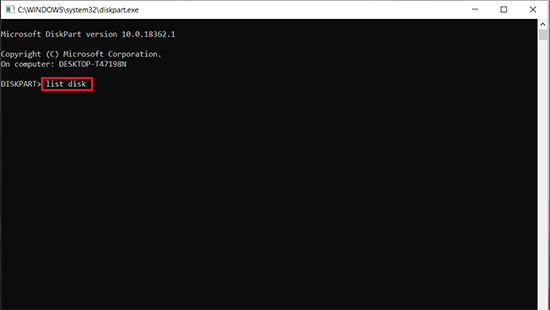
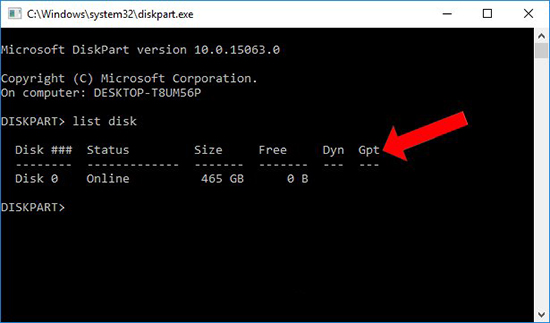
- Step 3: Pay attention to the Gpt column, if the hard drive name in the GPT column has an *, then that hard drive follows the GPT standard.
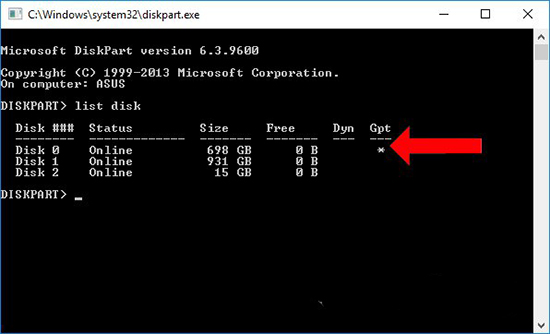
If the GPT column does not have an *, it is MBR standard.
Key Takeaways
Use the guidance above as a practical reference for MBR and GPT hard drives. Check compatibility, follow the steps carefully, and verify important details with official documentation when software, security, accounts, health, or purchases are involved.
FAQ
What is MBR and GPT hard drives used for?
MBR and GPT hard drives is used for the purposes described in this guide. Its practical value depends on your goals, device, workflow, and required features.
What are the main benefits and limitations of MBR and GPT hard drives?
The benefits may include convenience, performance, or greater control, while limitations can involve cost, compatibility, complexity, or security.
How do I decide whether MBR and GPT hard drives is right for me?
Compare its requirements, limitations, cost, compatibility, and real-world value with your own priorities before making a decision.
Related Articles
 Differences Between SSD and HDD Hard Drives7 minutes read
 Looking Back on 60 Years of Miraculous Development of Hard Drives6 minutes read
 Multi-level SSD: Slc, Mlc, Tlc, Qlc and Plc?9 minutes read
 4 Ways to Reuse Hard Drives7 minutes read
 The Best External Hard Drives for 20205 minutes read
 8 Other Uses of External Hard Drives/NAS Besides File Storage7 minutes read
Reader Comments 0
Sign in with email or Google to join the discussion.