Table of Contents
Windhawk offers modules to fix almost everything you find annoying about the Taskbar, from the lack of styling options to the lack of features that come standard.
The Windows 11 taskbar looks modern, but it's surprisingly rigid. Beyond a few basic tweaks, Microsoft gives you very little room for personalization, even less than in previous versions of Windows. Windhawk is a Windows customization platform that changes all that.
Windhawk offers modules to fix almost everything you find annoying about the Taskbar, from the lack of styling options to the lack of features that come standard. You can make the Taskbar transparent, change its position, resize it, add new tricks, and turn the Windows 11 Taskbar into something that actually works the way you want it to.
6. Freely resize Taskbar
Make it higher or lower
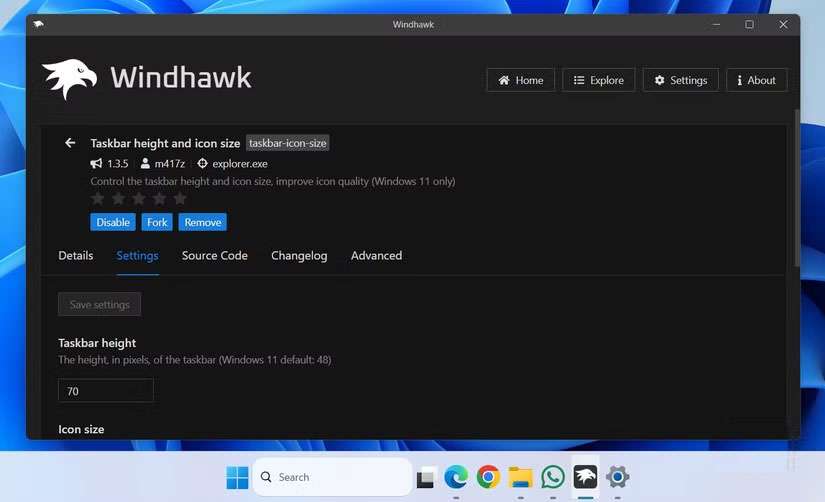
The Windows 11 taskbar is a reasonable size by default, but unlike Windows 10, there's no built-in option to resize it. It's one size fits all - and if that doesn't suit you, then too bad.
Windhawk's Taskbar Height and Icon Size Module lets you overcome this limitation. You can adjust not only the height of the Taskbar, but also the size of the icons on it.
5. Bring back the vertical Taskbar
Move it aside like old times
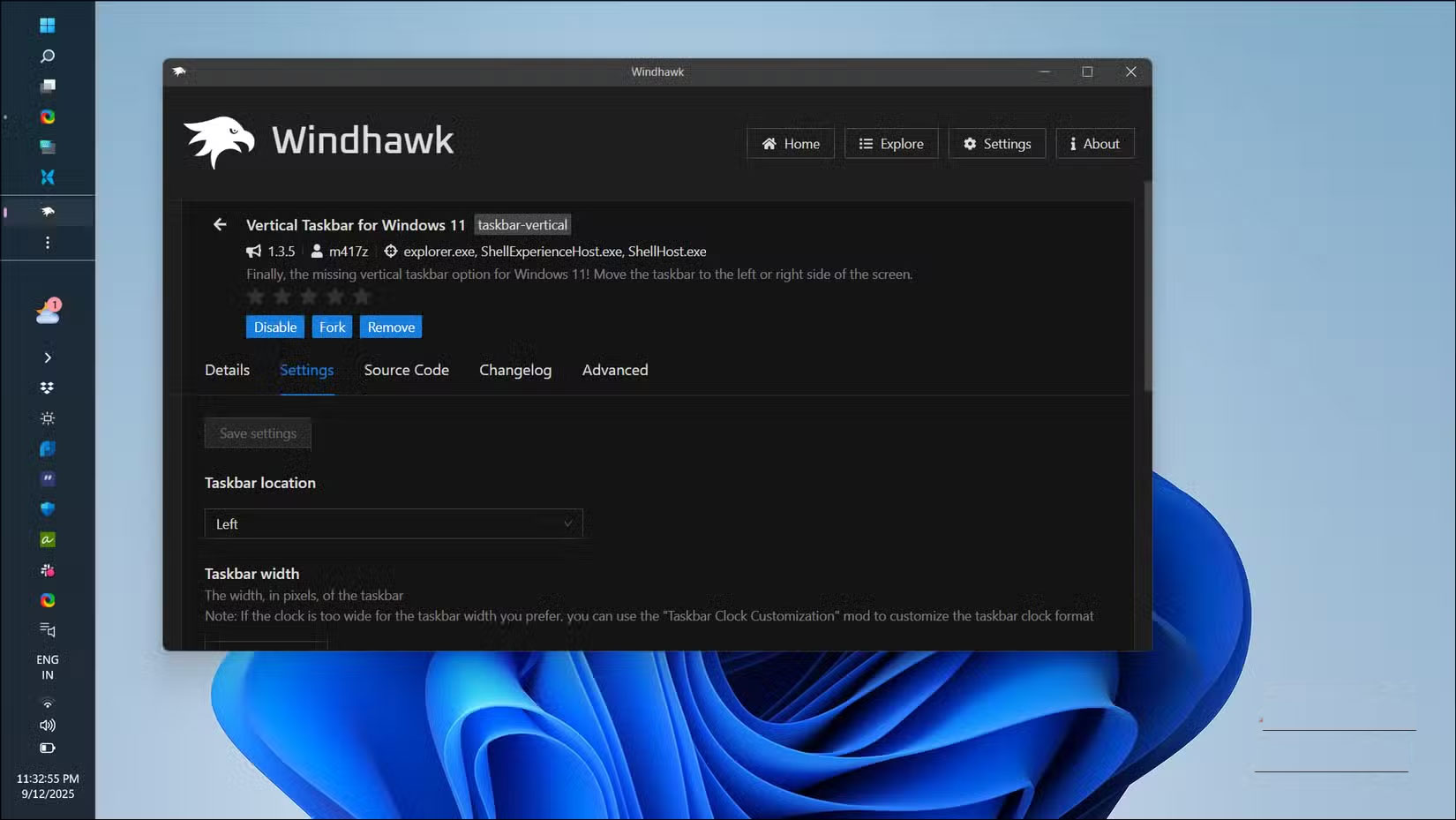
One of the most noticeable changes in Windows 11 is the loss of the true vertical Taskbar.
Windhawk's Vertical taskbar for Windows 11 Module restores that missing feature. With it, you can move the Taskbar to the left or right edge of the screen, just like in older versions of Windows. You can also customize the width of the Taskbar so you can make it as thin or as wide as you like.
4. Multiple styling options
From transparency to color tweaks, make your taskbar your own!
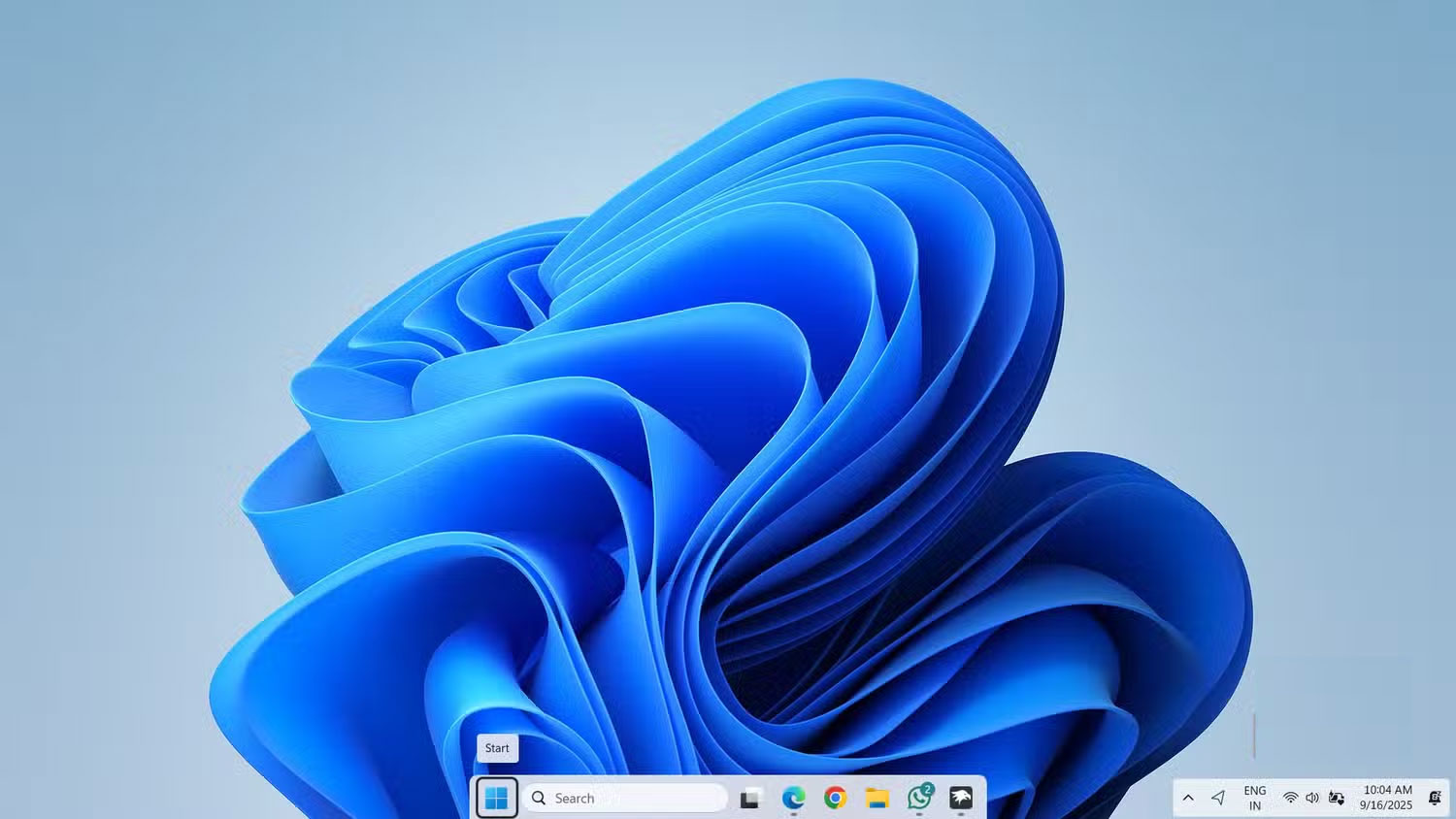
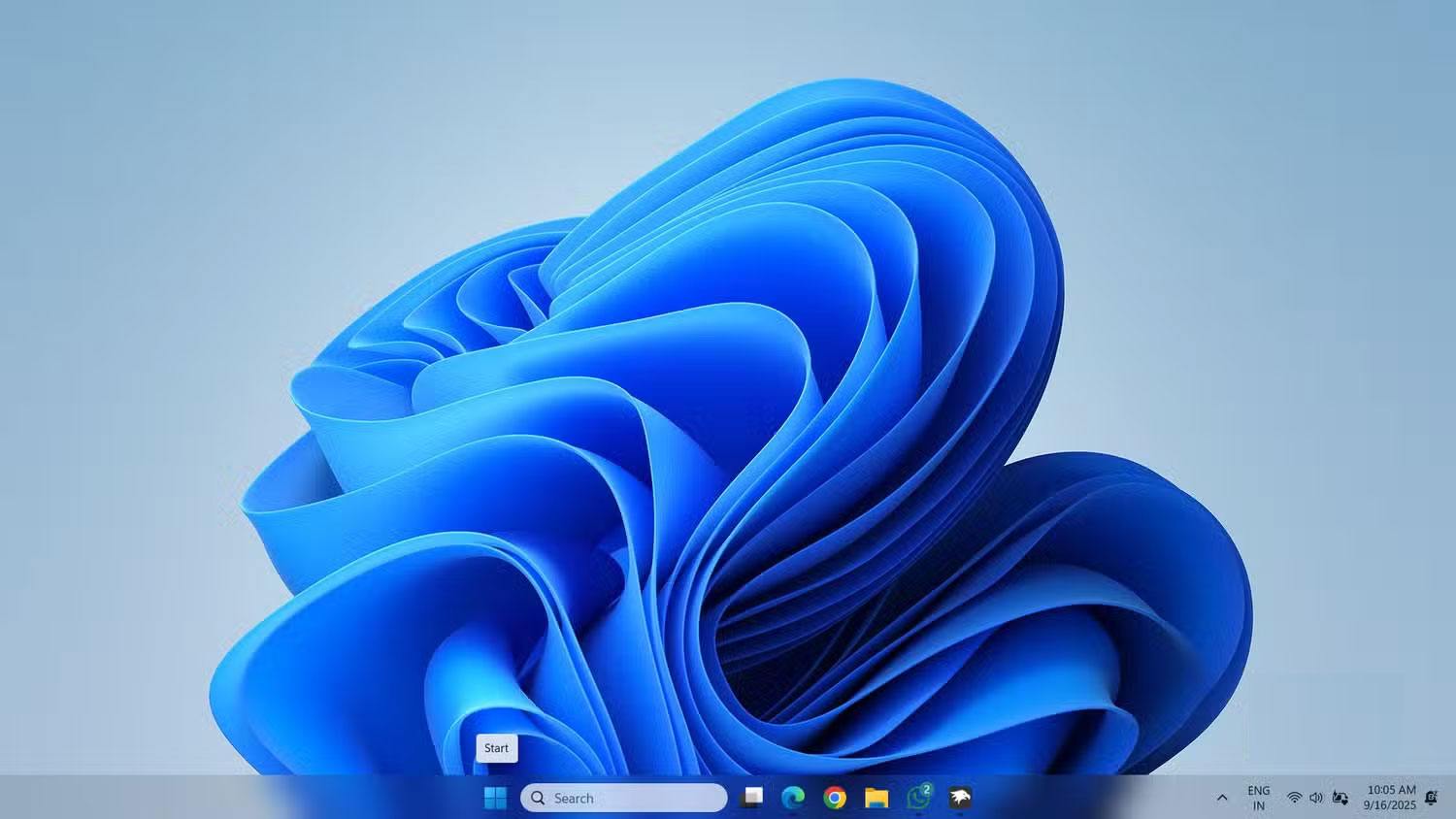
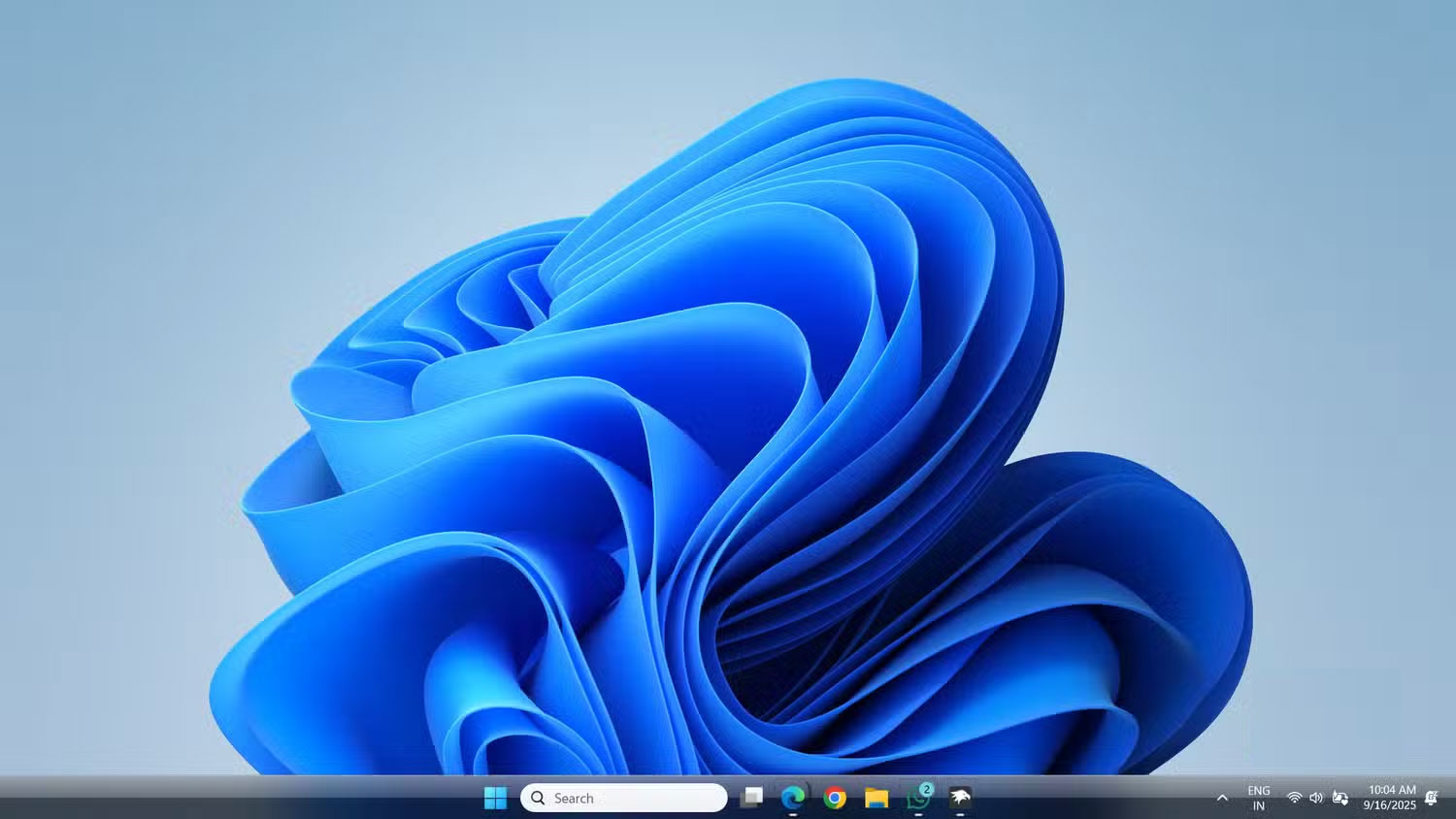
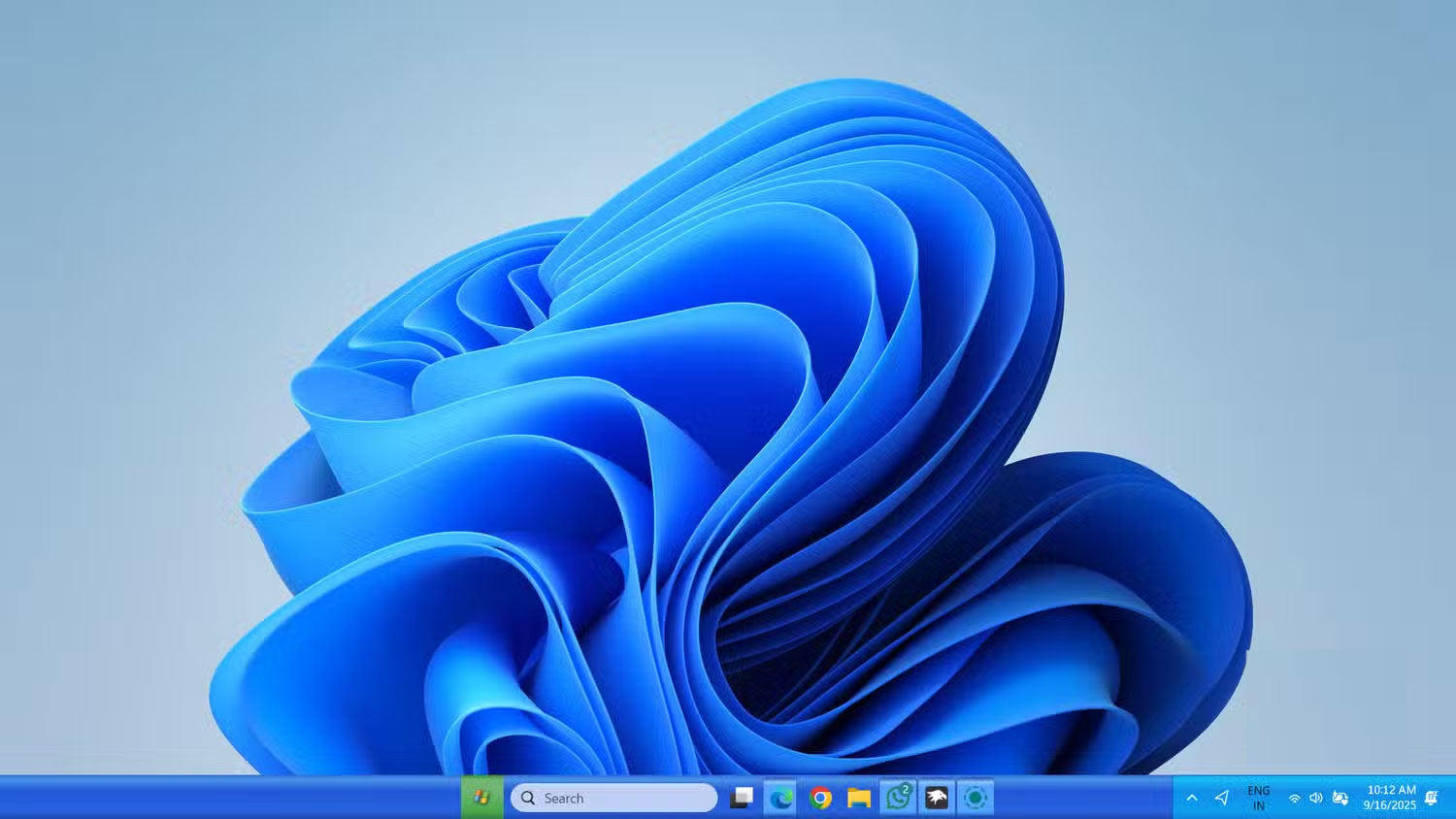
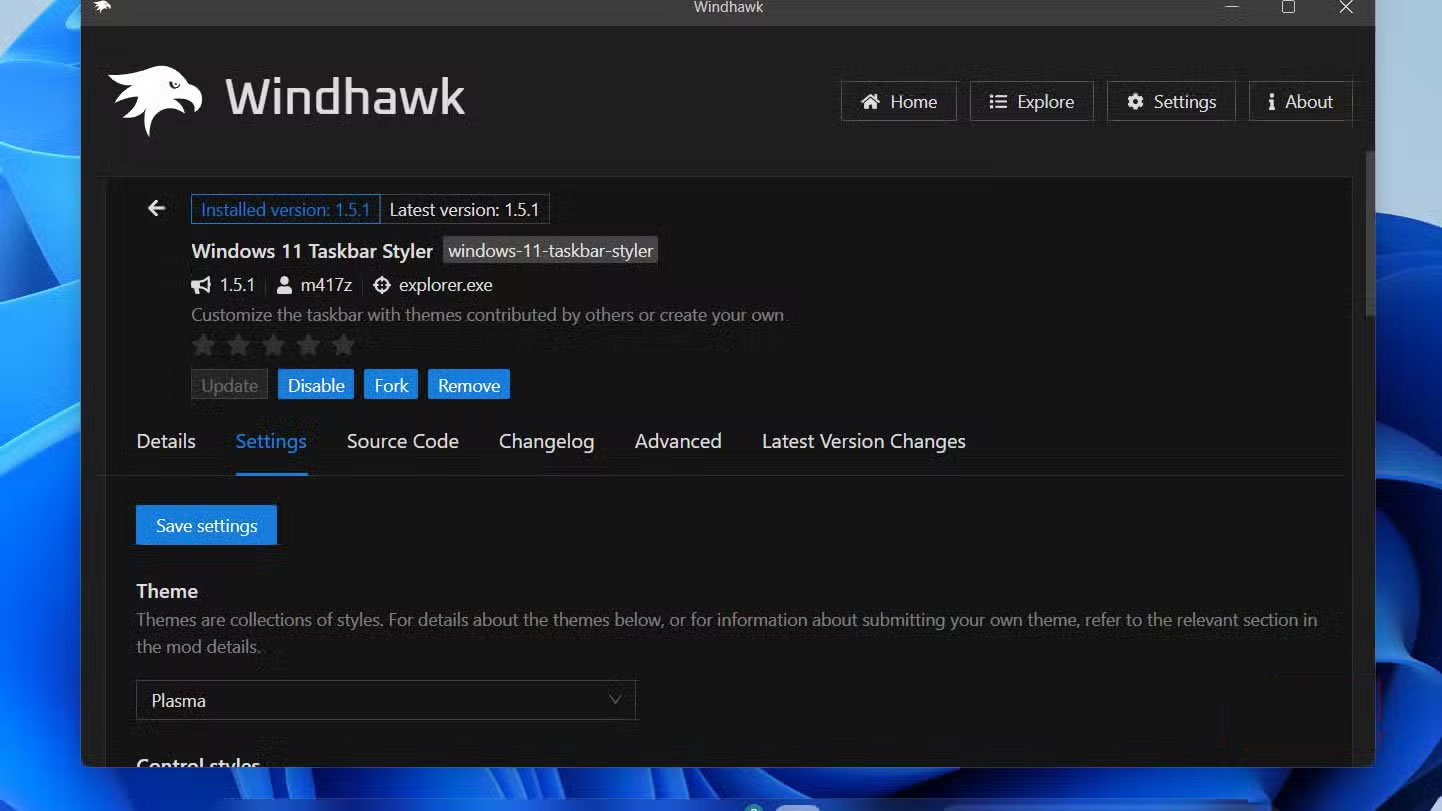
You can make your Taskbar semi-transparent with TranslucentTaskbar , give it a macOS-like dock look with DockLike , or create a super-clean minimalist look with SimplyTransparent . And if you're feeling nostalgic, you can even revive classic designs from Windows 7, Vista, or Windows XP, complete with their signature buttons and color schemes.
3. Hide unwanted icons on the Taskbar
Show only what matters
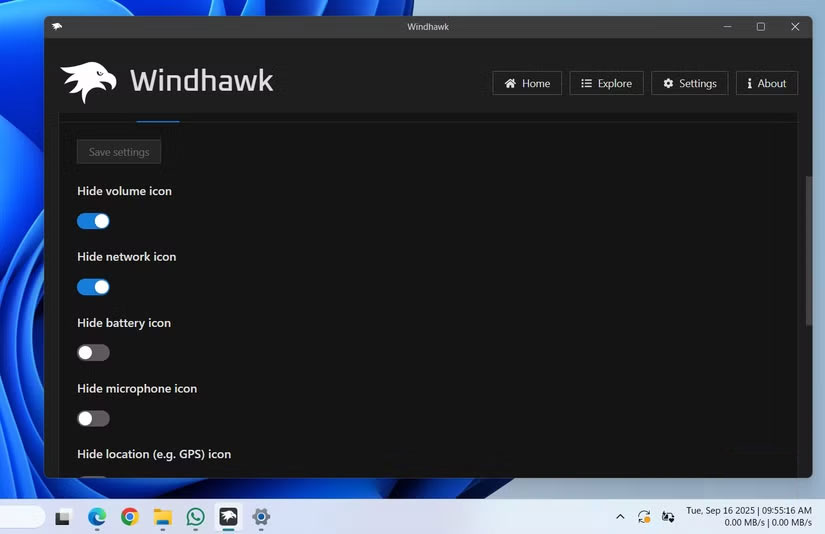
By default, the Windows 11 Taskbar displays a number of system icons like network, battery, volume, etc. It even adds microphone and camera indicators when an app is using them. While some of these indicators can be useful, others are just a distraction.
Windhawk's Taskbar tray system icon tweaks Module gives you complete control over what appears in the corner of the Taskbar. You can selectively hide unnecessary system icons for a cleaner, less distracting interface.
2. Middle click to close the application immediately from the Taskbar
No right-click menu or additional steps required
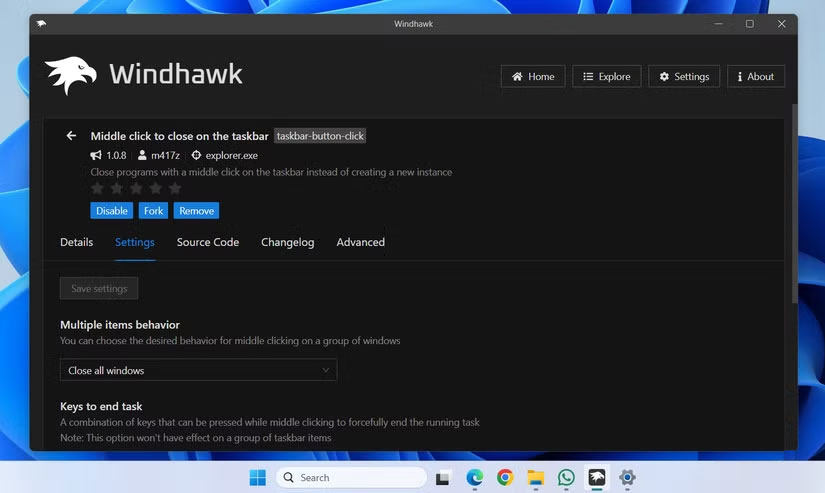
Windhawk's Middle click to close on the taskbar Module makes this process much faster. With it, you can simply hover over any running application on the Taskbar and middle-click to close it immediately. You can tweak the application's behavior, choosing to close all instances of the application or just the active window. And if You should force-close a stubborn program, hold down Ctrl While Middle-clicking its icon.
1. Add important performance metrics on the Taskbar
Quickly view CPU, RAM, and network usage
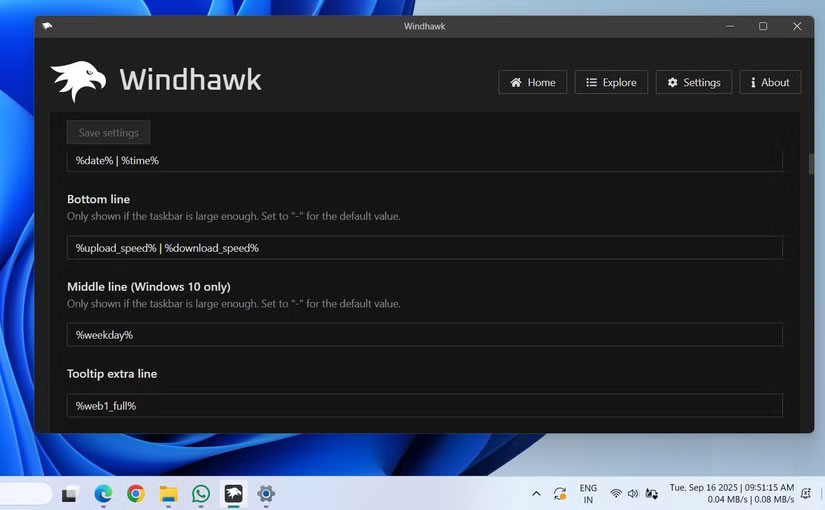
The Windows 11 taskbar is pretty, but it doesn't provide much information. To check your computer's performance, you usually have to open Task Manager or a separate monitoring app. A few clicks is enough when all you want is a quick look at your system's health.
Windhawk solves this problem with the Taskbar clock customization Module. This module lets you pin real-time system statistics like CPU usage, RAM consumption, or network speed directly to the Taskbar. You can also add additional information like the weather, day of the week, or even news headlines for quick, at-a-glance updates.
FAQ
What should you know about windhawk?
In practical terms, windhawk offers modules to fix almost everything you find annoying about the Taskbar, from the lack of styling options to the lack of features that come standard.
Why does windhawk matter?
The article highlights that windhawk offers modules to fix almost everything you find annoying about the Taskbar, from the lack of styling options to the lack of features that come standard.
What is the main takeaway?
The main takeaway is that and if you're feeling nostalgic, you can even revive classic designs from Windows 7, Vista, or Windows XP, complete with their signature buttons and color schemes.
Related Articles
 How to Change the Windows 11 Taskbar Icon Size to 32x323 minutes read
 Essential Mods That Make Windows 11 More Useful7 minutes read
 7 Free Apps That Will Make People Love Using Windows Again: Practical Guide7 minutes read
 This Windows 11 Mod Lets You Have Tons of Useful Information4 minutes read
 6 Free Tools to Make Windows File Explorer Better: Practical Guide5 minutes read
 Must-Have Windows Desktop Visual Enhancement Tools7 minutes read
Reader Comments 0
Sign in with email or Google to join the discussion.