Table of Contents
Most Windows users can start with the protection already built into Windows. Windows Security includes Microsoft Defender Antivirus; a separate antivirus app may make sense if you need a particular feature or already use a trusted security suite. Choose one real-time antivirus product, keep Windows updated, and download software only from its official source.
See the Windows Security guide for the built-in protection settings, or the malware protection guide for safe scanning steps.
Windows Security and Microsoft Defender
Microsoft Defender Antivirus is included with Windows 10 and Windows 11. Windows Security lets you review virus protection, firewall status, app controls and other safeguards. For many home users, the built-in protection is a reasonable starting point when Windows is supported and receives updates. Windows 10's free support ended on October 14, 2025; eligible devices can enroll in Microsoft's Extended Security Updates, or users can move to a supported Windows release.
Open Windows Security from the Start menu and select Virus & threat protection to check status or start a scan. A green status is useful, but it does not prove that a device is free of every threat.
Third-party options to compare
Product editions, included features and availability can change by country and over time. Check the vendor's current product page before installing, and distinguish free basic protection from paid extras such as identity monitoring, a VPN or parental controls.
- Bitdefender Antivirus Free for Windows: a basic Windows-focused option. Review the current feature list and system requirements on Bitdefender's official site.
- Avast Free Antivirus: offers a free Windows edition; read its setup screens and privacy choices carefully.
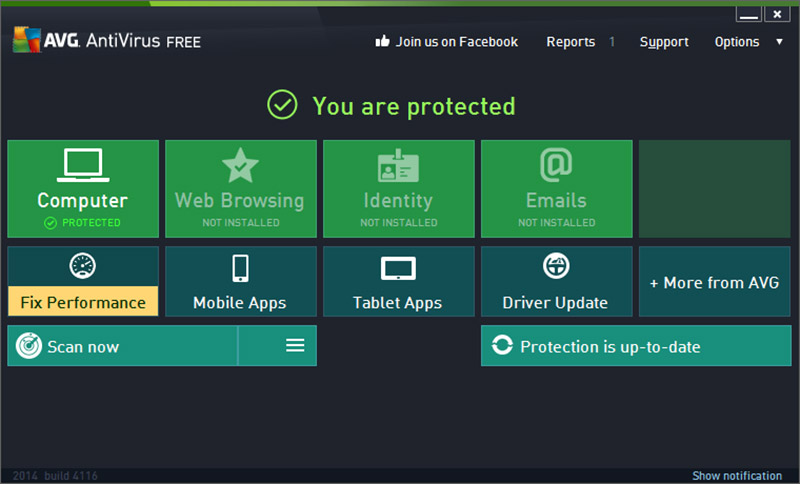
- AVG AntiVirus Free: another free Windows option. Compare its current features with Avast's, since both are owned by the same parent company and their offerings may overlap.
- Avira Free Security: check which components are included in the free edition and which require an upgrade.
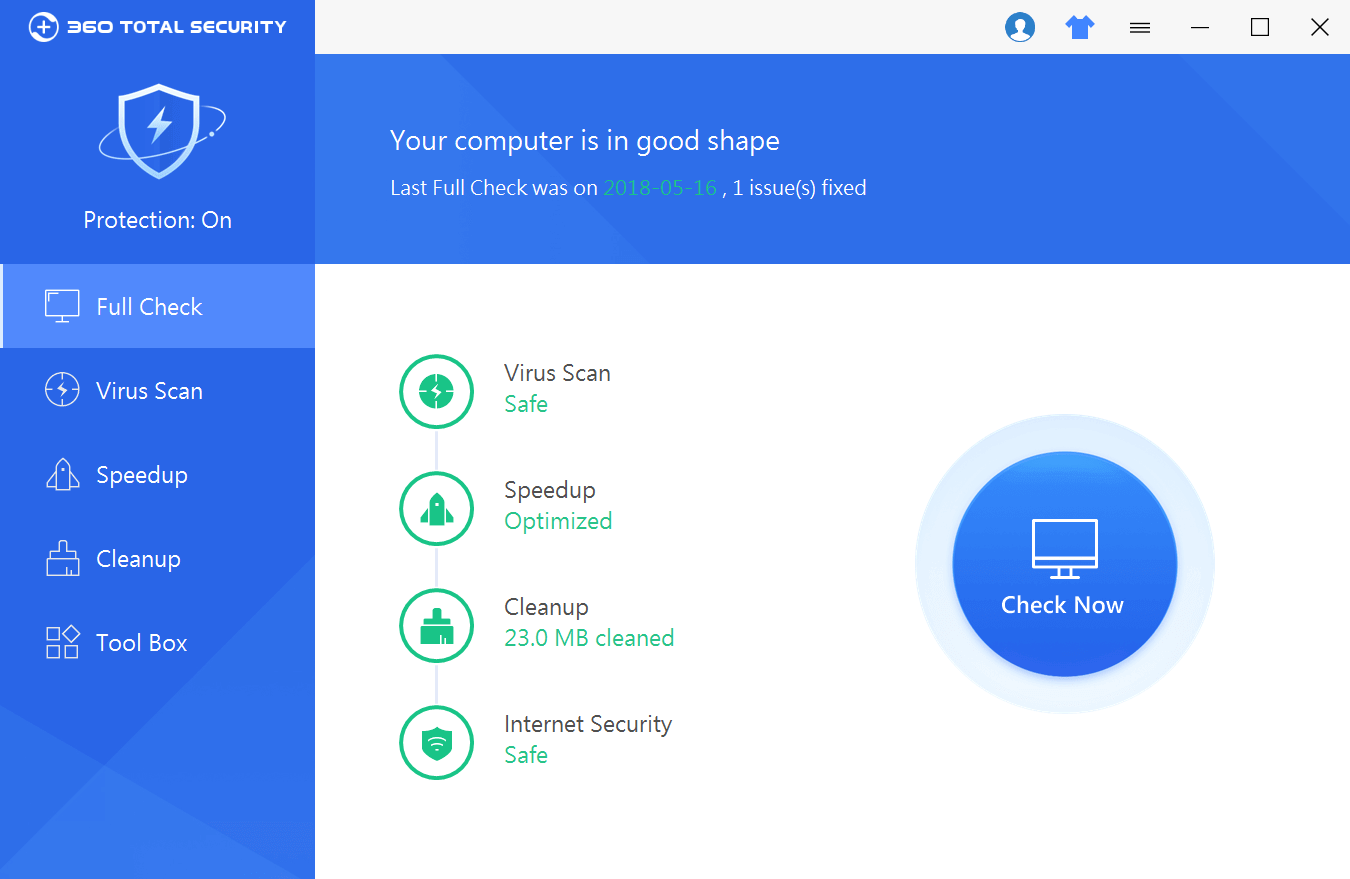
This is a practical shortlist, not a lab-test ranking. Independent test results apply to specific product versions and test dates, so avoid treating old scores as a current guarantee. Older descriptions of Kaspersky's free tier or Qihoo 360's features may no longer match local availability; verify current details and applicable restrictions before considering them.


How to choose and install safely
- Decide whether Windows Security already meets your needs. Avoid installing another app just because a pop-up claims the PC is infected or slow.
- If you choose third-party protection, download it from the vendor's official website or Microsoft Store. Check the publisher and product name before running the installer.
- Read each setup screen; decline bundled extras you do not want. Review privacy settings after installation.
- Do not run multiple real-time antivirus products together. Windows may turn off Defender's real-time protection when a compatible third-party product is active.
- Keep Windows, browsers and security software updated. If you suspect malware, see the guide to online virus scanners for second-opinion checks, and treat scanner results cautiously.
Antivirus software cannot guarantee safety or make an unsupported operating system secure. Updates, careful downloads, unique passwords and backups remain important parts of protecting a PC.
Related Articles
 Top free antivirus software, no bloatware and requires upgrade to free of distractions
 Top free antivirus software for Windows
 Should you choose free or paid antivirus software?
 7 Best Free Antivirus Software for Mac
 Free 6-month license for McAfee AntiVirus Plus 2018 antivirus software, priced at $ 55
 5 things to consider before buying antivirus software
Reader Comments 0
Sign in with email or Google to join the discussion.