Table of Contents
You can connect many game controllers to a Windows PC with a USB cable, Bluetooth, or a compatible wireless adapter. The exact steps and features depend on the controller model and the game. After pairing, check the game’s input settings; a controller can connect to Windows but still need configuration in the game or launcher.
Connect over Bluetooth
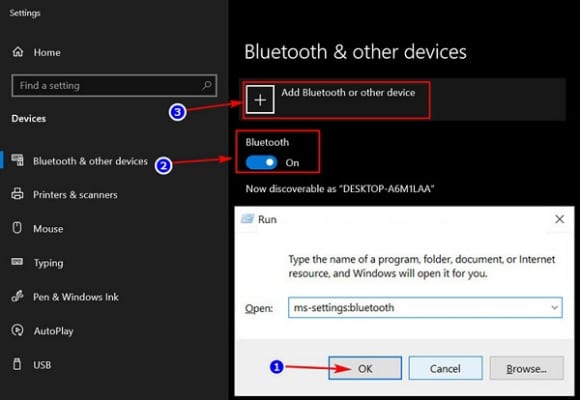
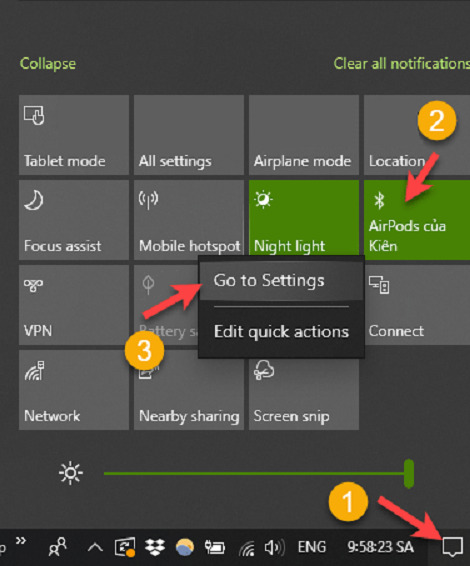
- Open Settings in Windows and go to Bluetooth & devices. Turn Bluetooth on. If the PC has no Bluetooth, use a compatible USB Bluetooth adapter.
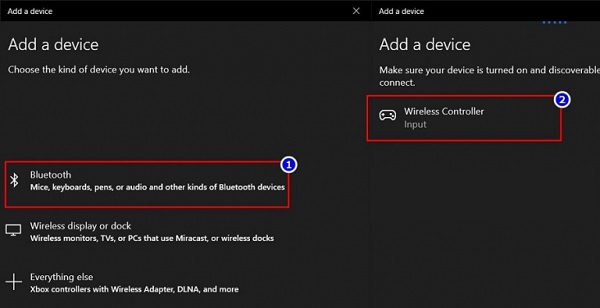
- Choose Add device, then select Bluetooth.
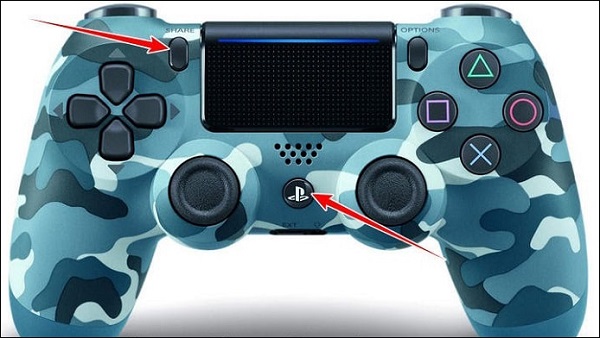
- Put the controller into pairing mode using the button or button combination in its manual. The indicator usually flashes while it is discoverable.
- Select the controller when it appears in Windows and wait for pairing to finish. If it does not appear, move it closer, disconnect it from other devices, and try pairing mode again.
Connect with a USB cable
Use a cable that fits the controller and supports data, then connect it to the PC. Some USB cables only charge and will not let Windows detect the controller. Windows may install a driver automatically; if the device is not recognized, try another USB port and consult the controller maker’s support instructions.
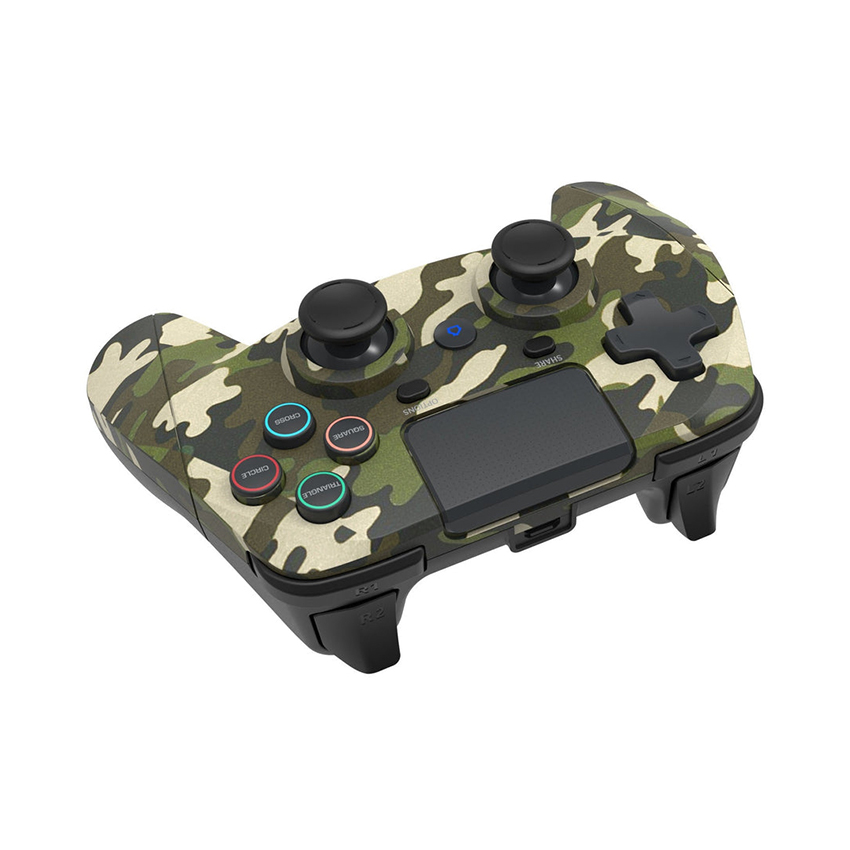
Use a wireless adapter
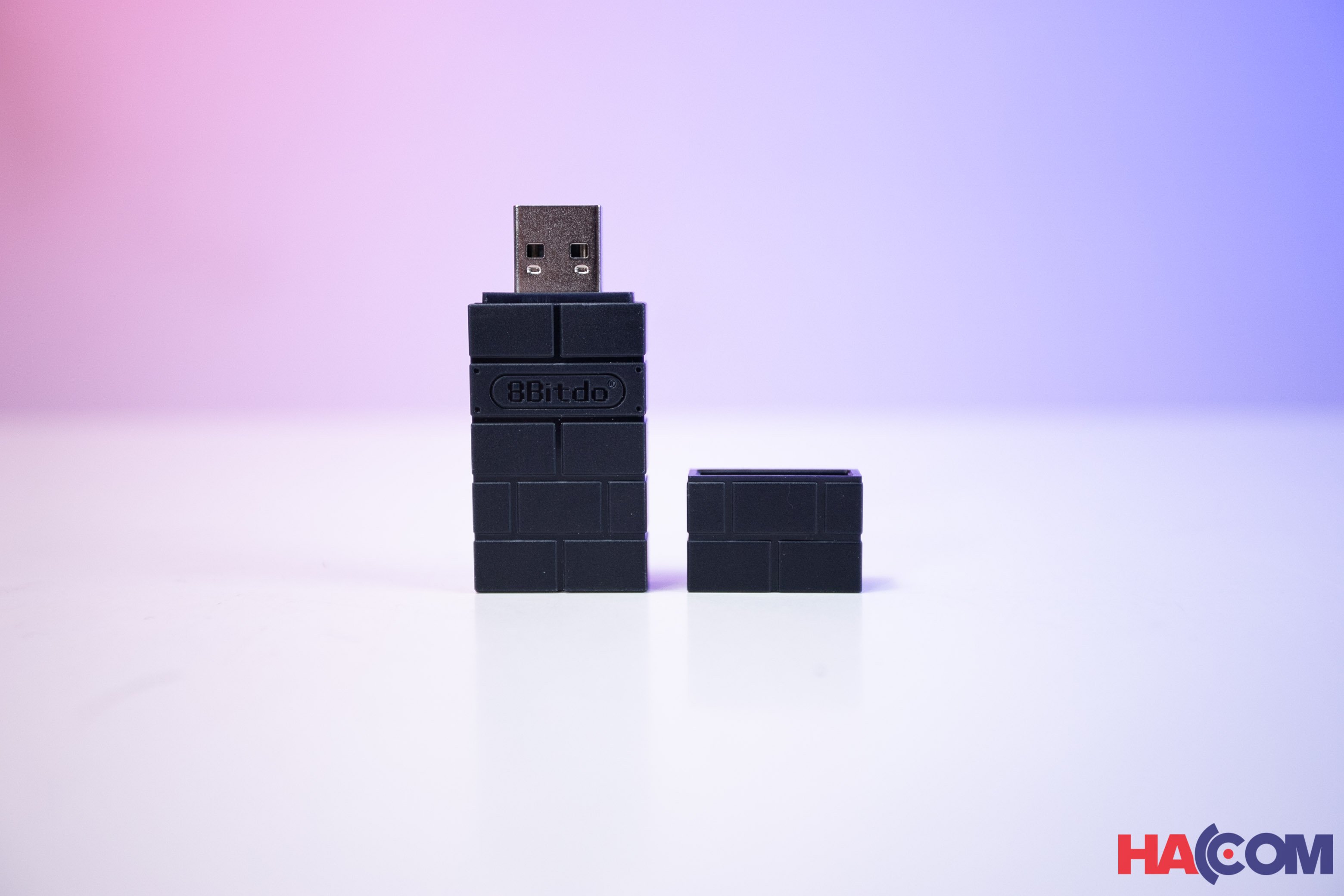
Some controllers support a dedicated USB receiver. Confirm that the adapter is compatible with the controller and Windows, connect it, and follow the manufacturer’s pairing instructions. A receiver made for one controller family may not work with another.
If the game does not respond
- Confirm Windows lists the controller as connected and that its battery is charged.
- Open the game’s controller or input settings and select the device if needed. Support varies by game and controller.
- For games launched through Steam, check the game’s controller settings and Steam Input options.
- Disconnect duplicate or unused controllers, then restart the game. Update Windows and install controller firmware or drivers only from the device maker.
Bluetooth pairing establishes the wireless connection, but it does not guarantee that every game supports every controller feature. For model-specific button combinations or compatibility details, use the controller manufacturer’s instructions.

Reader Comments 0
Sign in with email or Google to join the discussion.