Table of Contents
This updated guide compares tips to help laptop battery last longer and highlights the details that matter most. Battery life is always a concern for many Windows laptop users. If you often have to carry a charger with you or feel worried because your device runs out of battery in the middle of a task, you may have overlooked the simple but effective optimization settings built into the.
Adjusting a few system options can make a big difference. Here are five important settings tweaks It is best to check and apply right away to help your Windows laptop last longer on a charge.
1. Enable battery saving mode
Take advantage of Battery Saver to extend your usage time. You can manually enable it at any time via Settings > System > Power & Battery > Battery Saver or from the system tray.
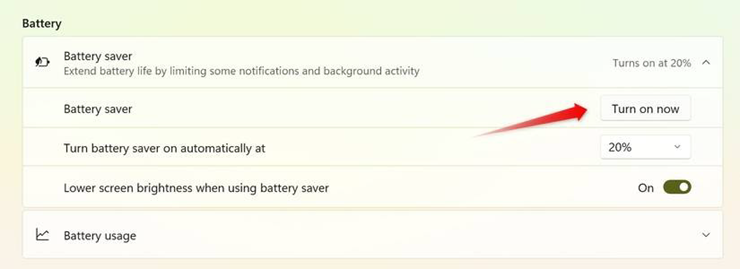
Turn on battery saving mode on laptop.
This mode will automatically reduce background activity and limit battery-draining tasks. Also, in the Power Mode section in the same settings area, select "Best Power Efficiency" instead of "Best Performance" to prioritize battery life. If you find your device slowing down significantly, you can select "Balanced" mode to balance performance and savings.
2. Adjust screen brightness
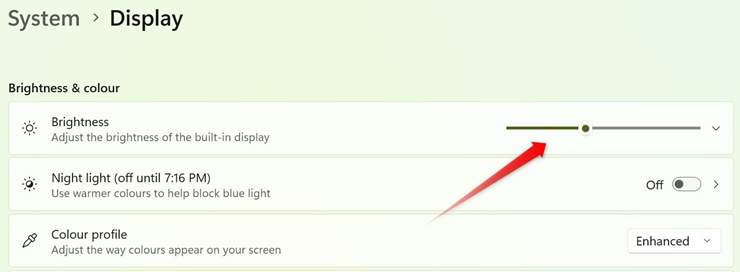
The screen is the number one battery drainer on laptops. Reduce the screen brightness to a level that is easy to see, especially when using the device indoors or at night (40-50% is usually reasonable).
To do this, open Settings > System > Display to adjust, or you can use the shortcut on your laptop keyboard (if available). If your computer has an "Adaptive brightness" feature, turn it on so that the computer can automatically adjust to the environment.
3. Shorten screen off timeout
To avoid wasting battery when you leave your phone for a short while, set your screen to turn off more quickly. open Settings > System > Power & Battery > Screen and Sleep, and set the "On battery power, turn of my screen after" option to about 5-10 minutes (or less, depending on your habits).
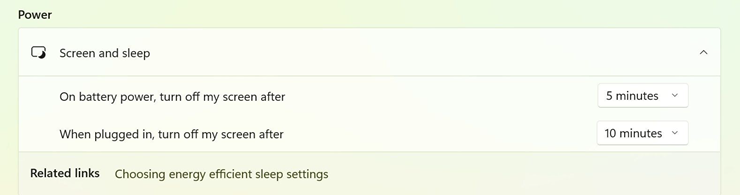
Set screen to turn off faster.
4. Clean up background apps
Many apps run in the background constantly to update, sync. and silently consume battery. Check which apps are "consuming" the most battery by going to Settings > System > Power & Battery > Battery Usage. If you find an app that is rarely used but is draining battery unusually, open Task Manager (press Ctrl+Shift+Esc), find the app's processes and select "End Task" to close them.
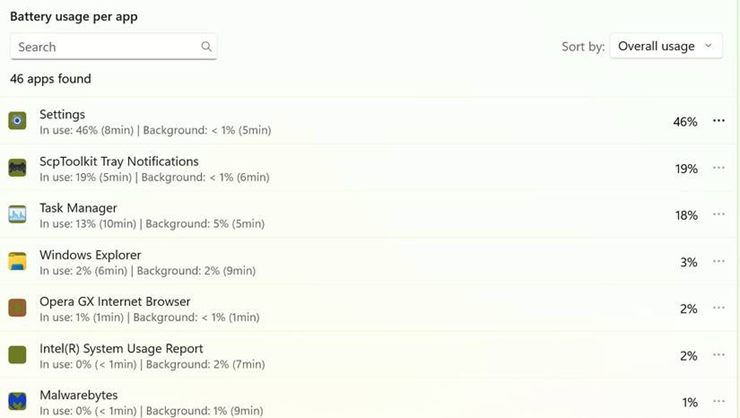
List of apps that use the most battery.
Applying these simple tweaks in sync may not turn your laptop into a more battery-powered machine, but it will definitely help improve actual usage time, helping you work and play more efficiently and seamlessly between charges.
FAQ
How were the tips to help laptop battery last longer options evaluated?
The comparison focuses on practical features, ease of use, limitations, compatibility, and the type of user each option is most likely to help.
Which option is best for beginners?
Beginners should prioritize a clear interface, useful documentation, reliable support, and the core features needed for their first project.
Should I choose a free or paid option?
Start with a free option when it covers your needs. A paid plan may be worthwhile when you need advanced tools, commercial rights, collaboration, or professional support.
Related Articles
 8 Tips to Extend Laptop Battery Life: Top Picks and Buying Guide10 minutes read
 Tips to Save Battery for Laptop, Increase Battery Usage Time7 minutes read
 How to Discharge Laptop Battery, Protect Laptop Battery Properly6 minutes read
 5 Minutes to Adjust the Laptop to Run Longer When the Battery Is Low4 minutes read
 Extend the Life of Laptop Batteries16 minutes read
 Change These Habits, Your Phone Battery Will Last Longer!8 minutes read
Reader Comments 0
Sign in with email or Google to join the discussion.